When your browser is also your workspace, a small number of well-chosen settings can make everyday work easier. This guide is for an individual remote worker deciding whether to use built-in browser features or add an extension. It is not a ranking: AILooma has not run comparative performance or privacy tests on the products below.
Start with the problem, not a list of extensions
Write down the repeated friction first: losing a tab, separating personal and work accounts, filling passwords, or getting distracted. Try the browser’s built-in controls before installing another extension. Fewer extensions mean fewer permissions and less software to review.
Four practical jobs a browser can help with
1. Keep a project’s tabs together
Chrome tab groups let you name, color, collapse, and reopen related tabs. They work well for a temporary research task such as “vendor review” or “weekly planning.” Before deleting a group, check whether it syncs to other devices on the same account. See Google’s Chrome tab-group instructions. Firefox users who need account separation can review Firefox Multi-Account Containers; containers separate cookies by context but are not a security boundary against every form of tracking.
2. Reduce repeated sign-ins safely
A reputable password manager can help create and fill unique credentials. For example, Bitwarden documents its browser extension and how to install it. Check that an extension is published by the vendor you intend to use, keep it updated, and avoid pasting a master password into a page reached through an unexpected link.
3. Review the extension’s access before installing
Read the requested permissions and ask whether they match the feature. “Read and change all your data on websites” is broad access; it may be necessary for some features, but it deserves extra scrutiny. Chrome’s developer documentation explains optional permissions and user-granted access in its permissions API guide. Prefer the narrowest access that meets your need, and remove extensions you no longer use.
4. Create a simple focus routine
Use a dedicated browser profile or a named tab group for a work block, then close or mute unrelated pages. You can also use the operating system’s notification controls. These habits need no third-party extension and are easy to reverse.
A small decision checklist
Name one recurring browser problem.
Try a built-in feature and note whether it solves that problem.
If you still need an extension, verify its publisher, update history, privacy statement, permissions, and data handling.
Install one at a time from the browser’s official store; avoid sideloaded packages unless you understand the source.
After a short trial, keep it only if the benefit is clear and the access remains acceptable.
Limits and safety notes
Feature availability changes by browser version, account type, and managed-device policy. A tab group is an organization aid, not a backup. Browser extensions can access sensitive page content according to their permissions; never assume that an extension processes data locally unless the developer’s current documentation clearly says so. On a work-managed device, follow your organization’s approved software policy.
Femica Maydinda Harend writes practical technology guides for AILooma, focusing on workflows readers can verify and risks they can assess.
Editorial note
This is a documentation-based comparison, not a hands-on review. Browser interfaces, extension permissions, and vendor policies change; confirm current details with the linked official documentation before installing software.
This guide helps a distributed team decide how to manage shared browser work: onboarding links, meeting references, and access to web applications. It is a selection framework, not a ranked list or a claim that AILooma tested products. The right choice depends on your identity system, device management, and how sensitive the pages are.
Map the handoff before choosing software
Pick one recurring handoff—for example, a support agent covering a queue after a teammate signs off. Write down what the next person needs: approved application links, current status, owner, and a secure way to sign in. Do not share a browser profile, password, or session cookie as a shortcut.
Four capabilities to evaluate
Shared links and documentation
A team wiki or approved bookmark collection is usually safer and easier to maintain than a browser extension that reads every page. Assign an owner, label links with the correct access level, and include the canonical internal documentation rather than copied sensitive content.
Identity and access
Use your organization’s identity provider and individual accounts. Confirm that access can be removed when a person changes role. Password managers can support individual credentials, but a shared vault should have role-based permissions and an administrator-approved recovery plan.
Browser profiles and managed settings
Separate work and personal sessions with browser profiles when that reduces accidental account mixing. For company devices, ask IT whether profiles, synchronization, and extensions are governed centrally. A profile is an organizational boundary, not a substitute for endpoint security or access control.
Extension policy
Set a small approved extension list and a review owner. Before approving an extension, inspect publisher, permissions, data collection, update history, and removal process. Chrome’s permissions documentation explains how extensions can request access; broad access to site data should have a clear business reason.
Example: a meeting-to-action handoff
Store the meeting agenda and approved project links in the team’s existing workspace.
Assign an individual owner to capture decisions and follow-up items.
Record only the minimum information needed for the next shift.
Give the next person access through their own account and remove access when the task ends.
Review whether the handoff reduced missed context without increasing sensitive data copied into notes.
Selection checklist
Does the tool solve a documented handoff problem?
Can each user use an individual identity?
Can an administrator review access, exports, retention, and deletion?
Do permissions match the feature, and can the tool be removed cleanly?
Is there a manual fallback if the service is unavailable?
Privacy and operational limits
Browser-synced bookmarks or tab collections may expose work URLs across devices signed into the same account. Do not store secrets, customer data, or access tokens in link titles or notes. Confirm your organization’s retention, device, and account policies before enabling sync. A browser add-on is not an access-control system.
Femica Maydinda Harend writes practical technology guides for AILooma focused on workflows, trade-offs, and checks readers can apply to their own environment.
Editorial note
Product features and administrative controls vary by plan and change over time. This article compares evaluation criteria from public documentation; it does not claim hands-on testing or certify a product as secure.
Small teams often lose time because a task’s context lives in one person’s open tabs. This guide shows how to make an asynchronous handoff using ordinary team documents and individual accounts. It is about ownership and continuity—not browser-extension rankings or measured productivity gains.
Build a handoff card
For a recurring task, use a short shared record with five fields: task, current status, next action, owner, and source links. Keep the record in the team’s approved workspace. Link to the source system instead of pasting customer records, credentials, or private messages into a second location.
Use a repeatable browser routine
Open the task’s approved workspace and source application using your own account.
Group related tabs or save a bookmark folder with descriptive names.
Update the handoff card before ending the work session.
State what has not been checked yet; do not imply that an unfinished task is complete.
Close sensitive pages and sign out on shared or borrowed devices.
Decide what belongs in a handoff
Include enough information for a teammate to continue without recreating the investigation: the question being answered, links to authoritative records, decisions already made, and the next reversible step. Exclude passwords, session links, personal data that is not necessary, and unverified summaries from AI tools.
Choose browser features carefully
Built-in tab groups and bookmarks can organize a temporary project. Chrome documents how groups can be named, collapsed, and synced in its tab-management guide; remember that sync can carry group state to other devices on the same account. If your team needs governance or audit trails, choose an approved workspace or identity tool instead of assuming browser sync provides them.
A low-risk pilot
Try the routine on a non-sensitive task for one work cycle. At the end, ask the receiving teammate whether the owner, status, next action, and source links were clear. Revise the card based on missing information. This is a local process check, not evidence of a general performance improvement.
Common failure modes
Links without context: say what each link is for and which source is authoritative.
Shared login: use individual accounts and approved delegated access.
Stale bookmarks: assign an owner and remove links when a tool or process changes.
Oversharing: store the minimum data needed and respect access boundaries.
No fallback: document the manual next step when an application or integration is down.
Copyable handoff card
Keep the handoff in the team’s approved workspace, not in an extension that silently collects every open page. A compact card can contain:
Task and owner: what is being handed off and who accepts it.
Current state: the last completed step and the next requested action.
Source links: only the minimum approved pages needed to continue; do not paste credentials, tokens, or sensitive customer content into link names.
Open questions: what remains uncertain and who can resolve it.
Access and expiry: the individual account or approved group that can view the workspace, and when access should be reviewed or removed.
Run the handoff as a reversible pilot
Choose one recurring process, assign a sender and receiver, and use the same card for a few handoffs before changing team software. The receiver should be able to identify the next action without the sender narrating missing context. Record missed fields, access friction, and sensitive data copied unnecessarily; change the template, not the permission boundary, when the handoff is unclear.
Common failure cases include a stale link, an inaccessible document, a missing owner, a handoff that contains more information than the next person needs, and an extension or profile that syncs work context to a personal account. Provide a manual fallback and remove temporary access when the task ends. This article covers one repeatable async handoff; the distributed-team selection framework compares how teams choose browser tooling.
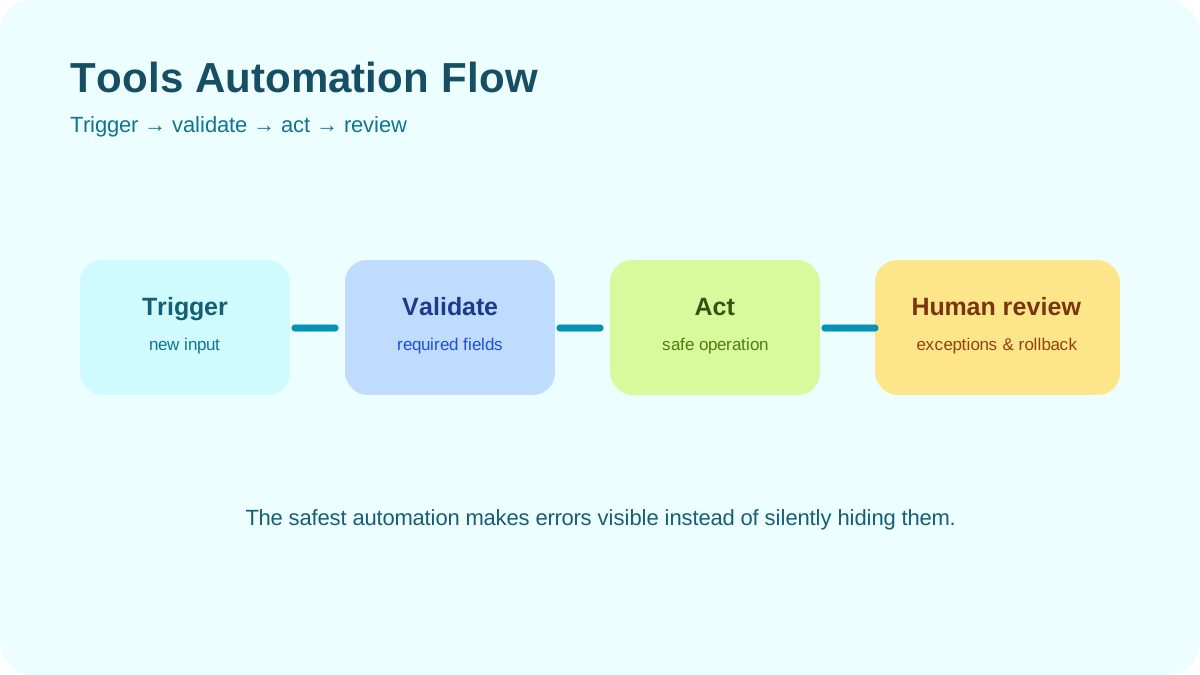
Tools Automation Flow. Move from trigger to validation, safe action, and human review.
AI tools change quickly, but the process for learning them can remain stable. This guide provides a practical workflow for evaluating a new AI tool, learning its core features, testing it with realistic examples, and deciding whether it belongs in your work.
Quick answer
Begin with one task, use non-sensitive sample data, read the official documentation, and create a small test set. Compare the AI output with a trusted source, document failures, and check export, privacy, pricing, and permission controls before adopting the tool.
Best for: professionals comparing writing, research, design, meeting, coding, or automation tools.
Why task-first evaluation works
A feature list does not show whether a product fits your workflow. Start by writing down the job you need completed, the acceptable input, the expected output, and the person responsible for checking it. This prevents a polished demonstration from becoming a substitute for evidence.
For example, “help with research” is too broad. “Extract the main claims from five public documents and provide a link to the source of each claim” is testable. The clearer task also exposes whether the tool supports citations, structured output, and correction.
Step 1: Check the official product information
Use the vendor’s documentation to confirm supported platforms, account requirements, current plan limits, data controls, and export options. Do not rely on an old tutorial for pricing or interface details. Save the documentation links you used and record the date of the evaluation.
For workplace use, review whether administrators can control sharing, retention, integrations, and access. A tool that is acceptable for public marketing copy may be inappropriate for customer records, contracts, source code, or internal strategy.
Step 2: Define a representative test set
Create several examples from the type of work you actually perform, but remove personal or confidential information. Include normal cases, incomplete inputs, contradictory information, and a request the system should refuse or mark as uncertain.
Write the expected result before running the test. Without a reference point, users tend to reward fluent wording even when the output is incomplete or wrong.
Step 3: Learn the smallest useful workflow
Ignore advanced integrations at first. Learn how to create a task, provide context, revise an instruction, inspect sources, export the result, and delete test data. Complete the same workflow several times before adding templates or automation.
If the tool supports reusable instructions, keep them short and versioned. Explain the intended audience, required format, evidence rules, and prohibited actions. Test changes against the same examples so you can identify regressions.
Step 4: Evaluate accuracy and usefulness separately
An output can be readable but inaccurate, or accurate but unusable. Score factual support, completeness, format compliance, clarity, and the amount of human correction required. For research tasks, open every important source. For calculations, reproduce the result independently.
Use AILooma’s practical framework for evaluating AI answers when the output may inform a decision. Keep examples of failures; they are essential for defining where human review is required.
Step 5: Inspect privacy and permissions
Before uploading real data, confirm what the service stores, who can access shared workspaces, whether inputs may be used to improve models, and how deletion works. Settings differ between products and plans, so use the current official privacy and administration pages.
Give integrations the minimum permission required. Avoid granting access to an entire mailbox, drive, repository, or customer database when a limited folder or test account will work. AILooma’s guide to protecting sensitive data when using AI tools covers this decision in more detail.
Step 6: Test interoperability and recovery
Export a result in a format you can use without the product. Check whether links, formatting, comments, and structured fields survive. If the tool creates automations, test duplicate events, invalid inputs, rate limits, and service outages.
Document how to disable the integration and revoke credentials. A tool is easier to adopt responsibly when leaving it is also straightforward.
Step 7: Measure a real baseline
Complete the task manually and record the time, corrections, and final quality. Then repeat with the AI-assisted workflow. Do not publish a percentage improvement from a single trial. Use enough repetitions to understand normal variation and include review time in the comparison.
Examples of task-specific learning
Writing and editing
Test whether the tool can transform a supplied draft while preserving facts, citations, tone, and required terminology. Compare edits line by line and retain the human-approved original.
Research
Require links to primary sources and reject unsupported claims. A research assistant should help locate and organize evidence, not become the evidence.
Design
Check licensing, provenance, accessibility, editable exports, and consistency across variations. Canva documents its AI tools and current usage limitations in its official help center.
Workspace assistance
For products such as Notion AI, test permissions with a small workspace and read the current help documentation. Confirm which connected sources the assistant can search and which account plan controls availability.
Automation
Keep a human approval step before external messages, publication, purchases, deletion, or permission changes. Log the input, output, tool call, failure, and approval.
Adoption checklist
The task and owner are defined.
Official documentation and current plan terms were reviewed.
Tests use safe, representative data.
Important claims are independently verifiable.
Permissions follow least privilege.
Check whether the tool supports export and deletion, then verify both controls using non-sensitive sample data before relying on them.
Failure handling and rollback are documented.
The benefit remains after review time and subscription cost are included.
Final takeaway
Learning an AI tool is not about mastering every button. It is about understanding one workflow well enough to predict its value, detect its failures, and maintain control. A disciplined evaluation makes product changes less disruptive because your method survives when the interface does not.
Practical example: a one-hour evaluation of a new AI tool
Before adopting an unfamiliar AI service for work, use a small test pack rather than a single impressive prompt. Include one normal request, one ambiguous request, one request containing a deliberate factual trap, and one request that contains sensitive information replaced with safe placeholders.
Record the tool version, plan, usage limits, and data-retention description.
Run the same test pack twice to see whether results are stable.
Check citations, export quality, error handling, and whether the tool clearly signals uncertainty.
Inspect permissions and revoke access that is not needed for the test.
Decide whether the tool is suitable for production, limited experiments, or neither.
Save the test notes and a redacted output sample. A repeatable evaluation record helps a team explain why it adopted a tool and gives it a baseline for checking future updates.
Practical verification and limits
Use a representative test set, score accuracy and editing effort, review retention and permissions, and run a limited pilot before connecting sensitive work.
Editorial review and limitations
Reviewed by Femica Maydinda Harend. Recommendations are based on documented behavior and reproducible checks. Tools, models, and policies can change; verify current details before acting.
Tools Automation Flow. Move from trigger to validation, safe action, and human review.
If your Windows PC feels unusually slow, freezes at random, or crashes without a clear reason, the first step should be diagnosis—not guessing.
Windows already includes several useful diagnostic tools, and Microsoft also provides free utilities through Sysinternals. Combined with a few reputable third-party tools, you can investigate CPU usage, memory pressure, disk activity, startup programs, drivers, storage health, and crash information without paying for diagnostic software.
This guide covers 7 free Windows tools you can use to diagnose a slow or unstable PC, what each one is good at, and how to use them as part of a practical troubleshooting workflow.
1. Windows Performance Monitor (PerfMon)
Performance Monitor, commonly opened with perfmon.msc, is a built-in Windows tool for collecting and reviewing system performance data over time.
Unlike Task Manager, which is mainly useful for a quick snapshot, Performance Monitor can log counters for longer periods. That makes it useful when a slowdown or freeze happens intermittently and disappears before you can inspect it.
What PerfMon Can Help You Investigate
You can monitor areas such as:
CPU utilization;
available memory;
disk activity;
system uptime;
process-level performance;
network counters.
Create a Custom Data Collector Set
To create a basic logging session:
Press Win + R.
Type perfmon.msc and press Enter.
Open Data Collector Sets → User Defined.
Right-click and choose New → Data Collector Set.
Select Create manually.
Add the performance counters you want to monitor.
Useful starting counters may include:
Processor(_Total)\% Processor Time
Memory\Available MBytes
PhysicalDisk(_Total)\Avg. Disk Queue Length
System\System Up Time
Run the collector while reproducing the problem, then review the resulting log afterward.
How to Interpret the Results
A single spike is not always meaningful. Look for sustained patterns that correlate with the slowdown.
For example:
CPU usage that remains unusually high;
available memory becoming very low during the issue;
disk activity rising sharply while applications stop responding;
a specific process gradually consuming more resources over time.
Microsoft provides more information about Performance Monitor and Windows performance tools in its official documentation.
2. Process Explorer
Process Explorer is part of Microsoft’s Sysinternals utilities.
It provides a more detailed process view than the standard Task Manager and can help you understand which processes are consuming resources or loading particular files and modules.
Useful Information Available in Process Explorer
Depending on the process and your permissions, you can inspect:
CPU and memory usage;
parent and child processes;
command-line arguments;
open handles;
loaded DLLs;
threads;
digital signatures.
Use the Process Tree
The process tree is particularly useful when an application launches multiple child processes.
Instead of seeing several unrelated process names, you can understand which application started them.
This can help when investigating:
browser processes;
background updaters;
development tools;
services;
unexpected processes.
Check Suspicious Processes Carefully
Process Explorer can integrate with VirusTotal for additional reputation information.
A VirusTotal result is useful context, but it should not be treated as absolute proof that a file is safe or malicious.
3. Autoruns
Autoruns is another Microsoft Sysinternals tool that shows many locations Windows uses to automatically start programs, services, drivers, scheduled tasks, and other components.
This makes it useful when a PC has:
slow startup;
too many background utilities;
unexpected processes after login;
software conflicts;
suspected persistence from unwanted software.
Start With Non-Microsoft Entries
Autoruns contains a large amount of information, so do not disable items randomly.
A safer starting approach is to enable the option that hides Microsoft entries and then review third-party items.
Look at:
publisher;
file path;
digital signature;
whether you recognize the software;
whether the application is still installed and needed.
Disable Before Deleting
If you want to test whether an entry causes a problem, disable it first instead of deleting it.
This makes it easier to reverse the change if the issue remains or another application stops working.
Resource Monitor, opened with resmon.exe, provides a real-time view of CPU, memory, disk, and network activity.
I find it most useful when the problem is happening right now and you want to see which process is actively using a resource.
Use the Disk Tab for Slow Storage Activity
The Disk tab shows which processes are reading and writing data and which files they are accessing.
This can help you identify whether a slowdown is associated with:
Windows Update;
search indexing;
cloud synchronization;
antivirus scanning;
a large application database;
another process performing heavy disk activity.
Use the Network Tab for Background Traffic
The Network tab shows network activity by process.
If the internet connection feels slow or a background application is uploading or downloading unexpectedly, this view can help identify the process involved.
Understand Hard Faults Carefully
The Memory tab includes a Hard Faults/sec metric.
A hard fault does not automatically mean hardware failure. It means Windows had to retrieve memory data from disk because that data was not currently available in physical RAM.
A high rate can indicate memory pressure, but the value should be interpreted together with available memory, committed memory, application behavior, and overall system responsiveness.
5. BlueScreenView
If Windows crashes with a Blue Screen of Death, the system may create a memory dump containing information about the crash.
BlueScreenView from NirSoft provides a relatively simple way to inspect Windows minidump files.
Depending on the drive, you may see information such as:
drive temperature;
power-on hours;
reallocated sectors;
interface errors;
vendor-specific wear indicators;
overall health status.
Do Not Use One Universal Threshold for Every Drive
S.M.A.R.T. attributes differ between manufacturers and between HDDs and SSDs.
A raw value that looks concerning on one model may be interpreted differently on another.
If CrystalDiskInfo reports Caution or Bad, treat that as a reason to investigate and back up important data immediately.
For exact interpretation, check documentation from the drive manufacturer when available.
Interface Errors Can Also Matter
Some S.M.A.R.T. data may indicate communication problems rather than internal drive failure.
For example, on a SATA system, repeated interface errors can sometimes be associated with:
a damaged cable;
a loose connection;
a controller issue.
This is why storage diagnostics should consider the entire storage path, not only the drive itself.
7. Windows Memory Diagnostic
Unstable memory can cause difficult-to-reproduce problems such as application crashes, installation failures, freezes, or blue screens.
Windows includes a basic memory test called Windows Memory Diagnostic.
How to Run It
Press Win + R.
Type mdsched.exe.
Select the option to restart and check for problems.
Save your work before restarting.
The test runs outside the normal Windows desktop environment and checks system memory for errors.
A Passing Test Does Not Guarantee Perfect RAM
Windows Memory Diagnostic is useful as an initial check, but intermittent memory problems can be difficult to reproduce.
If you continue seeing symptoms strongly associated with RAM even after the built-in test passes, you may need a more extensive memory-testing process or hardware troubleshooting.
If the Test Finds Errors
Possible causes can include:
a faulty memory module;
poor seating in the memory slot;
incompatible memory settings;
overclocking or unstable memory profiles;
a motherboard or memory-controller problem.
Do not immediately assume the RAM module itself is the only possible cause.
A Practical Diagnostic Workflow
You do not need to launch all seven tools every time.
Start with the symptom and work from the simplest observation toward deeper analysis.
Phase 1: Quick Triage
Open Resource Monitor while the slowdown is happening.
Check CPU, memory, disk, and network activity.
Open Process Explorer if a specific process needs deeper inspection.
Check CrystalDiskInfo if storage behavior looks suspicious.
Phase 2: Investigate Recurring Problems
Use Performance Monitor to collect data over time.
Review Autoruns for unnecessary or suspicious startup components.
Check recent software and driver changes.
Phase 3: Investigate Crashes
Check whether Windows created minidump files.
Review them with BlueScreenView for initial clues.
Look for repeated patterns across multiple crashes.
Use deeper debugging tools when necessary.
Phase 4: Check Memory
If symptoms include random crashes, corrupted data, or unexplained instability, run Windows Memory Diagnostic.
Important Safety Notes
Most tools in this guide are primarily diagnostic, but some allow you to terminate processes or disable startup components.
Before changing anything:
save important work;
create backups when appropriate;
document what you disable;
avoid disabling Windows components you do not understand;
download third-party utilities only from their official websites.
Frequently Asked Questions
Can I use these tools on Windows 11?
The built-in Windows tools covered here are available on current Windows systems, while Process Explorer and Autoruns are maintained through Microsoft Sysinternals.
For BlueScreenView and CrystalDiskInfo, check the current compatibility information on their official websites before downloading.
Are these tools safe?
The diagnostic functions themselves are generally safe when the tools are downloaded from official sources and used correctly.
However, some tools allow actions that can affect the running system.
For example:
Process Explorer can terminate processes;
Autoruns can disable startup entries;
administrative access exposes more sensitive system information.
Use those features carefully.
Do I need technical expertise?
You can use Resource Monitor, CrystalDiskInfo, and basic Process Explorer features without advanced Windows knowledge.
Performance counters, crash dump analysis, drivers, and kernel-level troubleshooting require more interpretation.
If you are unsure about an entry or driver, research it before disabling or removing anything.
What if none of these tools identify the problem?
Additional troubleshooting may include:
checking Event Viewer;
installing Windows and driver updates;
using a clean boot to isolate software conflicts;
checking system files with Microsoft’s supported repair tools;
running manufacturer hardware diagnostics;
testing components individually when hardware failure is suspected.
If the system contains important data and appears to have a failing drive, prioritize backups before continuing extensive testing.
How This Guide Was Prepared
This guide focuses on free diagnostic tools that provide direct visibility into common Windows performance and stability problems.
Because Windows, device drivers, storage firmware, and third-party utilities change over time, exact menus and available features may differ between versions.
Where possible, use current Microsoft documentation and official vendor download pages when installing or configuring diagnostic tools.
Final Takeaway
A slow or unstable Windows PC is easier to troubleshoot when you stop treating every symptom as the same problem.
Each tool in this guide answers a different question:
Performance Monitor: What is happening over time?
Process Explorer: What is this process actually doing?
Autoruns: What starts automatically with Windows?
Resource Monitor: Which resource is busy right now?
BlueScreenView: What information is present in recent crash dumps?
CrystalDiskInfo: What health information is the drive reporting?
Windows Memory Diagnostic: Can the built-in memory test detect an error?
Start with the symptom, collect evidence, change one thing at a time, and verify whether the change actually affects the problem.
That approach is usually more reliable than installing cleanup utilities, changing random settings, or replacing hardware before you know what is wrong.
Practical example: diagnosing a slow Windows PC safely
Begin with observation before changing settings. Record when the slowdown occurs, which applications are open, and whether disk, memory, CPU, or network usage changes at the same time.
Reproduce the problem and note the time and workload.
Use built-in Task Manager and Reliability Monitor to identify patterns.
Install updates and restart before applying advanced changes.
Change one setting at a time and record the result.
Create a recovery point or backup before risky troubleshooting.
This process produces evidence for a repair decision and reduces the chance of disabling a protection while chasing a symptom.
Practical verification and limits
Start with built-in diagnostics, record evidence before changing settings, download only from official sources, and stop for hardware warning signs such as drive failure or extreme heat.
Editorial review and limitations
Reviewed by Femica Maydinda Harend. This guidance favors reproducible, reversible steps. Features and policies can change, so verify current details before acting.
Tools Automation Flow. Move from trigger to validation, safe action, and human review.
A productivity system should make commitments easier to capture, choose, and complete. If maintaining the system becomes a second job, the structure is too complicated. A note app should fit the capture and retrieval routine you choose; use our note-taking software decision guide to compare that part of the system.
Quick answer
Use one trusted inbox, a short task list, a calendar for time-specific commitments, and a separate place for reference notes. Review the system regularly, remove duplicate tools, and automate only stable steps you already understand.
Best for: people whose tasks are scattered across email, chat, notes, calendars, and several productivity apps.
Why productivity systems become difficult to maintain
The common problem is not a missing feature. It is uncertainty: the same commitment exists in several places, the calendar is filled with tasks that are not appointments, and the task list contains items that are too vague to begin.
A useful system gives each tool a clear role. It should answer three questions quickly: What have I committed to? What matters next? Where is the information needed to do it?
Step 1: Audit the current workflow
Before installing another app, observe where work enters and where it gets lost. For a few normal workdays, note:
where requests arrive;
where you capture tasks;
which reminders you ignore;
which information is difficult to find;
which tasks are repeatedly copied between tools;
which interruptions cause you to lose the next action.
This is not a performance test. It is a map of friction. Look for repeated failure points rather than judging an unusual day.
Step 2: Give every tool one primary role
A simple setup can use four roles:
Inbox: a temporary place for uncategorized commitments and ideas.
Task list: actions you may choose and complete.
Calendar: appointments, deadlines, and work that genuinely belongs at a specific time.
Reference system: notes, files, procedures, and material that supports the work.
The same application can cover more than one role, but the role should remain obvious. Email can be an input channel without becoming the permanent task list. A calendar can protect focus time without becoming a wish list for every unfinished action.
Step 3: Create one trusted capture path
Choose the fastest available inbox that you can reach from the devices you use. It may be a task-manager inbox, a notes page, or a paper notebook. The important part is consistency.
Capture enough context to understand the item later. “Budget” is ambiguous; “Ask Maya which budget version the client approved” is actionable. Capture is temporary: the inbox must be processed, not allowed to become another archive.
Step 4: Turn vague work into visible next actions
Projects describe outcomes; tasks describe the next observable action. “Launch newsletter” is a project. “Confirm the sender address with the email provider” is a next action.
For each active project, identify the next action, the person responsible, and any real deadline. If work is waiting on someone else, record that explicitly instead of leaving the item mixed with actions you can perform.
Step 5: Keep the daily list small
A long backlog is useful for storage but poor for daily attention. Select a small set based on importance, available time, energy, and deadlines. Leave room for unexpected work.
Separate “must happen today” from “could do next.” If everything is marked urgent, the system cannot help you decide. Review the list when circumstances change rather than following an outdated morning plan at any cost.
Step 6: Use the calendar honestly
Place meetings, appointments, deadlines, and genuinely time-specific work on the calendar. Use focus blocks when protecting time is valuable, but do not assume every block will survive contact with the day.
When a focus block moves, update the task rather than duplicating it. Keep enough space between commitments for preparation, travel, and recovery from overruns.
Step 7: Run a regular review
The review keeps the system trustworthy. A practical review includes:
emptying capture inboxes;
checking the past and upcoming calendar;
confirming the next action for active projects;
following up on delegated work;
closing or deleting stale commitments;
choosing the most important outcomes for the next period.
The review does not need a universal duration or a particular day. It needs to happen often enough that you stop relying on memory.
Choose a small core stack
Select tools around the roles above rather than around feature lists. A task manager, calendar, notes application, and communication service are enough for many workflows. Some people can combine those roles into fewer tools; others need organization-approved systems.
Before adding an application, ask what existing tool it replaces, which friction it removes, how data will be exported, and who will maintain it. If the answers are unclear, delay the addition.
Automate only stable work
Automation is useful after a manual process is clear. Good first examples include creating a task from a labeled message, placing a recurring review on the calendar, or copying an approved form submission into the correct queue.
Keep consequential actions—sending external messages, deleting data, changing permissions, and financial activity—behind appropriate review. An automation that occasionally saves a click but frequently needs repair is not simplifying the system.
Stress-test without manufacturing chaos
Use the system during a normal busy period and record what breaks. Do not deliberately accept unnecessary meetings or unsafe workloads as a test. Instead, check whether you can recover after an interruption, find the current project state, and identify the next action without rebuilding the system.
Change one problem at a time. If capture is slow, improve capture. If the daily list is overwhelming, change selection. A complete migration makes it difficult to know which change helped.
Signs the system needs simplification
You search several apps before finding a commitment.
The same task exists in multiple places.
Tags and fields require more attention than the work.
The calendar repeatedly contains plans you never intended as appointments.
You avoid the review because it has become too large.
The system increases anxiety or hides urgent work.
Remove unused views, integrations, and categories before replacing the entire stack. Export important data and keep a rollback path during any migration.
A practical setup checklist
List every current capture location and choose one primary inbox.
Define the role of tasks, calendar, notes, and communication.
Rewrite vague commitments as next actions.
Select a realistic daily list instead of working directly from the backlog.
Schedule a recurring review.
Remove one duplicate tool or field.
After the manual workflow is stable, automate one reversible step.
Editorial review and accountability
Written and reviewed by Femica Maydinda Harend. This framework is practical guidance, not a measured claim that one routine works for every person. Adapt it to workload, accessibility needs, organizational policy, and the tools you are required to use.
Practical example: building a weekly productivity system
Use one ordinary week as your test case. Capture incoming tasks in one place, reserve two short planning sessions, and define what “done†means for recurring work. Keep the system small enough to maintain when the week becomes busy.
List commitments and assign each a next action.
Group similar work into focused blocks instead of switching constantly.
Review unfinished items at the end of the week and record why they moved.
Archive completed work so the active list stays readable.
Change one part of the system at a time and observe the result.
The goal is a repeatable habit, not a perfect dashboard. If the system requires more upkeep than the work it supports, simplify it.
Make the system resilient
A useful system should still work during a busy week. Give each tool one clear role: capture, calendar, tasks, notes, or communication. Observe your current workflow before changing apps, and keep employer or client data in an approved system. Review the inbox weekly, remove stale commitments, and simplify any view or automation that creates more maintenance than value.
Evidence that it is working
You should be able to find a commitment quickly, choose the next action, recover after an interruption, and complete a review in a short session. If the system requires constant reorganizing, reduce its complexity.
Editorial review and limitations
Reviewed by Femica Maydinda Harend. This article distinguishes documented behavior from editorial judgment and uses checks readers can reproduce. Features, prices, interfaces, and compatibility may change; verify current details before making consequential changes.
Tools Automation Flow. Move from trigger to validation, safe action, and human review.
The most useful AI productivity tool is not the one with the longest feature
list. It is the one that removes a specific bottleneck without creating more
review work, security risk, or subscriptions than it saves. This guide groups
reliable choices by job so you can test one improvement at a time.
Before choosing a tool
Define the task first: drafting, research, meeting notes, scheduling, or
knowledge retrieval. Then check whether the product supports your
data-handling requirements. Do not paste confidential client data,
credentials, medical records, or unpublished company information into a
service unless your organization has approved the account and its settings.
1. ChatGPT: flexible general assistance
ChatGPT is useful for turning rough notes into an outline, explaining
unfamiliar material, comparing options, analyzing files, and creating a first
draft. Its strength is flexibility rather than one fixed workflow.
Use it to accelerate a draft, then verify factual claims and sources. A
polished answer can still contain an error, and the output should not be
treated as independent evidence.
2. Claude: long-form reading and writing
Claude is a practical option for summarizing documents, refining prose,
exploring arguments, and working through long-form material. It can be
especially helpful when the task benefits from an iterative conversation about
structure and tone.
As with any model, review citations, calculations, and claims against the
original material. Upload only documents you are permitted to process.
3. Gemini: assistance inside Google’s ecosystem
Gemini is most compelling for people already working in Google products.
Depending on the plan and region, Gemini features may assist with writing,
summarizing, and organizing work across supported Google services.
Check the current feature and plan page before subscribing because
availability differs across personal, education, and business accounts.
4. Microsoft Copilot: assistance in Microsoft workflows
Microsoft Copilot is worth evaluating when Word, Excel, PowerPoint, Outlook,
and Teams are already central to your organization. The potential benefit
comes from working with existing files and business context, subject to the
account’s permissions and configuration.
It is not automatically the best value for an individual. Compare the specific
features included in your Microsoft plan with the tasks you perform every
week.
5. Notion AI: help inside a team workspace
Notion AI can reduce context switching when notes, projects, and internal
documentation already live in Notion. Typical uses include summarizing pages,
drafting updates, finding information, and reorganizing rough notes.
The quality of retrieval depends on the quality and permissions of the
workspace. AI cannot fix an undocumented process or an outdated source of
truth.
6. Perplexity: source-oriented web research
Perplexity is designed around research answers linked to web sources. It can
help discover terminology, identify primary sources, and build an initial
reading list faster than opening unrelated search results one by one.
Always open the cited pages. A citation can be real but fail to support the
exact sentence attached to it.
7. Granola or an approved meeting assistant
Meeting assistants can turn a transcript or notes into summaries and action
items. The useful question is not which one produces the longest summary, but
whether it integrates with your meeting workflow, clearly signals recording,
and respects participant consent and company policy.
Review action items before creating tasks. Names, owners, and deadlines are
precisely the details transcription systems can misinterpret.
A simple evaluation method
Choose one recurring task that currently takes at least 20 minutes.
Run the same task with and without the tool for one or two weeks.
Measure total time, including prompting, correction, and fact-checking.
Score the output for accuracy, usefulness, and privacy risk.
Keep the tool only if the improvement is repeatable.
Avoid the subscription trap
Several products increasingly overlap in writing, search, summaries, and file
analysis. Start with the AI already included in software you pay for, or use a
free tier to test the workflow. One broadly useful assistant plus one
specialist tool is often easier to manage than six partially overlapping
subscriptions.
Verdict
For general work, begin with ChatGPT or Claude. Choose Gemini or Microsoft
Copilot when deep integration with your existing office ecosystem is the main
requirement. Add Notion AI for a Notion-centered knowledge base, Perplexity
for source discovery, or a meeting assistant only when that specialist
workflow justifies another service. The winning setup is the smallest one that
consistently saves time after review.
For multi-step workflows that can call tools and take approved actions, read AI Agents for Productivity before deciding whether an agent is appropriate.
Practical example: comparing productivity tools before subscribing
Suppose a small team needs a shared task board and a weekly planning view. Build a simple test board with ten representative tasks, two owners, one recurring task, one attachment, and one dependency. Use the free tier of each shortlisted tool when possible.
Recreate the same board and naming convention in every candidate.
Ask two people to update tasks at the same time and note conflicts or confusing notifications.
Export the board and check whether the exported data remains understandable outside the service.
Review permission levels, guest access, retention, and account-recovery options.
Estimate the cost at the team size you expect in twelve months, not just the introductory price.
Keep the notes from this test. They form a more defensible recommendation than a list of feature claims and make it easier to revisit the decision when pricing or product limits change.
A repeatable way to evaluate an AI tool
Use a small set of real but non-sensitive tasks rather than relying on a polished demo. Score the tool for factual accuracy, consistency, citation quality, editing effort, speed, export options, data retention, permission scope, and total cost. Repeat the test after updates because model behavior and product terms can change.
Evidence to keep
Save the test prompts, source files, outputs, corrections, and version date. This makes the decision auditable and prevents a single impressive result from hiding recurring errors. Keep a human approval step for publishing, sending messages, changing records, or making decisions that affect people.
Editorial review and limitations
Reviewed by Femica Maydinda Harend. This article separates documented behavior from editorial judgment and uses practical checks that readers can reproduce. Features, prices, interfaces, and compatibility may change; verify current details with the provider before making a consequential decision.