Author: Femica Maydinda Harend

  • 10 Everyday Tasks You Can Automate with n8n

    10 Everyday Tasks You Can Automate with n8n

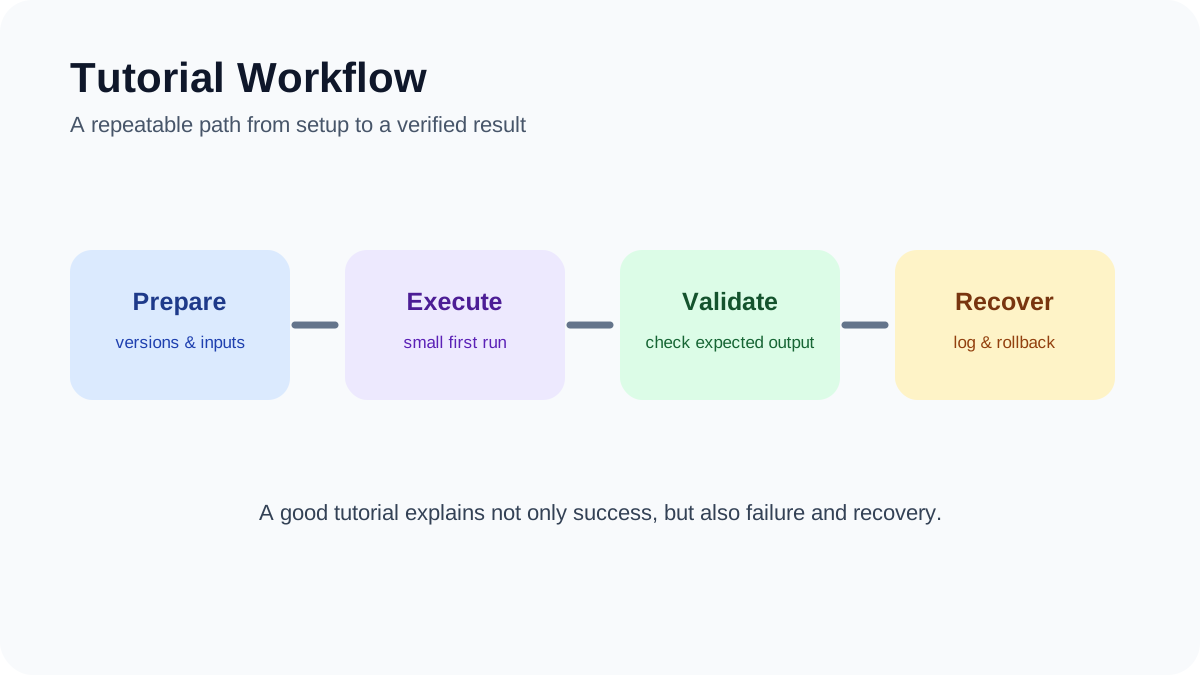
    Tutorial Workflow: A repeatable path from preparation and execution to validation and recovery.
    Tutorial Workflow. A repeatable path from preparation and execution to validation and recovery.

    n8n is useful for connecting services and moving information through repeatable workflows. The best first automations are easy to observe, safe to retry, and still leave a person in control when a message, payment, deletion, or other consequential action is involved.

    Quick answer

    Start with one trigger, one clearly defined result, and test data. Add credentials through n8n’s credential store, design an error path, and review execution logs before activating the workflow. The ten ideas below are patterns to adapt, not promises that every service exposes the same fields or permissions.

    Before you begin: confirm that each connected service permits the intended API use and that you are authorized to process the data involved.

    1. Route email follow-ups

    A workflow can watch a mailbox or form, apply a small set of rules, and prepare the next step. For example, it can create a CRM task when a qualified inquiry arrives or draft a follow-up after a meeting.

    Keep sending behind approval until the filters and templates have been reviewed with real examples. Add a rule that stops the workflow when required contact data or consent is missing.

    2. Synchronize approved records

    n8n can copy selected fields between a spreadsheet, CRM, database, or project tracker. Choose one system of record, map stable identifiers, and define which side wins when both records change.

    Do not build an unrestricted two-way sync as the first version. Begin with a one-way update and a small field set. Record the source ID and last synchronization time so a retry does not create duplicates.

    3. Prepare social posts for review

    A publishing workflow can take an approved content record, format variants for supported channels, and place them in a review queue. It can also notify the editor when media, alt text, or a destination URL is missing.

    Platform APIs and posting policies change. Use official nodes or documented HTTP APIs, and require human approval before publication. Avoid automated replies that could impersonate a person or respond incorrectly during a sensitive conversation.

    4. Organize incoming files

    When a client or team uploads a file, a workflow can validate its type, create a consistent folder path, rename the copy, and notify the responsible person. Preserve the original until the new location has been verified.

    File workflows need explicit size limits, allowed types, duplicate handling, and restricted credentials. Never expose a public webhook that accepts arbitrary files without authentication and validation.

    5. Create meeting follow-up tasks

    After a calendar event ends, n8n can collect approved notes, create proposed action items, and send them to a task manager for review. Store the calendar event ID so rerunning the workflow updates the same record instead of creating another copy.

    Do not add attendees to marketing lists or send summaries automatically unless the organization’s policy and the participants’ expectations allow it.

    6. Triage support requests

    A support workflow can classify a new request using transparent rules such as product, language, account tier, or keywords, then assign it to the correct queue. An AI classification step can be useful, but uncertain or high-risk requests should go to a person.

    Never let a classification alone close a ticket, issue a refund, expose account data, or change access. Log why the route was chosen and make reassignment easy.

    7. Send focused operational alerts

    n8n can receive a monitoring event, add context from another system, and send a concise alert to email, chat, or an incident tool. Deduplicate repeated events and include the affected service, time, severity, and a link to the source.

    Build a recovery notification as well as a failure notification. Use rate limits or grouping so a noisy service does not flood the channel and hide the important event.

    8. Assemble a newsletter draft

    A workflow can collect items from an approved RSS feed or editorial database, normalize their fields, remove duplicates, and create a draft. Keep editorial selection, factual review, consent, and the final send with a person.

    Do not scrape and republish full third-party articles. Store the source title, canonical URL, and a short original note explaining why the link matters.

    9. Coordinate order and inventory events

    For a small commerce workflow, an order event can create a fulfillment task, update an internal sheet, and notify staff when data is incomplete. Payment confirmation must come from the payment provider’s verified event, not from a browser redirect or customer-submitted field.

    Use idempotency: store the order or event ID and check it before creating a label, refund, or inventory adjustment. Route unusual values, address problems, and partial failures to manual review.

    10. Capture notes into a knowledge system

    A workflow can save a bookmarked page, meeting note, or approved message into Notion, a database, or a file-based knowledge system. Add source URL, capture date, and content type so the information remains traceable.

    Automatic tags are suggestions. Keep the original text and avoid sending confidential notes to an external model or service unless that transfer is authorized.

    A safe pattern for building the first workflow

    1. Write the trigger and expected final state in one sentence.
    2. Use test credentials and non-sensitive sample records.
    3. Add nodes one at a time and inspect each output.
    4. Store credentials in n8n rather than inside code or workflow fields.
    5. Add an error workflow or notification for failed executions.
    6. Test retries, duplicate events, missing fields, and service timeouts.
    7. Activate the workflow with a narrow scope and review early executions.

    If you have not built an n8n workflow before, start with the AILooma beginner tutorial.

    Security and maintenance

    Restrict access to the n8n editor, use HTTPS, keep the installation current, back up the instance, and review community nodes before installation. Limit webhook exposure and validate incoming requests. For self-hosted installations, the operator is responsible for the server, database, secrets, updates, and recovery plan.

    Review workflows when connected APIs change. A successful execution does not always mean the business result is correct, so monitor both technical errors and missing or duplicate records.

    Editorial review and accountability

    Written and reviewed by Femica Maydinda Harend. Examples in this article describe workflow patterns. Available nodes, API fields, pricing, and platform permissions can change; confirm the current documentation for every connected service.

    Primary sources and further reading

    Practical example: automating a weekly form-to-spreadsheet task in n8n

    Use a deliberately small workflow first: receive a form submission, validate two required fields, add a row to a spreadsheet, and notify a human reviewer. This keeps the automation easy to inspect and easy to stop.

    1. Create a test form and label every field that the workflow expects.
    2. Trigger the workflow with one valid submission and one incomplete submission.
    3. Normalize dates and text before writing them to the spreadsheet.
    4. Route failed validation to a review branch instead of silently discarding it.
    5. Run the workflow with test data, inspect each execution log, and only then connect the real form.

    Document the credentials used, the destination table, and the rollback step. A useful automation is observable: someone can explain what happened, correct a bad record, and disable the workflow without losing control of the underlying data.

    How to test an automation safely

    Build each workflow with a clear owner, expected input, expected output, and recovery path. Test missing fields, duplicate events, expired credentials, rate limits, and partial failures before enabling a schedule. Keep credentials in the credential store, add an error notification, and review execution logs during the first production runs.

    Good candidates for automation

    Prefer repetitive tasks with predictable inputs and reversible outputs. Keep a human checkpoint for messages sent to customers, record deletion, financial actions, or changes to access rights.


    Editorial review and limitations

    Reviewed by Femica Maydinda Harend. This article distinguishes documented behavior from editorial judgment and uses checks readers can reproduce. Features, prices, interfaces, and compatibility may change; verify current details before making consequential changes.

  • How to Use AI Agents at Work with Approval, Logging, and Rollback

    How to Use AI Agents at Work with Approval, Logging, and Rollback

    This guide is for a practitioner evaluating a bounded AI-agent workflow at work. It focuses on permissions and control—not a general list of possible use cases. AILooma has not tested a particular vendor or deployment. Use approved accounts and non-sensitive test material until the system’s data path is understood.

    1. Write the allowed task and prohibited actions

    Describe the input, output, owner, and completion condition. List actions the agent must not take, such as sending a message, changing a production record, or approving a transaction without human review.

    2. Give only necessary permissions

    Begin with read-only scope if possible. Keep credentials in the platform’s approved secret store; do not paste keys into prompts, notes, or logs. Review which documents, accounts, and external services the agent can reach.

    3. Insert a human approval checkpoint

    Before a write, send, or irreversible action, show the proposed change, target, and source evidence to an authorized reviewer. Require explicit approval and record who approved it. If the platform cannot support an appropriate gate, keep the workflow in suggestion-only mode.

    4. Log decisions without retaining excess data

    Keep enough information to diagnose an error: workflow version, tool call, outcome, and approval. Minimize prompt and personal-data retention, restrict log access, and set a retention period. Logging is useful only if the stored data is protected and reviewed.

    5. Test failure and recovery paths

    Use a sandbox or reversible sample task. Test missing input, duplicate events, an unavailable tool, conflicting sources, and a request outside scope. Define how to stop execution, undo a change, and escalate an incident before live use.

    6. Monitor and revisit

    Assign an owner to review failures, permission changes, and vendor updates. NIST’s AI Risk Management Framework and Microsoft’s agent safety guidance are useful starting points, not a substitute for a system-specific threat and impact review.

    Use an action ladder for permissions and approval

    List each connected action before enabling an agent. Start at the least-authority level that can help: read approved material, prepare a draft, propose a change, or execute a change. Keep sending, deleting, publishing, spending, and changing access behind a person’s explicit approval unless an accountable security owner has approved a narrower documented exception. Microsoft’s agent safety guidance also recommends validating tool inputs and gating high-risk operations behind human confirmation.

    Approval should show the action, not just a summary

    Before a reviewer approves a write, show the target record, exact proposed change, source evidence, affected people, and whether the action can be reversed. Do not let a model both generate an action and certify that the action is safe. Record the approver and result using the organization’s approved audit mechanism, while minimizing sensitive prompt or customer data in logs.

    Write the failure and rollback card

    • Duplicate event: pause side effects and reconcile using a stable request identifier.
    • Missing or conflicting source: stop and route to the named owner; do not guess.
    • Unexpected write: disable the integration, revoke its credential if needed, restore the prior value, and notify the owner.
    • Provider or permission change: re-check the data path and approval settings before resuming.

    Keep one documented manual fallback and a person who can activate it. For redesigning a team’s whole process, not just controlling one deployed workflow, see the governance-first workflow guide.

    Related reading

    For a list of candidate tasks and risk boundaries, use the use-case matrix. For a broader prototype lifecycle, see the developer checklist.

    About the author

    Femica Maydinda Harend writes practical technology guides for AILooma focused on understandable workflows and responsible boundaries.

    Editorial note

    This is general information, not a security review or legal advice. Features and controls vary; consult current vendor documentation, your security team, and applicable policies.

  • How to Fix a Slow Windows 11 PC: A Safe Step-by-Step Troubleshooting Guide

    How to Fix a Slow Windows 11 PC: A Safe Step-by-Step Troubleshooting Guide

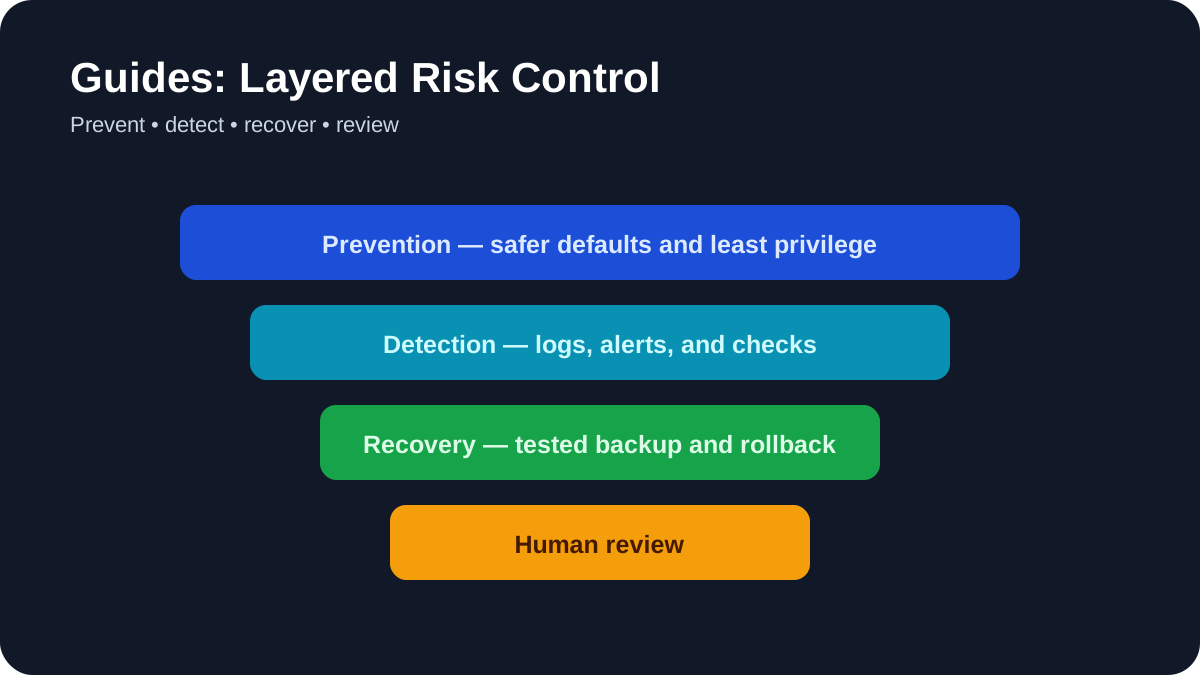
    Layered Risk Control: Use prevention, detection, recovery, and human review together.
    Layered Risk Control. Use prevention, detection, recovery, and human review together.

    A slow Windows 11 PC is usually caused by one or more of four things:
    resource-heavy apps, too many startup processes, low free storage, or aging
    hardware. Work through the checks below in order. They use built-in Windows
    tools and avoid risky registry “optimizers” and blanket service-disabling
    scripts.

    1. Restart, then reproduce the problem

    Restart the PC—not Shut down—and open only the apps needed to reproduce the
    slowdown. A restart clears stalled processes and completes some updates. Note
    whether the problem affects startup, one application, internet access, or the
    entire system.

    2. Find the bottleneck in Task Manager

    Press Ctrl + Shift + Esc and open the Processes tab. Sort by
    CPU, Memory, and Disk. A brief spike is normal; a process that remains near
    the top while the PC is idle deserves attention.

    Save work before ending an app. Do not end unfamiliar Windows processes. If
    one application is consistently responsible, update, repair, reinstall, or
    replace that application rather than changing unrelated system settings.

    3. Reduce startup apps

    In Task Manager, open Startup apps. Disable non-essential
    applications that do not need to launch when you sign in, such as game
    launchers or vendor utilities you rarely use. Leave security software and
    required accessibility or hardware tools enabled.

    4. Install Windows and optional driver updates

    Go to Settings → Windows Update and check for updates. Then
    review Advanced options → Optional updates for relevant
    drivers. Restart after installation.

    For a persistent graphics, chipset, or storage problem, use the PC or
    component manufacturer’s official support page. Avoid third-party “driver
    updater” utilities.

    5. Free storage safely

    Open Settings → System → Storage. Review Temporary files
    before removing them, then enable Storage Sense if you want Windows to clean
    temporary items automatically. Keep a comfortable amount of free space on the
    system drive so updates and applications can work normally.

    Do not manually defragment an SSD with old third-party tools. Windows’
    Optimize Drives feature selects an appropriate optimization for the drive
    type.

    6. Scan for malware

    Open Windows Security → Virus & threat protection and run
    a Quick scan. If you see unexplained pop-ups, browser redirects, unknown
    startup entries, or continuing high resource use, run a deeper scan. Do not
    disable Microsoft Defender as a performance “fix.”

    7. Close background load

    Browser tabs, synchronization tools, video calls, launchers, and development
    environments can consume substantial memory. Close what you are not using and
    pause large sync or download jobs while doing demanding work. Uninstall
    software you no longer need through
    Settings → Apps → Installed apps.

    8. Adjust visual effects and power mode

    Search for Adjust the appearance and performance of Windows.
    On older hardware, reducing animation and transparency can improve
    responsiveness. You can also review
    Settings → System → Power & battery → Power mode. A
    performance-oriented mode may use more power and make a laptop run warmer, so
    use it when appropriate.

    9. Check system files

    If Windows features crash or behave incorrectly, open Terminal as
    administrator and run:

    DISM.exe /Online /Cleanup-image /Restorehealth
    sfc /scannow

    Allow each command to finish. These tools repair Windows components and
    protected system files; they are not general speed boosters.

    10. Check heat and hardware limits

    A blocked vent or failing fan can cause thermal throttling. Turn off the PC
    before clearing external vents, keep laptops on a hard surface, and seek
    service if the fan grinds or the chassis becomes unusually hot.

    Windows 11’s minimum 4 GB of RAM is enough to meet the requirement, not
    necessarily enough for comfortable multitasking. If memory stays nearly full
    or storage is constantly saturated after the software checks, a RAM or SSD
    upgrade may provide the largest improvement—if the device supports it.

    If the computer locks up completely rather than remaining responsive but slow,
    use the separate diagnostic sequence in
    Why Your Laptop Keeps Freezing.

    When repair or reinstall becomes reasonable

    Back up important files first. Windows 11 includes a recovery option that can
    reinstall the current version through Windows Update while preserving apps,
    files, and settings on supported systems. Use
    Settings → System → Recovery and follow Microsoft’s current
    instructions. A full clean installation should be a later option, not the
    first response to a slow afternoon.

    What to avoid

    • Registry cleaners and “one-click optimizer” apps.
    • Disabling security software, Windows Update, the page file, or a long list
      of services.
    • Installing drivers from download aggregators.
    • Changing several advanced settings at once with no baseline or rollback
      plan.

    Official Microsoft resources

    Measure before changing settings

    First note when the slowdown occurs and whether CPU, memory, disk activity, temperature, or one application is responsible. Use Task Manager and Windows Security to observe the system before disabling services or installing cleaners. Back up important files, change one variable at a time, and record whether the same workload improves.

    When to stop troubleshooting

    Stop and seek qualified repair if the drive reports errors, the battery is swollen, liquid damage is present, the machine becomes dangerously hot, or an electrical smell appears. Software steps cannot safely repair failing hardware, and repeated forced shutdowns can worsen data loss.

    Editorial review and limitations

    Reviewed by Femica Maydinda Harend. This article separates documented behavior from editorial judgment and uses practical checks that readers can reproduce. Features, prices, interfaces, and compatibility may change; verify current details with the provider before making a consequential decision.

  • AI Productivity Tools That Are Actually Useful: A Practical Evaluation Guide

    AI Productivity Tools That Are Actually Useful: A Practical Evaluation Guide

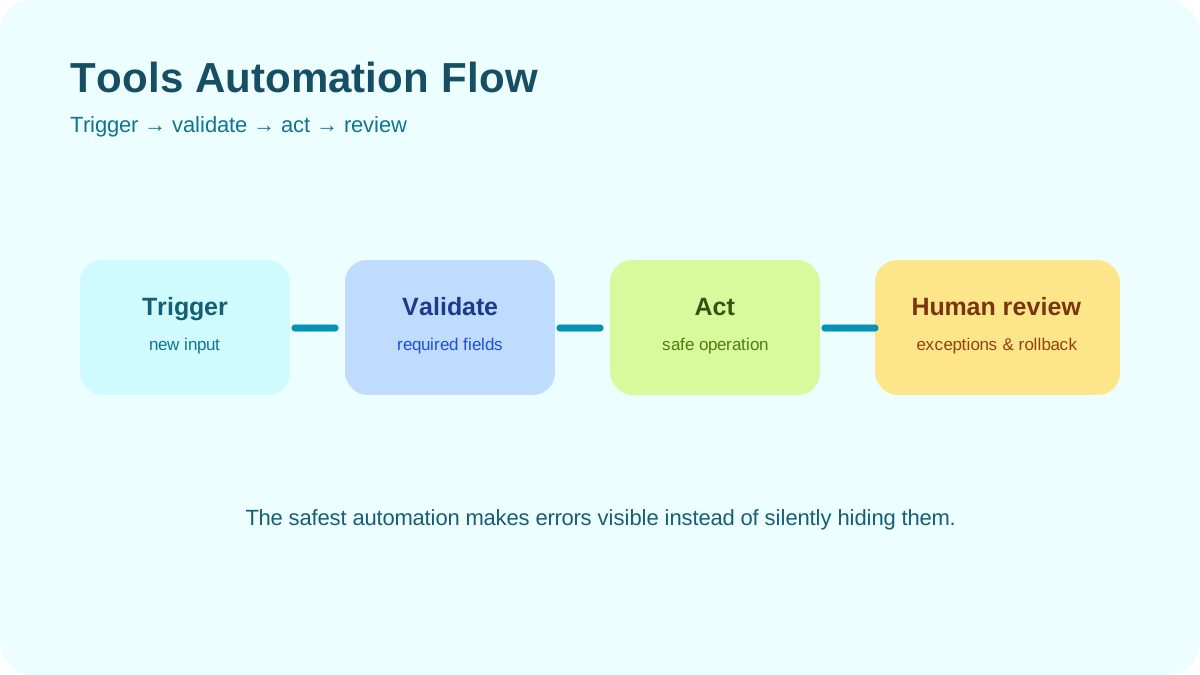
    Tools Automation Flow: Move from trigger to validation, safe action, and human review.
    Tools Automation Flow. Move from trigger to validation, safe action, and human review.

    The most useful AI productivity tool is not the one with the longest feature
    list. It is the one that removes a specific bottleneck without creating more
    review work, security risk, or subscriptions than it saves. This guide groups
    reliable choices by job so you can test one improvement at a time.

    Before choosing a tool

    Define the task first: drafting, research, meeting notes, scheduling, or
    knowledge retrieval. Then check whether the product supports your
    data-handling requirements. Do not paste confidential client data,
    credentials, medical records, or unpublished company information into a
    service unless your organization has approved the account and its settings.

    1. ChatGPT: flexible general assistance

    ChatGPT is useful for turning rough notes into an outline, explaining
    unfamiliar material, comparing options, analyzing files, and creating a first
    draft. Its strength is flexibility rather than one fixed workflow.

    Use it to accelerate a draft, then verify factual claims and sources. A
    polished answer can still contain an error, and the output should not be
    treated as independent evidence.

    2. Claude: long-form reading and writing

    Claude is a practical option for summarizing documents, refining prose,
    exploring arguments, and working through long-form material. It can be
    especially helpful when the task benefits from an iterative conversation about
    structure and tone.

    As with any model, review citations, calculations, and claims against the
    original material. Upload only documents you are permitted to process.

    3. Gemini: assistance inside Google’s ecosystem

    Gemini is most compelling for people already working in Google products.
    Depending on the plan and region, Gemini features may assist with writing,
    summarizing, and organizing work across supported Google services.

    Check the current feature and plan page before subscribing because
    availability differs across personal, education, and business accounts.

    4. Microsoft Copilot: assistance in Microsoft workflows

    Microsoft Copilot is worth evaluating when Word, Excel, PowerPoint, Outlook,
    and Teams are already central to your organization. The potential benefit
    comes from working with existing files and business context, subject to the
    account’s permissions and configuration.

    It is not automatically the best value for an individual. Compare the specific
    features included in your Microsoft plan with the tasks you perform every
    week.

    5. Notion AI: help inside a team workspace

    Notion AI can reduce context switching when notes, projects, and internal
    documentation already live in Notion. Typical uses include summarizing pages,
    drafting updates, finding information, and reorganizing rough notes.

    The quality of retrieval depends on the quality and permissions of the
    workspace. AI cannot fix an undocumented process or an outdated source of
    truth.

    6. Perplexity: source-oriented web research

    Perplexity is designed around research answers linked to web sources. It can
    help discover terminology, identify primary sources, and build an initial
    reading list faster than opening unrelated search results one by one.

    Always open the cited pages. A citation can be real but fail to support the
    exact sentence attached to it.

    7. Granola or an approved meeting assistant

    Meeting assistants can turn a transcript or notes into summaries and action
    items. The useful question is not which one produces the longest summary, but
    whether it integrates with your meeting workflow, clearly signals recording,
    and respects participant consent and company policy.

    Review action items before creating tasks. Names, owners, and deadlines are
    precisely the details transcription systems can misinterpret.

    A simple evaluation method

    1. Choose one recurring task that currently takes at least 20 minutes.
    2. Run the same task with and without the tool for one or two weeks.
    3. Measure total time, including prompting, correction, and fact-checking.
    4. Score the output for accuracy, usefulness, and privacy risk.
    5. Keep the tool only if the improvement is repeatable.

    Avoid the subscription trap

    Several products increasingly overlap in writing, search, summaries, and file
    analysis. Start with the AI already included in software you pay for, or use a
    free tier to test the workflow. One broadly useful assistant plus one
    specialist tool is often easier to manage than six partially overlapping
    subscriptions.

    Verdict

    For general work, begin with ChatGPT or Claude. Choose Gemini or Microsoft
    Copilot when deep integration with your existing office ecosystem is the main
    requirement. Add Notion AI for a Notion-centered knowledge base, Perplexity
    for source discovery, or a meeting assistant only when that specialist
    workflow justifies another service. The winning setup is the smallest one that
    consistently saves time after review.

    For multi-step workflows that can call tools and take approved actions, read
    AI Agents for Productivity before deciding whether an agent is appropriate.

    Official product pages

    Practical example: comparing productivity tools before subscribing

    Suppose a small team needs a shared task board and a weekly planning view. Build a simple test board with ten representative tasks, two owners, one recurring task, one attachment, and one dependency. Use the free tier of each shortlisted tool when possible.

    1. Recreate the same board and naming convention in every candidate.
    2. Ask two people to update tasks at the same time and note conflicts or confusing notifications.
    3. Export the board and check whether the exported data remains understandable outside the service.
    4. Review permission levels, guest access, retention, and account-recovery options.
    5. Estimate the cost at the team size you expect in twelve months, not just the introductory price.

    Keep the notes from this test. They form a more defensible recommendation than a list of feature claims and make it easier to revisit the decision when pricing or product limits change.

    A repeatable way to evaluate an AI tool

    Use a small set of real but non-sensitive tasks rather than relying on a polished demo. Score the tool for factual accuracy, consistency, citation quality, editing effort, speed, export options, data retention, permission scope, and total cost. Repeat the test after updates because model behavior and product terms can change.

    Evidence to keep

    Save the test prompts, source files, outputs, corrections, and version date. This makes the decision auditable and prevents a single impressive result from hiding recurring errors. Keep a human approval step for publishing, sending messages, changing records, or making decisions that affect people.

    Editorial review and limitations

    Reviewed by Femica Maydinda Harend. This article separates documented behavior from editorial judgment and uses practical checks that readers can reproduce. Features, prices, interfaces, and compatibility may change; verify current details with the provider before making a consequential decision.

  • Best Free Microsoft Office Alternatives for Work and Study: Features and Limitations

    Best Free Microsoft Office Alternatives for Work and Study: Features and Limitations

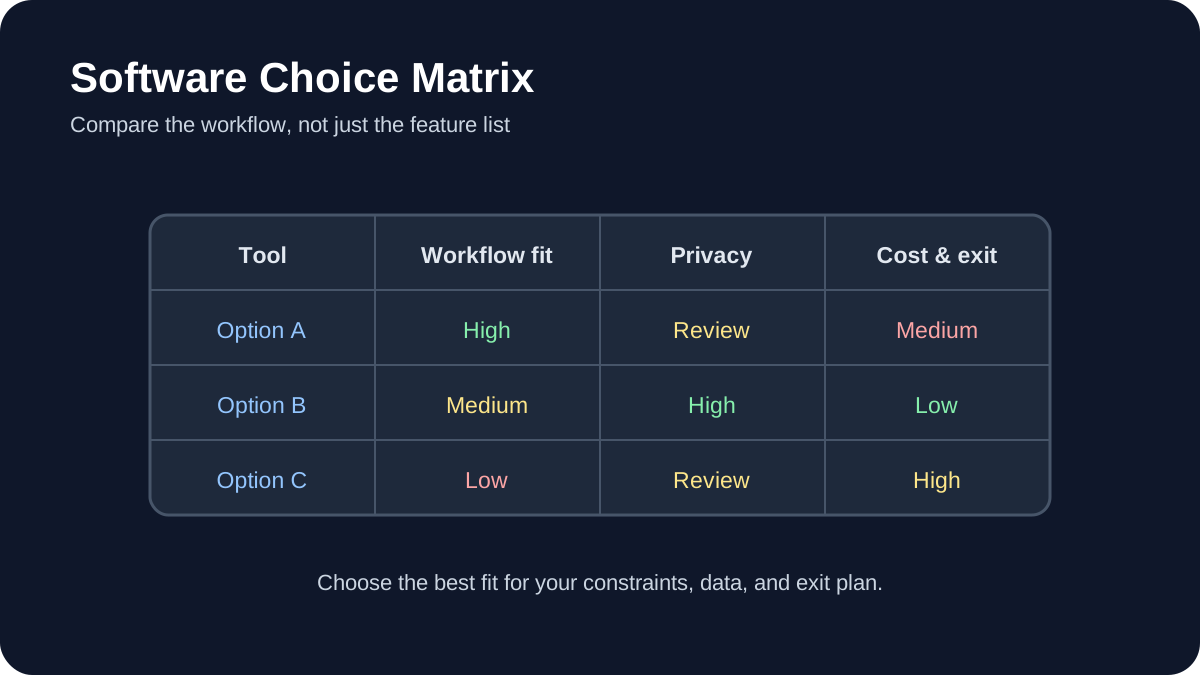
    Software Choice Matrix: Compare workflow fit, privacy, portability, and total cost before choosing a tool.
    Software Choice Matrix. Compare workflow fit, privacy, portability, and total cost before choosing a tool.

    You do not need a Microsoft 365 subscription for every document, spreadsheet,
    or presentation task. The right free alternative depends on whether you
    prioritize desktop access, real-time collaboration, Microsoft file
    compatibility, privacy, or a lightweight interface.

    Quick recommendations

    • Best all-round desktop suite: LibreOffice
    • Best for browser collaboration: Google Docs, Sheets, and
      Slides
    • Best for Microsoft-format-focused editing: ONLYOFFICE
      Desktop Editors
    • Best lightweight traditional interface: FreeOffice
    • Best for teams that want to self-host collaboration:
      Collabora Online

    1. LibreOffice

    LibreOffice is a free, open-source desktop suite for Windows, macOS, and
    Linux. Writer, Calc, and Impress cover the core word-processing, spreadsheet,
    and presentation jobs, while Draw and Base add capabilities not commonly
    included in lightweight alternatives.

    It is a strong choice for offline work, open document formats, and users who
    want a full desktop application without an account. Microsoft Office files can
    be opened and saved, but complex layouts, macros, fonts, and advanced
    spreadsheet features may not transfer perfectly. Keep a copy of the original
    and test important files before collaborating.

    2. Google Docs, Sheets, and Slides

    Google’s browser-based editors are the simplest option for live collaboration.
    Multiple people can edit at once, leave comments, review version history, and
    share a link without passing attachments around.

    The trade-off is that the experience is centered on a Google account and cloud
    storage. Offline access can be configured, but it is not the same as a
    desktop-first suite. Importing and exporting Microsoft formats works well for
    everyday files, although complex formatting and macros require testing.

    3. ONLYOFFICE Desktop Editors

    ONLYOFFICE provides free desktop editors for documents, spreadsheets,
    presentations, PDFs, and forms. Its interface and emphasis on Office Open XML
    formats make it approachable for people moving from Microsoft Office.

    Choose it when DOCX, XLSX, and PPTX compatibility is more important than an
    extensive ecosystem of open-source desktop tools. As with every alternative,
    verify advanced formulas, tracked changes, embedded objects, and custom fonts
    in documents that must look identical.

    4. FreeOffice

    SoftMaker FreeOffice includes TextMaker, PlanMaker, and Presentations. It is
    available for desktop operating systems and offers a familiar, relatively
    lightweight interface. It suits students and home users who want conventional
    applications and do not need a cloud collaboration platform.

    Check the current license and feature comparison before adopting it across an
    organization. Some advanced capabilities and commercial-use terms may differ
    from the paid SoftMaker Office product.

    5. Collabora Online

    Collabora Online brings LibreOffice-based editing to the browser and is
    designed to integrate with storage and collaboration platforms. It is most
    relevant to organizations that want more control over where documents are
    hosted.

    This is not the easiest personal replacement: deploying and maintaining a
    collaborative server requires technical resources. For a team already
    operating its own infrastructure, however, it can provide browser editing
    without making a public cloud suite the default.

    How to choose

    Start with the files and workflows you actually use:

    • Offline and open source: start with LibreOffice.
    • Fast group editing: start with Google’s editors.
    • Frequent DOCX, XLSX, and PPTX exchange: test ONLYOFFICE and
      LibreOffice with representative files.
    • Older or modest hardware: compare FreeOffice and
      LibreOffice on the actual device.
    • Self-hosted collaboration: evaluate Collabora Online with
      your storage platform.

    A safe migration checklist

    1. Collect representative documents, including the most complex examples.
    2. Open, edit, save, and reopen each file in the candidate suite.
    3. Check formulas, page breaks, fonts, comments, tracked changes, and exports.
    4. Confirm whether macros or add-ins have equivalents.
    5. Run a small pilot before changing the default for everyone.

    Verdict

    LibreOffice is the most complete general-purpose free desktop replacement,
    while Google’s editors lead for effortless collaboration. ONLYOFFICE is worth
    testing when Microsoft file exchange dominates your workflow. There is no
    universal winner: compatibility should be tested with your own documents, not
    inferred from a feature list.

    If you also need free tools for notes, email, passwords, PDFs, synchronization,
    or image editing, see
    12 Best Free Productivity Apps for Windows in 2026.

    Official resources

    Practical example: choosing an Office alternative for a study group

    Imagine a four-person study group that needs to edit a shared report, export a final PDF, and keep working when one member has an unreliable connection. Start by writing the non-negotiables: file formats, offline access, simultaneous editing, citation workflow, and the devices each person already owns. Do not choose a tool only because it is free.

    1. Create a copy of the same sample document in each shortlisted editor.
    2. Ask each person to make one edit, add one comment, and export the file.
    3. Open the exported files in a second viewer and check layout, links, footnotes, and tracked changes.
    4. Record which features work offline and which require an account or cloud storage.
    5. Choose the option that produces the fewest conversion problems for the group’s actual workflow.

    This small test is more useful than a generic feature list because it exposes the compatibility and collaboration issues that matter to the people who will use the software.

    How to choose without risking your files

    Compare alternatives against the documents and workflows you actually use. Open representative copies of DOCX, XLSX, and PPTX files, check layout and formula fidelity, and export them again before migrating. Also verify offline support, update policy, privacy terms, collaboration controls, and whether advanced features require a subscription.

    Migration checks

    • Keep the original files and a dated backup.
    • Test fonts, charts, macros, formulas, comments, and tracked changes.
    • Confirm that collaborators can open the exported format.
    • Choose open formats where long-term portability matters.

    Editorial review and limitations

    Reviewed by Femica Maydinda Harend. This article separates documented behavior from editorial judgment and uses practical checks that readers can reproduce. Features, prices, interfaces, and compatibility may change; verify current details with the provider before making a consequential decision.

  • n8n Tutorial for Beginners: Build and Test Your First Workflow

    n8n Tutorial for Beginners: Build and Test Your First Workflow

    Tutorial Workflow: A repeatable path from preparation and execution to validation and recovery.
    Tutorial Workflow. A repeatable path from preparation and execution to validation and recovery.

    n8n is a workflow automation platform that connects applications and APIs
    through a visual editor. This beginner tutorial builds a small workflow using
    tools available inside n8n, so you can learn triggers, nodes, data mapping,
    testing, and activation before adding external credentials.

    What you will build

    The workflow receives a form submission, cleans the submitted data, and
    returns a confirmation. It is deliberately simple: the goal is to understand
    how information moves between nodes. Once that model is clear, you can replace
    the final step with Google Sheets, email, Slack, a database, or another
    supported integration.

    Before you begin

    You need an n8n instance. The easiest option is n8n Cloud. Technical users can
    also self-host n8n, but self-hosting adds responsibility for updates,
    security, backups, and availability. Follow the current official installation
    documentation rather than copying an old Docker command from a tutorial.

    Step 1: Create a workflow

    Open n8n and create a new workflow. Give it a descriptive name such as
    “Contact request intake.” A good workflow name explains the event and the
    outcome; this becomes increasingly important when your workspace contains
    dozens of automations.

    Step 2: Add a Form Trigger

    Add the n8n Form Trigger node. Create fields for name and
    email, plus an optional message. During development, use the node’s test URL.
    Production submissions should use the production URL after the workflow is
    activated.

    Run the trigger in test mode and submit one sample response. n8n will display
    the resulting item as structured data. Inspect the field names and values
    because later nodes will reference them.

    Step 3: Transform the data

    Add an Edit Fields node and connect it to the trigger. Create
    a clean output with fields such as:

    • contact_name mapped from the submitted name
    • contact_email mapped from the submitted email
    • message mapped from the optional message
    • received_at set to the current workflow time

    Use the expression picker instead of typing paths from memory. Execute the
    node and confirm that the output contains the expected values. This
    test-after-each-node habit makes troubleshooting much faster.

    Step 4: Add a condition

    Add an If node. Configure it to check whether the email field
    is present. Connect the Edit Fields output to the If node and test both a
    valid and an invalid sample. The true branch can continue to the success
    response; the false branch can return a message asking for a valid email.

    Step 5: Return a response

    Add a response node or configure the form to display a completion message,
    depending on the form mode available in your n8n version. Keep the response
    generic and avoid echoing sensitive submitted data.

    Step 6: Test the complete workflow

    1. Submit a valid sample and verify every node.
    2. Submit a sample with missing or unexpected data.
    3. Open the execution details and inspect the input and output of the failing
      node.
    4. Confirm that errors do not expose credentials or personal information.

    Step 7: Activate and monitor

    Save and activate the workflow when testing is complete. Use the production
    form URL and submit one final check. Review the execution history after real
    runs begin. An automation is not finished when it works once; it also needs a
    clear owner, failure handling, and a plan for credential changes.

    Extending the workflow

    To make this example useful, insert an application node after validation. You
    could append a row to a spreadsheet, create a task, or send a notification.
    Configure credentials through n8n’s credential system rather than placing API
    keys in fields or expressions. Request only the permissions the workflow
    needs.

    Common beginner mistakes

    • Building the entire workflow before testing the first node.
    • Using test webhooks or form URLs in production.
    • Assuming every node returns the same data structure.
    • Hard-coding secrets or personal information.
    • Activating a workflow without monitoring failed executions.

    Next step

    Rebuild this workflow with one external service you already use. Keep the
    first version narrow, test with non-sensitive data, and add error handling
    before relying on it for important work.

    When you are ready to plan a practical automation, compare the patterns in
    10 Everyday Tasks You Can Automate with n8n.

    Official resources

    Test plan and failure handling

    A workflow is not ready just because the happy path works. Test missing fields, duplicate events, expired credentials, API rate limits, timeouts, and partial failures. Use sample records first, keep credentials in n8n’s credential store, and add an error branch that alerts a named owner. Record the input, execution time, output, and error message for each test so another person can reproduce the result.

    Safe release checklist

    1. Export a backup of the workflow before enabling it.
    2. Limit each credential to the smallest required permission.
    3. Add duplicate protection for actions that create or send records.
    4. Enable production runs gradually and review the execution log.

    Editorial review and limitations

    Reviewed by Femica Maydinda Harend. This article separates documented behavior from editorial judgment and uses practical checks that readers can reproduce. Features, prices, interfaces, and compatibility may change; verify current details with the provider before making a consequential decision.

  • AI Agent Use Cases: A Risk-and-Reversibility Decision Matrix

    AI Agent Use Cases: A Risk-and-Reversibility Decision Matrix

    AI agents are not equally appropriate for every task. This guide helps a reader decide where an agent might assist by looking at repeatability, data sensitivity, impact, reversibility, and available human review. The examples are illustrative categories, not measured deployments or promised productivity gains.

    Use this five-question screen

    1. Is the task repeated with a clear input and expected output?
    2. Can a person verify the result against a source?
    3. Would a mistake be easy to reverse?
    4. Does the task involve personal, confidential, financial, health, or legal information?
    5. Can the system ask for approval before sending or changing anything?

    Illustrative task matrix

    Task pattern Possible support Boundary to keep
    Organizing public meeting notes Suggest headings and action items Human checks names, dates, decisions, and recipients
    Finding an internal policy passage Retrieve likely source text Reviewer opens the cited policy and confirms it is current
    Drafting a routine response Prepare a proposed draft Person checks accuracy, tone, and authorization before sending
    Changing access or approving a payment Explain steps or collect required information Keep the actual approval and irreversible action with an authorized person

    Start with a reversible pilot

    Choose one low-impact task. Define normal, ambiguous, and out-of-scope inputs, then record the expected action and stop condition. Begin with read-only permissions where possible. Review errors, data exposure, and time spent correcting output before considering a broader role.

    When not to automate

    Do not delegate decisions that require accountable professional judgment, informed consent, or a legally authorized person. Do not let an agent send external messages, change records, or make purchases without clear scope and review appropriate to the consequences.

    Apply the matrix to a real task boundary

    Use the matrix to decide how much authority a candidate use case should receive—not to claim that an agent will improve it. Start by writing one task in the form “When approved input arrives, prepare specific output for named reviewer.” If the input, owner, or acceptable result cannot be described, keep the process manual until it can.

    Task pattern Safer starting role Reason to stop or add review
    Find a record in an approved knowledge base Read-only retrieval with source links Permission mismatch, missing citations, or conflicting records
    Classify an incoming request Suggest a category and mark uncertain cases Misclassification changes eligibility, priority, or a customer outcome
    Draft an internal summary Prepare a draft for its owner Sensitive material is outside the approved data path
    Send a message, change a record, or make a purchase Prepare a proposed action; require an explicit approval The action is difficult to reverse or affects someone else

    For a low-risk pilot, record the task owner, permitted data, read/write scopes, approval point, stop phrase or disable control, and manual fallback. Review a sample of normal and ambiguous cases with a person who understands the work. If the workflow creates more correction, access, or exception work than the original process, do not widen its permissions.

    This is a use-case suitability screen. For the separate capability vocabulary, see the agent-versus-assistant checklist; for implementation controls, use the approval and rollback guide.

    Related reading

    For a capability-based distinction between agents and assistants, see the comparison checklist. For workflow design at team level, read the governance-first workflow guide.

    About the author

    Femica Maydinda Harend writes practical technology guides for AILooma, with emphasis on reader-verifiable decisions and clear limits.

    Editorial note

    Examples are illustrative, not evidence of actual deployments. Apply organizational policy and current product documentation to any real workflow.