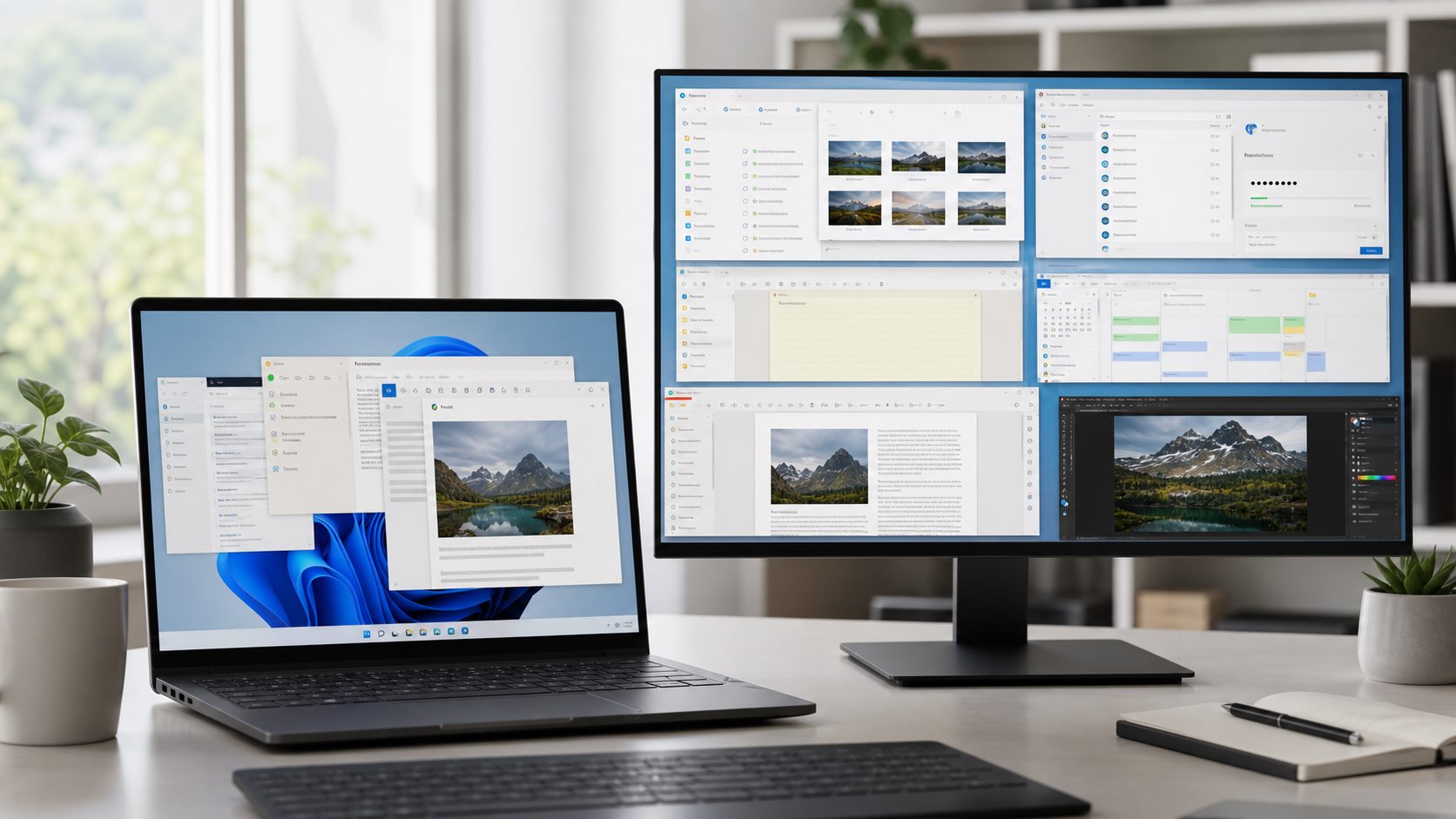
“Free productivity software” covers different needs: documents, notes, passwords, search, synchronization, and creative work. This is a researched feature guide, not a hands-on test or a ranked benchmark. Product terms, operating-system support, and paid options can change, so confirm current details on the official pages before installing or moving important files. If your main goal is replacing Word, Excel, or PowerPoint, use our focused guide to free Microsoft Office alternatives for document compatibility and migration questions.
Finding files by name or comparing and synchronizing folders.
Search indexing and synchronization have privacy and data-loss implications. Review scope and direction before syncing; synchronization is not a backup.
Playing media or editing raster images without starting with a paid suite.
Check file-format, codec, accessibility, and workflow needs; avoid installing bundled copies from unofficial download sites.
What “free” means
A free download can be open source, freeware, a free personal-use edition, a time-limited trial, or a limited tier that sells optional services. Those terms are not interchangeable. Check the publisher’s license, commercial-use terms, update policy, and the price of features you actually need. This guide does not certify that every edition or feature is free for every use.
Evaluate privacy and support
Identify the publisher and obtain the installer from its official site or a trusted operating-system store.
Read what data is collected, whether an account is required, and whether sync or AI features send content to a service.
Check the supported Windows versions, update history, accessibility, and how to export your files.
For tools handling sensitive information, review permissions and storage before adding real data.
Keep installers and files separate from your only backup; an app that synchronizes folders does not by itself provide independent recovery.
Try a small, reversible migration
Choose one task and copy a few non-sensitive sample files.
Install from the official source and note the version and date.
Test the actual operations you depend on: open, edit, save, export, and reopen the files in the destination app.
Check formatting, links, formulas, metadata, and keyboard access as relevant.
Keep the original files unchanged until the new workflow works for you.
Write down how to export your data and where the independent backup is stored.
Starter combinations
A basic document workflow might use LibreOffice for office files, Notepad++ for plain text, and SumatraPDF for reading. A research workflow might add Joplin or Obsidian for notes and Everything for local file discovery. A creator may prefer GIMP and VLC. These are examples to evaluate, not a tested or endorsed “best stack.” Install only what solves a current need.
Questions before choosing
Does it open and export the file types I actually use?
Can I move my data elsewhere without losing structure?
Are updates and security fixes still available for my Windows version?
Does “free” cover my intended personal or business use?
Do sync, plugins, or cloud features change where my data is stored?
Shortlist tools by task before comparing terms
Task
Examples to investigate
Check before adopting
Office documents and spreadsheets
LibreOffice or an online office suite
File fidelity, collaboration needs, offline access, and whether macros or specialized formatting matter
Plain-text editing
Windows Notepad or Notepad++
Installer source, update support, plugins, and whether the text is sensitive
PDF reading or annotation
SumatraPDF, PDF24, or a vendor’s reader/editor tier
Whether you only read, fill, sign, merge, or edit; distinguish a reader from a full editor
Notes and knowledge capture
Joplin, Obsidian, or a browser-based notes service
Local vs synced storage, export format, account dependence, and recovery
Password storage
A reputable password manager’s free plan
Current device limits, recovery method, export, and the provider’s security documentation
These are candidates to investigate, not ranked or independently tested recommendations. Confirm current publisher pages, license terms, Windows compatibility, support status, and free-tier restrictions. “Free download,” “open source,” and “free personal plan” describe different terms; business use may have separate conditions.
Validate one representative file before migrating
Choose a non-sensitive copy of a file you actually use. Open it, make a small change, save, export if needed, close, and reopen it in the destination application. Compare formulas, layout, links, fonts, metadata, and accessibility features that matter to your work. Keep the original unchanged and record which formats or features did not transfer. Only then decide whether to move a larger collection.
This page compares a broader Windows productivity toolkit by task. For document-suite migration specifically, use the Office-alternatives guide, which focuses on file compatibility and collaboration rather than notes, passwords, or PDF workflows.
Bottom line
The most useful free Windows toolkit is the smallest set that fits your tasks and lets you retain control of your files. Compare official documentation and terms, test a copy of your own workflow, and preserve an independent backup before migrating.
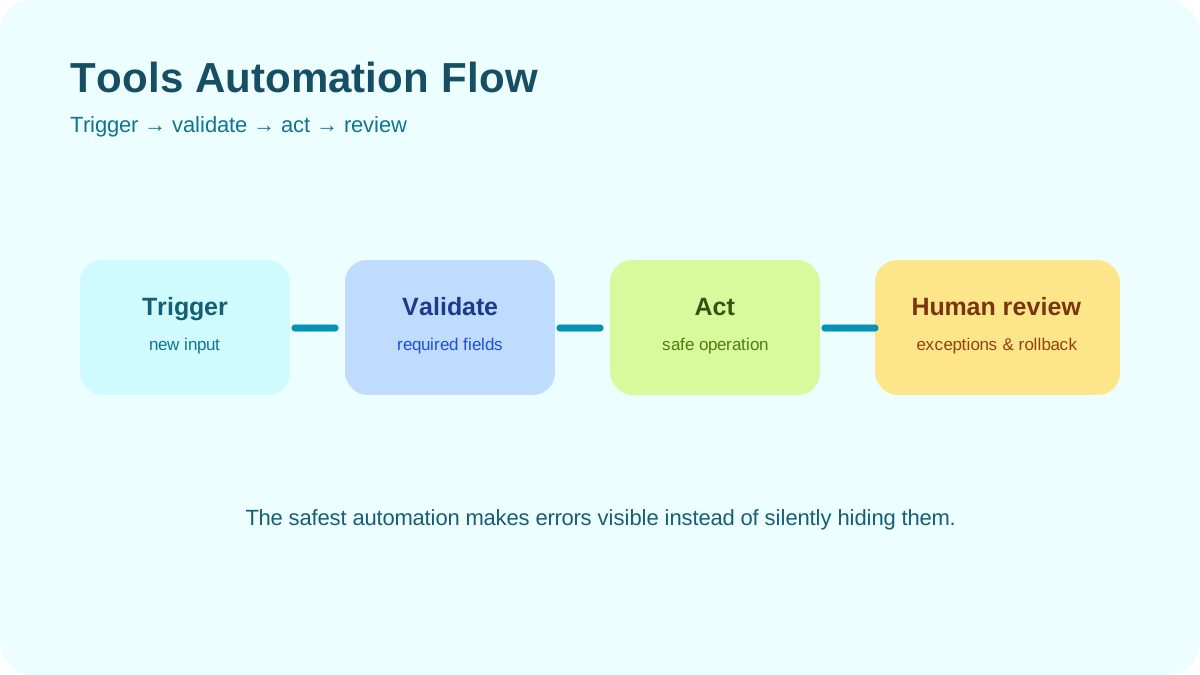
Tools Automation Flow. Move from trigger to validation, safe action, and human review.
If your Windows PC feels unusually slow, freezes at random, or crashes without a clear reason, the first step should be diagnosis—not guessing.
Windows already includes several useful diagnostic tools, and Microsoft also provides free utilities through Sysinternals. Combined with a few reputable third-party tools, you can investigate CPU usage, memory pressure, disk activity, startup programs, drivers, storage health, and crash information without paying for diagnostic software.
This guide covers 7 free Windows tools you can use to diagnose a slow or unstable PC, what each one is good at, and how to use them as part of a practical troubleshooting workflow.
1. Windows Performance Monitor (PerfMon)
Performance Monitor, commonly opened with perfmon.msc, is a built-in Windows tool for collecting and reviewing system performance data over time.
Unlike Task Manager, which is mainly useful for a quick snapshot, Performance Monitor can log counters for longer periods. That makes it useful when a slowdown or freeze happens intermittently and disappears before you can inspect it.
What PerfMon Can Help You Investigate
You can monitor areas such as:
CPU utilization;
available memory;
disk activity;
system uptime;
process-level performance;
network counters.
Create a Custom Data Collector Set
To create a basic logging session:
Press Win + R.
Type perfmon.msc and press Enter.
Open Data Collector Sets → User Defined.
Right-click and choose New → Data Collector Set.
Select Create manually.
Add the performance counters you want to monitor.
Useful starting counters may include:
Processor(_Total)\% Processor Time
Memory\Available MBytes
PhysicalDisk(_Total)\Avg. Disk Queue Length
System\System Up Time
Run the collector while reproducing the problem, then review the resulting log afterward.
How to Interpret the Results
A single spike is not always meaningful. Look for sustained patterns that correlate with the slowdown.
For example:
CPU usage that remains unusually high;
available memory becoming very low during the issue;
disk activity rising sharply while applications stop responding;
a specific process gradually consuming more resources over time.
Microsoft provides more information about Performance Monitor and Windows performance tools in its official documentation.
2. Process Explorer
Process Explorer is part of Microsoft’s Sysinternals utilities.
It provides a more detailed process view than the standard Task Manager and can help you understand which processes are consuming resources or loading particular files and modules.
Useful Information Available in Process Explorer
Depending on the process and your permissions, you can inspect:
CPU and memory usage;
parent and child processes;
command-line arguments;
open handles;
loaded DLLs;
threads;
digital signatures.
Use the Process Tree
The process tree is particularly useful when an application launches multiple child processes.
Instead of seeing several unrelated process names, you can understand which application started them.
This can help when investigating:
browser processes;
background updaters;
development tools;
services;
unexpected processes.
Check Suspicious Processes Carefully
Process Explorer can integrate with VirusTotal for additional reputation information.
A VirusTotal result is useful context, but it should not be treated as absolute proof that a file is safe or malicious.
3. Autoruns
Autoruns is another Microsoft Sysinternals tool that shows many locations Windows uses to automatically start programs, services, drivers, scheduled tasks, and other components.
This makes it useful when a PC has:
slow startup;
too many background utilities;
unexpected processes after login;
software conflicts;
suspected persistence from unwanted software.
Start With Non-Microsoft Entries
Autoruns contains a large amount of information, so do not disable items randomly.
A safer starting approach is to enable the option that hides Microsoft entries and then review third-party items.
Look at:
publisher;
file path;
digital signature;
whether you recognize the software;
whether the application is still installed and needed.
Disable Before Deleting
If you want to test whether an entry causes a problem, disable it first instead of deleting it.
This makes it easier to reverse the change if the issue remains or another application stops working.
Resource Monitor, opened with resmon.exe, provides a real-time view of CPU, memory, disk, and network activity.
I find it most useful when the problem is happening right now and you want to see which process is actively using a resource.
Use the Disk Tab for Slow Storage Activity
The Disk tab shows which processes are reading and writing data and which files they are accessing.
This can help you identify whether a slowdown is associated with:
Windows Update;
search indexing;
cloud synchronization;
antivirus scanning;
a large application database;
another process performing heavy disk activity.
Use the Network Tab for Background Traffic
The Network tab shows network activity by process.
If the internet connection feels slow or a background application is uploading or downloading unexpectedly, this view can help identify the process involved.
Understand Hard Faults Carefully
The Memory tab includes a Hard Faults/sec metric.
A hard fault does not automatically mean hardware failure. It means Windows had to retrieve memory data from disk because that data was not currently available in physical RAM.
A high rate can indicate memory pressure, but the value should be interpreted together with available memory, committed memory, application behavior, and overall system responsiveness.
5. BlueScreenView
If Windows crashes with a Blue Screen of Death, the system may create a memory dump containing information about the crash.
BlueScreenView from NirSoft provides a relatively simple way to inspect Windows minidump files.
Depending on the drive, you may see information such as:
drive temperature;
power-on hours;
reallocated sectors;
interface errors;
vendor-specific wear indicators;
overall health status.
Do Not Use One Universal Threshold for Every Drive
S.M.A.R.T. attributes differ between manufacturers and between HDDs and SSDs.
A raw value that looks concerning on one model may be interpreted differently on another.
If CrystalDiskInfo reports Caution or Bad, treat that as a reason to investigate and back up important data immediately.
For exact interpretation, check documentation from the drive manufacturer when available.
Interface Errors Can Also Matter
Some S.M.A.R.T. data may indicate communication problems rather than internal drive failure.
For example, on a SATA system, repeated interface errors can sometimes be associated with:
a damaged cable;
a loose connection;
a controller issue.
This is why storage diagnostics should consider the entire storage path, not only the drive itself.
7. Windows Memory Diagnostic
Unstable memory can cause difficult-to-reproduce problems such as application crashes, installation failures, freezes, or blue screens.
Windows includes a basic memory test called Windows Memory Diagnostic.
How to Run It
Press Win + R.
Type mdsched.exe.
Select the option to restart and check for problems.
Save your work before restarting.
The test runs outside the normal Windows desktop environment and checks system memory for errors.
A Passing Test Does Not Guarantee Perfect RAM
Windows Memory Diagnostic is useful as an initial check, but intermittent memory problems can be difficult to reproduce.
If you continue seeing symptoms strongly associated with RAM even after the built-in test passes, you may need a more extensive memory-testing process or hardware troubleshooting.
If the Test Finds Errors
Possible causes can include:
a faulty memory module;
poor seating in the memory slot;
incompatible memory settings;
overclocking or unstable memory profiles;
a motherboard or memory-controller problem.
Do not immediately assume the RAM module itself is the only possible cause.
A Practical Diagnostic Workflow
You do not need to launch all seven tools every time.
Start with the symptom and work from the simplest observation toward deeper analysis.
Phase 1: Quick Triage
Open Resource Monitor while the slowdown is happening.
Check CPU, memory, disk, and network activity.
Open Process Explorer if a specific process needs deeper inspection.
Check CrystalDiskInfo if storage behavior looks suspicious.
Phase 2: Investigate Recurring Problems
Use Performance Monitor to collect data over time.
Review Autoruns for unnecessary or suspicious startup components.
Check recent software and driver changes.
Phase 3: Investigate Crashes
Check whether Windows created minidump files.
Review them with BlueScreenView for initial clues.
Look for repeated patterns across multiple crashes.
Use deeper debugging tools when necessary.
Phase 4: Check Memory
If symptoms include random crashes, corrupted data, or unexplained instability, run Windows Memory Diagnostic.
Important Safety Notes
Most tools in this guide are primarily diagnostic, but some allow you to terminate processes or disable startup components.
Before changing anything:
save important work;
create backups when appropriate;
document what you disable;
avoid disabling Windows components you do not understand;
download third-party utilities only from their official websites.
Frequently Asked Questions
Can I use these tools on Windows 11?
The built-in Windows tools covered here are available on current Windows systems, while Process Explorer and Autoruns are maintained through Microsoft Sysinternals.
For BlueScreenView and CrystalDiskInfo, check the current compatibility information on their official websites before downloading.
Are these tools safe?
The diagnostic functions themselves are generally safe when the tools are downloaded from official sources and used correctly.
However, some tools allow actions that can affect the running system.
For example:
Process Explorer can terminate processes;
Autoruns can disable startup entries;
administrative access exposes more sensitive system information.
Use those features carefully.
Do I need technical expertise?
You can use Resource Monitor, CrystalDiskInfo, and basic Process Explorer features without advanced Windows knowledge.
Performance counters, crash dump analysis, drivers, and kernel-level troubleshooting require more interpretation.
If you are unsure about an entry or driver, research it before disabling or removing anything.
What if none of these tools identify the problem?
Additional troubleshooting may include:
checking Event Viewer;
installing Windows and driver updates;
using a clean boot to isolate software conflicts;
checking system files with Microsoft’s supported repair tools;
running manufacturer hardware diagnostics;
testing components individually when hardware failure is suspected.
If the system contains important data and appears to have a failing drive, prioritize backups before continuing extensive testing.
How This Guide Was Prepared
This guide focuses on free diagnostic tools that provide direct visibility into common Windows performance and stability problems.
Because Windows, device drivers, storage firmware, and third-party utilities change over time, exact menus and available features may differ between versions.
Where possible, use current Microsoft documentation and official vendor download pages when installing or configuring diagnostic tools.
Final Takeaway
A slow or unstable Windows PC is easier to troubleshoot when you stop treating every symptom as the same problem.
Each tool in this guide answers a different question:
Performance Monitor: What is happening over time?
Process Explorer: What is this process actually doing?
Autoruns: What starts automatically with Windows?
Resource Monitor: Which resource is busy right now?
BlueScreenView: What information is present in recent crash dumps?
CrystalDiskInfo: What health information is the drive reporting?
Windows Memory Diagnostic: Can the built-in memory test detect an error?
Start with the symptom, collect evidence, change one thing at a time, and verify whether the change actually affects the problem.
That approach is usually more reliable than installing cleanup utilities, changing random settings, or replacing hardware before you know what is wrong.
Practical example: diagnosing a slow Windows PC safely
Begin with observation before changing settings. Record when the slowdown occurs, which applications are open, and whether disk, memory, CPU, or network usage changes at the same time.
Reproduce the problem and note the time and workload.
Use built-in Task Manager and Reliability Monitor to identify patterns.
Install updates and restart before applying advanced changes.
Change one setting at a time and record the result.
Create a recovery point or backup before risky troubleshooting.
This process produces evidence for a repair decision and reduces the chance of disabling a protection while chasing a symptom.
Practical verification and limits
Start with built-in diagnostics, record evidence before changing settings, download only from official sources, and stop for hardware warning signs such as drive failure or extreme heat.
Editorial review and limitations
Reviewed by Femica Maydinda Harend. This guidance favors reproducible, reversible steps. Features and policies can change, so verify current details before acting.