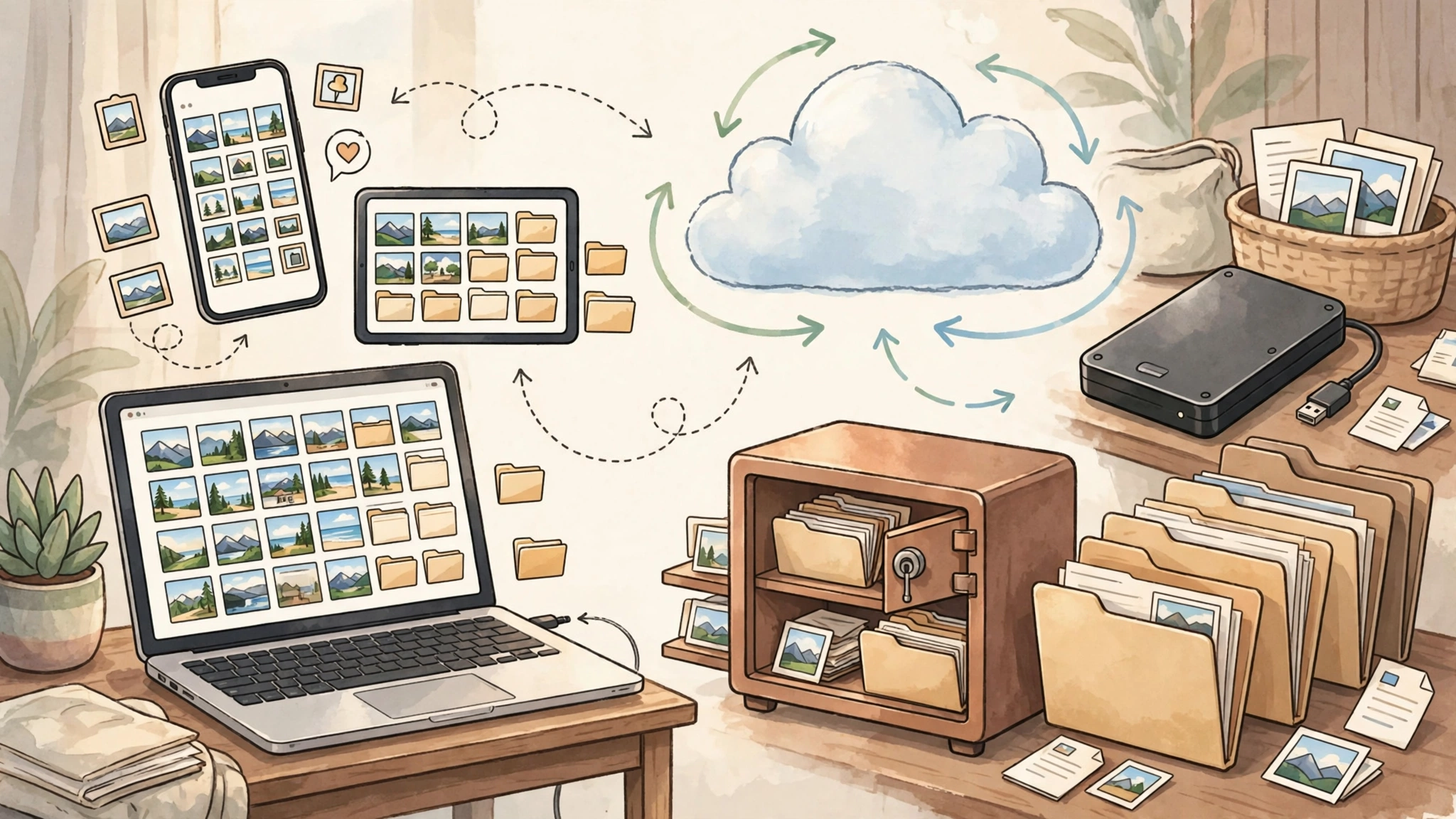
You probably already know that your photos, documents, messages, and important files should be backed up. The problem is that backup advice often becomes complicated very quickly.
Terms such as redundancy, retention, encryption, recovery keys, cloud sync, external drives, and the 3-2-1 rule can make a simple goal feel like an IT project.
This guide takes a simpler approach. The goal is to help you build a backup system that is easy enough to maintain, reliable enough to trust, and flexible enough to grow with your needs.
Why Simple Backups Are Easier to Maintain
A backup system is only useful if you continue using it.
A technically perfect setup that requires constant attention can be less practical than a simpler system that runs automatically and is tested occasionally.
The best approach is usually to reduce unnecessary decisions and focus on the data that would actually matter if it disappeared.
What Usually Makes Backups Feel Complicated?
- Too many choices: several apps, drives, accounts, and settings.
- Manual routines: needing to remember when to copy files.
- Unclear recovery: not knowing whether the backup can actually be restored.
- Mixed storage: personal files spread across devices, cloud services, external drives, and work accounts.
- Overengineering: creating a system that is much more complex than your real needs.
A useful backup system should reduce uncertainty rather than create more of it.
Step 1: Identify What You Cannot Afford to Lose
Do not begin by trying to back up every file you own.
Start by identifying the data that would be difficult, expensive, or impossible to replace.
Make a Simple Digital Inventory
Create four categories:
- Devices: laptop, desktop, phone, tablet, external drives.
- Cloud services: Google Drive, iCloud, OneDrive, Dropbox, Notion, or other services.
- Important folders: Documents, Photos, Projects, Work, Finance, Personal Records.
- Older data: old hard drives, SD cards, USB drives, archived photos, scanned documents.
Then ask:
If this disappeared tomorrow, what would I genuinely regret losing?
Those items should become your highest backup priority.
Think in Terms of Recoverability
A useful way to prioritize is to ask how difficult something would be to recreate.
For example:
- browser cache or downloaded installers are usually easy to replace;
- work documents may take hours or days to recreate;
- family photos, original research, contracts, or personal records may be impossible to recreate.
Focus your backup effort on the data with the highest recovery cost.
Step 2: Avoid Single Points of Failure
A backup becomes fragile when the only copy depends on one device, one account, or one service.
Examples of single points of failure include:
- all family photos stored only in one cloud account;
- important documents existing only on a laptop;
- business files stored only in one shared workspace;
- old photos stored only on one external drive;
- a cloud account with outdated recovery information.
You do not need a complicated enterprise system. You simply need more than one independent recovery path for important data.
Step 3: Understand the Difference Between Sync and Backup
This distinction is important.
Synchronization keeps files consistent across devices or services.
Backup gives you another copy that can help you recover after deletion, corruption, device failure, or account problems.
A synchronized folder can still be useful, but it should not always be treated as your only backup.
Example
If a file is deleted from a synchronized folder, that deletion may also synchronize to other devices.
Version history or trash retention may help, depending on the service, but those features have limits and policies that can change.
For important data, consider keeping an additional independent copy.
Step 4: Build a Simple Three-Layer Backup System
You do not need twelve different tools.
For many people, a simple system can be built around three layers:
- automatic backup or synchronization;
- a cloud copy;
- an offline copy.
Layer 1: Automatic Device Backup
Use the backup tools already available on your operating system where they fit your needs.
For macOS, Apple provides Time Machine.
For Windows, Microsoft provides built-in backup and recovery options. Because Windows backup features have changed across versions, follow Microsoft’s current Windows support documentation for the version you use.
The main advantage of built-in tools is simplicity. They are integrated with the operating system and can often run automatically after initial configuration.
Layer 2: Cloud Storage or Cloud Backup
Cloud services are useful because they keep an additional copy away from your physical device.
Examples include:
- Google Drive;
- Google Photos;
- iCloud;
- OneDrive;
- Dropbox;
- dedicated cloud backup providers.
Before relying on a service, understand:
- whether it provides sync, backup, or both;
- how long deleted files are retained;
- whether version history is available;
- how account recovery works;
- whether storage limits apply.
Layer 3: Offline Archive
An offline copy can protect against problems that affect both your device and online accounts.
For example, you can periodically copy your most important folders to an external HDD or SSD, then disconnect it.
This can help protect against:
- ransomware;
- accidental synchronization;
- cloud account problems;
- device failure;
- internet outages.
The key word is offline. If the drive stays connected all the time, it may be affected by the same problems as the computer.
Step 5: Choose What Goes Into the Offline Archive
Your offline archive does not need to contain everything.
Good candidates include:
- family photos and videos;
- important personal documents;
- tax records;
- contracts;
- original creative work;
- research projects;
- important exports from online services.
Use simple folder names that will still make sense years later.
For example:
Offline_Backup/
├── Family_Photos/
├── Personal_Documents/
├── Tax_Records/
├── Projects/
└── Account_Exports/
Simple organization is usually easier to maintain than a complicated archive structure.
Step 6: Automate the Repetitive Parts
The more often a backup requires you to remember something, the more likely it is to be skipped.
Use automation where it reduces repetitive work.
Examples
- enable automatic phone photo backup;
- enable automatic device backups where supported;
- schedule cloud backup software;
- use a recurring calendar reminder for offline archives;
- enable failure notifications for important backup jobs.
Automation should reduce maintenance, not hide the backup system completely.
You still need to know whether it is working.
Step 7: Use a Recurring Backup Reminder
If your offline backup is manual, create a recurring calendar event.
For example:
Quarterly Offline Backup
- connect the external drive;
- copy the important folders;
- confirm the files are present;
- safely eject the drive;
- store it separately.
The exact frequency depends on how quickly your important data changes.
If you create important files every day, quarterly may be too infrequent. If your archive changes slowly, it may be sufficient.
Step 8: Test Recovery, Not Just Backup
A backup is only useful if you can restore from it.
Testing does not need to involve deleting your entire system or resetting your phone.
A simple test is enough.
Simple Recovery Test
- Choose a non-critical file that exists in your backup.
- Copy or move the original somewhere safe.
- Restore the backed-up version.
- Open it and verify that it works.
This checks whether the recovery path is understandable and functional.
Test Different Layers Occasionally
If you have several backup layers, test them separately.
For example:
- restore one file from the operating-system backup;
- download one file from cloud storage;
- open one file from the offline archive.
You do not need to run a disaster simulation every month.
You simply need enough confidence that each recovery path still works.
Step 9: Document Your Recovery Process
During an actual data-loss event, stress can make even familiar steps harder to remember.
Create a short recovery note containing:
- where your backups are located;
- which cloud accounts are involved;
- where recovery keys or backup codes are stored;
- how to restore important files;
- who to contact if professional help is needed.
Keep this document simple.
Do not store passwords or sensitive recovery secrets in an unsecured file.
Step 10: Secure the Accounts That Protect Your Backups
A cloud backup is only useful if you can safely access the account.
For important accounts:
- use a unique password;
- enable multi-factor authentication where available;
- keep account recovery information current;
- store backup codes safely;
- review logged-in devices occasionally.
A password manager can make unique passwords easier to maintain.
Step 11: Encrypt Sensitive Data When Appropriate
Not every file requires the same level of protection.
Consider stronger protection for:
- financial records;
- identity documents;
- confidential business files;
- sensitive personal information;
- client or regulated data.
Full-disk encryption such as FileVault on macOS or supported Windows device encryption can help protect data if a device is lost or stolen.
External backup drives may also support encryption.
Remember: encryption creates another recovery dependency. If you lose the password or recovery key, you may lose access to the backup.
Step 12: Store Recovery Keys Separately
Do not keep every recovery method inside the same device or account it is supposed to protect.
Possible approaches include:
- a secure password manager;
- a printed copy stored in a safe place;
- a secure physical location separate from the primary device;
- a trusted recovery contact where supported.
The goal is to avoid situations where losing one phone or account also removes your ability to recover everything else.
Step 13: Back Up Important App Data
Some applications store important information in their own cloud systems or proprietary formats.
Examples include:
- note-taking apps;
- password managers;
- messaging apps;
- journaling apps;
- finance software;
- project-management tools.
For important applications, ask:
- Does this app back up automatically?
- Can I export my data?
- What format does the export use?
- Can I open that export without the original service?
If an application contains irreplaceable information, periodically exporting that data may be worthwhile.
Step 14: Back Up Your Phone
Phones often contain some of the most personal data we own.
Depending on your device, backup options may include:
- iCloud backup;
- Google account backup;
- photo and video cloud backup;
- computer-based backups;
- app-specific backup systems.
Do not assume every application is included in the system backup.
Messaging apps and authenticator apps may have their own recovery methods.
Check the official documentation for the apps that matter most to you.
Step 15: Back Up Social Media and Online Accounts
Many online platforms provide data export tools.
These exports can preserve things such as:
- posts;
- photos;
- messages;
- account history;
- profile information.
If an account contains years of personal content, downloading an archive occasionally can provide an additional copy outside the platform.
Export options and file formats vary by service, so use the platform’s current official instructions.
Step 16: Do Not Reformat Your Only Archive
When maintaining offline backups, avoid destroying the only known-good copy simply to create a new one.
If possible, keep the previous backup until the new backup has been completed and checked.
This gives you a fallback if the new copy fails or is incomplete.
Step 17: Know When Your Setup Is Good Enough
A backup system does not need to preserve every temporary file forever.
Focus on the data that actually matters.
A reasonable personal setup might look like this:
- automatic phone backup;
- important documents synchronized to cloud storage;
- local device backup;
- periodic offline archive of irreplaceable files;
- occasional recovery testing;
- multi-factor authentication on important accounts.
If that system runs consistently and you understand how to recover your files, it may already be enough.
A Simple Backup Checklist
Use this checklist to review your setup:
- Do I know which files are irreplaceable?
- Do those files exist in more than one place?
- Is at least one copy independent of my primary device?
- Do I have an offline copy of my most important data?
- Are my important cloud accounts protected with multi-factor authentication?
- Do I know where my recovery keys are stored?
- Have I successfully restored a test file?
- Can I export important data from the apps I depend on?
If you can answer yes to most of these questions, your backup strategy is already stronger than simply trusting one device or one cloud account.
How This Guide Was Prepared
This guide focuses on practical personal backup principles rather than recommending one universal backup product.
Backup features, cloud retention periods, pricing, operating-system tools, and app export options can change over time.
Before configuring a specific product or service, check its current official documentation.
Frequently Asked Questions
How often should I back up my phone?
For most people, automatic backup is easier to maintain than manual backup.
The right frequency depends on how much important data you create and how much data you are willing to lose if the device fails.
If your phone contains important daily photos, documents, or messages, automatic daily or continuous cloud backup may be appropriate where supported.
Is Google Drive or iCloud enough?
They can be important parts of a backup strategy, but relying on a single service creates a single recovery dependency.
For irreplaceable files, an additional independent copy—such as an external drive—provides another recovery option.
What is the cheapest reliable backup setup?
There is no fixed price because storage requirements vary.
A simple setup can often use:
- built-in operating-system backup tools;
- cloud storage you already use;
- one external HDD or SSD for offline copies.
Check current storage prices and choose capacity based on your actual data size rather than buying a specific product only because it is popular.
Can I back up without an internet connection?
Yes.
External HDDs, SSDs, local NAS devices, and other local storage options can create backups without an internet connection.
An offline copy is particularly useful because it is independent of your cloud account and internet connection.
Do I need the 3-2-1 backup rule?
The 3-2-1 principle is a useful framework: multiple copies, more than one type of storage, and at least one copy stored separately.
You do not need to follow it mechanically if that makes your system too complicated.
The important idea is avoiding a situation where one failure can destroy every copy of important data.
Final Takeaway
Backing up your digital life does not need to feel like managing enterprise infrastructure.
Start with the files that matter most.
Keep more than one copy.
Use automatic tools where they reduce repetitive work.
Keep an offline copy of irreplaceable data.
Protect the accounts that give you access to your backups.
And occasionally restore a file to make sure the system actually works.
A backup strategy succeeds when it is simple enough that you continue using it and reliable enough that a failed device does not become a disaster.
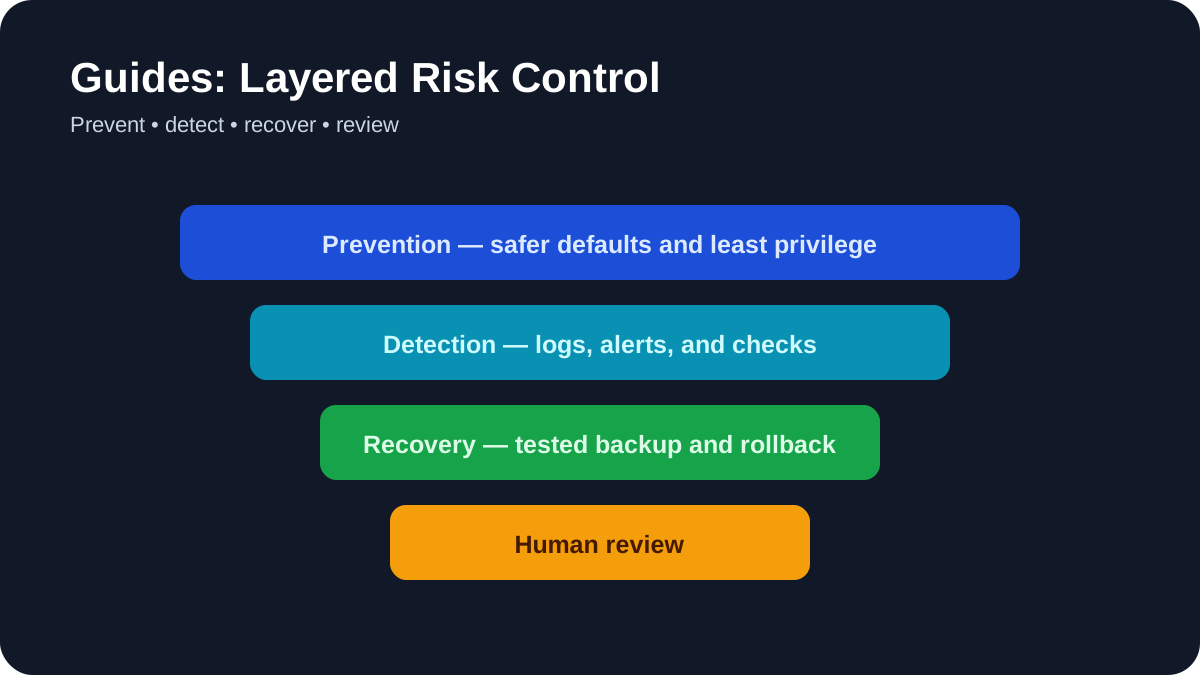
Practical example: checking whether a backup can actually be restored
A backup is only useful if the important files can be recovered. Pick a small, non-sensitive sample and perform a test restore to a separate folder or spare device. If you already have a Windows backup job and want to track whether it ran, see our guide to backup-job monitoring; the spreadsheet records status, not the backup itself.
- List the files and settings the backup is meant to protect.
- Confirm the backup date, location, encryption, and retention period.
- Restore the sample without overwriting the original files.
- Open the restored files and check permissions and versions.
- Record the steps and the time required so someone else can repeat them.
Schedule a restore test whenever the backup method changes. Recovery evidence is more valuable than a green “backup complete†message by itself.
Practical verification and limits
Keep three copies on two storage types with one separated from the device, protect accounts and keys, and perform a restore test before trusting the backup plan.