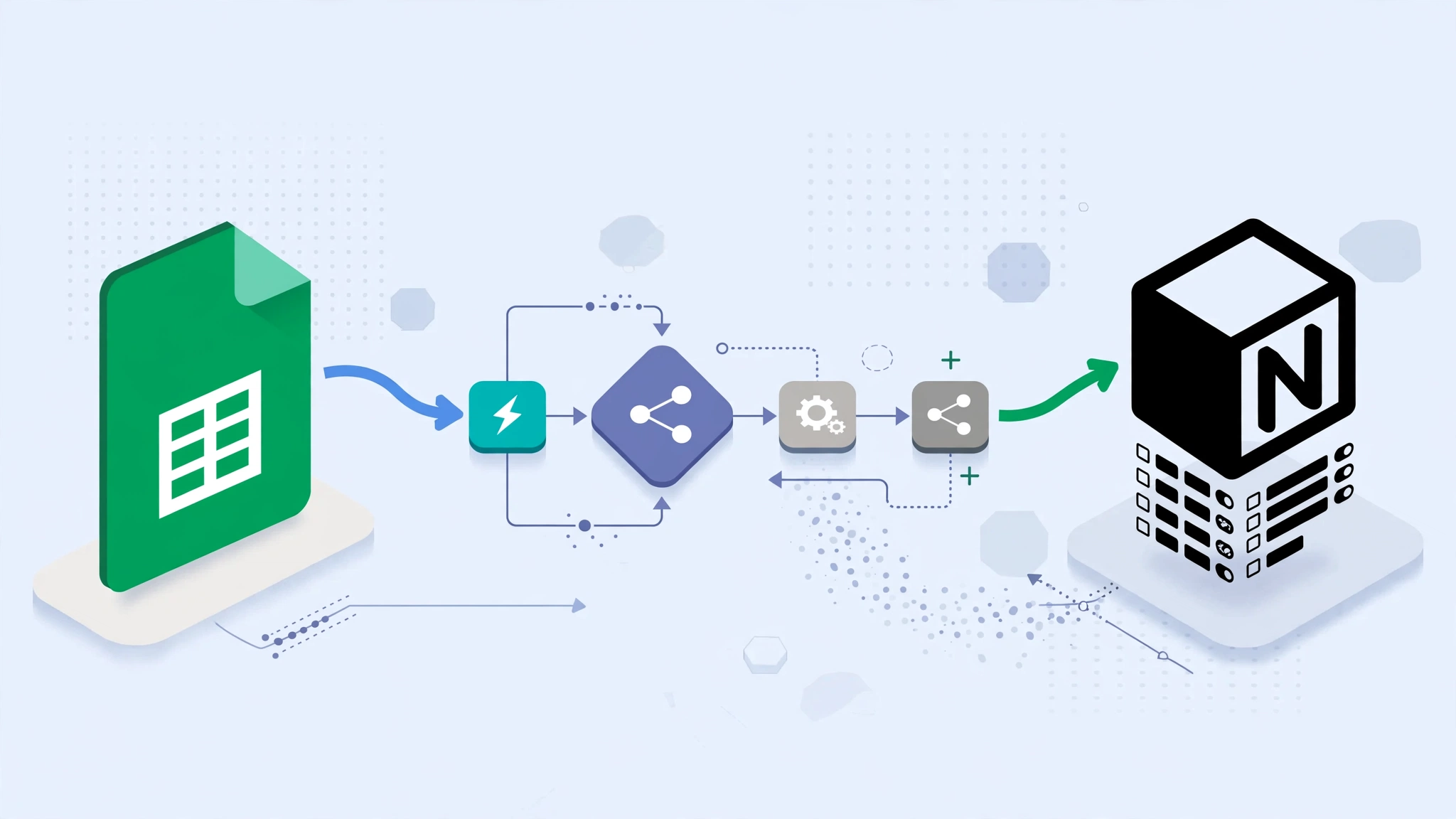
Google Sheets and Notion are both useful for organizing structured information, but they often end up containing the same data in different places.
A marketing team may track campaign metrics in Google Sheets while keeping project documentation in Notion. A support team may collect requests in a spreadsheet but manage follow-up work in a Notion database.
Instead of copying information manually, you can use n8n to sync Google Sheets with Notion.
This guide explains a practical one-way synchronization workflow, how to prevent duplicate Notion records, how to handle updates safely, and what to consider before attempting a more complicated two-way sync.
What Are We Building?
The basic workflow is:
Google Sheets
      ↓
n8n
      ↓
Validate and Transform
      ↓
Find Existing Notion Record
      ↓
Create or Update
      ↓
Log Result
Google Sheets remains the source of the incoming structured data, while Notion becomes the destination used for dashboards, project tracking, or team workflows.
Why Use n8n Between Google Sheets and Notion?
You could write your own script using the Google Sheets and Notion APIs.
n8n is useful because it provides a visual layer for:
- authentication;
- scheduled execution;
- data transformation;
- conditional branching;
- API calls;
- error handling;
- execution history.
This makes the workflow easier to inspect than a collection of disconnected scripts.
It does not automatically make the workflow reliable, secure, or compliant. Those qualities still depend on how you design and operate it.
Example Use Case
For this tutorial, imagine a Google Sheet containing support tickets.
The columns are:
ID
Subject
Description
Status
Assignee
Created Date
Priority
We want each row to create or update a corresponding record in a Notion database.
The important field will be ID.
That ID acts as our stable identifier so the workflow can determine whether a row already exists in Notion.
Before You Start
You will need:
- a Google account with access to the spreadsheet;
- a Notion workspace;
- a Notion database or data source for the synchronized records;
- an n8n instance;
- credentials for Google Sheets and Notion configured in n8n.
The exact authentication screens and node options can change between n8n and API releases, so use the current n8n documentation when connecting the accounts.
Step 1: Prepare the Google Sheet
Create a spreadsheet with predictable column names.
For example:
| ID | Subject | Description | Status | Assignee | Created Date | Priority |
|---|---|---|---|---|---|---|
| TKT-001 | Login problem | User cannot sign in | Open | alex@example.com | 2026-09-01 | High |
Use a Stable ID
This is one of the most important parts of the workflow.
Do not use the row number as the permanent identity of the record.
Rows can move when someone sorts or inserts data.
Instead, create a unique ID such as:
TKT-001
TKT-002
TKT-003
That ID should not change during the lifetime of the record.
Step 2: Prepare the Notion Database
Create a Notion database with corresponding properties.
For example:
- Subject — Title
- ID — Text
- Description — Text
- Status — Select or Status
- Assignee — Text or another appropriate property
- Created Date — Date
- Priority — Select
- Last Synced — Date
The property types need to match the values the workflow sends.
For example, sending arbitrary text into a Notion date property will fail if it cannot be interpreted correctly.
Step 3: Connect Google Sheets to n8n
In n8n, create Google Sheets credentials using the authentication method supported by your environment.
Then add a Google Sheets node and select:
- the Google account;
- the spreadsheet;
- the relevant sheet or tab;
- the operation that reads rows.
Run the node once and inspect its output.
Do not continue building the workflow until the returned fields match what you expect.
Step 4: Connect Notion to n8n
Create a Notion integration and give it access only to the pages or databases required by this workflow.
Then create the Notion credential inside n8n.
A useful security rule is:
Do not give an automation access to more Notion content than it actually needs.
If the workflow only updates one support database, there is usually no reason to expose unrelated workspace content to the integration.
Step 5: Add a Trigger
For the simplest version, use a schedule.
For example:
Schedule Trigger
      ↓
Google Sheets
You might run it periodically depending on how fresh the data needs to be.
There is no universal requirement to run every minute or every five minutes.
Higher frequency creates more API traffic and more opportunities for overlapping executions.
Step 6: Read the Sheet Rows
Add the Google Sheets node after the trigger.
The output should produce one n8n item for each row you want to process.
For example:
{
  "ID": "TKT-001",
  "Subject": "Login problem",
  "Description": "User cannot sign in",
  "Status": "Open",
  "Assignee": "alex@example.com",
  "Created Date": "2026-09-01",
  "Priority": "High"
}
Inspect this data carefully before transforming it.
Step 7: Normalize the Data
Spreadsheet data is often inconsistent.
Typical problems include:
- extra spaces;
- empty cells;
- different capitalization;
- invalid dates;
- unexpected status values.
A Code node can normalize values.
For example:
return $input.all().map(item => {
  const row = item.json;

  return {
    json: {
      id: String(row.ID || '').trim(),
      subject: String(row.Subject || '').trim(),
      description: String(row.Description || '').trim(),
      status: String(row.Status || '').trim(),
      assignee: String(row.Assignee || '').trim(),
      createdDate: row['Created Date'] || null,
      priority: String(row.Priority || '').trim(),
      syncedAt: new Date().toISOString()
    }
  };
});
The exact transformation depends on the data returned by your Google Sheets node.
Step 8: Reject Rows Without an ID
A missing ID makes reliable synchronization difficult.
Add an IF node after normalization.
Continue only when:
id is not emptyRows without an ID can be sent to an error or review branch instead of silently creating duplicate Notion records.
Step 9: Look for an Existing Record in Notion
Before creating a new record, search Notion using the stable ID.
The logic becomes:
Google Sheet Row
      ↓
Search Notion by ID
      ↓
Found?
 ↙          ↘
Yes          No
 ↓            ↓
Update       Create
This is the basic upsert pattern.
Why Search by ID Instead of Subject?
Subjects are not reliable identifiers.
Two tickets could both be called:
Login problemA dedicated ID avoids that ambiguity.
Step 10: Create the Record if It Does Not Exist
If the Notion lookup returns no matching record, create one.
Map the normalized values to their corresponding Notion properties.
For example:
- Subject →
subject - ID →
id - Description →
description - Status →
status - Priority →
priority - Last Synced →
syncedAt
Step 11: Update the Record if It Already Exists
If the ID already exists, update the existing Notion record instead of creating another one.
This is what makes the workflow idempotent at the business-record level.
Running the workflow twice should not create two records for the same TKT-001.
Step 12: Be Explicit About Which System Owns Each Field
This becomes important when people also edit Notion manually.
For example, suppose:
- Google Sheets owns Subject and Priority;
- Notion owns Internal Notes;
- Google Sheets owns Status.
Then the n8n workflow should update only the fields owned by Sheets.
Do not overwrite every Notion property on every run.
This prevents automation from deleting legitimate manual work.
Step 13: Add a Last Synced Timestamp
A Last Synced property makes troubleshooting much easier.
Set:
new Date().toISOString()whenever n8n successfully creates or updates the record.
This gives the team a visible indication that the workflow touched the record.
Step 14: Do Not Assume Every Blank Cell Means “Delete”
Suppose the Assignee column in Google Sheets is empty.
There are at least two possible interpretations:
- remove the existing Notion assignee;
- leave the existing Notion assignee unchanged.
Those are very different operations.
Define the behavior explicitly instead of letting empty values silently overwrite data.
Step 15: Validate Status and Select Values
Notion properties such as Status and Select often expect known values.
If Google Sheets contains:
open
Open
OPEN
Open
your workflow may need to normalize them first.
For example:
const statusMap = {
  "open": "Open",
  "in progress": "In Progress",
  "resolved": "Resolved"
};

const normalizedStatus =
  statusMap[String(row.Status || '').trim().toLowerCase()] || "Open";
This gives the transformation logic a predictable output.
Step 16: Handle Dates Carefully
Dates are another common source of errors.
Google Sheets can return dates differently depending on configuration and how the value is read.
Do not assume every Sheets date is automatically a Unix timestamp.
Inspect the actual value first.
Then convert it deliberately into an ISO 8601 date that Notion accepts.
Step 17: Add Error Handling
A production workflow should not simply stop without visibility when one item fails.
Common errors include:
- Google authentication failure;
- Notion authentication failure;
- invalid property type;
- missing required field;
- API rate limiting;
- temporary network failure;
- deleted or inaccessible Notion destination.
Use n8n’s current error-handling features to route failures into a dedicated workflow or notification path.
Keep the failure information useful:
- record ID;
- workflow name;
- failed step;
- error message;
- execution timestamp.
Step 18: Do Not Log Sensitive Payloads Unnecessarily
Execution logs can become a secondary copy of your business data.
If the Sheet contains:
- customer information;
- employee data;
- private support conversations;
- financial information;
review what n8n stores in execution history.
Logging everything indefinitely can create a privacy and security problem of its own.
Step 19: Respect Google Sheets API Limits
The Google Sheets API has usage quotas.
Current Google documentation recommends combining multiple reads or writes where practical because batch operations improve efficiency. :contentReference[oaicite:1]{index=1}
Do not design the workflow around outdated hard-coded quota numbers copied from old tutorials.
If Google returns a rate-limit response, apply retries with backoff rather than immediately repeating requests in a tight loop.
Step 20: Respect Notion API Rate Limits Too
Notion also applies rate limits.
Do not assume a fixed request-per-second number will remain unchanged forever.
Use the API’s returned status and retry guidance where available, and avoid making unnecessary requests.
Reduce Repeated Lookups
If every row requires:
- one Notion search;
- one update;
then 1,000 rows can generate a large number of API calls.
At larger scale, consider maintaining a mapping of:
Source ID → Notion Page IDin a reliable store.
Do not cache IDs blindly forever, but there is also no reason to claim that Notion page IDs routinely change whenever pages move. The workflow should simply handle missing or inaccessible pages gracefully.
Step 21: Batch Carefully
Batching does not necessarily mean Notion provides a native “create 100 pages in one request” operation.
Instead, batching in n8n often means controlling how many items the workflow processes at a time.
For example:
1000 rows
   ↓
Process 20
   ↓
Wait / Continue
   ↓
Process Next 20
This helps control memory use and API pressure.
Step 22: Avoid Overcomplicating the First Version
The first production-worthy workflow does not need:
- Redis;
- multiple n8n workers;
- a load balancer;
- Prometheus;
- Grafana;
- custom CI/CD;
- two-way synchronization.
Start with:
Schedule
  ↓
Read Rows
  ↓
Normalize
  ↓
Find by ID
  ↓
Create or Update
  ↓
Error Handling
Only add infrastructure when the workflow actually needs it.
Two-Way Sync Is Much Harder
It is tempting to say:
“If Sheets changes, update Notion. If Notion changes, update Sheets.”
But two-way synchronization creates several new problems.
Conflict Example
At 10:00:
Sheets Status = OpenAt 10:01, someone changes Notion to:
Status = ResolvedAt 10:02, someone changes Sheets to:
Status = EscalatedWhich value should win?
Without explicit ownership or conflict-resolution rules, the systems can continuously overwrite each other.
A Safer Two-Way Sync Design
If two-way synchronization is genuinely necessary, define:
- which system owns each property;
- how changes are timestamped;
- how the source of a change is recorded;
- how loops are prevented;
- what happens when both sides change;
- how conflicts are surfaced to humans.
Example Ownership Model
| Field | System of Record |
|---|---|
| ID | Google Sheets |
| Subject | Google Sheets |
| Priority | Google Sheets |
| Internal Notes | Notion |
| Review Status | Notion |
This is usually easier to reason about than letting both systems edit everything.
When a Webhook Makes Sense
A schedule is often simpler.
Webhooks become useful when:
- changes need to propagate quickly;
- the source platform exposes a suitable event mechanism;
- you can verify incoming requests;
- the workflow can safely handle duplicate events.
Do not add webhook infrastructure only because “real-time” sounds better.
Security Considerations
A Sheets-to-Notion workflow may move business information between multiple systems.
Review:
- who can access the Google Sheet;
- which Notion pages the integration can access;
- who can modify the n8n workflow;
- where n8n credentials are stored;
- how much execution data is retained;
- whether the n8n instance is exposed to the public internet;
- which fields contain personal or confidential information.
Self-Hosting Does Not Automatically Mean Secure
Self-hosting can provide more control over infrastructure and credential storage.
But it also makes you responsible for:
- patching;
- TLS configuration;
- network security;
- backups;
- access controls;
- monitoring;
- incident response.
Do not treat self-hosting itself as proof of GDPR, HIPAA, SOC 2, or other compliance.
How to Make the Workflow Easier to Maintain
Use descriptive node names.
For example:
Read Support Tickets
Normalize Ticket Fields
Validate Ticket ID
Find Ticket in Notion
Create New Ticket
Update Existing Ticket
Record Sync Failure
This is easier to maintain than nodes named:
Google Sheets1
Code3
IF2
Notion4
Document Important Decisions
Add notes explaining:
- which system owns each field;
- why a field is transformed;
- how duplicate detection works;
- what happens when an API is unavailable;
- who maintains the workflow.
A Practical Testing Checklist
Before activating the workflow, test:
- a normal new row;
- an existing row that needs updating;
- a row without an ID;
- an empty optional field;
- an invalid status value;
- an invalid date;
- a temporarily unavailable Notion destination;
- duplicate execution of the same source row.
The last test is especially important.
Running the same input twice should not create duplicate business records.
When Google Sheets Is the Wrong Source
Google Sheets works well for relatively simple collaborative datasets.
It becomes less attractive when:
- the dataset is extremely large;
- many systems write simultaneously;
- strict transactional guarantees are required;
- complex relational data is involved;
- high-frequency synchronization is required.
At that point, a database may be a better system of record.
When Notion Is the Wrong Destination
Notion works well for team-visible records and knowledge workflows.
It may not be the best destination for:
- high-volume telemetry;
- raw event streams;
- large analytical datasets;
- systems requiring strict transactions;
- machine-to-machine workloads with very high write rates.
Automation should fit the tools rather than forcing the tools into workloads they were not designed to handle.
How This Guide Was Prepared
This guide focuses on a practical synchronization pattern rather than a claim that there is one official architecture for connecting Google Sheets, Notion, and n8n.
The workflow uses observable concepts that remain useful even when individual node interfaces change:
- a stable source identifier;
- data normalization;
- lookup before create;
- controlled updates;
- field ownership;
- error handling;
- human-readable execution history.
n8n nodes, Google APIs, Notion APIs, authentication methods, quotas, and property models can change over time. Verify current official documentation before deploying the workflow.
The examples here are architectural patterns. They are not claims that named companies or organizations use these exact workflows.
Frequently Asked Questions
Can n8n automatically sync Google Sheets with Notion?
Yes.
n8n can read data from Google Sheets and use it to create or update records in Notion.
The reliability of the sync depends on how you handle identifiers, duplicates, field mapping, errors, and conflicts.
Do I need to code?
Not for a basic workflow.
Many transformations can be built with n8n’s visual nodes and expressions.
JavaScript becomes useful when your mapping or validation logic becomes more complex.
Can I sync changes both ways?
Yes, but two-way sync is substantially more complicated than one-way synchronization.
You need rules for ownership, conflict resolution, update loops, and timestamps.
Start with one-way sync unless you genuinely need both directions.
How do I prevent duplicate Notion records?
Use a stable unique identifier from the source system.
Before creating a Notion record, search for that ID.
If it exists, update it. If it does not, create it.
Can I use the row number as the unique ID?
It is usually a poor choice.
Rows can change position when users sort, insert, or delete data.
A dedicated ID column is more reliable.
Should I use Google Sheets as the system of record?
It can work for smaller collaborative workflows.
For more complex, transactional, or high-volume systems, a database may be a better source of truth.
Does self-hosted n8n make the sync private?
Not automatically.
Google Sheets and Notion remain external services, so data sent to those platforms still leaves the n8n host.
Self-hosting mainly gives you more control over the orchestration layer.
Final Takeaway
A reliable Google Sheets-to-Notion workflow does not need to be complicated.
The most important pieces are:
- use a stable record ID;
- normalize the incoming data;
- validate required fields;
- search before creating;
- update only the fields your source owns;
- keep errors visible;
- avoid unnecessary two-way synchronization.
Start with a simple one-way sync and test it against duplicate runs, bad data, and temporary API failures.
Only add webhooks, two-way updates, batching infrastructure, Redis, or distributed n8n workers when the workflow has a real need for them.
Recommended for you 👇
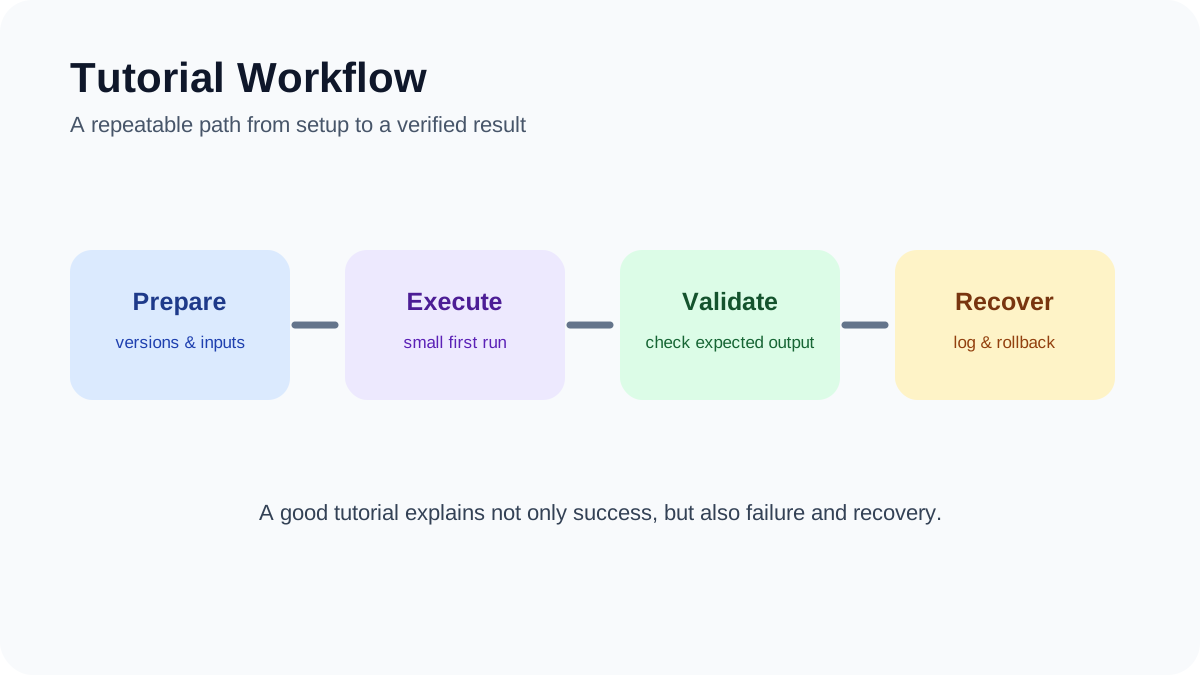
Practical verification and limits
Map fields explicitly, test updates and deletions on copies, protect credentials, and add an idempotency key so retries do not create duplicate pages or rows.