You do not need a Microsoft 365 subscription for every document, spreadsheet,
or presentation task. The right free alternative depends on whether you
prioritize desktop access, real-time collaboration, Microsoft file
compatibility, privacy, or a lightweight interface.
Quick recommendations
- Best all-round desktop suite: LibreOffice
-
Best for browser collaboration: Google Docs, Sheets, and
Slides -
Best for Microsoft-format-focused editing: ONLYOFFICE
Desktop Editors - Best lightweight traditional interface: FreeOffice
-
Best for teams that want to self-host collaboration:
Collabora Online
1. LibreOffice
LibreOffice is a free, open-source desktop suite for Windows, macOS, and
Linux. Writer, Calc, and Impress cover the core word-processing, spreadsheet,
and presentation jobs, while Draw and Base add capabilities not commonly
included in lightweight alternatives.
It is a strong choice for offline work, open document formats, and users who
want a full desktop application without an account. Microsoft Office files can
be opened and saved, but complex layouts, macros, fonts, and advanced
spreadsheet features may not transfer perfectly. Keep a copy of the original
and test important files before collaborating.
2. Google Docs, Sheets, and Slides
Google’s browser-based editors are the simplest option for live collaboration.
Multiple people can edit at once, leave comments, review version history, and
share a link without passing attachments around.
The trade-off is that the experience is centered on a Google account and cloud
storage. Offline access can be configured, but it is not the same as a
desktop-first suite. Importing and exporting Microsoft formats works well for
everyday files, although complex formatting and macros require testing.
3. ONLYOFFICE Desktop Editors
ONLYOFFICE provides free desktop editors for documents, spreadsheets,
presentations, PDFs, and forms. Its interface and emphasis on Office Open XML
formats make it approachable for people moving from Microsoft Office.
Choose it when DOCX, XLSX, and PPTX compatibility is more important than an
extensive ecosystem of open-source desktop tools. As with every alternative,
verify advanced formulas, tracked changes, embedded objects, and custom fonts
in documents that must look identical.
4. FreeOffice
SoftMaker FreeOffice includes TextMaker, PlanMaker, and Presentations. It is
available for desktop operating systems and offers a familiar, relatively
lightweight interface. It suits students and home users who want conventional
applications and do not need a cloud collaboration platform.
Check the current license and feature comparison before adopting it across an
organization. Some advanced capabilities and commercial-use terms may differ
from the paid SoftMaker Office product.
5. Collabora Online
Collabora Online brings LibreOffice-based editing to the browser and is
designed to integrate with storage and collaboration platforms. It is most
relevant to organizations that want more control over where documents are
hosted.
This is not the easiest personal replacement: deploying and maintaining a
collaborative server requires technical resources. For a team already
operating its own infrastructure, however, it can provide browser editing
without making a public cloud suite the default.
How to choose
Start with the files and workflows you actually use:
- Offline and open source: start with LibreOffice.
- Fast group editing: start with Google’s editors.
-
Frequent DOCX, XLSX, and PPTX exchange: test ONLYOFFICE and
LibreOffice with representative files. -
Older or modest hardware: compare FreeOffice and
LibreOffice on the actual device. -
Self-hosted collaboration: evaluate Collabora Online with
your storage platform.
A safe migration checklist
- Collect representative documents, including the most complex examples.
- Open, edit, save, and reopen each file in the candidate suite.
- Check formulas, page breaks, fonts, comments, tracked changes, and exports.
- Confirm whether macros or add-ins have equivalents.
- Run a small pilot before changing the default for everyone.
Verdict
LibreOffice is the most complete general-purpose free desktop replacement,
while Google’s editors lead for effortless collaboration. ONLYOFFICE is worth
testing when Microsoft file exchange dominates your workflow. There is no
universal winner: compatibility should be tested with your own documents, not
inferred from a feature list.
If you also need free tools for notes, email, passwords, PDFs, synchronization,
or image editing, see
12 Best Free Productivity Apps for Windows in 2026.
Official resources
Practical example: choosing an Office alternative for a study group
Imagine a four-person study group that needs to edit a shared report, export a final PDF, and keep working when one member has an unreliable connection. Start by writing the non-negotiables: file formats, offline access, simultaneous editing, citation workflow, and the devices each person already owns. Do not choose a tool only because it is free.
- Create a copy of the same sample document in each shortlisted editor.
- Ask each person to make one edit, add one comment, and export the file.
- Open the exported files in a second viewer and check layout, links, footnotes, and tracked changes.
- Record which features work offline and which require an account or cloud storage.
- Choose the option that produces the fewest conversion problems for the group’s actual workflow.
This small test is more useful than a generic feature list because it exposes the compatibility and collaboration issues that matter to the people who will use the software.
How to choose without risking your files
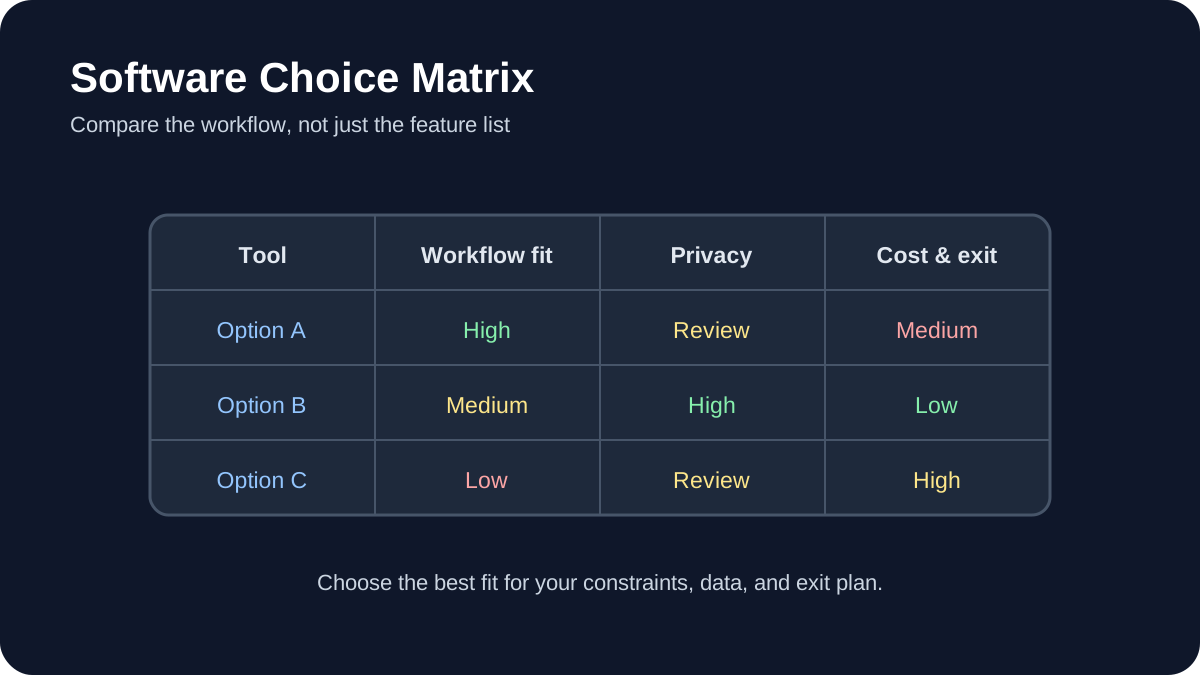
Compare alternatives against the documents and workflows you actually use. Open representative copies of DOCX, XLSX, and PPTX files, check layout and formula fidelity, and export them again before migrating. Also verify offline support, update policy, privacy terms, collaboration controls, and whether advanced features require a subscription.
Migration checks
- Keep the original files and a dated backup.
- Test fonts, charts, macros, formulas, comments, and tracked changes.
- Confirm that collaborators can open the exported format.
- Choose open formats where long-term portability matters.