Keeping up with AI research, software updates, academic papers, industry reports, and policy announcements can quickly become overwhelming. The problem is not finding information—it is collecting the right information consistently without spending hours copying links into spreadsheets every week.
One practical solution is to build an automated research digest using n8n and Google Sheets.
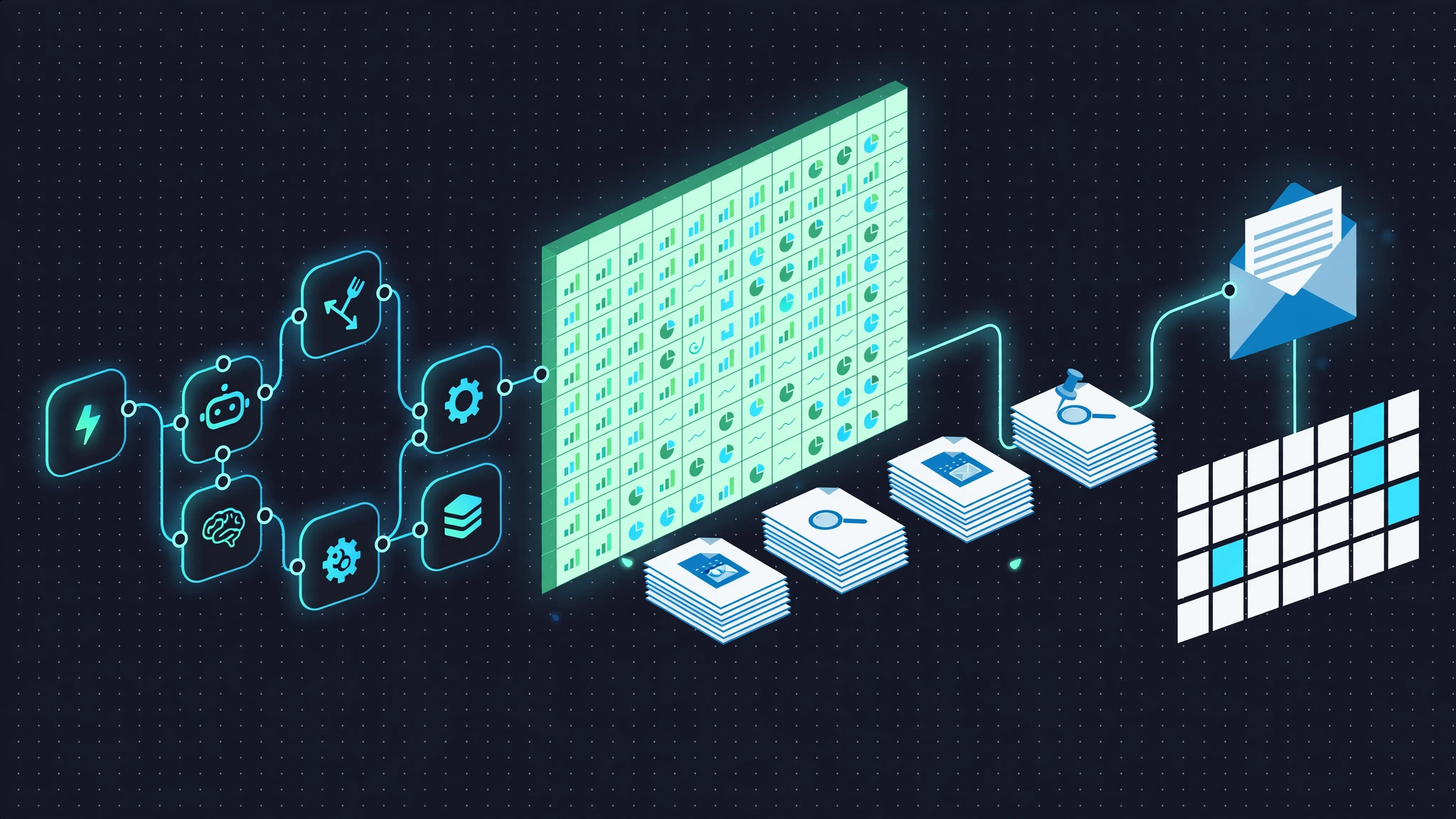
In this guide, you will learn how to create a workflow that collects research from selected sources, removes obvious duplicates, stores useful metadata in Google Sheets, and prepares the data for a weekly review or digest.
The goal is not to automate judgment. The goal is to automate repetitive collection so you can spend more time deciding what actually matters.
What We Are Building
The basic workflow looks like this:
- n8n runs on a schedule.
- It collects new items from RSS feeds or APIs.
- The data is converted into a consistent format.
- Old or duplicate items are filtered out.
- Useful items are saved to Google Sheets.
- A second workflow can turn the week’s entries into a digest.
You can start with a single source and expand the workflow later.
Why Use n8n for a Research Digest?
n8n is a workflow automation platform that lets you connect APIs, feeds, databases, spreadsheets, email services, and other tools through visual nodes.
For this project, n8n is useful because it can handle several different parts of the research workflow:
- scheduled execution;
- RSS ingestion;
- HTTP API requests;
- data transformation;
- filtering and deduplication;
- Google Sheets integration;
- email or messaging delivery;
- basic error handling.
n8n can be used through its hosted service or deployed on infrastructure you manage yourself. The best option depends on your technical requirements, budget, and data policies.
Why Use Google Sheets?
Google Sheets works well as a lightweight research database because it is easy to inspect, edit, share, and annotate manually.
That manual access is important.
Automation should not lock you out of your own research process. If a workflow assigns the wrong tag or saves an irrelevant article, you should be able to correct it immediately.
A spreadsheet can store fields such as:
- title;
- source;
- publication date;
- URL;
- DOI;
- abstract or summary;
- tags;
- review status;
- notes;
- priority.
Architecture of the Research Digest
I recommend separating the system into four simple layers:
1. Sources
These are the places where new research or updates originate.
Examples include:
- RSS feeds;
- academic APIs;
- official announcement feeds;
- institutional repositories;
- manual submissions.
2. Processing
This layer cleans and normalizes incoming information.
Typical tasks include:
- standardizing field names;
- checking publication dates;
- removing duplicates;
- checking required fields;
- assigning basic tags or priorities.
3. Storage
Validated items are stored in Google Sheets.
The spreadsheet becomes the place where automated collection and human review meet.
4. Delivery
At the end of the week, another workflow can retrieve recent entries and create a simple digest for email, Slack, Notion, or another destination.
Step 1: Create the Google Sheets Structure
Create a new Google Sheet and name it something clear, such as:
Research Digest Master Log
Create a worksheet named:
Items
For a simple setup, use columns similar to these:
idtimestamppublished_attitlesourceurldoiabstracttagsprioritystatusnotes
You do not need every field on day one. Start with the fields you will actually use.
A Practical Status System
For example, the status column might contain:
NewReviewedSavedArchived
This gives you a simple manual review workflow without needing another application.
Step 2: Connect Google Sheets to n8n
In n8n, create or configure Google Sheets credentials using one of the authentication methods currently supported by your n8n installation.
Because authentication screens and credential requirements can change, follow the current official n8n Google credentials documentation rather than relying on an old tutorial screenshot.
Once authentication works, test the connection with a simple operation such as reading rows from the spreadsheet.
Do this before building the full workflow. It is much easier to troubleshoot authentication separately from RSS and filtering logic.
Step 3: Create the Weekly Schedule
Create a new n8n workflow and add a Schedule Trigger.
Choose the day and time that fits your routine.
For example, you might run the workflow once every Sunday night so the collected information is ready for review on Monday.
The exact schedule is not important. Consistency is.
Step 4: Add Your First Research Source
Start with one source rather than ten.
For example, if you follow artificial intelligence research, you could begin with the arXiv AI RSS feed:
https://arxiv.org/rss/cs.AI
Add the appropriate RSS-reading node in n8n and test the output.
You will typically receive fields such as:
- title;
- link;
- description;
- publication date.
Normalize the Output
Different feeds often use different field names. Before combining multiple sources, convert them into your own consistent structure.
A Code node can be used for this.
return items.map((item) => ({
  json: {
    title: item.json.title || '',
    url: item.json.link || '',
    abstract: item.json.description || '',
    published_at: item.json.pubDate
      ? new Date(item.json.pubDate).toISOString()
      : null,
    source: 'arXiv AI'
  }
}));
The exact fields available will depend on the source, so inspect the incoming JSON before copying expressions blindly.
Step 5: Add Additional Sources Carefully
Once the first source works, you can gradually add more.
Possible sources include:
- Semantic Scholar API;
- Crossref REST API;
- PubMed and NCBI services;
- official government or institutional feeds;
- industry publication RSS feeds;
- manual Google Form submissions.
Do not add sources only because they are available. A research digest becomes less useful when low-quality sources overwhelm the ones you actually care about.
Step 6: Filter by Publication Date
If this is a weekly digest, you usually do not want to process months of historical items every time the workflow runs.
Compare each item’s publication date with your desired time window.
For example, you may choose to keep only entries published during the previous seven days.
Be careful with:
- missing publication dates;
- different time zones;
- feeds that update old articles;
- sources that publish timestamps in different formats.
Step 7: Prevent Duplicate Research Items
Duplicate handling is one of the most important parts of this automation.
The same paper may appear in several feeds, and some feeds repeat older entries.
Instead of trusting the title alone, consider using a stable identifier when one is available.
Good candidates include:
- DOI;
- canonical URL;
- arXiv identifier;
- another source-specific identifier.
If no stable identifier exists, you can create a normalized key from fields such as the title and URL.
const normalizedTitle = ($json.title || '')
  .toLowerCase()
  .replace(/[^a-z0-9]/g, '');

const key = `${normalizedTitle}|${$json.url || ''}`;

return {
  ...$json,
  dedupe_key: key
};
Then compare that value with previously stored records before inserting a new row.
Do Not Overcomplicate Deduplication Too Early
You do not necessarily need cryptographic hashing for a small personal digest.
A readable deduplication key may actually be easier to debug.
Only introduce more complex hashing when your workflow genuinely needs it.
Step 8: Save New Items to Google Sheets
Once an entry passes your filters, append it to the Items sheet.
Map your normalized fields to the appropriate columns.
For example:
title→ Titlesource→ Sourceurl→ URLpublished_at→ Published Dateabstract→ Abstractstatus→New
After adding a few test entries, manually inspect the spreadsheet.
Check whether:
- URLs are correct;
- dates are readable;
- long abstracts are manageable;
- duplicates are actually being prevented.
Step 9: Add Optional Relevance Scoring
You can add a simple relevance system if you collect a large number of items.
I recommend starting with transparent rules rather than immediately using AI classification.
For example:
- +2 if the title contains an important keyword;
- +1 if the abstract contains a secondary keyword;
- +2 if it comes from a high-priority source;
- +1 if it matches one of your current projects.
This produces a score you can understand and adjust.
Why Start With Simple Scoring?
If an automated classifier labels something incorrectly, it may not be obvious why.
Simple scoring lets you inspect the logic and change the weights easily.
Once the basic workflow is useful, you can consider semantic classification or an AI model as an optional enrichment layer.
Step 10: Enrich Academic Papers With External Metadata
If your research items include DOIs or academic identifiers, you can retrieve additional metadata from APIs such as Semantic Scholar or Crossref.
For example, the Semantic Scholar Graph API can return selected paper metadata.
A request might follow this general pattern:
https://api.semanticscholar.org/graph/v1/paper/DOI:YOUR_DOI?fields=title,year,venue,citationCountAlways consult the current Semantic Scholar API documentation for authentication, fields, and rate limits.
Treat citation counts as contextual metadata—not as a direct measure of research quality.
Step 11: Create the Weekly Digest Workflow
Once collection is reliable, create a second workflow for presentation.
This workflow can:
- run once per week;
- read recent rows from Google Sheets;
- filter out archived or irrelevant entries;
- sort by priority;
- format the remaining items;
- send the digest.
A Simple Markdown Format
Your digest might look like this:
# Weekly Research Digest

## Priority Reads

- [Research title](https://example.com)
  Source: Example Journal

- [Another paper](https://example.com)
  Source: arXiv

## Other New Items

- [Article title](https://example.com)
- [Report title](https://example.com)
Simple formatting is usually better than an overly elaborate digest. The purpose is to help you decide what deserves further attention.
Step 12: Send the Digest
n8n can deliver the result through whichever integration fits your workflow.
Common destinations include:
- email;
- Slack;
- Microsoft Teams;
- Notion;
- another database or API.
If you send email, test the formatting with a small internal recipient list before distributing it more widely.
Optional: Use AI to Summarize Research Items
AI can be added later to summarize abstracts or help categorize research, but it should be treated as an assistant rather than a source of truth.
A safer workflow is:
- collect the original metadata;
- store the original source URL;
- ask the AI to create a short summary;
- store that summary in a separate field;
- keep the original abstract available for comparison.
Do not replace source material with an AI summary.
If the digest will inform important decisions, review the original research before relying on an automatically generated interpretation.
Error Handling: Know When the Workflow Fails
A useful automation should fail visibly.
Feeds can disappear, APIs can return errors, credentials can expire, and Google Sheets requests can fail.
At minimum, consider tracking:
- which source failed;
- the error message;
- execution time;
- whether other sources completed successfully.
n8n provides workflow execution information and error-handling features. The exact configuration depends on the version and deployment you use, so refer to the current n8n error-handling documentation.
Create a Simple Health Sheet
If this workflow becomes important to your research process, create another worksheet named:
Metrics
You can record useful operational information such as:
- execution date;
- items fetched;
- new items stored;
- duplicates skipped;
- failed sources.
You do not need a complicated dashboard. Even a small log makes problems easier to notice.
Back Up Your n8n Workflows
Once the workflow becomes useful, keep a backup.
n8n supports workflow export, allowing you to save a workflow definition and keep versions outside the live installation.
You could store exported workflow files in Git or another backup location.
Before making a major change:
- export the working version;
- duplicate the workflow if necessary;
- test changes against a separate sheet;
- only apply them to production after testing.
Common Problems and How to Troubleshoot Them
The RSS Feed Returns No Items
Check the feed URL directly in your browser or RSS reader.
The publisher may have:
- changed the feed URL;
- temporarily disabled the feed;
- changed its output format;
- restricted automated access.
Do not assume every empty response is an n8n problem.
Google Sheets Writes Fail
Check:
- Google credentials;
- spreadsheet permissions;
- sheet name;
- column mappings;
- API quota or rate-limit errors.
For large workflows, reducing unnecessary individual writes can also improve efficiency.
You Are Still Getting Duplicates
Inspect the values you use for deduplication.
A URL can differ because of:
- tracking parameters;
- HTTP versus HTTPS;
- trailing slashes;
- different versions of the same paper.
Where possible, prioritize stable identifiers such as DOI or arXiv ID.
Your Relevance Filter Removes Useful Research
This usually means the rules are too strict.
Instead of immediately deleting low-scoring items, consider storing them with a lower priority.
You can then compare automated scoring with your own judgment and improve the rules gradually.
Start Small Before Building the Advanced Version
It is tempting to build everything at once:
- ten RSS feeds;
- Semantic Scholar enrichment;
- AI summaries;
- Slack alerts;
- automatic scoring;
- PDF parsing;
- dashboards.
I would not start there.
Start with this:
- one RSS feed;
- one Google Sheet;
- basic deduplication;
- one weekly schedule.
Use it for a week.
Then ask:
- Am I actually reading the collected items?
- Which sources produce the most useful material?
- Which fields do I really use?
- What repetitive work remains?
Automate those problems next.
A Practical Research Digest Checklist
Before relying on your automation, verify that:
- the schedule runs at the expected time;
- each source is still accessible;
- publication dates are parsed correctly;
- duplicates are not being inserted;
- Google Sheets receives complete rows;
- source URLs remain available;
- failed executions are visible;
- the weekly digest contains only the intended time period.
How This Guide Was Prepared
This guide focuses on a maintainable workflow pattern rather than presenting one rigid n8n configuration as the only correct implementation.
n8n nodes, authentication methods, APIs, third-party services, and user interfaces can change over time. When implementing the workflow, consult the current official documentation for the services you connect.
The architecture is intentionally modular so individual sources, filters, scoring systems, and delivery methods can be changed without rebuilding the entire process.
Frequently Asked Questions
Do I need programming skills to build this?
You can build the basic workflow without being an experienced programmer.
However, more advanced features—such as complex transformations, API integration, custom deduplication, or self-hosted services—may require familiarity with JSON, APIs, expressions, or JavaScript.
Can I use private research sources?
Potentially, yes, as long as you have authorization to access and process the information.
Authentication, privacy, licensing, and organizational policies should be considered before connecting internal systems to an automation workflow.
How much does the system cost?
There is no single fixed cost.
The total depends on:
- whether n8n is self-hosted or hosted;
- your server costs;
- execution volume;
- third-party APIs;
- AI services;
- Google Workspace requirements.
Always check current pricing from the relevant providers before designing the workflow around a specific budget.
Can I pause the weekly digest?
Yes. Disable or modify the workflow schedule when you do not want it to run.
For longer breaks, I prefer disabling the automation explicitly rather than embedding complicated holiday logic into the workflow.
Is a self-hosted n8n workflow automatically GDPR or CCPA compliant?
No.
Self-hosting gives you more control over infrastructure and data flow, but compliance depends on the data you process, where it is stored, who can access it, retention practices, third-party processors, security controls, and applicable legal requirements.
If your workflow processes personal or regulated information, review the relevant legal and organizational requirements rather than assuming that self-hosting alone guarantees compliance.
Final Takeaway
A weekly research digest does not need to be complicated to be useful.
The most valuable part of this workflow is not the number of integrations. It is having a consistent system that collects information from sources you trust, stores it in a format you can review, and removes repetitive manual work.
Start with one source and one spreadsheet. Make sure the workflow reliably collects useful material. Then add deduplication, prioritization, metadata enrichment, AI-assisted summaries, or additional delivery channels only when they solve a real problem in your process.
Automation should give you more time to evaluate research—not create another system you have to constantly manage.
Recommended for you 👇
Practical verification and limits
Store source URLs, dates, and retrieval times; test missing fields and duplicate events; route failures to an owner; and verify relevance and copyright before sharing a digest.