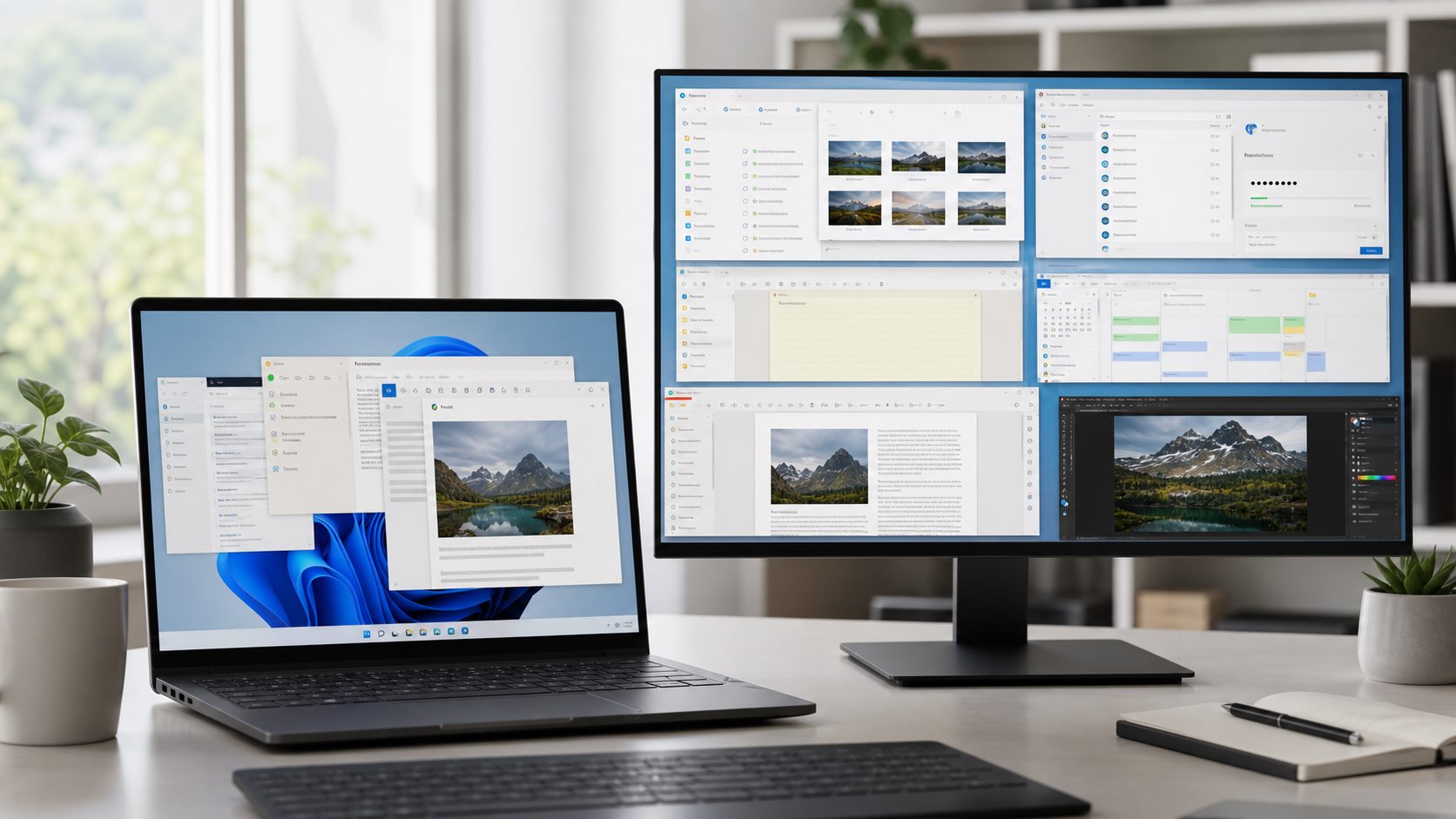
“Free productivity software” covers different needs: documents, notes, passwords, search, synchronization, and creative work. This is a researched feature guide, not a hands-on test or a ranked benchmark. Product terms, operating-system support, and paid options can change, so confirm current details on the official pages before installing or moving important files. If your main goal is replacing Word, Excel, or PowerPoint, use our focused guide to free Microsoft Office alternatives for document compatibility and migration questions.
Choose by task, not by a universal winner
| Task | Examples | Useful fit | Important limitation to check |
|---|---|---|---|
| Office documents | LibreOffice; ONLYOFFICE Desktop Editors | Creating and editing common office files on a Windows desktop. | Test copies of your real documents for fonts, macros, formulas, comments, and layout before switching. |
| Plain text and code files | Notepad++ | Editing text, logs, and source files without adopting a full development environment. | Review plugins carefully and download from the official project source. |
| Local notes | Joplin; Obsidian | Keeping notes searchable and arranging them around a personal workflow. | Check the sync model, export options, encryption details, and which features require payment; back up the note folder separately. |
| Password storage | KeePassXC | Managing a local password database when you are prepared to protect and back it up. | Keep the database and its recovery material safe. A password manager does not protect a lost or exposed database key. |
| PDF and document reading | SumatraPDF | Opening common document and ebook formats with a focused reader. | It is a reader, not a full PDF editing or signing suite; confirm required functions before relying on it. |
| File search and organization | Everything; FreeFileSync | Finding files by name or comparing and synchronizing folders. | Search indexing and synchronization have privacy and data-loss implications. Review scope and direction before syncing; synchronization is not a backup. |
| Media and image work | VLC; GIMP | Playing media or editing raster images without starting with a paid suite. | Check file-format, codec, accessibility, and workflow needs; avoid installing bundled copies from unofficial download sites. |
What “free” means
A free download can be open source, freeware, a free personal-use edition, a time-limited trial, or a limited tier that sells optional services. Those terms are not interchangeable. Check the publisher’s license, commercial-use terms, update policy, and the price of features you actually need. This guide does not certify that every edition or feature is free for every use.
Evaluate privacy and support
- Identify the publisher and obtain the installer from its official site or a trusted operating-system store.
- Read what data is collected, whether an account is required, and whether sync or AI features send content to a service.
- Check the supported Windows versions, update history, accessibility, and how to export your files.
- For tools handling sensitive information, review permissions and storage before adding real data.
- Keep installers and files separate from your only backup; an app that synchronizes folders does not by itself provide independent recovery.
Try a small, reversible migration
- Choose one task and copy a few non-sensitive sample files.
- Install from the official source and note the version and date.
- Test the actual operations you depend on: open, edit, save, export, and reopen the files in the destination app.
- Check formatting, links, formulas, metadata, and keyboard access as relevant.
- Keep the original files unchanged until the new workflow works for you.
- Write down how to export your data and where the independent backup is stored.
Starter combinations
A basic document workflow might use LibreOffice for office files, Notepad++ for plain text, and SumatraPDF for reading. A research workflow might add Joplin or Obsidian for notes and Everything for local file discovery. A creator may prefer GIMP and VLC. These are examples to evaluate, not a tested or endorsed “best stack.” Install only what solves a current need.
Questions before choosing
- Does it open and export the file types I actually use?
- Can I move my data elsewhere without losing structure?
- Are updates and security fixes still available for my Windows version?
- Does “free” cover my intended personal or business use?
- Do sync, plugins, or cloud features change where my data is stored?
Shortlist tools by task before comparing terms
| Task | Examples to investigate | Check before adopting |
|---|---|---|
| Office documents and spreadsheets | LibreOffice or an online office suite | File fidelity, collaboration needs, offline access, and whether macros or specialized formatting matter |
| Plain-text editing | Windows Notepad or Notepad++ | Installer source, update support, plugins, and whether the text is sensitive |
| PDF reading or annotation | SumatraPDF, PDF24, or a vendor’s reader/editor tier | Whether you only read, fill, sign, merge, or edit; distinguish a reader from a full editor |
| Notes and knowledge capture | Joplin, Obsidian, or a browser-based notes service | Local vs synced storage, export format, account dependence, and recovery |
| Password storage | A reputable password manager’s free plan | Current device limits, recovery method, export, and the provider’s security documentation |
These are candidates to investigate, not ranked or independently tested recommendations. Confirm current publisher pages, license terms, Windows compatibility, support status, and free-tier restrictions. “Free download,” “open source,” and “free personal plan” describe different terms; business use may have separate conditions.
Validate one representative file before migrating
Choose a non-sensitive copy of a file you actually use. Open it, make a small change, save, export if needed, close, and reopen it in the destination application. Compare formulas, layout, links, fonts, metadata, and accessibility features that matter to your work. Keep the original unchanged and record which formats or features did not transfer. Only then decide whether to move a larger collection.
This page compares a broader Windows productivity toolkit by task. For document-suite migration specifically, use the Office-alternatives guide, which focuses on file compatibility and collaboration rather than notes, passwords, or PDF workflows.
Bottom line
The most useful free Windows toolkit is the smallest set that fits your tasks and lets you retain control of your files. Compare official documentation and terms, test a copy of your own workflow, and preserve an independent backup before migrating.