PDF software labels such as “free,” “offline,” and “edit” can refer to different features. This guide helps Windows users choose a tool by task and verify its current limits. AILooma has not benchmarked or security-tested the products below; the comparison is based on vendor documentation, not measured performance.
Start with the job
- Read and annotate: choose a reader with the comments or form tools you need.
- Merge, split, rotate, or compress: verify that the exact operation is available in the free tier and whether the file stays on your computer.
- Recognize scanned text: check the OCR language, output, and whether processing is local or uploaded.
- Edit existing text: distinguish rearranging pages or adding comments from changing the original text layout, which may require a paid editor.
- Sign or protect: determine whether you need a typed signature, a cryptographic digital signature, or password protection; these are not interchangeable.
Examples to evaluate from their official descriptions
PDF24 Creator describes a Windows desktop suite with offline processing and tools including merge, split, conversion, compression, and OCR. Confirm the installer and the specific feature you need; vendor documentation is not an independent security audit.
Foxit PDF Reader describes reading, annotation, form filling, and signing capabilities. The page distinguishes the Reader from the paid PDF Editor, so check which product and feature a task requires.
SumatraPDF documents a lightweight Windows reader for PDF and several other document formats. Treat it primarily as a viewing option and verify whether your task requires editing or form tools it does not provide.
LibreOffice Draw can be considered when you need to work with PDF content as a drawing document; check how a complex file imports and exports before relying on layout fidelity.
A safe comparison you can run yourself
- Make a copy of a non-sensitive PDF with selectable text, a scanned page, a form, and a complex layout.
- Try only the operation you need and inspect the saved copy in a second reader.
- Check fonts, page order, links, form fields, metadata, and OCR errors as relevant.
- For confidential files, prefer a documented local workflow; do not upload them to a web service without authorization.
- Record product version, date, file type, and the result. Do not generalize from a single sample.
Privacy and security checks
Download software from the publisher’s official site or an organization-approved catalog. Review the privacy statement and network behavior for the exact edition you install. “Free” does not itself establish offline processing, absence of telemetry, or suitability for confidential documents. Keep the application updated and do not use an online converter for sensitive records unless policy permits it.
Which option should you start with?
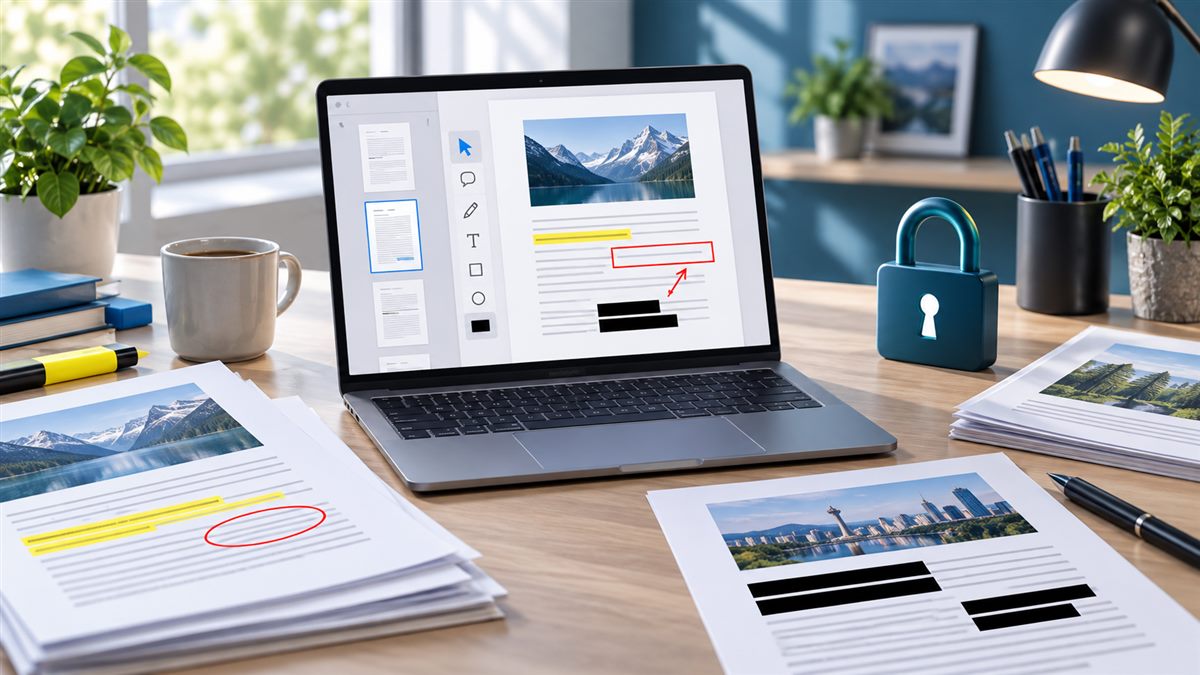
If you mostly read, begin with a reader. If you routinely merge or convert files and need local processing, compare desktop suites by the specific operation. If you need a legally significant signature or precise redaction, consult your organization’s approved process and verify that the tool actually removes underlying data rather than only covering it visually.
Use a task-first shortlist
| Need | What to confirm | Safer comparison input |
|---|---|---|
| Read a PDF | Search, bookmarks, accessibility, supported Windows version | A non-sensitive file with selectable text and a scanned page |
| Annotate or fill a form | Whether annotations remain editable and can be exported | A copy of a form with no personal information |
| Merge, split, or reorder pages | Whether the operation is local or uploads files to a service | A disposable sample document with known page order |
| Edit text or images | Whether editing is included in the free tier and how layout changes are handled | A duplicate with a simple text change and an image element |
| Sign or redact | Whether the tool supports your required signature workflow; whether redaction removes underlying text rather than drawing a black box | A fictional file—never a real confidential document for a first test |
After selecting two candidates, verify one operation in each official product description, then try it on a copy you can discard. Reopen the saved result in a separate reader and inspect text selection, page count, links, and metadata. A visible black rectangle is not proof that underlying text has been removed; follow the vendor’s documented redaction workflow and verify the result with a separate tool before sharing sensitive information.
This comparison is task- and documentation-based, not a security audit or a benchmark. For broader Windows software decisions, see the free software guide.
Related reading
For other Windows applications organized by task, see the Windows productivity software guide. For notes and lightweight document workflows, see the note-taking selection guide.
About the author
Femica Maydinda Harend writes practical technology guides for AILooma, emphasizing verifiable steps and clear limitations.
Editorial note
Product features, free-tier limits, installers, and privacy terms can change. Verify current details on the linked vendor pages. This is not a benchmark, privacy audit, or legal recommendation.