
n8n is a workflow automation platform that connects applications and APIs
through a visual editor. This beginner tutorial builds a small workflow using
tools available inside n8n, so you can learn triggers, nodes, data mapping,
testing, and activation before adding external credentials.
What you will build
The workflow receives a form submission, cleans the submitted data, and
returns a confirmation. It is deliberately simple: the goal is to understand
how information moves between nodes. Once that model is clear, you can replace
the final step with Google Sheets, email, Slack, a database, or another
supported integration.
Before you begin
You need an n8n instance. The easiest option is n8n Cloud. Technical users can
also self-host n8n, but self-hosting adds responsibility for updates,
security, backups, and availability. Follow the current official installation
documentation rather than copying an old Docker command from a tutorial.
Step 1: Create a workflow
Open n8n and create a new workflow. Give it a descriptive name such as
“Contact request intake.” A good workflow name explains the event and the
outcome; this becomes increasingly important when your workspace contains
dozens of automations.
Step 2: Add a Form Trigger
Add the n8n Form Trigger node. Create fields for name and
email, plus an optional message. During development, use the node’s test URL.
Production submissions should use the production URL after the workflow is
activated.
Run the trigger in test mode and submit one sample response. n8n will display
the resulting item as structured data. Inspect the field names and values
because later nodes will reference them.
Step 3: Transform the data
Add an Edit Fields node and connect it to the trigger. Create
a clean output with fields such as:
contact_namemapped from the submitted namecontact_emailmapped from the submitted emailmessagemapped from the optional messagereceived_atset to the current workflow time
Use the expression picker instead of typing paths from memory. Execute the
node and confirm that the output contains the expected values. This
test-after-each-node habit makes troubleshooting much faster.
Step 4: Add a condition
Add an If node. Configure it to check whether the email field
is present. Connect the Edit Fields output to the If node and test both a
valid and an invalid sample. The true branch can continue to the success
response; the false branch can return a message asking for a valid email.
Step 5: Return a response
Add a response node or configure the form to display a completion message,
depending on the form mode available in your n8n version. Keep the response
generic and avoid echoing sensitive submitted data.
Step 6: Test the complete workflow
- Submit a valid sample and verify every node.
- Submit a sample with missing or unexpected data.
-
Open the execution details and inspect the input and output of the failing
node. - Confirm that errors do not expose credentials or personal information.
Step 7: Activate and monitor
Save and activate the workflow when testing is complete. Use the production
form URL and submit one final check. Review the execution history after real
runs begin. An automation is not finished when it works once; it also needs a
clear owner, failure handling, and a plan for credential changes.
Extending the workflow
To make this example useful, insert an application node after validation. You
could append a row to a spreadsheet, create a task, or send a notification.
Configure credentials through n8n’s credential system rather than placing API
keys in fields or expressions. Request only the permissions the workflow
needs.
Common beginner mistakes
- Building the entire workflow before testing the first node.
- Using test webhooks or form URLs in production.
- Assuming every node returns the same data structure.
- Hard-coding secrets or personal information.
- Activating a workflow without monitoring failed executions.
Next step
Rebuild this workflow with one external service you already use. Keep the
first version narrow, test with non-sensitive data, and add error handling
before relying on it for important work.
When you are ready to plan a practical automation, compare the patterns in
10 Everyday Tasks You Can Automate with n8n.
Official resources
Test plan and failure handling
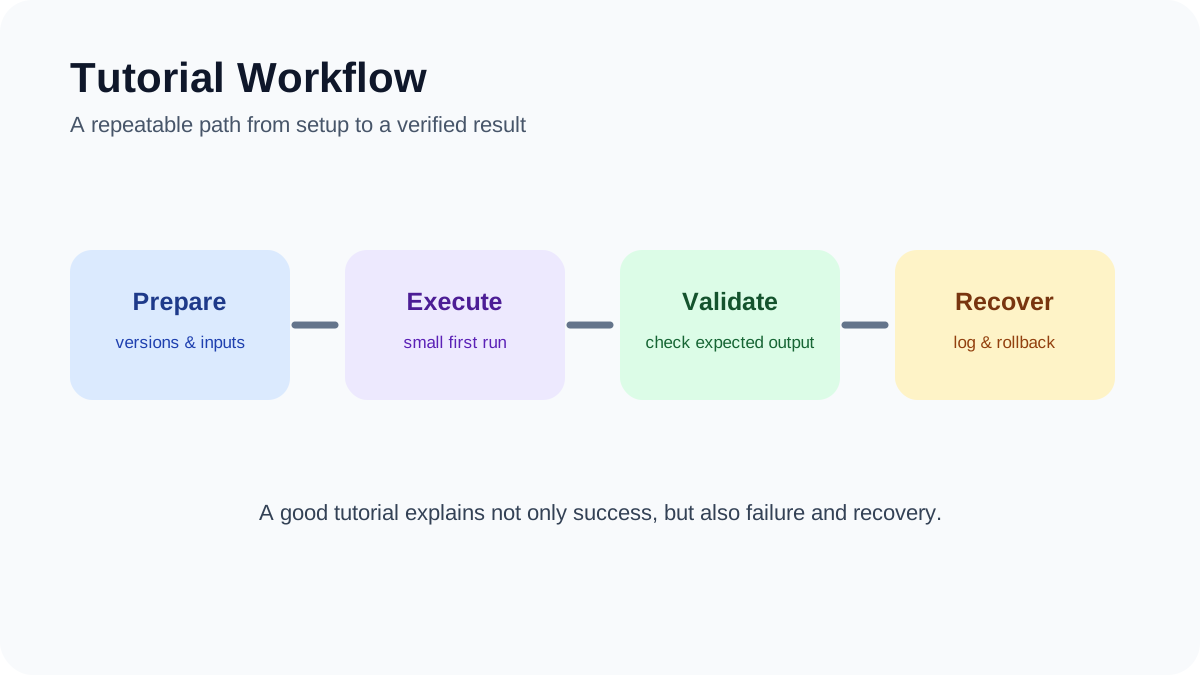
A workflow is not ready just because the happy path works. Test missing fields, duplicate events, expired credentials, API rate limits, timeouts, and partial failures. Use sample records first, keep credentials in n8n’s credential store, and add an error branch that alerts a named owner. Record the input, execution time, output, and error message for each test so another person can reproduce the result.
Safe release checklist
- Export a backup of the workflow before enabling it.
- Limit each credential to the smallest required permission.
- Add duplicate protection for actions that create or send records.
- Enable production runs gradually and review the execution log.