Blog

  • How to Use AI at Work Without Exposing Sensitive Data

    How to Use AI at Work Without Exposing Sensitive Data

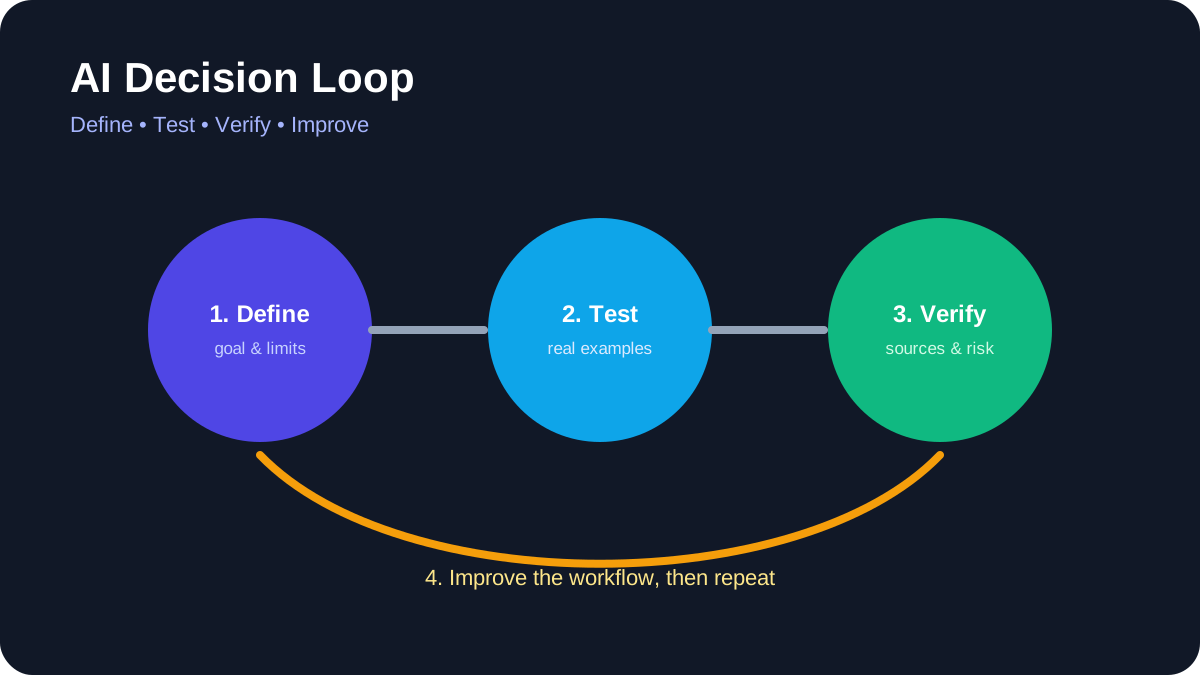
    AI Decision Loop: Define the task, test real examples, verify evidence, and improve the workflow.
    AI Decision Loop. Define the task, test real examples, verify evidence, and improve the workflow.

    AI tools can make everyday work faster, but they also introduce a new data-handling problem: information that once stayed inside email, documents, internal systems, or private conversations can now be copied into an external AI service in seconds.

    The risk is not limited to obvious information such as passwords or credit card numbers. A prompt can contain customer details, internal strategy, source code, contract language, employee information, unpublished research, or confidential project context.

    This guide explains how to protect sensitive data when using AI tools at work without turning every AI interaction into a complicated security process.

    The goal is simple: understand what data should not leave your organization, use approved tools appropriately, reduce unnecessary exposure, and keep humans accountable for how AI systems handle sensitive information.

    What Counts as Sensitive Data When Using AI?

    Before protecting data, you need to know what should be protected.

    Sensitive information can include obvious categories such as personal or financial information, but workplace AI introduces additional risks.

    Common Examples of Sensitive Workplace Data

    • customer names, addresses, phone numbers, and account information;
    • employee records;
    • financial statements and forecasts;
    • contracts and legal communications;
    • source code and credentials;
    • internal product roadmaps;
    • unreleased marketing plans;
    • security reports;
    • proprietary research;
    • business strategies;
    • merger, acquisition, or investment discussions;
    • confidential client information.

    AI-Specific Sensitive Information

    AI systems can also introduce less obvious sensitive data.

    Examples include:

    • internal system prompts;
    • private instructions used to control AI behavior;
    • documents retrieved through a RAG system;
    • conversation histories;
    • human corrections to AI output;
    • metadata attached to uploaded files;
    • internal workflow descriptions;
    • API responses containing restricted data.

    A useful rule is:

    If information would be inappropriate to publish publicly, do not assume it is automatically safe to paste into an AI tool.

    1. Know Which AI Tools Are Approved

    The first practical control is knowing which tools employees are allowed to use.

    Organizations should distinguish between:

    • approved AI tools that have been reviewed for business use;
    • restricted AI tools that may only be used for certain types of information;
    • unapproved tools that should not receive company data.

    This matters because different AI services may have different:

    • data retention policies;
    • training policies;
    • administrative controls;
    • security certifications;
    • regional hosting options;
    • logging capabilities.

    Employees should not have to guess which tools are safe for company information.

    2. Classify Data Before It Enters an AI Tool

    Traditional classification labels such as Public, Internal, Confidential, and Restricted can still be useful.

    The important part is connecting those classifications to clear AI rules.

    Example Policy

    Data Type Example AI Use
    Public Published website content Generally acceptable in approved tools
    Internal Internal procedures Use only in approved business AI tools
    Confidential Customer data or financial projections Require stronger controls or sanitization
    Restricted Passwords, private keys, regulated data Do not enter into general-purpose AI tools

    The exact categories will depend on the organization, but employees should have simple rules they can apply before submitting a prompt.

    3. Minimize the Data You Send

    One of the most effective security controls is also one of the simplest:

    Do not send more information than the AI needs.

    Bad Example

    Analyze this full customer database and identify which customers are likely to cancel.

    Better Approach

    Remove unnecessary identifiers and provide only the fields required for the task.

    For example:

    • remove names;
    • remove email addresses;
    • remove phone numbers;
    • remove account numbers;
    • replace internal identifiers with temporary labels;
    • exclude columns that do not affect the analysis.

    Data minimization reduces the impact if information is exposed or mishandled.

    4. Redact Sensitive Information Before Uploading Documents

    Documents may contain more information than what is visible on the page.

    Before uploading a document to an AI system, check for:

    • names;
    • addresses;
    • customer IDs;
    • employee IDs;
    • financial information;
    • comments;
    • tracked changes;
    • document properties;
    • hidden sheets or columns;
    • embedded files.

    Redaction Is More Than Hiding Text Visually

    Covering text with a black rectangle does not necessarily remove the underlying content.

    Use an actual redaction or sanitization process if sensitive information must be removed.

    For highly sensitive documents, creating a clean copy containing only the information required for the AI task can be safer than modifying the original.

    5. Remove Document Metadata

    Files can contain metadata that users never see during normal editing.

    This may include:

    • author names;
    • company names;
    • revision history;
    • comments;
    • internal file paths;
    • software versions;
    • timestamps.

    If metadata itself is sensitive, remove it before sharing the file outside the controlled environment.

    6. Never Paste Credentials Into AI Prompts

    Credentials should generally be treated as restricted information.

    Do not paste items such as:

    • passwords;
    • API keys;
    • private encryption keys;
    • session tokens;
    • database passwords;
    • cloud access credentials.

    If you need AI help troubleshooting code or configuration, replace real credentials with placeholders.

    Example

    DATABASE_URL=postgres://USERNAME:PASSWORD@HOST/DATABASE

    Instead of:

    DATABASE_URL=postgres://realuser:realpassword@production-server/company

    7. Be Careful When Sharing Source Code

    Source code can contain more sensitive information than developers realize.

    Before sending code to an AI assistant, check for:

    • API keys;
    • hardcoded credentials;
    • internal domain names;
    • customer identifiers;
    • proprietary algorithms;
    • security configuration;
    • private repository information.

    If the code belongs to an employer or client, also check whether organizational policy permits external AI processing.

    8. Understand the Difference Between Consumer and Business AI Accounts

    Do not assume that every version of an AI product has identical privacy controls.

    Consumer, business, enterprise, API, and educational offerings may have different:

    • data retention rules;
    • administrative controls;
    • training settings;
    • SSO options;
    • audit logs;
    • regional data controls.

    Before approving a service for sensitive workplace information, review the documentation for the specific plan your organization uses.

    9. Review AI Vendor Data Policies

    Before connecting an AI service to internal systems, understand what happens to the data.

    Questions to Ask

    • Is customer content used to train models?
    • How long are prompts and outputs retained?
    • Can retention be changed?
    • Where is data processed or stored?
    • Can administrators control user access?
    • Are audit logs available?
    • Can users delete stored content?
    • What subprocessors are involved?
    • How does the vendor respond to security incidents?

    Do not base this decision on marketing language alone.

    Use current privacy documentation, security documentation, contractual terms, and organizational legal or security review where appropriate.

    10. Use Least-Privilege Access for AI Integrations

    If an AI application connects to email, cloud storage, CRM systems, databases, or internal tools, give it only the permissions it actually needs.

    For example:

    If an AI assistant only needs to read documents from one folder, it should not automatically receive:

    • organization-wide file access;
    • permission to delete documents;
    • administrative rights;
    • access to unrelated databases.

    Reducing permissions limits the amount of data an AI system can access if something goes wrong.

    11. Protect RAG Systems at the Retrieval Layer

    Retrieval-Augmented Generation, or RAG, allows AI applications to retrieve internal documents before generating an answer.

    This is useful, but access control must be enforced before the information reaches the model.

    A Secure RAG Workflow Should Consider

    • who is allowed to access each source document;
    • whether those permissions remain intact after documents are indexed;
    • whether restricted documents can appear in search results;
    • whether retrieved content is logged;
    • whether sensitive outputs require additional controls.

    A user should not gain access to a confidential document simply because an AI retrieval system can find it.

    12. Treat External Content as Untrusted Input

    AI systems that read webpages, documents, emails, or tickets can encounter malicious instructions embedded inside that content.

    This is commonly discussed as prompt injection.

    For example, a document might contain hidden or visible text attempting to instruct the AI to:

    • ignore previous rules;
    • reveal confidential information;
    • call an unauthorized tool;
    • send data to another location.

    AI systems with tool access should not automatically trust instructions found inside retrieved content.

    The OWASP guidance for LLM applications is a useful starting point for understanding risks such as prompt injection and insecure output handling.

    13. Separate Reading From Acting

    An AI tool that can read internal information has one level of risk.

    An AI tool that can modify, send, delete, or publish information has a higher level of risk.

    Where practical, separate:

    • data retrieval;
    • analysis;
    • draft creation;
    • real-world execution.

    Example

    An AI system could be allowed to:

    • read a support ticket;
    • prepare a suggested response;

    while requiring a human to approve the final message before it is sent.

    This is particularly valuable when sensitive customer or business information is involved.

    14. Use Human Approval for High-Risk Actions

    Human-in-the-loop approval is useful when AI systems can perform consequential actions.

    Examples include:

    • sending confidential documents;
    • issuing refunds;
    • changing account permissions;
    • deleting records;
    • publishing external communications;
    • modifying production systems.

    Approval requirements should depend on risk, not simply on whether an AI system is technically capable of completing the task.

    15. Monitor for Shadow AI

    Shadow AI occurs when employees use AI services that the organization has not approved or reviewed.

    This often happens because employees want to solve a problem quickly.

    Simply banning everything may encourage people to work around restrictions.

    A more sustainable approach includes:

    • a clear approved-tool list;
    • simple rules for sensitive information;
    • training;
    • an easy process for requesting new tools;
    • technical controls where appropriate.

    16. Give Employees a Simple AI Data Checklist

    Security guidance works better when employees can apply it quickly.

    Before submitting something to an AI tool, ask:

    • Is this tool approved for work?
    • Does this prompt contain personal information?
    • Does it contain confidential company information?
    • Does it contain credentials?
    • Can I remove names or identifiers?
    • Can I provide less data?
    • Would I be comfortable if this prompt appeared in an internal audit?

    If the answer raises uncertainty, stop and check the organization’s policy before continuing.

    17. Train Different Teams for Different Risks

    AI security training should reflect how employees actually use AI.

    Developers

    Training should cover:

    • secrets in source code;
    • private repositories;
    • logs containing customer data;
    • AI-generated insecure code;
    • prompt injection in agentic systems.

    HR

    Training should cover:

    • employee records;
    • performance reviews;
    • candidate information;
    • potentially sensitive demographic data.

    Legal Teams

    Training should cover:

    • privileged communications;
    • contract confidentiality;
    • client information;
    • jurisdiction-specific requirements.

    Sales and Customer Support

    Training should cover:

    • CRM exports;
    • customer conversations;
    • payment information;
    • support attachments.

    18. Create an AI Incident Response Process

    Employees should know what to do if sensitive information is accidentally submitted to an AI service.

    A Simple Incident Workflow

    1. Stop additional sharing.
    2. Record which data was exposed.
    3. Record which AI tool and account were used.
    4. Determine whether the content can be deleted.
    5. Notify the appropriate security, privacy, or compliance team.
    6. Rotate credentials immediately if secrets were exposed.
    7. Evaluate whether affected individuals or customers require notification.
    8. Document the incident and update controls if necessary.

    The exact response depends on the data involved and applicable organizational or legal obligations.

    19. Do Not Assume Self-Hosting Eliminates Risk

    Running an AI model on your own infrastructure can provide greater control over where data is processed.

    However, self-hosting does not automatically make the system secure.

    You become responsible for:

    • access control;
    • patching;
    • logging;
    • network security;
    • model and application vulnerabilities;
    • data retention;
    • backup security;
    • incident response.

    The question is not simply “cloud or local?”

    The question is which architecture provides the required controls for the specific data and use case.

    20. Understand When Stronger Isolation Is Necessary

    Some organizations handle data that should not be processed by general public AI services.

    Depending on requirements, they may choose:

    • private cloud services;
    • dedicated enterprise environments;
    • self-hosted models;
    • isolated networks;
    • specialized high-security environments.

    Architecture should follow the sensitivity of the data and the organization’s legal, contractual, and security requirements.

    21. Use Data Loss Prevention Where It Adds Value

    Data Loss Prevention, or DLP, tools can help detect or block sensitive information before it leaves controlled systems.

    Possible controls include detecting:

    • credit card numbers;
    • national identifiers;
    • classified document labels;
    • credentials;
    • restricted keywords;
    • large data uploads.

    DLP should be treated as an additional safeguard, not as permission to send sensitive information indiscriminately.

    22. Protect Sensitive Data in AI Outputs Too

    Data protection does not end when the prompt is submitted.

    AI-generated output can reproduce or infer sensitive information from data the system was allowed to access.

    Consider whether outputs need:

    • access controls;
    • classification labels;
    • redaction;
    • retention limits;
    • restricted sharing.

    An AI-generated summary of a confidential document should generally remain confidential.

    23. Log Important AI Activity

    For business-critical AI systems, logs can help answer:

    • who used the system;
    • which data source was accessed;
    • which tools were called;
    • what actions were taken;
    • whether a human approved the action;
    • when an incident occurred.

    Logging should itself follow privacy and retention requirements.

    A system should not create a new security risk by indefinitely storing sensitive prompts in logs.

    24. Review Data Retention

    Ask how long AI conversations, uploaded files, and generated outputs are retained.

    Retention should match the organization’s needs.

    Keeping everything forever increases exposure without necessarily providing additional business value.

    Where supported, configure retention periods appropriate to the type of information being processed.

    25. Evaluate AI Vendors as Data Processors

    Security review should look beyond whether the AI model is impressive.

    Evaluate the service as a system that may process company data.

    Review Areas

    • security practices;
    • privacy practices;
    • data retention;
    • incident-response commitments;
    • subprocessors;
    • administrative controls;
    • data residency options;
    • contractual protections;
    • account termination and deletion processes.

    Requirements will vary depending on the organization and the sensitivity of the information involved.

    26. Compliance Is Not a Single Checkbox

    Using an enterprise AI service, self-hosted model, encrypted connection, or DLP tool does not automatically make an organization compliant with privacy or security regulations.

    Compliance may depend on:

    • what information is processed;
    • why it is processed;
    • where it is processed;
    • who can access it;
    • how long it is stored;
    • which agreements are in place;
    • which jurisdiction applies.

    Organizations handling regulated data should involve appropriate legal, privacy, compliance, and security professionals.

    27. Measure Whether Your AI Security Controls Actually Work

    Instead of using arbitrary universal targets, track metrics that match your organization’s risk profile.

    Possible measures include:

    • number of sensitive-data AI incidents;
    • number of blocked restricted prompts;
    • usage of approved versus unapproved AI tools;
    • time required to respond to AI data incidents;
    • employee success in security simulations;
    • number of AI integrations with excessive permissions;
    • percentage of AI vendors reviewed by security or privacy teams.

    The goal is continuous improvement rather than reaching a generic number copied from another organization.

    A Practical AI Data Protection Workflow

    Before using AI with workplace information, follow this sequence:

    1. Identify the data. What information will the AI receive?
    2. Classify it. Public, internal, confidential, or restricted?
    3. Check the tool. Is this AI service approved for that classification?
    4. Minimize the data. Remove anything unnecessary.
    5. Sanitize it. Remove identifiers, secrets, and metadata where appropriate.
    6. Check permissions. Does the AI integration have more access than it needs?
    7. Run the task.
    8. Review the output. Did the model expose or infer sensitive information?
    9. Store or share appropriately.
    10. Report incidents immediately.

    Employee Checklist Before Using AI at Work

    • Am I using an approved AI tool?
    • Does my prompt contain confidential information?
    • Does the file contain personal data?
    • Have I removed credentials?
    • Can I anonymize or minimize the data?
    • Have I removed unnecessary metadata?
    • Does this AI tool need access to the entire file or database?
    • Would a human need to approve the resulting action?
    • Do I know how the provider handles my data?
    • Would I be comfortable explaining this AI interaction during a security review?

    How This Guide Was Prepared

    This guide focuses on practical workplace data protection rather than presenting any single AI product, deployment model, or compliance framework as universally safe.

    The recommendations emphasize data minimization, classification, least-privilege access, vendor review, sanitization, human oversight, logging, incident response, and employee education.

    Security and privacy requirements depend on the data, organization, jurisdiction, contractual obligations, and specific AI service being used.

    AI products, security capabilities, provider policies, privacy terms, and regulations can change over time. Always check current official documentation and applicable organizational policies before processing sensitive information through an AI system.

    Frequently Asked Questions

    What is the easiest way to protect sensitive data when using AI at work?

    Start with three rules:

    1. use only approved AI tools;
    2. do not enter restricted information;
    3. remove unnecessary identifiers before submitting data.

    These basic habits can prevent many avoidable exposures.

    Can I safely upload internal documents to an enterprise AI tool?

    Potentially, depending on your organization’s policy and the specific service configuration.

    Before uploading internal documents, confirm:

    • the tool is approved;
    • the data classification permits it;
    • the provider’s retention and training policies are acceptable;
    • the account uses the appropriate organizational controls.

    Are open-weight or self-hosted AI models automatically safer?

    No.

    Self-hosting may give an organization more control over data location and system configuration, but it also shifts security responsibility to the organization operating the system.

    Is anonymizing data enough?

    Not always.

    Removing names can reduce risk, but a dataset may still contain combinations of information that identify individuals.

    For sensitive or regulated data, use appropriate privacy expertise rather than assuming simple anonymization eliminates risk.

    Can employees paste company source code into an AI assistant?

    That depends on company policy, ownership, contractual restrictions, and the AI service being used.

    At minimum, remove credentials and sensitive configuration, and use only tools approved for the relevant source code.

    What should I do if I accidentally paste a password or API key into an AI tool?

    Treat the secret as potentially exposed.

    Rotate or revoke it as soon as possible, follow your organization’s incident process, and delete the conversation or uploaded content where supported.

    Does using AI through an encrypted HTTPS connection make sensitive data safe?

    No.

    Encryption in transit protects data while it travels across the network, but it does not answer questions about retention, access, training, account security, or how the provider processes the information.

    Should companies ban public AI tools completely?

    Not necessarily.

    Organizations should base restrictions on risk.

    A clear approved-tool policy combined with training and practical alternatives may be more sustainable than rules employees are tempted to bypass.

    Final Takeaway

    The safest way to use AI at work is not to assume that every prompt is harmless.

    Know what information you are handling. Use approved tools. Send only the minimum data necessary. Remove credentials and unnecessary identifiers. Limit system permissions. Protect RAG sources. Review vendor policies. Require human approval for high-impact actions. And have a clear response plan when something goes wrong.

    AI can improve productivity without sacrificing data protection, but only when security is built into the workflow rather than added after sensitive information has already been exposed.

    Practical example: protecting sensitive work data in an AI workflow

    Take a document-summary task and classify the information before sending anything to a service. Replace personal identifiers and confidential figures with placeholders where they are not required.

    1. Label data as public, internal, confidential, or restricted.
    2. Check the provider’s retention, training, export, and deletion controls.
    3. Use a redacted sample for the first test.
    4. Limit account permissions and review connected applications.
    5. Have a responsible person approve the final output before it is shared.

    This practical boundary lets teams gain drafting help without treating a public tool as a secure vault by default.

    Practical verification and limits

    Classify data before sending it, use an approved tool, remove unnecessary identifiers, and confirm retention and training terms with your organization.


    Editorial review and limitations

    Reviewed by Femica Maydinda Harend. This guidance favors reproducible checks and transparent uncertainty. Tools and policies change, so verify current details before acting.

  • AI Agents vs. AI Assistants: A Practical Capability Checklist

    AI Agents vs. AI Assistants: A Practical Capability Checklist

    “Assistant” and “agent” are used inconsistently across products. Instead of relying on a label, inspect what the system can initiate, what tools it can call, what state it can retain, and what actions a person must approve. This guide is a capability framework, not a market survey.

    Compare behavior, not branding

    • Initiation: Does the system respond only to a request, or can it run on a schedule or trigger?
    • Tools: Can it search, read, write, send, purchase, or change records?
    • State: Does it retain context between tasks, and can the user inspect or clear that state?
    • Autonomy: Does it suggest a next step or execute it?
    • Oversight: Can a person review the exact action and stop or undo it?

    A feature can combine assistant-like conversation with agent-like tool calls. The useful question is how much authority it has in the workflow.

    Choose the least autonomy that solves the task

    For drafting, a response-only assistant may be enough. For retrieving a status, allow read-only access and verify the source. For making a change, require a person to review the proposed action before it is applied. For irreversible or consequential actions, keep a qualified human decision-maker.

    Example decision

    Suppose a team wants help triaging an incoming request. The system might classify the request and propose a queue. The next step—changing priority, contacting a customer, or closing a case—should be separately authorized. Test ambiguous and out-of-scope requests and define when it must ask for help.

    Risk and governance

    NIST’s AI Risk Management Framework offers a voluntary way to think about context, measurement, and risk management. Microsoft’s agent safety guidance discusses agent-specific safety controls. Neither source makes a product automatically safe; adapt controls to the actual permissions and harm of a failure.

    Describe the capability you actually observe

    Product labels are weak evidence because the same interface can combine a conversational assistant, retrieval, scheduled automation, and tool execution. Describe each capability independently and confirm it in current product documentation or a low-risk sandbox before granting access.

    Question Record Why it changes the boundary
    What starts a run? Person request, schedule, event, or another system Unattended triggers need an owner and a way to pause them
    What can it read? Documents, messages, records, or only the prompt Read access can still expose data beyond the task
    What tools can it call? Read, draft, write, send, delete, or purchase Side effects need least privilege and explicit approval
    What state persists? History, memory, files, and logs, with their owners Retention and deletion must be understood before use
    How is a person involved? Review before action, review after action, or no checkpoint Consequential actions need a meaningful opportunity to stop or correct them

    Example: a help-desk assistant may answer from a document link while an agent can also open a ticket, change its priority, or send a reply. Test the same fictional request in a sandbox and document which actions are proposed versus executed. Start with read-only access; add a write permission only for a task with a named owner, approval, and recovery path.

    This comparison answers “what can the system do?” The separate use-case matrix asks whether a task should be delegated; the workplace control guide explains how to set approvals and rollback.

    Related reading

    For a list of bounded, low-risk tasks, see the agent use-case guide. For human approval, logging, and rollback, read the controlled-use guide.

    About the author

    Femica Maydinda Harend writes practical technology guides for AILooma focused on transparent workflows and limitations.

    Editorial note

    Product definitions and controls vary by version and plan. Inspect current documentation and permissions before enabling tool access.

  • Use AI for Research Without Losing the Source Trail

    Use AI for Research Without Losing the Source Trail

    AI can help organize a research task, but the evidence still comes from sources a reader can inspect. This guide covers the workflow from question to synthesis. It is distinct from fact-checking one answer: here the goal is to build a source trail before writing a conclusion.

    1. Turn the topic into a researchable question

    Specify the subject, time period, population, and what kind of answer you need. Keep a note of what would change your conclusion.

    2. Use AI only to plan discovery

    Ask for search terms, alternate phrasings, and relevant organizations or document types. Treat those suggestions as leads, not citations. Search for the original document yourself.

    3. Build a source ledger

    For each source, record its publisher, title, date, URL, primary or secondary status, relevant passage, and limitation. Prefer primary materials and government or standards sources where appropriate. Do not cite a source until you have opened it and matched it to the claim.

    4. Compare and preserve disagreement

    Look for different definitions, time frames, populations, and methods. If credible sources disagree, describe the disagreement and what evidence would resolve it. Do not ask a model to smooth away a real conflict.

    5. Draft with traceable claims

    Write one factual claim at a time and attach the source that supports it. Ask AI to organize or clarify your notes, then check that no new claim or citation appeared in the rewrite.

    6. Review the final source trail

    • Does every material fact point to a specific source?
    • Does that source support the exact sentence?
    • Are dates and definitions still current?
    • Are gaps and uncertainty visible?
    • Have sensitive or copyrighted materials been handled under the applicable policy?

    Make the source ledger usable during drafting

    A source ledger is most useful when it captures why a source belongs in the answer, not only its URL. Add fields for the question or claim, source owner, publication or update date, primary/secondary status, exact passage, population or scope, limitation, and the draft sentence it supports. Save a local note or approved reference record so a reader can retrace the decision later.

    1. Search for the organization or document type that would hold the original record, then inspect that source directly.
    2. Capture the exact passage and its surrounding context. A search snippet or an AI-provided citation is only a lead.
    3. Compare definitions, dates, jurisdictions, and populations before treating two sources as contradictory.
    4. Draft from the ledger. Ask an AI tool to organize supplied notes if permitted, then compare the draft line by line with the ledger and remove any claim or citation it introduced.
    5. Leave unresolved points visible. State what the sources establish, what they do not establish, and what additional evidence would change the conclusion.

    Small example: if two official pages give different product-support dates, record the product edition and page update date beside each date. Do not blend them into one broad “Windows support ends” sentence. Check which edition the reader uses and link the applicable current source.

    This article covers research from question through synthesis. For checking one generated answer claim by claim, use the fact-checking workflow; for a team rubric that assigns review intensity, see the risk-tier evaluation framework.

    Related reading

    For checking an individual generated response, see the claim-tracing guide. For evaluating output quality by risk, see the evaluation framework.

    About the author

    Femica Maydinda Harend writes practical technology guides for AILooma focused on workflows readers can verify for themselves.

    Editorial note

    This workflow does not guarantee comprehensive research. Search indexes and source documents change; consult primary sources and qualified experts for high-stakes conclusions.

  • A Simple Guide to Backing Up Your Photos, Files, and Devices

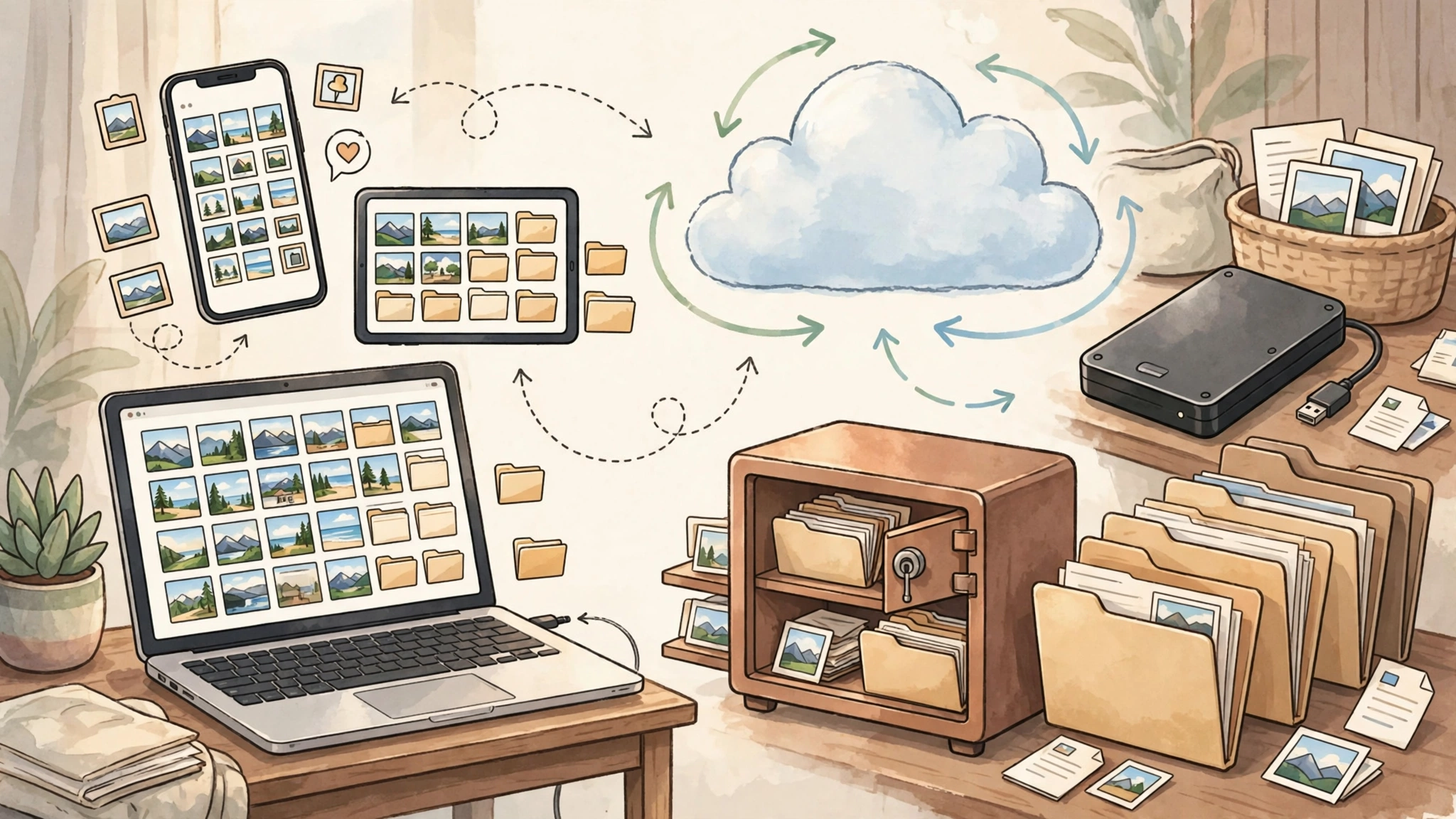
    A Simple Guide to Backing Up Your Photos, Files, and Devices

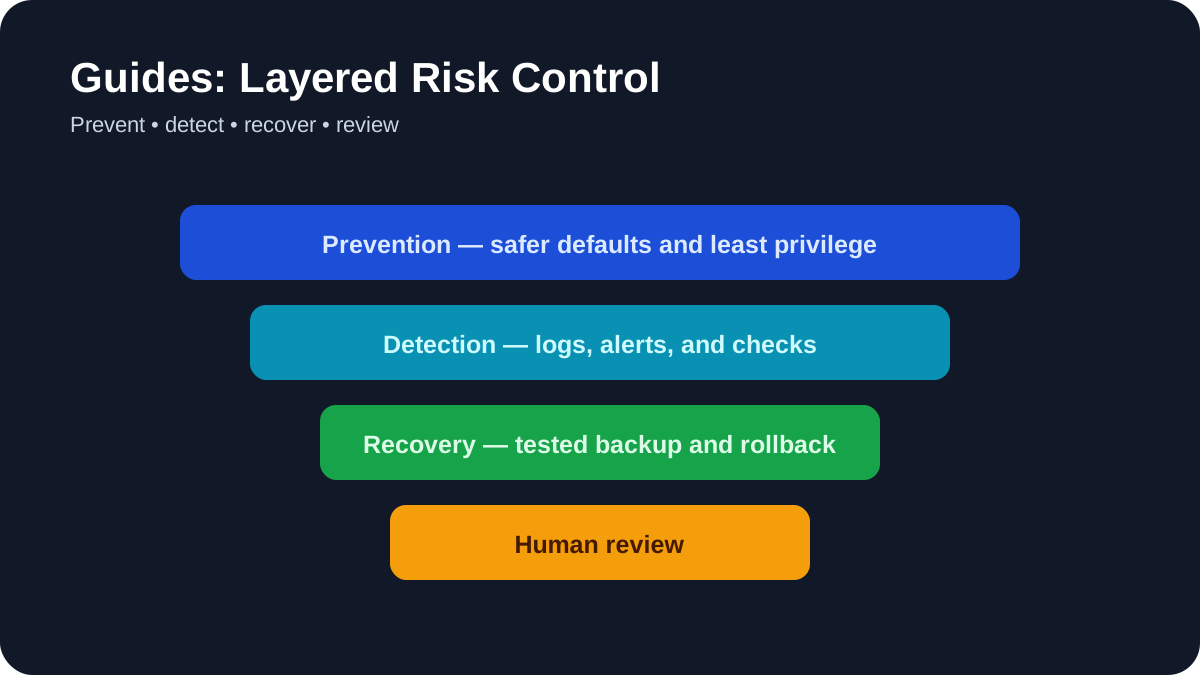
    Layered Risk Control: Use prevention, detection, recovery, and human review together.
    Layered Risk Control. Use prevention, detection, recovery, and human review together.

    You probably already know that your photos, documents, messages, and important files should be backed up. The problem is that backup advice often becomes complicated very quickly.

    Terms such as redundancy, retention, encryption, recovery keys, cloud sync, external drives, and the 3-2-1 rule can make a simple goal feel like an IT project.

    This guide takes a simpler approach. The goal is to help you build a backup system that is easy enough to maintain, reliable enough to trust, and flexible enough to grow with your needs.

    Why Simple Backups Are Easier to Maintain

    A backup system is only useful if you continue using it.

    A technically perfect setup that requires constant attention can be less practical than a simpler system that runs automatically and is tested occasionally.

    The best approach is usually to reduce unnecessary decisions and focus on the data that would actually matter if it disappeared.

    What Usually Makes Backups Feel Complicated?

    • Too many choices: several apps, drives, accounts, and settings.
    • Manual routines: needing to remember when to copy files.
    • Unclear recovery: not knowing whether the backup can actually be restored.
    • Mixed storage: personal files spread across devices, cloud services, external drives, and work accounts.
    • Overengineering: creating a system that is much more complex than your real needs.

    A useful backup system should reduce uncertainty rather than create more of it.

    Step 1: Identify What You Cannot Afford to Lose

    Do not begin by trying to back up every file you own.

    Start by identifying the data that would be difficult, expensive, or impossible to replace.

    Make a Simple Digital Inventory

    Create four categories:

    • Devices: laptop, desktop, phone, tablet, external drives.
    • Cloud services: Google Drive, iCloud, OneDrive, Dropbox, Notion, or other services.
    • Important folders: Documents, Photos, Projects, Work, Finance, Personal Records.
    • Older data: old hard drives, SD cards, USB drives, archived photos, scanned documents.

    Then ask:

    If this disappeared tomorrow, what would I genuinely regret losing?

    Those items should become your highest backup priority.

    Think in Terms of Recoverability

    A useful way to prioritize is to ask how difficult something would be to recreate.

    For example:

    • browser cache or downloaded installers are usually easy to replace;
    • work documents may take hours or days to recreate;
    • family photos, original research, contracts, or personal records may be impossible to recreate.

    Focus your backup effort on the data with the highest recovery cost.

    Step 2: Avoid Single Points of Failure

    A backup becomes fragile when the only copy depends on one device, one account, or one service.

    Examples of single points of failure include:

    • all family photos stored only in one cloud account;
    • important documents existing only on a laptop;
    • business files stored only in one shared workspace;
    • old photos stored only on one external drive;
    • a cloud account with outdated recovery information.

    You do not need a complicated enterprise system. You simply need more than one independent recovery path for important data.

    Step 3: Understand the Difference Between Sync and Backup

    This distinction is important.

    Synchronization keeps files consistent across devices or services.

    Backup gives you another copy that can help you recover after deletion, corruption, device failure, or account problems.

    A synchronized folder can still be useful, but it should not always be treated as your only backup.

    Example

    If a file is deleted from a synchronized folder, that deletion may also synchronize to other devices.

    Version history or trash retention may help, depending on the service, but those features have limits and policies that can change.

    For important data, consider keeping an additional independent copy.

    Step 4: Build a Simple Three-Layer Backup System

    You do not need twelve different tools.

    For many people, a simple system can be built around three layers:

    1. automatic backup or synchronization;
    2. a cloud copy;
    3. an offline copy.

    Layer 1: Automatic Device Backup

    Use the backup tools already available on your operating system where they fit your needs.

    For macOS, Apple provides Time Machine.

    For Windows, Microsoft provides built-in backup and recovery options. Because Windows backup features have changed across versions, follow Microsoft’s current Windows support documentation for the version you use.

    The main advantage of built-in tools is simplicity. They are integrated with the operating system and can often run automatically after initial configuration.

    Layer 2: Cloud Storage or Cloud Backup

    Cloud services are useful because they keep an additional copy away from your physical device.

    Examples include:

    • Google Drive;
    • Google Photos;
    • iCloud;
    • OneDrive;
    • Dropbox;
    • dedicated cloud backup providers.

    Before relying on a service, understand:

    • whether it provides sync, backup, or both;
    • how long deleted files are retained;
    • whether version history is available;
    • how account recovery works;
    • whether storage limits apply.

    Layer 3: Offline Archive

    An offline copy can protect against problems that affect both your device and online accounts.

    For example, you can periodically copy your most important folders to an external HDD or SSD, then disconnect it.

    This can help protect against:

    • ransomware;
    • accidental synchronization;
    • cloud account problems;
    • device failure;
    • internet outages.

    The key word is offline. If the drive stays connected all the time, it may be affected by the same problems as the computer.

    Step 5: Choose What Goes Into the Offline Archive

    Your offline archive does not need to contain everything.

    Good candidates include:

    • family photos and videos;
    • important personal documents;
    • tax records;
    • contracts;
    • original creative work;
    • research projects;
    • important exports from online services.

    Use simple folder names that will still make sense years later.

    For example:

    Offline_Backup/
    ├── Family_Photos/
    ├── Personal_Documents/
    ├── Tax_Records/
    ├── Projects/
    └── Account_Exports/

    Simple organization is usually easier to maintain than a complicated archive structure.

    Step 6: Automate the Repetitive Parts

    The more often a backup requires you to remember something, the more likely it is to be skipped.

    Use automation where it reduces repetitive work.

    Examples

    • enable automatic phone photo backup;
    • enable automatic device backups where supported;
    • schedule cloud backup software;
    • use a recurring calendar reminder for offline archives;
    • enable failure notifications for important backup jobs.

    Automation should reduce maintenance, not hide the backup system completely.

    You still need to know whether it is working.

    Step 7: Use a Recurring Backup Reminder

    If your offline backup is manual, create a recurring calendar event.

    For example:

    Quarterly Offline Backup

    • connect the external drive;
    • copy the important folders;
    • confirm the files are present;
    • safely eject the drive;
    • store it separately.

    The exact frequency depends on how quickly your important data changes.

    If you create important files every day, quarterly may be too infrequent. If your archive changes slowly, it may be sufficient.

    Step 8: Test Recovery, Not Just Backup

    A backup is only useful if you can restore from it.

    Testing does not need to involve deleting your entire system or resetting your phone.

    A simple test is enough.

    Simple Recovery Test

    1. Choose a non-critical file that exists in your backup.
    2. Copy or move the original somewhere safe.
    3. Restore the backed-up version.
    4. Open it and verify that it works.

    This checks whether the recovery path is understandable and functional.

    Test Different Layers Occasionally

    If you have several backup layers, test them separately.

    For example:

    • restore one file from the operating-system backup;
    • download one file from cloud storage;
    • open one file from the offline archive.

    You do not need to run a disaster simulation every month.

    You simply need enough confidence that each recovery path still works.

    Step 9: Document Your Recovery Process

    During an actual data-loss event, stress can make even familiar steps harder to remember.

    Create a short recovery note containing:

    • where your backups are located;
    • which cloud accounts are involved;
    • where recovery keys or backup codes are stored;
    • how to restore important files;
    • who to contact if professional help is needed.

    Keep this document simple.

    Do not store passwords or sensitive recovery secrets in an unsecured file.

    Step 10: Secure the Accounts That Protect Your Backups

    A cloud backup is only useful if you can safely access the account.

    For important accounts:

    • use a unique password;
    • enable multi-factor authentication where available;
    • keep account recovery information current;
    • store backup codes safely;
    • review logged-in devices occasionally.

    A password manager can make unique passwords easier to maintain.

    Step 11: Encrypt Sensitive Data When Appropriate

    Not every file requires the same level of protection.

    Consider stronger protection for:

    • financial records;
    • identity documents;
    • confidential business files;
    • sensitive personal information;
    • client or regulated data.

    Full-disk encryption such as FileVault on macOS or supported Windows device encryption can help protect data if a device is lost or stolen.

    External backup drives may also support encryption.

    Remember: encryption creates another recovery dependency. If you lose the password or recovery key, you may lose access to the backup.

    Step 12: Store Recovery Keys Separately

    Do not keep every recovery method inside the same device or account it is supposed to protect.

    Possible approaches include:

    • a secure password manager;
    • a printed copy stored in a safe place;
    • a secure physical location separate from the primary device;
    • a trusted recovery contact where supported.

    The goal is to avoid situations where losing one phone or account also removes your ability to recover everything else.

    Step 13: Back Up Important App Data

    Some applications store important information in their own cloud systems or proprietary formats.

    Examples include:

    • note-taking apps;
    • password managers;
    • messaging apps;
    • journaling apps;
    • finance software;
    • project-management tools.

    For important applications, ask:

    • Does this app back up automatically?
    • Can I export my data?
    • What format does the export use?
    • Can I open that export without the original service?

    If an application contains irreplaceable information, periodically exporting that data may be worthwhile.

    Step 14: Back Up Your Phone

    Phones often contain some of the most personal data we own.

    Depending on your device, backup options may include:

    • iCloud backup;
    • Google account backup;
    • photo and video cloud backup;
    • computer-based backups;
    • app-specific backup systems.

    Do not assume every application is included in the system backup.

    Messaging apps and authenticator apps may have their own recovery methods.

    Check the official documentation for the apps that matter most to you.

    Step 15: Back Up Social Media and Online Accounts

    Many online platforms provide data export tools.

    These exports can preserve things such as:

    • posts;
    • photos;
    • messages;
    • account history;
    • profile information.

    If an account contains years of personal content, downloading an archive occasionally can provide an additional copy outside the platform.

    Export options and file formats vary by service, so use the platform’s current official instructions.

    Step 16: Do Not Reformat Your Only Archive

    When maintaining offline backups, avoid destroying the only known-good copy simply to create a new one.

    If possible, keep the previous backup until the new backup has been completed and checked.

    This gives you a fallback if the new copy fails or is incomplete.

    Step 17: Know When Your Setup Is Good Enough

    A backup system does not need to preserve every temporary file forever.

    Focus on the data that actually matters.

    A reasonable personal setup might look like this:

    • automatic phone backup;
    • important documents synchronized to cloud storage;
    • local device backup;
    • periodic offline archive of irreplaceable files;
    • occasional recovery testing;
    • multi-factor authentication on important accounts.

    If that system runs consistently and you understand how to recover your files, it may already be enough.

    A Simple Backup Checklist

    Use this checklist to review your setup:

    • Do I know which files are irreplaceable?
    • Do those files exist in more than one place?
    • Is at least one copy independent of my primary device?
    • Do I have an offline copy of my most important data?
    • Are my important cloud accounts protected with multi-factor authentication?
    • Do I know where my recovery keys are stored?
    • Have I successfully restored a test file?
    • Can I export important data from the apps I depend on?

    If you can answer yes to most of these questions, your backup strategy is already stronger than simply trusting one device or one cloud account.

    How This Guide Was Prepared

    This guide focuses on practical personal backup principles rather than recommending one universal backup product.

    Backup features, cloud retention periods, pricing, operating-system tools, and app export options can change over time.

    Before configuring a specific product or service, check its current official documentation.

    Frequently Asked Questions

    How often should I back up my phone?

    For most people, automatic backup is easier to maintain than manual backup.

    The right frequency depends on how much important data you create and how much data you are willing to lose if the device fails.

    If your phone contains important daily photos, documents, or messages, automatic daily or continuous cloud backup may be appropriate where supported.

    Is Google Drive or iCloud enough?

    They can be important parts of a backup strategy, but relying on a single service creates a single recovery dependency.

    For irreplaceable files, an additional independent copy—such as an external drive—provides another recovery option.

    What is the cheapest reliable backup setup?

    There is no fixed price because storage requirements vary.

    A simple setup can often use:

    • built-in operating-system backup tools;
    • cloud storage you already use;
    • one external HDD or SSD for offline copies.

    Check current storage prices and choose capacity based on your actual data size rather than buying a specific product only because it is popular.

    Can I back up without an internet connection?

    Yes.

    External HDDs, SSDs, local NAS devices, and other local storage options can create backups without an internet connection.

    An offline copy is particularly useful because it is independent of your cloud account and internet connection.

    Do I need the 3-2-1 backup rule?

    The 3-2-1 principle is a useful framework: multiple copies, more than one type of storage, and at least one copy stored separately.

    You do not need to follow it mechanically if that makes your system too complicated.

    The important idea is avoiding a situation where one failure can destroy every copy of important data.

    Final Takeaway

    Backing up your digital life does not need to feel like managing enterprise infrastructure.

    Start with the files that matter most.

    Keep more than one copy.

    Use automatic tools where they reduce repetitive work.

    Keep an offline copy of irreplaceable data.

    Protect the accounts that give you access to your backups.

    And occasionally restore a file to make sure the system actually works.

    A backup strategy succeeds when it is simple enough that you continue using it and reliable enough that a failed device does not become a disaster.

    Practical example: checking whether a backup can actually be restored

    A backup is only useful if the important files can be recovered. Pick a small, non-sensitive sample and perform a test restore to a separate folder or spare device. If you already have a Windows backup job and want to track whether it ran, see our guide to backup-job monitoring; the spreadsheet records status, not the backup itself.

    1. List the files and settings the backup is meant to protect.
    2. Confirm the backup date, location, encryption, and retention period.
    3. Restore the sample without overwriting the original files.
    4. Open the restored files and check permissions and versions.
    5. Record the steps and the time required so someone else can repeat them.

    Schedule a restore test whenever the backup method changes. Recovery evidence is more valuable than a green “backup complete” message by itself.

    Practical verification and limits

    Keep three copies on two storage types with one separated from the device, protect accounts and keys, and perform a restore test before trusting the backup plan.

    Editorial review and limitations

    Reviewed by Femica Maydinda Harend. This guidance favors reproducible, reversible steps. Features and policies can change, so verify current details before acting.

  • 7 Free Windows Diagnostic Tools for Slowdowns, Freezes, and Crashes

    7 Free Windows Diagnostic Tools for Slowdowns, Freezes, and Crashes

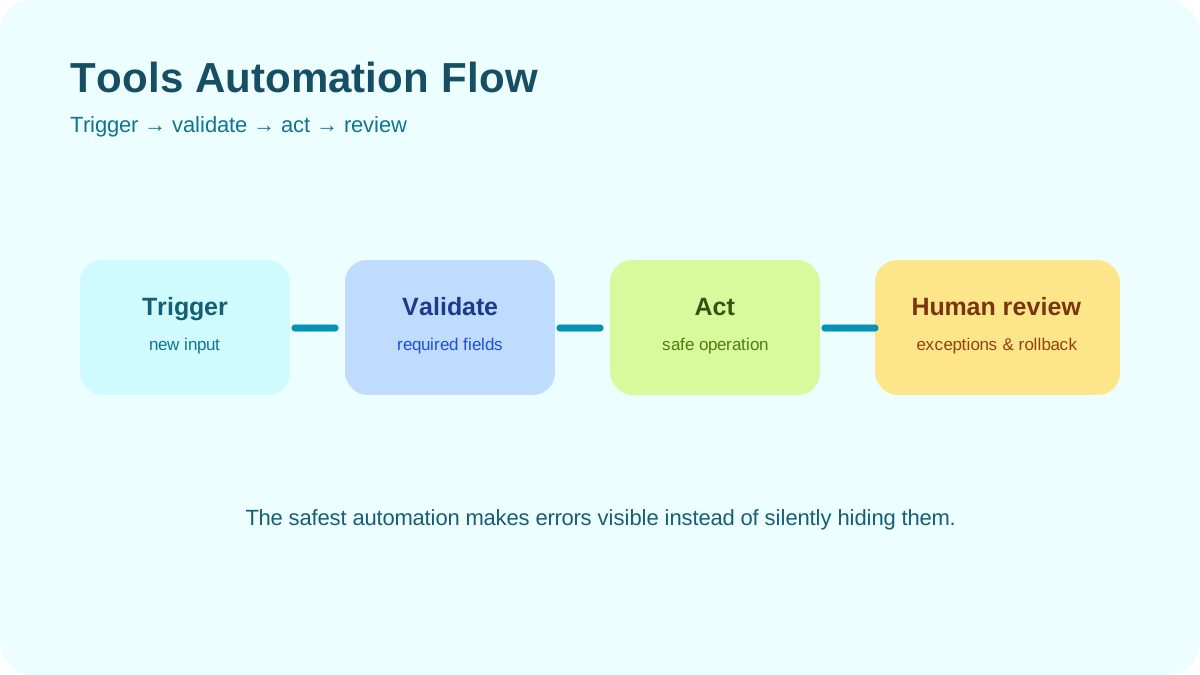
    Tools Automation Flow: Move from trigger to validation, safe action, and human review.
    Tools Automation Flow. Move from trigger to validation, safe action, and human review.

    If your Windows PC feels unusually slow, freezes at random, or crashes without a clear reason, the first step should be diagnosis—not guessing.

    Windows already includes several useful diagnostic tools, and Microsoft also provides free utilities through Sysinternals. Combined with a few reputable third-party tools, you can investigate CPU usage, memory pressure, disk activity, startup programs, drivers, storage health, and crash information without paying for diagnostic software.

    This guide covers 7 free Windows tools you can use to diagnose a slow or unstable PC, what each one is good at, and how to use them as part of a practical troubleshooting workflow.

    1. Windows Performance Monitor (PerfMon)

    Performance Monitor, commonly opened with perfmon.msc, is a built-in Windows tool for collecting and reviewing system performance data over time.

    Unlike Task Manager, which is mainly useful for a quick snapshot, Performance Monitor can log counters for longer periods. That makes it useful when a slowdown or freeze happens intermittently and disappears before you can inspect it.

    What PerfMon Can Help You Investigate

    You can monitor areas such as:

    • CPU utilization;
    • available memory;
    • disk activity;
    • system uptime;
    • process-level performance;
    • network counters.

    Create a Custom Data Collector Set

    To create a basic logging session:

    1. Press Win + R.
    2. Type perfmon.msc and press Enter.
    3. Open Data Collector Sets → User Defined.
    4. Right-click and choose New → Data Collector Set.
    5. Select Create manually.
    6. Add the performance counters you want to monitor.

    Useful starting counters may include:

    • Processor(_Total)\% Processor Time
    • Memory\Available MBytes
    • PhysicalDisk(_Total)\Avg. Disk Queue Length
    • System\System Up Time

    Run the collector while reproducing the problem, then review the resulting log afterward.

    How to Interpret the Results

    A single spike is not always meaningful. Look for sustained patterns that correlate with the slowdown.

    For example:

    • CPU usage that remains unusually high;
    • available memory becoming very low during the issue;
    • disk activity rising sharply while applications stop responding;
    • a specific process gradually consuming more resources over time.

    Microsoft provides more information about Performance Monitor and Windows performance tools in its official documentation.

    2. Process Explorer

    Process Explorer is part of Microsoft’s Sysinternals utilities.

    It provides a more detailed process view than the standard Task Manager and can help you understand which processes are consuming resources or loading particular files and modules.

    Useful Information Available in Process Explorer

    Depending on the process and your permissions, you can inspect:

    • CPU and memory usage;
    • parent and child processes;
    • command-line arguments;
    • open handles;
    • loaded DLLs;
    • threads;
    • digital signatures.

    Use the Process Tree

    The process tree is particularly useful when an application launches multiple child processes.

    Instead of seeing several unrelated process names, you can understand which application started them.

    This can help when investigating:

    • browser processes;
    • background updaters;
    • development tools;
    • services;
    • unexpected processes.

    Check Suspicious Processes Carefully

    Process Explorer can integrate with VirusTotal for additional reputation information.

    To learn more, use Microsoft’s official Process Explorer documentation.

    A VirusTotal result is useful context, but it should not be treated as absolute proof that a file is safe or malicious.

    3. Autoruns

    Autoruns is another Microsoft Sysinternals tool that shows many locations Windows uses to automatically start programs, services, drivers, scheduled tasks, and other components.

    This makes it useful when a PC has:

    • slow startup;
    • too many background utilities;
    • unexpected processes after login;
    • software conflicts;
    • suspected persistence from unwanted software.

    Start With Non-Microsoft Entries

    Autoruns contains a large amount of information, so do not disable items randomly.

    A safer starting approach is to enable the option that hides Microsoft entries and then review third-party items.

    Look at:

    • publisher;
    • file path;
    • digital signature;
    • whether you recognize the software;
    • whether the application is still installed and needed.

    Disable Before Deleting

    If you want to test whether an entry causes a problem, disable it first instead of deleting it.

    This makes it easier to reverse the change if the issue remains or another application stops working.

    Microsoft’s Autoruns documentation explains the categories and available features.

    4. Windows Resource Monitor

    Resource Monitor, opened with resmon.exe, provides a real-time view of CPU, memory, disk, and network activity.

    I find it most useful when the problem is happening right now and you want to see which process is actively using a resource.

    Use the Disk Tab for Slow Storage Activity

    The Disk tab shows which processes are reading and writing data and which files they are accessing.

    This can help you identify whether a slowdown is associated with:

    • Windows Update;
    • search indexing;
    • cloud synchronization;
    • antivirus scanning;
    • a large application database;
    • another process performing heavy disk activity.

    Use the Network Tab for Background Traffic

    The Network tab shows network activity by process.

    If the internet connection feels slow or a background application is uploading or downloading unexpectedly, this view can help identify the process involved.

    Understand Hard Faults Carefully

    The Memory tab includes a Hard Faults/sec metric.

    A hard fault does not automatically mean hardware failure. It means Windows had to retrieve memory data from disk because that data was not currently available in physical RAM.

    A high rate can indicate memory pressure, but the value should be interpreted together with available memory, committed memory, application behavior, and overall system responsiveness.

    5. BlueScreenView

    If Windows crashes with a Blue Screen of Death, the system may create a memory dump containing information about the crash.

    BlueScreenView from NirSoft provides a relatively simple way to inspect Windows minidump files.

    You can download it from the official NirSoft website.

    What BlueScreenView Shows

    Depending on the available dump data, it can show:

    • bug check or stop code;
    • crash time;
    • drivers and modules present in the stack;
    • addresses associated with the crash.

    Do Not Assume the Highlighted Driver Is Always the Cause

    This is important.

    A driver appearing near the crash does not automatically mean that driver caused the problem.

    Windows crash analysis can be complex. A driver may appear in the stack because it was active when another component corrupted memory earlier.

    Use BlueScreenView as a starting point for investigation rather than definitive proof.

    For deeper analysis, Microsoft’s WinDbg documentation provides more advanced debugging options.

    Look for Patterns Across Multiple Crashes

    One crash may not tell you much.

    If several recent crashes repeatedly involve the same driver, device, or stop code, that pattern becomes more useful.

    You can then check:

    • recent driver updates;
    • Windows Update history;
    • manufacturer support pages;
    • related hardware diagnostics.

    6. CrystalDiskInfo

    A storage problem can make Windows feel slow, cause applications to hang, and sometimes contribute to data corruption or boot problems.

    CrystalDiskInfo displays S.M.A.R.T. information reported by supported HDDs and SSDs.

    Download it from the official Crystal Dew World website.

    What S.M.A.R.T. Data Can Tell You

    Depending on the drive, you may see information such as:

    • drive temperature;
    • power-on hours;
    • reallocated sectors;
    • interface errors;
    • vendor-specific wear indicators;
    • overall health status.

    Do Not Use One Universal Threshold for Every Drive

    S.M.A.R.T. attributes differ between manufacturers and between HDDs and SSDs.

    A raw value that looks concerning on one model may be interpreted differently on another.

    If CrystalDiskInfo reports Caution or Bad, treat that as a reason to investigate and back up important data immediately.

    For exact interpretation, check documentation from the drive manufacturer when available.

    Interface Errors Can Also Matter

    Some S.M.A.R.T. data may indicate communication problems rather than internal drive failure.

    For example, on a SATA system, repeated interface errors can sometimes be associated with:

    • a damaged cable;
    • a loose connection;
    • a controller issue.

    This is why storage diagnostics should consider the entire storage path, not only the drive itself.

    7. Windows Memory Diagnostic

    Unstable memory can cause difficult-to-reproduce problems such as application crashes, installation failures, freezes, or blue screens.

    Windows includes a basic memory test called Windows Memory Diagnostic.

    How to Run It

    1. Press Win + R.
    2. Type mdsched.exe.
    3. Select the option to restart and check for problems.
    4. Save your work before restarting.

    The test runs outside the normal Windows desktop environment and checks system memory for errors.

    A Passing Test Does Not Guarantee Perfect RAM

    Windows Memory Diagnostic is useful as an initial check, but intermittent memory problems can be difficult to reproduce.

    If you continue seeing symptoms strongly associated with RAM even after the built-in test passes, you may need a more extensive memory-testing process or hardware troubleshooting.

    If the Test Finds Errors

    Possible causes can include:

    • a faulty memory module;
    • poor seating in the memory slot;
    • incompatible memory settings;
    • overclocking or unstable memory profiles;
    • a motherboard or memory-controller problem.

    Do not immediately assume the RAM module itself is the only possible cause.

    A Practical Diagnostic Workflow

    You do not need to launch all seven tools every time.

    Start with the symptom and work from the simplest observation toward deeper analysis.

    Phase 1: Quick Triage

    • Open Resource Monitor while the slowdown is happening.
    • Check CPU, memory, disk, and network activity.
    • Open Process Explorer if a specific process needs deeper inspection.
    • Check CrystalDiskInfo if storage behavior looks suspicious.

    Phase 2: Investigate Recurring Problems

    • Use Performance Monitor to collect data over time.
    • Review Autoruns for unnecessary or suspicious startup components.
    • Check recent software and driver changes.

    Phase 3: Investigate Crashes

    • Check whether Windows created minidump files.
    • Review them with BlueScreenView for initial clues.
    • Look for repeated patterns across multiple crashes.
    • Use deeper debugging tools when necessary.

    Phase 4: Check Memory

    If symptoms include random crashes, corrupted data, or unexplained instability, run Windows Memory Diagnostic.

    Important Safety Notes

    Most tools in this guide are primarily diagnostic, but some allow you to terminate processes or disable startup components.

    Before changing anything:

    • save important work;
    • create backups when appropriate;
    • document what you disable;
    • avoid disabling Windows components you do not understand;
    • download third-party utilities only from their official websites.

    Frequently Asked Questions

    Can I use these tools on Windows 11?

    The built-in Windows tools covered here are available on current Windows systems, while Process Explorer and Autoruns are maintained through Microsoft Sysinternals.

    For BlueScreenView and CrystalDiskInfo, check the current compatibility information on their official websites before downloading.

    Are these tools safe?

    The diagnostic functions themselves are generally safe when the tools are downloaded from official sources and used correctly.

    However, some tools allow actions that can affect the running system.

    For example:

    • Process Explorer can terminate processes;
    • Autoruns can disable startup entries;
    • administrative access exposes more sensitive system information.

    Use those features carefully.

    Do I need technical expertise?

    You can use Resource Monitor, CrystalDiskInfo, and basic Process Explorer features without advanced Windows knowledge.

    Performance counters, crash dump analysis, drivers, and kernel-level troubleshooting require more interpretation.

    If you are unsure about an entry or driver, research it before disabling or removing anything.

    What if none of these tools identify the problem?

    Additional troubleshooting may include:

    • checking Event Viewer;
    • installing Windows and driver updates;
    • using a clean boot to isolate software conflicts;
    • checking system files with Microsoft’s supported repair tools;
    • running manufacturer hardware diagnostics;
    • testing components individually when hardware failure is suspected.

    If the system contains important data and appears to have a failing drive, prioritize backups before continuing extensive testing.

    How This Guide Was Prepared

    This guide focuses on free diagnostic tools that provide direct visibility into common Windows performance and stability problems.

    Because Windows, device drivers, storage firmware, and third-party utilities change over time, exact menus and available features may differ between versions.

    Where possible, use current Microsoft documentation and official vendor download pages when installing or configuring diagnostic tools.

    Final Takeaway

    A slow or unstable Windows PC is easier to troubleshoot when you stop treating every symptom as the same problem.

    Each tool in this guide answers a different question:

    • Performance Monitor: What is happening over time?
    • Process Explorer: What is this process actually doing?
    • Autoruns: What starts automatically with Windows?
    • Resource Monitor: Which resource is busy right now?
    • BlueScreenView: What information is present in recent crash dumps?
    • CrystalDiskInfo: What health information is the drive reporting?
    • Windows Memory Diagnostic: Can the built-in memory test detect an error?

    Start with the symptom, collect evidence, change one thing at a time, and verify whether the change actually affects the problem.

    That approach is usually more reliable than installing cleanup utilities, changing random settings, or replacing hardware before you know what is wrong.

    Practical example: diagnosing a slow Windows PC safely

    Begin with observation before changing settings. Record when the slowdown occurs, which applications are open, and whether disk, memory, CPU, or network usage changes at the same time.

    1. Reproduce the problem and note the time and workload.
    2. Use built-in Task Manager and Reliability Monitor to identify patterns.
    3. Install updates and restart before applying advanced changes.
    4. Change one setting at a time and record the result.
    5. Create a recovery point or backup before risky troubleshooting.

    This process produces evidence for a repair decision and reduces the chance of disabling a protection while chasing a symptom.

    Practical verification and limits

    Start with built-in diagnostics, record evidence before changing settings, download only from official sources, and stop for hardware warning signs such as drive failure or extreme heat.

    Editorial review and limitations

    Reviewed by Femica Maydinda Harend. This guidance favors reproducible, reversible steps. Features and policies can change, so verify current details before acting.

  • How to Choose Note-Taking Software You Will Actually Keep Using

    How to Choose Note-Taking Software You Will Actually Keep Using

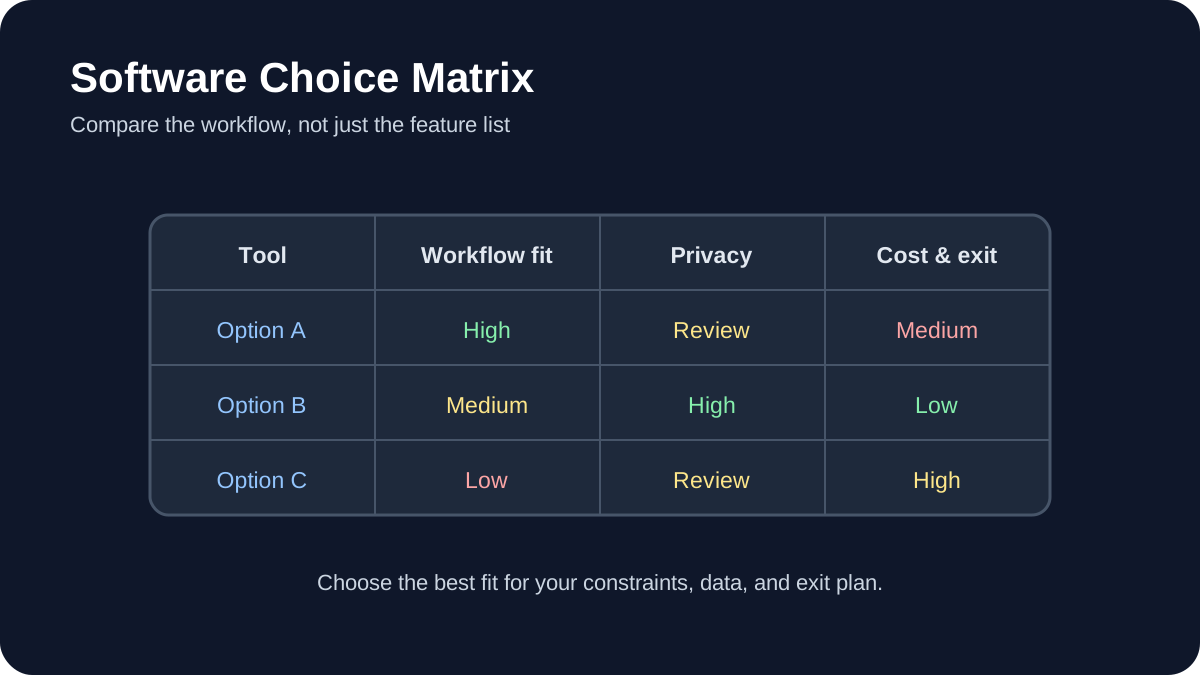
    Software Choice Matrix: Compare workflow fit, privacy, portability, and total cost before choosing a tool.
    Software Choice Matrix. Compare workflow fit, privacy, portability, and total cost before choosing a tool.

    You can download the most popular note-taking app, spend hours customizing it, and still stop using it a few weeks later.

    The problem is usually not a lack of features. It is a mismatch between the tool and the way you actually capture, organize, retrieve, and use information.

    This guide explains how to choose a note-taking app you will actually keep using by focusing on workflow, friction, portability, collaboration, and long-term usability instead of feature lists alone.

    1. Start With How You Think and Work

    Most note-taking comparisons begin with features:

    • Does it support Markdown?
    • Can it work offline?
    • Does it have backlinks?
    • Can it store PDFs?
    • Does it have AI features?

    Those questions matter, but they should come later.

    The first question should be:

    What do I actually need my notes to help me do?

    Different people use notes for very different purposes. One person may use notes mainly for meeting capture, while another uses them for research, writing, study, project management, or long-term knowledge storage.

    A good tool should support your existing thinking process rather than forcing you to adopt someone else’s productivity system.

    Reduce Unnecessary Friction

    Working memory is limited, and every unnecessary interface decision adds cognitive load.

    If creating a note requires several taps, folders, templates, or formatting decisions, you may eventually stop capturing information in the moment.

    That does not mean the simplest app is always the best. It means the interface should feel proportionate to the task.

    For example:

    • A quick-capture app should make creating a note nearly immediate.
    • A research system may justify more structure because retrieval matters later.
    • A project-management workspace may need databases, properties, and shared views.

    Think About Retrieval, Not Just Capture

    A note-taking system is only useful if you can find information again when you need it.

    Useful retrieval features may include:

    • full-text search;
    • tags;
    • folders;
    • internal links;
    • backlinks;
    • saved searches;
    • filters or database views.

    Tools such as Obsidian and Logseq emphasize linked notes, while tools such as Notion emphasize structured pages, databases, and shared workspaces.

    Neither approach is automatically better. The right choice depends on how you expect to retrieve information later.

    2. Audit Your Real Workflow

    Do not choose a note-taking app for the person you wish you were.

    Choose it for the way you actually work today.

    Track Your Notes for a Few Days

    For several days, pay attention to every note you create or search for.

    For each one, record:

    • which device you used;
    • what triggered the note;
    • how much time you had;
    • whether the note was temporary or long-term;
    • what you expected to do with it later.

    You may notice recurring patterns.

    For example:

    • quick ideas captured on your phone;
    • meeting notes on a laptop;
    • research saved for later;
    • project notes connected to tasks;
    • reference information you repeatedly search for.

    These patterns are more useful than a generic list of app features.

    Identify Your Friction Points

    Pay attention to moments when taking or finding a note feels unnecessarily difficult.

    Typical friction includes:

    • slow startup;
    • confusing navigation;
    • too many required fields;
    • poor mobile capture;
    • unreliable synchronization;
    • difficulty finding old notes;
    • formatting that takes too much attention.

    The best app is often the one that removes your most frequent source of friction, not the one with the longest feature list.

    3. Test Capture Speed

    A note-taking app should make it easy to capture an idea before you forget it.

    Ask yourself:

    • How many steps does it take to create a new note?
    • Can I capture something from my phone quickly?
    • Can I save text from another application?
    • Can I use voice input if needed?
    • Does the app support widgets or shortcuts?

    If your workflow involves frequent quick capture, mobile usability may matter more than advanced desktop features.

    For example, an application may be excellent for deep research but frustrating for quickly saving an idea while you are away from your computer.

    4. Decide How Much Structure You Actually Need

    People often overbuild their note systems.

    They create dozens of folders, tags, templates, dashboards, databases, and automation rules before they have enough notes to justify them.

    More structure can improve organization, but it also creates maintenance work.

    Minimal Structure

    A simple system might use:

    • one inbox;
    • a few folders;
    • search;
    • occasional tags.

    This can be enough for many people.

    Linked Knowledge

    If your work depends on connecting ideas across topics, tools with internal links and backlinks may be useful.

    You might create links such as:

    [[Machine Learning]]

    and connect individual notes to broader concepts.

    This works particularly well when your notes are meant to develop over months or years.

    Database-Based Organization

    If you manage projects, content calendars, research pipelines, or collaborative work, database-style tools may be more appropriate.

    You may benefit from:

    • properties;
    • filters;
    • different views;
    • relationships between records;
    • shared editing.

    Do not choose this complexity unless it solves a real problem.

    5. Think About Data Ownership and Portability

    Your notes may remain useful much longer than the software you use to create them.

    That makes export and portability important.

    Check the Storage Format

    Some tools store notes in open or easily readable formats such as Markdown or plain text.

    Others store information primarily inside a proprietary cloud database.

    Neither model is automatically wrong, but you should understand the tradeoff.

    Open formats can make migration easier because files may remain readable without the original application.

    Test Export Before You Commit

    Do not rely only on an application’s claim that your data can be exported.

    Create several realistic notes containing:

    • headings;
    • images;
    • links;
    • tables;
    • attachments;
    • tags or properties.

    Then export them.

    Check whether:

    • the files remain readable;
    • images are included;
    • links still make sense;
    • important metadata is preserved;
    • you could reasonably move the data elsewhere.

    A usable export gives you an exit strategy if the application changes in a way you no longer like.

    6. Compare Local-First and Cloud-First Tools

    This is one of the most important architectural differences between note-taking applications.

    Local-First

    In a local-first system, your primary notes may exist as files stored on your device.

    Potential advantages include:

    • direct access to files;
    • offline availability;
    • greater control over backups;
    • easier integration with other local tools.

    Obsidian is a well-known example because its notes are stored as Markdown files in a local vault.

    Cloud-First

    Cloud-first tools generally make synchronization and collaboration easier because the service manages the underlying data.

    Potential advantages include:

    • simple cross-device access;
    • real-time collaboration;
    • sharing permissions;
    • centralized workspace management.

    Notion is an example of a cloud-first workspace.

    The better choice depends on whether you value direct file ownership, collaboration, convenience, or a combination of these factors.

    7. Evaluate Collaboration Separately

    A tool that works perfectly for personal notes may not work well for a team.

    Ask what kind of collaboration you actually need.

    Real-Time Co-Editing

    If several people need to edit the same page at the same time, prioritize applications designed for collaborative editing.

    Useful features may include:

    • real-time changes;
    • comments;
    • mentions;
    • version history;
    • permission controls.

    Read-Only Sharing

    If you mostly write alone and occasionally share finished material, publishing or export options may matter more than real-time collaboration.

    Do not pay the complexity cost of a collaborative workspace if collaboration is rarely part of your workflow.

    8. Test Sync in Real Conditions

    Cross-device sync is important because losing trust in synchronization can make you stop trusting the entire system.

    Do not test only under perfect Wi-Fi.

    Try scenarios such as:

    • editing from your phone and laptop;
    • working temporarily without internet;
    • creating notes on one device and immediately opening them on another;
    • renaming or moving content;
    • editing the same note from two devices.

    Check how the application handles conflicts.

    The exact behavior depends on the application and synchronization method, so test the configuration you actually intend to use.

    9. Check Cross-Device Consistency

    An app being available on Windows, macOS, iOS, Android, and the web does not necessarily mean every version behaves the same.

    Before committing, test your most important workflows on every device you regularly use.

    For example:

    • Can you quickly create a note on mobile?
    • Can you edit the same properties on mobile and desktop?
    • Are important plugins available everywhere?
    • Can you access notes offline?
    • Does formatting behave consistently?

    If the mobile experience feels like a completely different product, that may become a long-term source of friction.

    10. Be Careful With Plugins and Customization

    Customization can turn a flexible note-taking app into exactly the tool you want.

    It can also become another hobby.

    If you spend more time redesigning your note system than using your notes, customization has stopped being helpful.

    Start With the Default Experience

    Before installing plugins or creating complex templates, use the application in a basic configuration.

    Only add something when you can describe the problem it solves.

    For example:

    • “I need a calendar because I regularly retrieve notes by date.”
    • “I need a template because every client meeting uses the same structure.”
    • “I need backlinks because I frequently connect related research.”

    This is more sustainable than installing features because someone else’s setup looks impressive.

    11. Decide Whether You Really Need AI Features

    Many note-taking applications now offer AI-powered summarization, search, writing assistance, or automatic organization.

    These features can be useful, but they should not determine your entire choice unless AI is central to your workflow.

    Before enabling them, consider:

    • what data is sent to the AI provider;
    • whether sensitive notes are processed;
    • whether the feature requires an additional subscription;
    • whether you can disable it;
    • whether the output actually saves time.

    A strong note-taking system should still be useful even when AI features are unavailable.

    12. Choose for Long-Term Flexibility

    Your requirements will change.

    You may change jobs, begin a new project, go back to school, start managing a team, or simply simplify your workflow.

    A note-taking system should be flexible enough to change with you.

    Look for Modularity

    A modular tool lets you start simple and add complexity only when necessary.

    For example:

    • start with basic notes;
    • add tags when search becomes difficult;
    • add templates when repeated structures emerge;
    • add collaboration when a team becomes involved;
    • add automation only after repetitive work becomes obvious.

    This approach reduces the chance that your system becomes too complicated to maintain.

    13. Run a Real 30-Day Trial

    A feature tour will not tell you whether an application fits your life.

    Use the shortlisted tool for real work.

    A 30-day trial is long enough to expose problems that may not appear during the first few days.

    Use It for Real Notes

    During the trial, use the application for the types of notes you normally create:

    • work notes;
    • ideas;
    • meeting notes;
    • research;
    • personal reminders;
    • reference information.

    Do not artificially create a perfect test environment.

    The purpose is to discover whether the application survives your normal habits.

    Keep a Friction Log

    Whenever the application annoys you, write down why.

    Examples:

    • “Creating a mobile note takes too long.”
    • “I cannot find information from last week.”
    • “The formatting behaves differently on my phone.”
    • “I keep forgetting which database to use.”
    • “Sync conflicts make me nervous.”

    At the end of the trial, recurring friction matters more than a long list of features you never used.

    Perform an Export Test

    Before ending the trial, export the notes you created.

    Try opening the export outside the application.

    This gives you a realistic picture of how difficult it would be to leave later.

    A Simple Decision Framework

    You can compare your shortlisted applications using categories like these:

    Category Questions to Ask
    Capture Can I save an idea quickly from the devices I actually use?
    Retrieval Can I find an old note without remembering exactly where I stored it?
    Structure Does the organization system match my real workflow?
    Portability Can I export my notes in a usable format?
    Sync Do I trust it across my actual devices and network conditions?
    Collaboration Does it support the level of sharing and editing I actually need?
    Complexity Am I maintaining the system more than using it?
    Cost Would I still be willing to pay for it several years from now?

    Which Type of Note-Taking App Fits You?

    Choose a Local-First Tool If…

    • you value direct control over your files;
    • offline access matters;
    • you prefer Markdown or plain-text formats;
    • long-term portability is a high priority;
    • you mainly work independently.

    Tools such as Obsidian or Logseq may be worth evaluating.

    Choose a Collaborative Workspace If…

    • you work with a team;
    • real-time editing matters;
    • you need shared databases or project views;
    • you regularly publish or share pages;
    • your notes overlap heavily with project management.

    A tool such as Notion may fit this type of workflow.

    Choose a Simpler Notes App If…

    • you mostly capture short notes;
    • you do not need complex linking or databases;
    • speed matters more than customization;
    • you want minimal setup.

    In this situation, a simpler notes application may be better than turning a powerful knowledge-management platform into an unnecessarily complicated system.

    How This Guide Was Prepared

    This guide focuses on practical evaluation criteria rather than ranking one application as universally superior.

    Note-taking products change frequently, including pricing, storage limits, AI features, export capabilities, synchronization behavior, and supported platforms.

    Before choosing a tool, verify current features and pricing through the application’s official documentation or website.

    Frequently Asked Questions

    What is the most common reason people stop using a note-taking app?

    There is no single reason that applies to everyone, but recurring friction is a common pattern.

    If capturing, organizing, syncing, or retrieving notes repeatedly feels harder than necessary, users may gradually stop relying on the system.

    Is Obsidian better than Notion?

    Not universally.

    Obsidian and Notion are built around different approaches.

    Obsidian is particularly attractive for people who value local Markdown files, linked notes, offline access, and personal knowledge management.

    Notion is particularly useful for structured cloud workspaces, databases, team collaboration, and shared project information.

    The better choice depends on what you need the system to do.

    Do I need AI in my note-taking app?

    No.

    AI features may help with summarization, writing, search, or organization, but a useful note-taking system does not require them.

    Focus first on capture, retrieval, organization, synchronization, and data portability.

    Can I use more than one note-taking app?

    Yes, but each application should have a clear role.

    For example, one tool might handle temporary mobile capture while another stores long-term research.

    The risk appears when the same type of information is scattered unpredictably across several applications.

    If you use multiple tools, define where important information ultimately belongs.

    How often should I reconsider my note-taking setup?

    There is no fixed schedule.

    Re-evaluate the system when your requirements change or when recurring friction begins interfering with your work.

    Avoid switching tools simply because a new application becomes popular.

    Final Takeaway

    The best note-taking application is not necessarily the one with the most features, the most impressive AI, or the most elaborate templates.

    It is the one that reliably helps you:

    • capture information when it matters;
    • find it again later;
    • organize it without excessive maintenance;
    • use it on the devices that matter to you;
    • keep control of your information over time.

    Before committing to a tool, observe your real workflow, test the app under normal conditions, verify its export options, and give yourself enough time to discover recurring friction.

    A good note-taking system should gradually become less noticeable. The more naturally it fits your workflow, the more attention you can give to the ideas inside your notes instead of the software holding them.

    Practical example: testing a note-taking system for one week

    Choose one recurring project and capture every new note in the same place. At the end of the week, try to find three decisions, two source links, and one pending action without searching multiple apps.

    1. Use a consistent title with a date and project name.
    2. Link each decision to the note or document that supports it.
    3. Separate reference material from actions you still need to take.
    4. Review duplicates and archive notes that no longer help.
    5. Ask whether the system reduced retrieval time before adding another feature.

    A short trial reveals whether a tool supports your thinking or simply creates another inbox to maintain.

    Practical verification and limits

    Test a week of real notes, verify export and recovery, check privacy and pricing limits, and keep a dated backup before migrating important information.

    Editorial review and limitations

    Reviewed by Femica Maydinda Harend. This guidance favors reproducible, reversible steps. Features and policies can change, so verify current details before acting.

  • Build an Automated Weekly Research Digest with n8n and Google Sheets

    Build an Automated Weekly Research Digest with n8n and Google Sheets

    Tutorial Workflow: A repeatable path from preparation and execution to validation and recovery.
    Tutorial Workflow. A repeatable path from preparation and execution to validation and recovery.

    Keeping up with AI research, software updates, academic papers, industry reports, and policy announcements can quickly become overwhelming. The problem is not finding information—it is collecting the right information consistently without spending hours copying links into spreadsheets every week.

    One practical solution is to build an automated research digest using n8n and Google Sheets.

    In this guide, you will learn how to create a workflow that collects research from selected sources, removes obvious duplicates, stores useful metadata in Google Sheets, and prepares the data for a weekly review or digest.

    The goal is not to automate judgment. The goal is to automate repetitive collection so you can spend more time deciding what actually matters.

    What We Are Building

    The basic workflow looks like this:

    1. n8n runs on a schedule.
    2. It collects new items from RSS feeds or APIs.
    3. The data is converted into a consistent format.
    4. Old or duplicate items are filtered out.
    5. Useful items are saved to Google Sheets.
    6. A second workflow can turn the week’s entries into a digest.

    You can start with a single source and expand the workflow later.

    Why Use n8n for a Research Digest?

    n8n is a workflow automation platform that lets you connect APIs, feeds, databases, spreadsheets, email services, and other tools through visual nodes.

    For this project, n8n is useful because it can handle several different parts of the research workflow:

    • scheduled execution;
    • RSS ingestion;
    • HTTP API requests;
    • data transformation;
    • filtering and deduplication;
    • Google Sheets integration;
    • email or messaging delivery;
    • basic error handling.

    n8n can be used through its hosted service or deployed on infrastructure you manage yourself. The best option depends on your technical requirements, budget, and data policies.

    Why Use Google Sheets?

    Google Sheets works well as a lightweight research database because it is easy to inspect, edit, share, and annotate manually.

    That manual access is important.

    Automation should not lock you out of your own research process. If a workflow assigns the wrong tag or saves an irrelevant article, you should be able to correct it immediately.

    A spreadsheet can store fields such as:

    • title;
    • source;
    • publication date;
    • URL;
    • DOI;
    • abstract or summary;
    • tags;
    • review status;
    • notes;
    • priority.

    Architecture of the Research Digest

    I recommend separating the system into four simple layers:

    1. Sources

    These are the places where new research or updates originate.

    Examples include:

    • RSS feeds;
    • academic APIs;
    • official announcement feeds;
    • institutional repositories;
    • manual submissions.

    2. Processing

    This layer cleans and normalizes incoming information.

    Typical tasks include:

    • standardizing field names;
    • checking publication dates;
    • removing duplicates;
    • checking required fields;
    • assigning basic tags or priorities.

    3. Storage

    Validated items are stored in Google Sheets.

    The spreadsheet becomes the place where automated collection and human review meet.

    4. Delivery

    At the end of the week, another workflow can retrieve recent entries and create a simple digest for email, Slack, Notion, or another destination.

    Step 1: Create the Google Sheets Structure

    Create a new Google Sheet and name it something clear, such as:

    Research Digest Master Log

    Create a worksheet named:

    Items

    For a simple setup, use columns similar to these:

    • id
    • timestamp
    • published_at
    • title
    • source
    • url
    • doi
    • abstract
    • tags
    • priority
    • status
    • notes

    You do not need every field on day one. Start with the fields you will actually use.

    A Practical Status System

    For example, the status column might contain:

    • New
    • Reviewed
    • Saved
    • Archived

    This gives you a simple manual review workflow without needing another application.

    Step 2: Connect Google Sheets to n8n

    In n8n, create or configure Google Sheets credentials using one of the authentication methods currently supported by your n8n installation.

    Because authentication screens and credential requirements can change, follow the current official n8n Google credentials documentation rather than relying on an old tutorial screenshot.

    Once authentication works, test the connection with a simple operation such as reading rows from the spreadsheet.

    Do this before building the full workflow. It is much easier to troubleshoot authentication separately from RSS and filtering logic.

    Step 3: Create the Weekly Schedule

    Create a new n8n workflow and add a Schedule Trigger.

    Choose the day and time that fits your routine.

    For example, you might run the workflow once every Sunday night so the collected information is ready for review on Monday.

    The exact schedule is not important. Consistency is.

    Step 4: Add Your First Research Source

    Start with one source rather than ten.

    For example, if you follow artificial intelligence research, you could begin with the arXiv AI RSS feed:

    https://arxiv.org/rss/cs.AI

    Add the appropriate RSS-reading node in n8n and test the output.

    You will typically receive fields such as:

    • title;
    • link;
    • description;
    • publication date.

    Normalize the Output

    Different feeds often use different field names. Before combining multiple sources, convert them into your own consistent structure.

    A Code node can be used for this.

    return items.map((item) => ({
      json: {
        title: item.json.title || '',
        url: item.json.link || '',
        abstract: item.json.description || '',
        published_at: item.json.pubDate
          ? new Date(item.json.pubDate).toISOString()
          : null,
        source: 'arXiv AI'
      }
    }));

    The exact fields available will depend on the source, so inspect the incoming JSON before copying expressions blindly.

    Step 5: Add Additional Sources Carefully

    Once the first source works, you can gradually add more.

    Possible sources include:

    Do not add sources only because they are available. A research digest becomes less useful when low-quality sources overwhelm the ones you actually care about.

    Step 6: Filter by Publication Date

    If this is a weekly digest, you usually do not want to process months of historical items every time the workflow runs.

    Compare each item’s publication date with your desired time window.

    For example, you may choose to keep only entries published during the previous seven days.

    Be careful with:

    • missing publication dates;
    • different time zones;
    • feeds that update old articles;
    • sources that publish timestamps in different formats.

    Step 7: Prevent Duplicate Research Items

    Duplicate handling is one of the most important parts of this automation.

    The same paper may appear in several feeds, and some feeds repeat older entries.

    Instead of trusting the title alone, consider using a stable identifier when one is available.

    Good candidates include:

    • DOI;
    • canonical URL;
    • arXiv identifier;
    • another source-specific identifier.

    If no stable identifier exists, you can create a normalized key from fields such as the title and URL.

    const normalizedTitle = ($json.title || '')
      .toLowerCase()
      .replace(/[^a-z0-9]/g, '');
    
    const key = `${normalizedTitle}|${$json.url || ''}`;
    
    return {
      ...$json,
      dedupe_key: key
    };

    Then compare that value with previously stored records before inserting a new row.

    Do Not Overcomplicate Deduplication Too Early

    You do not necessarily need cryptographic hashing for a small personal digest.

    A readable deduplication key may actually be easier to debug.

    Only introduce more complex hashing when your workflow genuinely needs it.

    Step 8: Save New Items to Google Sheets

    Once an entry passes your filters, append it to the Items sheet.

    Map your normalized fields to the appropriate columns.

    For example:

    • title → Title
    • source → Source
    • url → URL
    • published_at → Published Date
    • abstract → Abstract
    • status → New

    After adding a few test entries, manually inspect the spreadsheet.

    Check whether:

    • URLs are correct;
    • dates are readable;
    • long abstracts are manageable;
    • duplicates are actually being prevented.

    Step 9: Add Optional Relevance Scoring

    You can add a simple relevance system if you collect a large number of items.

    I recommend starting with transparent rules rather than immediately using AI classification.

    For example:

    • +2 if the title contains an important keyword;
    • +1 if the abstract contains a secondary keyword;
    • +2 if it comes from a high-priority source;
    • +1 if it matches one of your current projects.

    This produces a score you can understand and adjust.

    Why Start With Simple Scoring?

    If an automated classifier labels something incorrectly, it may not be obvious why.

    Simple scoring lets you inspect the logic and change the weights easily.

    Once the basic workflow is useful, you can consider semantic classification or an AI model as an optional enrichment layer.

    Step 10: Enrich Academic Papers With External Metadata

    If your research items include DOIs or academic identifiers, you can retrieve additional metadata from APIs such as Semantic Scholar or Crossref.

    For example, the Semantic Scholar Graph API can return selected paper metadata.

    A request might follow this general pattern:

    https://api.semanticscholar.org/graph/v1/paper/DOI:YOUR_DOI?fields=title,year,venue,citationCount

    Always consult the current Semantic Scholar API documentation for authentication, fields, and rate limits.

    Treat citation counts as contextual metadata—not as a direct measure of research quality.

    Step 11: Create the Weekly Digest Workflow

    Once collection is reliable, create a second workflow for presentation.

    This workflow can:

    1. run once per week;
    2. read recent rows from Google Sheets;
    3. filter out archived or irrelevant entries;
    4. sort by priority;
    5. format the remaining items;
    6. send the digest.

    A Simple Markdown Format

    Your digest might look like this:

    # Weekly Research Digest
    
    ## Priority Reads
    
    - [Research title](https://example.com)
      Source: Example Journal
    
    - [Another paper](https://example.com)
      Source: arXiv
    
    ## Other New Items
    
    - [Article title](https://example.com)
    - [Report title](https://example.com)

    Simple formatting is usually better than an overly elaborate digest. The purpose is to help you decide what deserves further attention.

    Step 12: Send the Digest

    n8n can deliver the result through whichever integration fits your workflow.

    Common destinations include:

    • email;
    • Slack;
    • Microsoft Teams;
    • Notion;
    • another database or API.

    If you send email, test the formatting with a small internal recipient list before distributing it more widely.

    Optional: Use AI to Summarize Research Items

    AI can be added later to summarize abstracts or help categorize research, but it should be treated as an assistant rather than a source of truth.

    A safer workflow is:

    1. collect the original metadata;
    2. store the original source URL;
    3. ask the AI to create a short summary;
    4. store that summary in a separate field;
    5. keep the original abstract available for comparison.

    Do not replace source material with an AI summary.

    If the digest will inform important decisions, review the original research before relying on an automatically generated interpretation.

    Error Handling: Know When the Workflow Fails

    A useful automation should fail visibly.

    Feeds can disappear, APIs can return errors, credentials can expire, and Google Sheets requests can fail.

    At minimum, consider tracking:

    • which source failed;
    • the error message;
    • execution time;
    • whether other sources completed successfully.

    n8n provides workflow execution information and error-handling features. The exact configuration depends on the version and deployment you use, so refer to the current n8n error-handling documentation.

    Create a Simple Health Sheet

    If this workflow becomes important to your research process, create another worksheet named:

    Metrics

    You can record useful operational information such as:

    • execution date;
    • items fetched;
    • new items stored;
    • duplicates skipped;
    • failed sources.

    You do not need a complicated dashboard. Even a small log makes problems easier to notice.

    Back Up Your n8n Workflows

    Once the workflow becomes useful, keep a backup.

    n8n supports workflow export, allowing you to save a workflow definition and keep versions outside the live installation.

    You could store exported workflow files in Git or another backup location.

    Before making a major change:

    1. export the working version;
    2. duplicate the workflow if necessary;
    3. test changes against a separate sheet;
    4. only apply them to production after testing.

    Common Problems and How to Troubleshoot Them

    The RSS Feed Returns No Items

    Check the feed URL directly in your browser or RSS reader.

    The publisher may have:

    • changed the feed URL;
    • temporarily disabled the feed;
    • changed its output format;
    • restricted automated access.

    Do not assume every empty response is an n8n problem.

    Google Sheets Writes Fail

    Check:

    • Google credentials;
    • spreadsheet permissions;
    • sheet name;
    • column mappings;
    • API quota or rate-limit errors.

    For large workflows, reducing unnecessary individual writes can also improve efficiency.

    You Are Still Getting Duplicates

    Inspect the values you use for deduplication.

    A URL can differ because of:

    • tracking parameters;
    • HTTP versus HTTPS;
    • trailing slashes;
    • different versions of the same paper.

    Where possible, prioritize stable identifiers such as DOI or arXiv ID.

    Your Relevance Filter Removes Useful Research

    This usually means the rules are too strict.

    Instead of immediately deleting low-scoring items, consider storing them with a lower priority.

    You can then compare automated scoring with your own judgment and improve the rules gradually.

    Start Small Before Building the Advanced Version

    It is tempting to build everything at once:

    • ten RSS feeds;
    • Semantic Scholar enrichment;
    • AI summaries;
    • Slack alerts;
    • automatic scoring;
    • PDF parsing;
    • dashboards.

    I would not start there.

    Start with this:

    1. one RSS feed;
    2. one Google Sheet;
    3. basic deduplication;
    4. one weekly schedule.

    Use it for a week.

    Then ask:

    • Am I actually reading the collected items?
    • Which sources produce the most useful material?
    • Which fields do I really use?
    • What repetitive work remains?

    Automate those problems next.

    A Practical Research Digest Checklist

    Before relying on your automation, verify that:

    • the schedule runs at the expected time;
    • each source is still accessible;
    • publication dates are parsed correctly;
    • duplicates are not being inserted;
    • Google Sheets receives complete rows;
    • source URLs remain available;
    • failed executions are visible;
    • the weekly digest contains only the intended time period.

    How This Guide Was Prepared

    This guide focuses on a maintainable workflow pattern rather than presenting one rigid n8n configuration as the only correct implementation.

    n8n nodes, authentication methods, APIs, third-party services, and user interfaces can change over time. When implementing the workflow, consult the current official documentation for the services you connect.

    The architecture is intentionally modular so individual sources, filters, scoring systems, and delivery methods can be changed without rebuilding the entire process.

    Frequently Asked Questions

    Do I need programming skills to build this?

    You can build the basic workflow without being an experienced programmer.

    However, more advanced features—such as complex transformations, API integration, custom deduplication, or self-hosted services—may require familiarity with JSON, APIs, expressions, or JavaScript.

    Can I use private research sources?

    Potentially, yes, as long as you have authorization to access and process the information.

    Authentication, privacy, licensing, and organizational policies should be considered before connecting internal systems to an automation workflow.

    How much does the system cost?

    There is no single fixed cost.

    The total depends on:

    • whether n8n is self-hosted or hosted;
    • your server costs;
    • execution volume;
    • third-party APIs;
    • AI services;
    • Google Workspace requirements.

    Always check current pricing from the relevant providers before designing the workflow around a specific budget.

    Can I pause the weekly digest?

    Yes. Disable or modify the workflow schedule when you do not want it to run.

    For longer breaks, I prefer disabling the automation explicitly rather than embedding complicated holiday logic into the workflow.

    Is a self-hosted n8n workflow automatically GDPR or CCPA compliant?

    No.

    Self-hosting gives you more control over infrastructure and data flow, but compliance depends on the data you process, where it is stored, who can access it, retention practices, third-party processors, security controls, and applicable legal requirements.

    If your workflow processes personal or regulated information, review the relevant legal and organizational requirements rather than assuming that self-hosting alone guarantees compliance.

    Final Takeaway

    A weekly research digest does not need to be complicated to be useful.

    The most valuable part of this workflow is not the number of integrations. It is having a consistent system that collects information from sources you trust, stores it in a format you can review, and removes repetitive manual work.

    Start with one source and one spreadsheet. Make sure the workflow reliably collects useful material. Then add deduplication, prioritization, metadata enrichment, AI-assisted summaries, or additional delivery channels only when they solve a real problem in your process.

    Automation should give you more time to evaluate research—not create another system you have to constantly manage.

    Practical verification and limits

    Store source URLs, dates, and retrieval times; test missing fields and duplicate events; route failures to an owner; and verify relevance and copyright before sharing a digest.

    Editorial review and limitations

    Reviewed by Femica Maydinda Harend. This guidance favors reproducible, reversible steps. Features and policies can change, so verify current details before acting.

  • How to Fact-Check an AI-Generated Answer: Trace Each Claim to a Source

    How to Fact-Check an AI-Generated Answer: Trace Each Claim to a Source

    A fluent answer can still contain a false date, a missing qualification, or a citation that does not support the sentence. This guide is for checking one AI-generated answer before you reuse it. It is not a full research workflow or a statistical evaluation of a model.

    Step 1: Separate the answer into claims

    Underline statements that can be checked: names, dates, quantities, quotes, causal explanations, and recommendations presented as fact. Treat each claim separately; one correct paragraph does not validate the rest.

    Step 2: Identify the exact question and scope

    Write down the time period, jurisdiction, product version, population, or definition the answer assumes. Many apparent disagreements come from a changed date or a different meaning of the term.

    Step 3: Find the original source

    Search for a primary source such as a government page, standards body, official documentation, original study, or the company’s release note. Do not rely on a search-results page or a secondary summary when the primary evidence is available.

    Step 4: Compare source and statement

    Check whether the source actually supports the exact wording, denominator, date, and limitation. A survey of respondents is not automatically a statistic about an entire industry. A vendor feature page is not proof of independent performance.

    Step 5: Record a correction

    For each claim, mark supported, partly supported, contradicted, or not verified. Keep the source URL and the reason. Remove or qualify claims that lack evidence before using the answer.

    Step 6: Check material claims twice

    For high-impact or surprising claims, seek an independent authoritative source and ask a qualified reviewer. If sources conflict, preserve the disagreement and explain the date or scope rather than choosing the most convenient number.

    Worked example: verify one fictional date claim

    Suppose a fictional answer says, “The sample application closes on 12 May.” The fictional program page says, “Applications close at 5 p.m. on 13 May.” Record the answer’s claim and the source passage separately. The claim is contradicted on date; the source also adds a time that the answer omitted. Correct the sentence only after checking that the page applies to the same program and year.

    Use a compact claim record:

    • Claim: exact sentence, with any hidden date, geography, version, or population.
    • Source: publisher, page title, URL, update date, and the passage that bears on the claim.
    • Assessment: supported, partly supported, contradicted, or unresolved.
    • Action: retain with context, qualify, correct, remove, or ask a qualified reviewer.

    Do not count two pages that repeat the same press release as independent confirmation. For a disputed or high-impact point, locate the originating record and a genuinely independent authoritative source; if they still disagree, explain the scope difference or leave the point unresolved. Keep an audit note when a correction changes the conclusion, and never silently replace one unsupported exact number with another.

    This is a method example using invented dates, not a real fact-check performed by AILooma. The broader source-led research workflow helps build a source trail before drafting.

    Related reading

    For research that begins with a question and tracks a source ledger, see the AI-assisted research workflow. For a team-wide evaluation rubric, read the risk-tier scorecard.

    About the author

    Femica Maydinda Harend writes practical technology guides for AILooma, emphasizing source checks and transparent limits.

    Editorial note

    This is a verification method, not a claim that AILooma audited a particular model answer. Check current original sources and consult an expert for consequential decisions.

  • Why Your Laptop Keeps Freezing: 11 Practical Fixes and Safety Checks

    Why Your Laptop Keeps Freezing: 11 Practical Fixes and Safety Checks

    Layered Risk Control: Use prevention, detection, recovery, and human review together.
    Layered Risk Control. Use prevention, detection, recovery, and human review together.

    A frozen laptop can have many causes: one application may be stuck, Windows may be under memory or storage pressure, a driver may be unstable, or hardware may be failing. The safest way to find the cause is to protect your data, record the pattern, and change one thing at a time.

    Quick answer

    Back up important files first. Check whether the entire system or only one application freezes, then review heat, Task Manager, storage health, Windows and driver updates, malware, startup software, system files, power behavior, and hardware diagnostics. Use recovery options only after the less invasive checks.

    Stop and seek repair: if the battery is swollen, the laptop smells electrical, liquid entered the device, the drive reports a serious health warning, or the system cannot remain stable long enough to copy important data.

    1. Record what actually freezes

    Before changing settings, write down what you see. Can the pointer move? Does Ctrl + Shift + Esc open Task Manager? Does audio continue? Does the problem occur on battery, while charging, after sleep, or only in one application?

    Also note recent software, driver, peripheral, or Windows changes. A consistent trigger is more useful than a guess about the cause. If the laptop becomes responsive again, save open work and copy irreplaceable files before continuing.

    2. Check heat and airflow

    Place the laptop on a hard, flat surface and make sure the intake and exhaust vents are not blocked. A fan that grinds, stops under load, or runs at full speed while the case becomes unusually hot may indicate an airflow or cooling problem.

    Shut the laptop down before cleaning exterior vents. Follow the manufacturer’s service instructions; opening the chassis, disconnecting a battery, or replacing thermal material may require tools and experience. Temperature limits differ by processor and laptop design, so use the device or component manufacturer’s specifications instead of a universal threshold.

    3. Look for resource pressure in Task Manager

    Open Task Manager and review the Processes and Performance pages. Watch CPU, Memory, and Disk while reproducing the problem. A process that remains unusually busy can be a useful lead, but a short spike does not prove that the process is defective.

    If one application consumes increasing memory, update it, disable its extensions, or test a clean profile. If total memory remains close to full during normal work, close unused applications and reduce startup items before considering a hardware upgrade. Do not end unfamiliar Windows processes at random.

    4. Check free space and storage health

    Low free space can interfere with updates, temporary files, and virtual memory. Open Settings → System → Storage and review the categories before deleting anything. Storage Sense can remove selected temporary content, but confirm its settings first.

    Back up immediately if the drive disappears, produces read errors, makes unusual mechanical noises, or a vendor diagnostic reports a serious warning. SMART values are vendor-specific; do not judge every SSD by a single universal number. Use the laptop or drive manufacturer’s diagnostic tool where available.

    For file-system checks, begin with a read-only or online scan appropriate to the drive and follow Microsoft’s current documentation. Commands that schedule repairs or scan every sector can take a long time and should not be the first experiment on a failing drive.

    5. Install Windows and manufacturer-approved updates

    Check Settings → Windows Update, then restart. For firmware, chipset, graphics, audio, storage, and power-management drivers, use the support page for the exact laptop model. Do not use an unrelated driver package simply because the component name looks similar.

    If freezing began immediately after a specific driver update, Device Manager may offer Roll Back Driver. Record the current version first. BIOS or UEFI updates need uninterrupted power and the exact package for the model; follow the manufacturer’s instructions rather than a generic flashing guide.

    6. Scan for malware with Windows Security

    Open Windows Security → Virus & threat protection, check that protection is active, and run an appropriate scan. An offline scan can help when persistent malware is suspected.

    Do not identify malware only from a process name or high resource use. Legitimate Windows services can be busy during updates, indexing, or security scans. Review file location, publisher information, and Windows Security results before taking action.

    7. Test for startup software conflicts

    Disable non-essential startup applications through Task Manager, restart, and test. If that is not enough, Microsoft’s clean-boot procedure can start Windows with a reduced set of non-Microsoft services and startup programs.

    Hide Microsoft services before disabling services in System Configuration. Re-enable items in small groups to isolate the conflict, and return the PC to normal startup afterward. On organization-managed devices, ask the administrator before changing security or management software.

    8. Repair Windows system files

    Microsoft’s current guidance runs Deployment Image Servicing and Management before System File Checker. Open Command Prompt as administrator and run:

    DISM.exe /Online /Cleanup-image /Restorehealth
    sfc /scannow

    Allow each command to finish and read the result instead of assuming a successful repair. DISM may use Windows Update as a repair source. These tools repair Windows components; they do not fix defective memory, storage, cooling, or power hardware.

    9. Compare battery and plugged-in behavior

    Test with the manufacturer-approved power adapter and disconnect unnecessary peripherals. If freezes occur only with one charger, dock, USB device, or power mode, remove that variable and test again.

    Restore the default Windows power plan before applying advanced tweaks. Disabling processor power states or forcing maximum performance can increase heat and battery use without addressing the cause. For a swollen or damaged battery, stop using the device and arrange safe service.

    10. Run memory and manufacturer diagnostics

    Windows Memory Diagnostic can perform a basic memory check after a restart. Many laptop manufacturers also provide pre-boot diagnostics for memory, storage, battery, fan, and system-board errors. Record any error code exactly.

    A memory error can come from a module, slot, or system-board problem and should be investigated before normal use continues. Avoid probing live power circuits or disassembling a laptop unless you have the correct service documentation and electrical safety experience.

    11. Use Windows recovery options carefully

    If the problem began after a known system change, System Restore or removal of the relevant update may be appropriate. Windows also offers Startup Repair, reset, and reinstall options for different failure scenarios.

    Read what each option preserves before proceeding and make a separate backup. A Windows reinstall can resolve software corruption, but it cannot repair failing hardware. If freezing continues after clean software tests or diagnostics report an error, professional hardware service is the safer next step.

    What not to do

    • Do not install bulk “driver updater” or registry-cleaner software as a first fix.
    • Do not disable Windows security, diagnostic, or update services based on an unverified optimization guide.
    • Do not flash firmware for another model.
    • Do not repeatedly stress-test a drive that is reporting errors before backing it up.
    • Do not change several drivers, services, and power settings at once; you will lose the ability to identify the cause.

    Freezing versus a generally slow PC

    A laptop that remains responsive but feels consistently slow needs a slightly different process. Use How to Fix a Slow Windows 11 PC for a focused performance checklist.

    Practical verification checklist

    1. Back up important data.
    2. Record whether one app or the entire system freezes.
    3. Check airflow and compare battery, charger, and peripheral conditions.
    4. Observe CPU, memory, and disk behavior in Task Manager.
    5. Review storage health, Windows updates, and exact-model drivers.
    6. Scan with Windows Security and test a reduced startup environment.
    7. Run DISM before SFC according to Microsoft guidance.
    8. Use hardware diagnostics and preserve any error codes.

    Editorial review and accountability

    Written and reviewed by Femica Maydinda Harend. This guide provides general troubleshooting information. Back up important data and consult the device manufacturer or a qualified technician for electrical damage, battery swelling, firmware recovery, or hardware repair beyond your experience.

    Primary sources and further reading

    Diagnose before making changes

    Write down whether one app or the whole system freezes, what workload was running, whether the laptop was plugged in, and any recent update or hardware change. Observe CPU, memory, disk, and temperature behavior before disabling services or installing cleaners. Change one variable at a time and keep a dated log so the result can be reproduced.

    Hardware warning signs

    Back up immediately and stop testing for a swollen battery, liquid damage, electrical smell, extreme heat, repeated drive errors, or a damaged charging port. These symptoms require qualified repair rather than more software tweaks.

    Editorial review and limitations

    Reviewed by Femica Maydinda Harend. This article distinguishes documented behavior from editorial judgment and uses checks readers can reproduce. Features, prices, interfaces, and compatibility may change; verify current details before making consequential changes.

  • How to Build a Simple Digital Productivity System That Works

    How to Build a Simple Digital Productivity System That Works

    Tools Automation Flow: Move from trigger to validation, safe action, and human review.
    Tools Automation Flow. Move from trigger to validation, safe action, and human review.

    A productivity system should make commitments easier to capture, choose, and complete. If maintaining the system becomes a second job, the structure is too complicated. A note app should fit the capture and retrieval routine you choose; use our note-taking software decision guide to compare that part of the system.

    Quick answer

    Use one trusted inbox, a short task list, a calendar for time-specific commitments, and a separate place for reference notes. Review the system regularly, remove duplicate tools, and automate only stable steps you already understand.

    Best for: people whose tasks are scattered across email, chat, notes, calendars, and several productivity apps.

    Why productivity systems become difficult to maintain

    The common problem is not a missing feature. It is uncertainty: the same commitment exists in several places, the calendar is filled with tasks that are not appointments, and the task list contains items that are too vague to begin.

    A useful system gives each tool a clear role. It should answer three questions quickly: What have I committed to? What matters next? Where is the information needed to do it?

    Step 1: Audit the current workflow

    Before installing another app, observe where work enters and where it gets lost. For a few normal workdays, note:

    • where requests arrive;
    • where you capture tasks;
    • which reminders you ignore;
    • which information is difficult to find;
    • which tasks are repeatedly copied between tools;
    • which interruptions cause you to lose the next action.

    This is not a performance test. It is a map of friction. Look for repeated failure points rather than judging an unusual day.

    Step 2: Give every tool one primary role

    A simple setup can use four roles:

    1. Inbox: a temporary place for uncategorized commitments and ideas.
    2. Task list: actions you may choose and complete.
    3. Calendar: appointments, deadlines, and work that genuinely belongs at a specific time.
    4. Reference system: notes, files, procedures, and material that supports the work.

    The same application can cover more than one role, but the role should remain obvious. Email can be an input channel without becoming the permanent task list. A calendar can protect focus time without becoming a wish list for every unfinished action.

    Step 3: Create one trusted capture path

    Choose the fastest available inbox that you can reach from the devices you use. It may be a task-manager inbox, a notes page, or a paper notebook. The important part is consistency.

    Capture enough context to understand the item later. “Budget” is ambiguous; “Ask Maya which budget version the client approved” is actionable. Capture is temporary: the inbox must be processed, not allowed to become another archive.

    Step 4: Turn vague work into visible next actions

    Projects describe outcomes; tasks describe the next observable action. “Launch newsletter” is a project. “Confirm the sender address with the email provider” is a next action.

    For each active project, identify the next action, the person responsible, and any real deadline. If work is waiting on someone else, record that explicitly instead of leaving the item mixed with actions you can perform.

    Step 5: Keep the daily list small

    A long backlog is useful for storage but poor for daily attention. Select a small set based on importance, available time, energy, and deadlines. Leave room for unexpected work.

    Separate “must happen today” from “could do next.” If everything is marked urgent, the system cannot help you decide. Review the list when circumstances change rather than following an outdated morning plan at any cost.

    Step 6: Use the calendar honestly

    Place meetings, appointments, deadlines, and genuinely time-specific work on the calendar. Use focus blocks when protecting time is valuable, but do not assume every block will survive contact with the day.

    When a focus block moves, update the task rather than duplicating it. Keep enough space between commitments for preparation, travel, and recovery from overruns.

    Step 7: Run a regular review

    The review keeps the system trustworthy. A practical review includes:

    • emptying capture inboxes;
    • checking the past and upcoming calendar;
    • confirming the next action for active projects;
    • following up on delegated work;
    • closing or deleting stale commitments;
    • choosing the most important outcomes for the next period.

    The review does not need a universal duration or a particular day. It needs to happen often enough that you stop relying on memory.

    Choose a small core stack

    Select tools around the roles above rather than around feature lists. A task manager, calendar, notes application, and communication service are enough for many workflows. Some people can combine those roles into fewer tools; others need organization-approved systems.

    Before adding an application, ask what existing tool it replaces, which friction it removes, how data will be exported, and who will maintain it. If the answers are unclear, delay the addition.

    Automate only stable work

    Automation is useful after a manual process is clear. Good first examples include creating a task from a labeled message, placing a recurring review on the calendar, or copying an approved form submission into the correct queue.

    Keep consequential actions—sending external messages, deleting data, changing permissions, and financial activity—behind appropriate review. An automation that occasionally saves a click but frequently needs repair is not simplifying the system.

    Stress-test without manufacturing chaos

    Use the system during a normal busy period and record what breaks. Do not deliberately accept unnecessary meetings or unsafe workloads as a test. Instead, check whether you can recover after an interruption, find the current project state, and identify the next action without rebuilding the system.

    Change one problem at a time. If capture is slow, improve capture. If the daily list is overwhelming, change selection. A complete migration makes it difficult to know which change helped.

    Signs the system needs simplification

    • You search several apps before finding a commitment.
    • The same task exists in multiple places.
    • Tags and fields require more attention than the work.
    • The calendar repeatedly contains plans you never intended as appointments.
    • You avoid the review because it has become too large.
    • The system increases anxiety or hides urgent work.

    Remove unused views, integrations, and categories before replacing the entire stack. Export important data and keep a rollback path during any migration.

    A practical setup checklist

    1. List every current capture location and choose one primary inbox.
    2. Define the role of tasks, calendar, notes, and communication.
    3. Rewrite vague commitments as next actions.
    4. Select a realistic daily list instead of working directly from the backlog.
    5. Schedule a recurring review.
    6. Remove one duplicate tool or field.
    7. After the manual workflow is stable, automate one reversible step.

    Editorial review and accountability

    Written and reviewed by Femica Maydinda Harend. This framework is practical guidance, not a measured claim that one routine works for every person. Adapt it to workload, accessibility needs, organizational policy, and the tools you are required to use.

    Official product guidance

    Practical example: building a weekly productivity system

    Use one ordinary week as your test case. Capture incoming tasks in one place, reserve two short planning sessions, and define what “done” means for recurring work. Keep the system small enough to maintain when the week becomes busy.

    1. List commitments and assign each a next action.
    2. Group similar work into focused blocks instead of switching constantly.
    3. Review unfinished items at the end of the week and record why they moved.
    4. Archive completed work so the active list stays readable.
    5. Change one part of the system at a time and observe the result.

    The goal is a repeatable habit, not a perfect dashboard. If the system requires more upkeep than the work it supports, simplify it.

    Make the system resilient

    A useful system should still work during a busy week. Give each tool one clear role: capture, calendar, tasks, notes, or communication. Observe your current workflow before changing apps, and keep employer or client data in an approved system. Review the inbox weekly, remove stale commitments, and simplify any view or automation that creates more maintenance than value.

    Evidence that it is working

    You should be able to find a commitment quickly, choose the next action, recover after an interruption, and complete a review in a short session. If the system requires constant reorganizing, reduce its complexity.

    Editorial review and limitations

    Reviewed by Femica Maydinda Harend. This article distinguishes documented behavior from editorial judgment and uses checks readers can reproduce. Features, prices, interfaces, and compatibility may change; verify current details before making consequential changes.