Choosing an AI course is easier when you start with what you want to do, rather than a “best course” ranking. Course pages change, and “beginner” can mean no coding, no machine-learning background, or simply a new framework. This guide compares current official learning resources by prerequisites and learning style; AILooma has not independently tested or ranked them. If you learn best by building one small example instead of comparing courses, start with this project-based AI learning guide.
Vendor documentation and learning paths can connect concepts to that provider’s services.
Separate free learning material from paid labs, cloud usage, certificates, or subscriptions; set a spending limit before creating resources.
A simple way to compare courses
Write one learning outcome. For example: explain what a training example is, or build a small classifier. Avoid goals such as “master AI.”
Check the starting requirements. Note whether the course expects Python, statistics, a cloud account, a GPU, or a paid plan.
Preview one lesson. Confirm the language, pace, accessibility, and whether instructions still match the current interface.
Check the exercises. Prefer a lesson where you can run or inspect an example and compare your result with an expected outcome.
Review privacy and cost. Do not upload confidential data to a learning tool. Check data handling and any cloud or API charges.
Finish one short unit before adding another. A completed exercise tells you more about fit than collecting many bookmarks.
A beginner-friendly first project
Try a small text-labeling exercise using public or synthetic sample sentences. Choose two labels, such as “question” and “request,” and write down what should count for each. Keep a few examples aside rather than showing all examples during practice. After following a course exercise, compare its output with your held-out examples, note ambiguous cases, and record where it makes mistakes. This is a learning exercise, not evidence that a model is ready for real customer messages.
If you use an online notebook or service, review its terms and avoid personal or workplace data. If the first result is poor, inspect the examples and labels before changing the model; ambiguous labels can make a simple exercise hard to interpret.
When to choose a different path
If you mainly need to use AI tools at work, start with an AI-literacy or responsible-use course rather than a deep-learning course.
If you already write Python, move toward a developer course with exercises and versioned code.
If you need to deploy a business system, a beginner course alone is not enough: learn about data access, evaluation, monitoring, security, and human review.
If a course promises a job, credential, or performance outcome, verify the exact terms with the provider instead of relying on promotional summaries.
Keep your learning reproducible
For each exercise, note the course and lesson, date, prerequisites, tool versions, input examples, expected result, and what happened. Label your own illustrative examples clearly. This makes it easier to resume later and to spot when a course or interface has changed.
Official beginner resources to compare by learning goal
The word “best” depends on whether you want to understand concepts, work through guided exercises, or build a first application. These provider-maintained resources are starting points to inspect, not a ranking or a claim that AILooma completed or tested each course.
People interested in model, dataset, NLP, or open-source tooling topics
Whether the lesson assumes Python, a particular library, hardware, or model-hosting account
Open the official course page and inspect one lesson before committing. Write down what you should be able to explain or build afterward, then complete one exercise with non-sensitive material. If you need a no-code introduction, choose a resource that explicitly supports it instead of assuming a general ML course will. If your aim is developer implementation, see the separate developer resource map; for a sequenced no-cost path from basics to one checked project, see the free learning path.
Course access, prerequisites, model versions, and pricing can change. Verify current provider details before enrolling or uploading data. This is a curated selection framework based on provider descriptions, not a hands-on course review.
Bottom line
There is no universal beginner course. Choose one that matches your starting skills, available time, privacy needs, and intended task. Preview the official course page, complete one exercise, then decide whether to continue or switch paths.
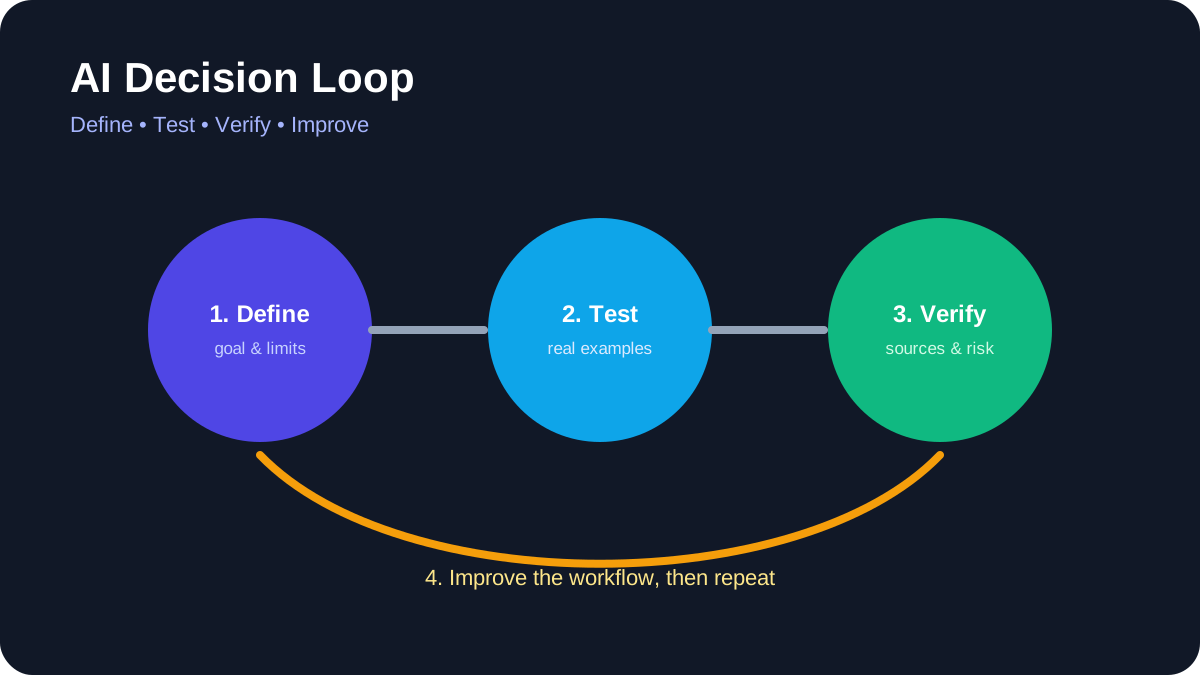
AI Decision Loop. Define the task, test real examples, verify evidence, and improve the workflow.
Forget coding bootcamps and Python syntax—AI isn’t just for developers anymore. Today, anyone with curiosity and 30 minutes a day can build chatbots, generate marketing copy, analyze spreadsheets, or even design logos—no technical background required. Use the figures in an example as design targets rather than promised results. Measure quality, latency, reliability, and cost with your own representative data before making a production decision.
Why AI Literacy Is Now a Universal Skill—Not a Technical Specialty
The AI revolution has shifted from infrastructure to interface. What’s changed isn’t the power of AI—it’s the accessibility. Modern AI tools now prioritize human-centered design: drag-and-drop workflows, conversational prompts, visual logic builders, and real-time feedback loops. This isn’t ‘dumbed down’ AI—it’s intelligently abstracted AI. Use the figures in an example as design targets rather than promised results. Measure quality, latency, reliability, and cost with your own representative data before making a production decision.
The Cognitive Shift: From Syntax to Strategy
Traditional programming demands mastery of logic structures, memory management, and debugging syntax. AI tools for non-programmers flip that model: users focus on intent, context, and outcome. A marketing manager doesn’t need to write a transformer model—they need to know how to frame a prompt that turns a product spec sheet into three compelling email variants. That’s a strategic, not technical, skill.
Evidence of Rapid Skill Transfer
g. Treat sensitive records as a security boundary: use approved organizational accounts, minimize the data you provide, remove direct identifiers, and require a qualified human to review every consequential output.
Breaking the ‘Tech Person’ Myth
Myth: “Only engineers can understand AI.” Reality: AI literacy is closer to spreadsheet literacy than software engineering. Just as millions use Excel formulas without knowing how the calculation engine works, today’s AI tools let users harness LLMs, computer vision, and predictive analytics through interfaces modeled on familiar workflows—like Google Docs, Canva, or Trello.
Top 5 Intuitive AI Tools Designed Specifically for Non-Programmers
Not all ‘no-code’ AI tools are created equal. Many still require configuration via JSON, API keys, or logic trees that assume technical fluency. This is an illustrative workflow, not a verified testimonial. It shows how the tools can fit together; the outcome will depend on the user’s inputs, review process, plan limits, and local requirements.
Tome eliminates slide-by-slide design fatigue. Users type a prompt like “Explain climate policy impacts on small farms in Southeast Asia—3 slides, visual, optimistic tone,” and Tome generates a narrated, animated presentation with embedded data visualizations, cited sources, and editable copy—all in under 45 seconds. Its ‘Prompt Canvas’ teaches prompt engineering through guided questions (“Who is your audience? What’s the core message? What emotion should this evoke?”), making it both a tool and a tutor.
2. Gamma.app: The ‘Word Processor for Presentations’
Gamma treats presentations like documents: type, edit, restructure, and embed live data—all without leaving the editor. Its AI ‘Assistant’ doesn’t just generate slides—it refines drafts, suggests visuals based on semantic analysis, and auto-formats for accessibility (contrast, font size, alt-text generation). A school principal in rural Kenya used Gamma to convert handwritten parent meeting notes into bilingual (Swahili/English) presentation decks—without touching PowerPoint.
Notion AI goes beyond chatbot responses. It lives inside your notes, databases, and calendars—learning your workflow patterns. Ask it to “summarize last week’s project updates into a 3-bullet executive summary” or “turn this meeting transcript into action items with owners and deadlines,” and it executes in context. Its ‘AI Templates’ library includes pre-built workflows like “Customer Feedback Analyzer,” “Grant Application Writer,” and “Lesson Plan Generator”—all designed by educators, nonprofit admins, and HR professionals.
4. Canva Magic Studio: Visual AI That Understands Intent
Canva’s Magic Studio doesn’t just generate images—it interprets visual language. Upload a photo of your handmade soap, type “Make this look like a luxury spa brand on Instagram—minimalist, warm tones, elegant serif font,” and it delivers 5 on-brand variations. Its ‘Magic Switch’ converts presentations to videos, documents to social posts, and blog outlines to infographics—preserving structure and voice. Over 4. The practical value of this approach should be judged by a completed project, transparent evaluation criteria, and results checked against the learner’s own goals rather than by unsupported performance claims.
5. Zapier Interfaces: AI-Powered Automation Without Coding
Zapier’s new ‘Zapier Interfaces’ lets non-programmers build custom internal tools—like a client onboarding portal or inventory tracker—using natural language. Type “I need a form where sales reps enter new client details, and it auto-creates a Notion page, sends a welcome email, and adds them to Mailchimp”—and Zapier builds the entire workflow with zero scripting. Its ‘Explain This Zap’ feature translates technical logic into plain English (“This step checks if the email domain is ‘gmail.com’ before sending the welcome sequence”), demystifying automation logic in real time.
How to Choose the Right Tool: A Decision Matrix for Real-World Goals
Selecting an AI tool isn’t about features—it’s about alignment with your daily reality. This is an illustrative workflow, not a verified testimonial. It shows how the tools can fit together; the outcome will depend on the user’s inputs, review process, plan limits, and local requirements.
Goal-Based Tool Matching
Creating content (blogs, emails, scripts): Prioritize tools with strong prompt scaffolding and tone control—e.g., Jasper (for marketing teams) or Rytr (for budget-conscious solopreneurs).
Analyzing data (spreadsheets, surveys, CRM notes): Choose tools with natural-language query engines—e.g., AskYourData (imports Excel/Google Sheets and answers “What were our top 3 customer complaints last quarter?” in plain English).
Designing visuals (logos, social posts, presentations): Focus on semantic understanding—not just image generation—e.g., Kittl (for vector-based branding) or Pictory (for turning long-form text into short videos).
Usability Thresholds: Red Flags to Watch For
Walk away from any tool that: (1) requires you to paste API keys or edit JSON, (2) lacks a ‘Try It Now’ demo without signup, (3) doesn’t offer video walkthroughs in your native language, or (4) hides its pricing behind a ‘Book a Demo’ gate. These are signals the tool wasn’t designed for true beginners.
Accessibility as a Core Feature—Not an Afterthought
Truly intuitive tools embed accessibility: screen-reader compatibility, keyboard-navigable interfaces, adjustable text size, and AI-generated alt-text. Tools like Microsoft’s AI for Accessibility suite and Descript (for captioning and audio editing) set the standard—proving inclusivity and intuitiveness are inseparable.
Beginner-Friendly Guides That Actually Work: What Makes a Tutorial Effective?
Most ‘beginner-friendly’ AI tutorials fail—not from lack of effort, but from flawed pedagogy. They assume users know what a ‘prompt’ is, why ‘temperature’ matters, or how to evaluate hallucination. The most effective AI tutorials for non-programmers using intuitive software tools and beginner-friendly guides share five evidence-based traits, validated by learning science research at the University of Helsinki’s Human-AI Interaction Lab.
Micro-Learning with Embedded Practice
Effective guides break concepts into 90-second chunks, each ending with a ‘Try Now’ prompt. Example: After explaining ‘persona prompting,’ the tutorial says: “Open Tome.app. Type: ‘Explain blockchain to a 10-year-old using a pizza analogy.’ Click ‘Generate.’ Compare your output with the sample—we’ll discuss why the pizza analogy worked.” This builds muscle memory, not just theory.
Contextual Glossaries—Not Jargon Dictionaries
Instead of defining ‘LLM’ in isolation, great guides embed definitions in action. In a Canva tutorial, it reads: “When you type ‘make this look like a luxury brand,’ Canva’s AI uses a large language model—a system trained on millions of design briefs—to match your words to visual patterns. You don’t need to know how it works—just that it learns from real-world examples, not rules.”
Failure-First Design
The best guides anticipate and normalize errors. A Notion AI tutorial includes a section titled “Why Your First Prompt Gave Weird Results (and What to Fix)” with side-by-side comparisons: a vague prompt (“Write about coffee”) vs. a refined one (“Write a 150-word Instagram caption for a women-owned coffee roastery in Portland—highlight sustainability, use emojis, and include a CTA to visit their tasting room”). This reduces frustration and builds prompt intuition.
Real-World Project Scaffolding
Instead of isolated exercises, top guides scaffold full projects: “Week 1: Build a client onboarding checklist in Notion AI. Week 2: Turn it into a shareable PDF with Canva. Week 3: Automate email delivery with Zapier Interfaces.” This mirrors how people actually work—and delivers tangible value early.
Step-by-Step Learning Path: From Zero to Confident AI Practitioner in 21 Days
This isn’t theoretical. Each day requires 22–38 minutes—designed for lunch breaks or commutes. The practical value of this approach should be judged by a completed project, transparent evaluation criteria, and results checked against the learner’s own goals rather than by unsupported performance claims.
Days 1–3: Building Prompt Fluency
Day 1: Learn the 3-part prompt formula (Role + Task + Context) using Tome.app. Generate 3 versions of a personal bio.
Day 2: Practice ‘constraint prompting’ in Gamma.app: “Explain quantum computing in 2 sentences, using only words under 6 letters.”
Day 3: Use Notion AI to turn a messy meeting transcript into structured notes—then refine with tone control (“Make this sound warm but professional”).
Days 4–7: Automating Repetitive Tasks
Focus: Zapier Interfaces + Google Workspace. Build your first automation: “When a new row is added to my ‘Lead Capture’ Google Sheet, send a personalized welcome email via Gmail and add the contact to my ‘Follow-Up’ Notion database.” Includes troubleshooting common errors (e.g., “Why did it send 5 emails instead of 1?”).
Days 8–12: Visual Communication Mastery
Focus: Canva Magic Studio + Kittl. Tasks include: (1) Turning a product feature list into an Instagram carousel, (2) Converting a blog outline into a 60-second explainer video with Pictory, (3) Designing a bilingual event poster using AI translation + layout suggestions.
Days 13–17: Data Literacy Without Spreadsheets
Focus: AskYourData + Microsoft Copilot in Excel. Upload a sample sales CSV. Ask: “What month had the highest average order value? Show me a bar chart. Suggest 3 hypotheses based on product category data. ” This teaches causal reasoning—not just querying. The practical value of this approach should be judged by a completed project, transparent evaluation criteria, and results checked against the learner’s own goals rather than by unsupported performance claims.
Days 18–21: Synthesizing & Sharing Your AI Workflow
Final project: Document your end-to-end workflow (e. g. app. Publish it as a public link. Join the AI for All community forum to give/receive feedback. This is an illustrative workflow, not a verified testimonial. It shows how the tools can fit together; the outcome will depend on the user’s inputs, review process, plan limits, and local requirements.
Illustrative Workflows for Non-Programmers
Abstract concepts stick when anchored in human experience. This is an illustrative workflow, not a verified testimonial. It shows how the tools can fit together; the outcome will depend on the user’s inputs, review process, plan limits, and local requirements.
A Local-History Podcast Workflow
Maya launched a local history podcast using only Canva (for cover art), Descript (for editing and auto-captions), and Notion AI (to turn her handwritten interview notes into episode show notes with timestamps and key quotes). “I’d never used a microphone before,” she says. “But the tutorials didn’t talk about decibels or waveforms—they asked, ‘What story do you want to tell first? ’ That’s the language I understood. This is an illustrative workflow, not a verified testimonial. It shows how the tools can fit together; the outcome will depend on the user’s inputs, review process, plan limits, and local requirements.
A Multilingual Menu Workflow
Diego used Gamma. app to create a trilingual (Spanish/English/Portuguese) digital menu for his empanada cart. He uploaded photos, typed prompts like “Make this look delicious and trustworthy—use warm colors, show hands holding empanadas, add a ‘Vegan Options’ badge,” and shared the live link via WhatsApp. “Before, tourists pointed at photos. This is an illustrative workflow, not a verified testimonial. It shows how the tools can fit together; the outcome will depend on the user’s inputs, review process, plan limits, and local requirements.
A Privacy-Conscious Administrative Workflow
Facing 120+ daily patient notes, Dr. Amina used Notion AI to build a ‘Clinical Note Assistant.’ She trained it on her past notes (anonymized) to auto-generate SOAP-format summaries, flag potential drug interactions, and draft parent-friendly discharge instructions in Yoruba or Igbo. “It didn’t replace my judgment,” she clarified in a WHO webinar. “It gave me back 90 minutes a day to hold a child’s hand instead of typing.”
Common Pitfalls—and How to Avoid Them
Even with intuitive tools, beginners hit predictable roadblocks. These aren’t failures—they’re feedback loops. Here’s how to navigate them.
Pitfall #1: Prompt Vagueness Leading to Generic Outputs
Solution: Adopt the ‘5W + 1H’ prompt checklist before generating: Who is the audience? What is the core action? When will this be used? Where will it appear? Why does this matter? How should it feel? Test it: “Write a birthday message” → “Write a warm, humorous 3-sentence birthday message for my sister (age 32, loves hiking and bad puns) to post on Instagram—include one hiking pun.”
Pitfall #2: Over-Reliance on First Drafts
Solution: Treat AI output as a ‘first draft collaborator,’ not a final product. Build a 3-step review habit: (1) Fact-check claims (especially stats or names), (2) Align tone with your voice (read it aloud), and (3) Add one human-specific detail—e.g., a personal anecdote, local reference, or inside joke. This is where authenticity lives.
Pitfall #3: Tool Hopping Without Mastery
Solution: Commit to one tool for 14 days—even if it feels limiting. Mastery comes from depth, not breadth. Lena Park notes: “Using Gamma to build 12 different presentations teaches you more about visual storytelling than trying 12 tools once each. ” The practical value of this approach should be judged by a completed project, transparent evaluation criteria, and results checked against the learner’s own goals rather than by unsupported performance claims.
Practical Verification Checklist
Before treating any tutorial project as complete, review it as you would other technology work. This final check turns a demonstration into evidence that the workflow is useful in your own setting.
Define the task: Write down the input, intended output, audience, and a concrete success criterion before selecting a tool.
Use representative test material: Start with synthetic or non-sensitive data, then test several normal cases and edge cases rather than relying on one impressive output.
Check accuracy: Compare factual claims, calculations, quotations, and citations with authoritative primary sources. Never assume a confident answer is correct.
Review privacy and permissions: Do not upload confidential, personal, copyrighted, or regulated material unless your organization has approved the service and configuration.
Measure the trade-offs: Record setup time, editing time, failure modes, accessibility, export options, plan limits, and the cost of repeated use.
Keep human accountability: Assign a person to approve consequential outputs and document where AI assistance was used when disclosure is appropriate.
Recheck before deployment: Software interfaces and model versions change. Retest the workflow after meaningful updates and maintain a manual fallback for important work.
About the author: Femica Maydinda Harend writes practical technology guides for AILooma with an emphasis on understandable workflows, responsible tool selection, and steps readers can verify for themselves. The editorial team reviews articles for clarity, unsupported claims, link quality, and reader safety before publication.
Frequently Asked Questions
What’s the absolute easiest AI tool to start with if I’ve never used any tech beyond email and WhatsApp?
Gamma. app is the strongest recommendation. It requires no signup to try (just click ‘Start New’), uses familiar document-like editing, and its AI Assistant responds to plain-English requests like “Make this shorter” or “Add a friendly closing sentence. The practical value of this approach should be judged by a completed project, transparent evaluation criteria, and results checked against the learner’s own goals rather than by unsupported performance claims.
Do I need to pay for these tools to get real value—or are free tiers sufficient for beginners?
Yes—free tiers are not just sufficient, they’re strategically ideal. Tome.app, Gamma.app, Canva (free plan), and Notion AI (free tier includes 20 AI responses/week) all offer full core functionality without paywalls. Paid tiers add speed, storage, or team features—not fundamental capabilities. Start free, master the workflow, then upgrade only when your output volume justifies it.
How do I know if an AI tutorial is truly beginner-friendly—or just labeled that way?
Look for these 3 signs: (1) It begins with a ‘Why this matters to YOU’ example—not technical definitions, (2) It includes screenshots or short video clips of the exact interface you’ll see (not generic stock images), and (3) It has a ‘What if this goes wrong?’ troubleshooting section. If it doesn’t, keep looking—true beginner-friendliness is transparent, not assumed.
Can I use these tools for my small business without violating data privacy laws like GDPR or HIPAA?
Yes—but with critical precautions. First, avoid pasting sensitive personal data (SSNs, medical records, financial details) into public AI tools. Second, use tools with built-in compliance: Notion AI offers HIPAA-compliant workspaces for healthcare teams; Zapier Interfaces supports SOC 2 and GDPR-compliant data routing. Always check the vendor’s compliance page—and when in doubt, anonymize first.
Will learning these tools make me obsolete—or more valuable in my current role?
Resoundingly more valuable. Why? Because AI handles execution—freeing you to focus on strategy, empathy, ethics, and complex judgment: the irreplaceable human skills. You’re not becoming a robot—you’re becoming a better human collaborator with technology. The practical value of this approach should be judged by a completed project, transparent evaluation criteria, and results checked against the learner’s own goals rather than by unsupported performance claims.
Mastering AI isn’t about becoming a coder—it’s about reclaiming time, deepening impact, and speaking the language of tomorrow’s workflows. The tools, tutorials, and real-world proof are here. You don’t need permission. You don’t need a degree. You just need 22 minutes—and the willingness to try. Start today. Your first prompt is waiting.
Practical example: a no-code AI workflow for a meeting summary
Start with a redacted transcript or a short set of notes. Ask the AI tool to separate decisions, open questions, owners, and dates, then compare every item with the source before sharing it.
Define the output fields before entering the notes.
Remove personal or confidential details that are not required.
Ask for source excerpts beside each important claim.
Mark uncertain items for human review.
Save the approved summary and the original notes separately.
This example keeps the workflow useful for a non-programmer while preserving a clear review boundary.
Practical verification and limits
Start with non-sensitive examples, keep a learning log, verify outputs, and stop before connecting private accounts or making consequential decisions.
Editorial review and limitations
Reviewed by Femica Maydinda Harend. Course content, tools, prices, and model capabilities change; verify current details and use a reversible test before relying on a recommendation.
A free learning path is useful only if it has a sensible order and a way to check what you learned. This guide links to provider-maintained resources; it is not a ranking, certification recommendation, or claim that AILooma completed every course.
Stage 1: Learn the vocabulary
Begin with an introductory explanation of data, models, training, inference, and common limitations. Keep a list of terms you cannot yet explain in your own words. Do not begin by installing a large toolchain unless your goal requires it.
Stage 2: Try a guided exercise
Google’s Machine Learning Crash Course offers lessons and exercises; check the current prerequisites and environment before choosing a module. The Kaggle Learn catalog provides course pages with their own topic and notebook requirements. Select one resource whose requirements match your time, device, and current skill.
Stage 3: Explore an open model or concept
Hugging Face Learn publishes learning material for several machine-learning topics. Each course can assume different tools and prerequisites, so read the course page before starting and use the official documentation for version-specific steps.
Stage 4: Complete one small, checkable project
Choose a non-sensitive, narrow task. Define an expected result and one failure case before using a model. Compare its output against a human-reviewed reference and explain what the exercise cannot establish. A small project is a learning checkpoint, not proof of production readiness or job qualification.
A checkpoint after every stage
Explain one concept without copying the lesson wording.
Describe the exercise input and the result you expected.
Identify an incorrect, ambiguous, or unsupported output.
Record the next concept you need to learn.
Privacy and cost checks
“Free course” does not mean every linked cloud service or model is free to use. Check account, hardware, usage limits, data handling, and terms before entering information or enabling a paid resource. Use public or synthetic examples while learning.
Follow the path by checkpoint, not by calendar
Stage 1 — vocabulary: learn what a model, training example, prediction, and evaluation set mean. Move on when you can explain one model limitation in your own words.
Stage 2 — guided exercises: use the interactive explanations and programming exercises in Google’s Machine Learning Crash Course, checking prerequisites and the current exercise environment. If you want notebook-based practice, inspect the course requirements in Kaggle Learn. Access, account needs, and content can change.
Stage 3 — one narrow project: choose permitted sample data, write an expected result, and keep an ambiguous example. Use the project note to record setup, one failure, and what the exercise cannot show. Do not move to private or consequential data just because a demo worked.
Stage 4 — choose a direction: if you want to code, inspect developer-oriented material such as Hugging Face Learn and check its library and hardware prerequisites. If you want workplace fluency, choose a permitted low-risk task and review its output against a source. If you need to evaluate a decision-support use, add a risk-appropriate human review process.
At every stage, confirm whether “free” means free content, free software, or a free tier with account, compute, or usage limits. This page is a sequence, not a course ranking or report of completed coursework. Use the beginner selection checklist if you are still choosing what to study.
Femica Maydinda Harend writes practical technology guides for AILooma focused on understandable steps and reader-verifiable checks.
Editorial note
Providers may change course content, access, and requirements. This is a documentation-based path suggestion, not a report of outcomes or course testing.
Developers choosing AI learning materials should start with the software they intend to build and the environment where it must run. This guide maps official learning resources to common development goals; it does not rank courses or promise employment or production results.
Choose the destination first
Understand machine-learning fundamentals: review Google’s Machine Learning Crash Course and confirm the current math, programming, and exercise prerequisites.
Learn model and dataset tooling: explore the relevant courses in Hugging Face Learn and follow the versioned library documentation for the components you plan to use.
Practice notebook-based concepts: inspect the current course descriptions in Kaggle Learn; review notebook and account requirements.
Deploy within a cloud provider: use that provider’s own training and service documentation, and account for access, region, quota, and cost requirements before following a lab.
Turn a tutorial into a technical decision record
For each exercise, note the runtime, library versions, model or dataset identifier, input assumptions, expected output, and how you checked it. Keep secrets out of notebooks and source control. Use synthetic or permitted public data during initial experiments.
Before calling a prototype production-ready
Separate functional tests from model evaluation. Define what happens when input is missing, the output is unsupported, an external service is unavailable, or a tool call fails. Add monitoring and an owner for errors. Require approval for consequential or irreversible actions. Keep a rollback route.
A minimal learning sequence
Refresh the relevant programming and data fundamentals.
Complete one official lesson and explain the exercise without relying on generated code alone.
Build a small prototype with permitted data and repeatable setup instructions.
Evaluate normal and edge cases against a human-reviewed reference.
Write down operational, privacy, licensing, and maintenance questions before deployment.
Match a learning resource to a developer deliverable
Choose one destination before choosing a course. A fundamentals lesson should leave you able to explain a concept and inspect an exercise; a library tutorial should leave you able to reproduce a small example in a pinned environment; a production-systems module should help you identify monitoring, data, and feedback-loop risks. These are different learning outcomes, so do not use completion of one as proof of the others.
A short explanation of one concept plus a reproduced exercise and its limitation
Notebook-based practice
The current Kaggle Learn catalog; check each course’s notebook and account requirements
A versioned notebook with input source, expected output, and a failure case
Open-model or NLP tooling
Hugging Face Learn; select the course matching the library or model family you intend to use
A minimal reproducible example with dependencies, license notes, and a data boundary
Production readiness
Google’s production-ML modules and the NIST AI RMF for lifecycle and risk questions
An evaluation plan, rollback condition, owner, and monitoring note—not just a demo
For each resource, record prerequisites, software versions, account or compute needs, license, and what you should be able to build afterward. Start with a toy or permitted dataset; do not put credentials, customer records, or confidential code into a public notebook. If the resource’s current instructions differ from a saved note, follow the current provider documentation and update your environment record.
Femica Maydinda Harend writes practical technology guides for AILooma, emphasizing verifiable learning and transparent constraints.
Editorial note
Course coverage, software versions, and cloud pricing change. Use provider documentation for current behavior; this guide does not claim a resource was tested by AILooma.
This plan is for learners who understand ideas best by making something small. It avoids tool rankings and focuses on a project loop that can be repeated with different topics. Use sample data and treat each result as a hypothesis to inspect, not as proof of general model quality.
Step 1: Pick a narrow question
Choose a task with a visible result, such as sorting fictional comments into themes, classifying permitted images, or asking a model to extract dates from a public notice. Avoid high-impact tasks and sensitive inputs.
Step 2: Define a human reference
Before asking a model, decide what a correct or acceptable output would look like. Write down normal examples and at least one ambiguous case. If you cannot tell whether an answer is right, narrow the task or find an authoritative source.
Step 3: Follow one official learning exercise
Use a current lesson from Google’s Machine Learning Crash Course or an exercise in the Kaggle Learn catalog, after confirming prerequisites and account requirements. The goal is to understand the technique, not to collect courses or copy code without explanation.
Step 4: Change one thing at a time
Keep the task and evaluation examples stable while changing one prompt, input feature, or setting. Record what changed and whether the result moved closer to your reference. A small sample cannot support broad accuracy estimates.
Step 5: Write a short project note
Purpose and intended user.
Tool, version, date, and setup needed to reproduce.
Allowed input and expected output.
Observed failure and a human-review rule.
Privacy, cost, and limitations.
Step 6: Decide whether to continue
Continue only if you can explain what the model did, where it failed, and what additional evidence would be needed. For work or production use, check permissions, representative data, monitoring, fallback, and human accountability with the responsible team.
Use a project brief before you open a notebook
Small projects become easier to compare when the learner decides what “finished” means first. Copy this brief into a note: question; intended user; permitted input; output a person can inspect; human reference; likely failure; privacy boundary; and the next decision if the result is wrong. If you cannot write a reference answer, narrow the project until correctness can be judged.
Keep a change log for the learning loop
For each attempt, change one prompt, data example, feature, or setting at a time. Record the change and inspect the same examples again. Keep ambiguous and out-of-scope cases in the review set rather than removing them because they are inconvenient. This helps you notice when an apparent improvement on familiar examples comes with a new failure elsewhere; it is not a statistical performance estimate.
End a project with a short handoff note: what the model was asked to do, what it cannot establish, what sources or sample data were used, and what a human must verify. A project is ready to share as a learning artifact when another person can reproduce its setup and understand its limitations. Production work needs additional controls, evaluation data, monitoring, and an accountable owner.
This article focuses on a reusable project loop. For a set of fictional input/output demonstrations, see the sample-data examples; for a staged path with three build briefs, use the project progression.
If you are new to AI, the hardest part is often choosing a first learning resource without confusing marketing claims, coding prerequisites, and different goals. This guide is a selection checklist—not a ranking or a claim that AILooma tested these courses. It focuses on what a beginner should verify before spending time or money.
First decide what you want to do
Understand the concepts: choose a plain-language introduction that explains model limits and examples.
Use AI in an existing task: choose a guided resource inside the application or workflow you already use.
Build a model or application: expect programming, data, and evaluation prerequisites; choose a course that states them clearly.
Check a course using five questions
Prerequisites: Does it assume math, Python, an account, or a paid cloud service?
Practice: Does it include an exercise you can complete, rather than only videos?
Feedback: Can you compare your result with an expected output or answer key?
Freshness: Does the provider identify the course version or update date? Interfaces and models change.
Cost and data: Is the learning material free? Does the exercise require a paid account or uploading personal data?
A simple sample first week
Day 1: Write down a task you want AI to help with and a way to judge a useful result. Day 2: Learn a few basic terms from an introductory lesson. Day 3: Try one exercise with sample, non-sensitive input. Day 4: check its answer against a source or known reference. Day 5: record an error or limitation and try a revised prompt or method. The schedule is illustrative; choose a pace you can sustain.
Examples of providers to inspect
Start with the provider’s own catalog and confirm the current course outline before committing. Google publishes a Machine Learning Crash Course with lessons and exercises. Kaggle offers a Learn catalog whose prerequisites and notebook requirements should be checked on each course page. Hugging Face hosts learning materials for topics including NLP and machine learning. These resources have different audiences and requirements; they are examples to evaluate, not a one-size-fits-all ranking.
When a tutorial is not the right next step
If you only need a small personal task, a full model-building course may be unnecessary. If you are using confidential work material, do not paste it into a public AI tool without approval. If your goal involves consequential decisions, add a qualified human reviewer and use an organization-approved process.
Femica Maydinda Harend writes practical technology guides for AILooma, focusing on approachable explanations and steps readers can verify.
Editorial note
Course availability, access, prerequisites, and pricing can change. Verify current details with the provider before enrolling; this article does not claim a course outcome or certification benefit.
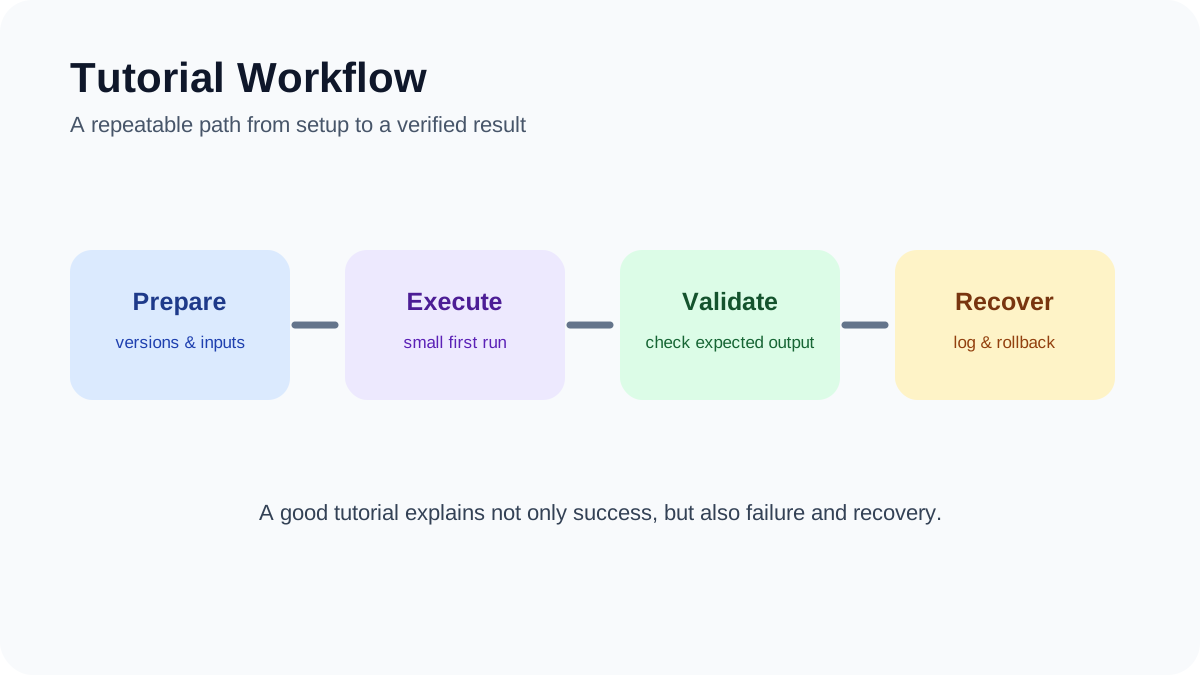
Tutorial Workflow. A repeatable path from preparation and execution to validation and recovery.
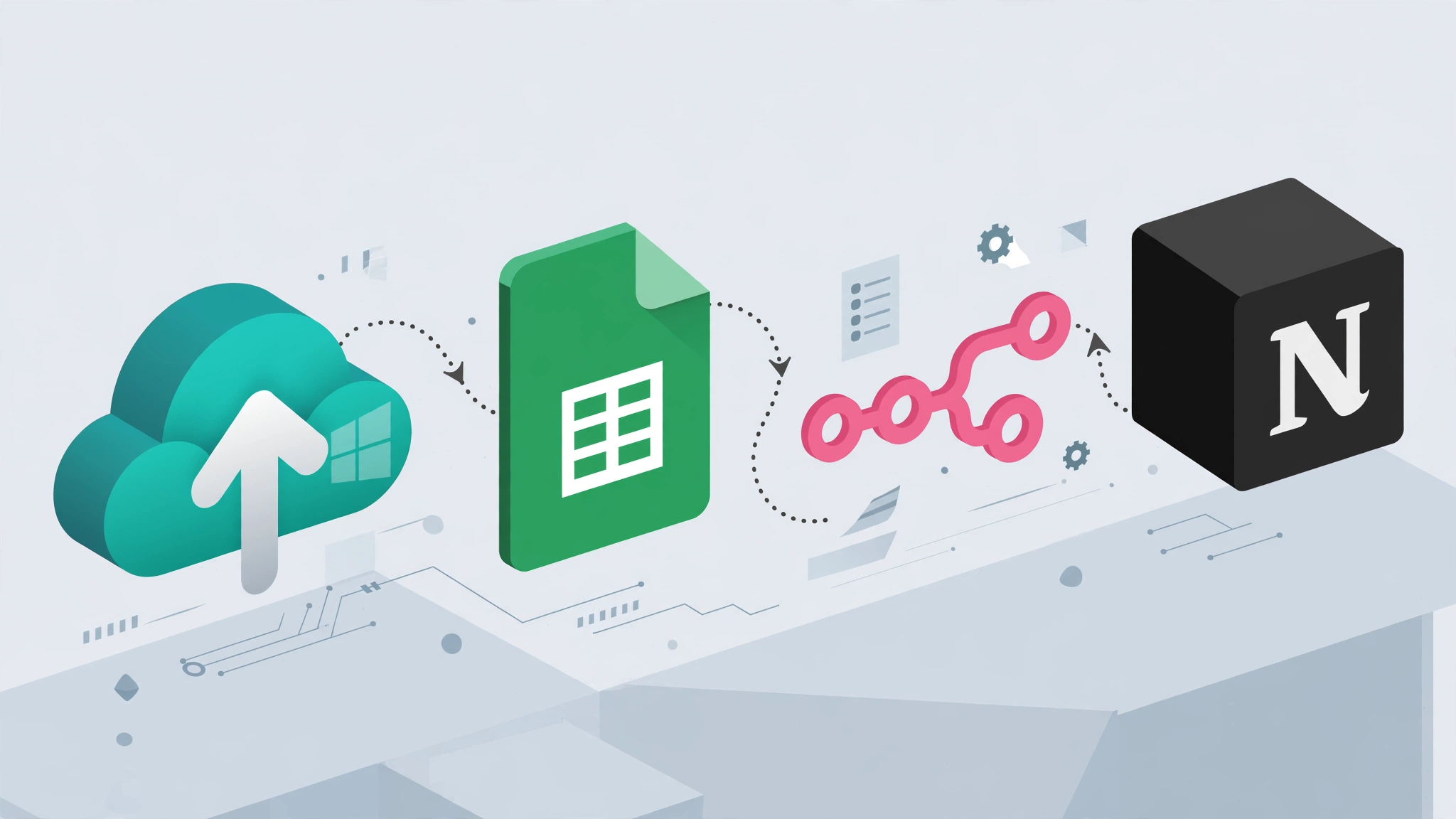
Notion, Windows, n8n, and Google Sheets can work together to create a useful automation stack—but they should not all be treated as the same thing.
Notion can hold structured project data. n8n can orchestrate workflows. Windows can store independent file backups. Google Sheets can provide a simple human-readable activity log.
The important part is designing clear boundaries between those roles.
This guide shows how to build a practical Notion backup and activity-log workflow with n8n on Windows without confusing synchronization, export, logging, and backup.
What This Workflow Actually Does
The architecture looks like this:
Notion
   ↓
n8n detects or polls relevant records
   ↓
Record metadata / workflow event
   ↓
Optional export or local artifact process
   ↓
Windows backup destination
   ↓
Google Sheets activity log
Each layer has a different responsibility.
Notion: stores the working information.
n8n: coordinates actions between systems.
Windows: stores local or network backup copies where applicable.
Google Sheets: records activity and backup status.
Important: A Sync Is Not Automatically a Backup
If a Notion record is copied into another live system and changes in both places, that is synchronization.
A backup should give you an independent copy that can be recovered after accidental deletion, corruption, account loss, or another failure.
For example:
Notion → Google Sheets
is primarily data synchronization or logging.
By contrast:
Exported Files → External Drive / NAS
is closer to a traditional backup.
What Windows File History Can Protect
Windows File History can automatically protect supported personal files by saving copies to an external drive or network location. Microsoft documents it as a file-versioning and recovery feature for personal files. :contentReference[oaicite:1]{index=1}
That makes it useful for local files generated by your workflow.
However, File History does not directly back up a Notion workspace simply because the Notion desktop application is installed.
You first need a real local file or export that Windows can protect.
The Critical Notion Limitation
Notion’s API is useful for reading and updating structured workspace content that an integration can access.
But you should not design a workflow around the assumption that the API provides a simple one-command equivalent of:
Export this Notion page exactly as Markdown/PDF
for every workspace object.
If you need archival copies, distinguish between:
data retrieved through the Notion API;
workspace or page exports provided through Notion’s export functionality;
third-party exporters.
Third-party exporters introduce another dependency and should not be presented as native Notion or n8n functionality.
A Safer First Version
Instead of beginning with a complicated page-export system, start by automating a structured Notion database.
For example, imagine a Notion database containing:
Project ID;
Project Name;
Status;
Owner;
Last Edited;
Backup Required;
Local Folder.
n8n can periodically inspect those records and decide whether another action is required.
Step 1: Decide What Notion Is Responsible For
Do not make Notion responsible for everything.
For example:
Information
System of Record
Project status
Notion
Actual project files
Windows / file storage
Backup copies
External drive / NAS / backup storage
Automation status
Google Sheets or local log
This avoids turning one application into an unreliable source of truth for everything.
Step 2: Create a Stable Project ID
Every monitored Notion record should have a stable identifier.
For example:
PROJECT-001
PROJECT-002
PROJECT-003
Do not rely only on titles such as:
Website Redesign
because titles can change or be duplicated.
Step 3: Connect Notion to n8n
Create a Notion integration and grant it access only to the database or pages the workflow actually needs.
Apply least privilege.
If the workflow only reads project status, it should not automatically receive broad write access to unrelated workspace content.
Then configure the corresponding Notion credential in n8n using the current authentication options supported by your n8n version.
Step 4: Detect Relevant Notion Changes
The simplest architecture is scheduled polling.
Schedule Trigger
      ↓
Read Notion Records
      ↓
Filter Recently Changed Records
A schedule is often easier to understand and debug than event-driven infrastructure.
Store a checkpoint such as the last successful synchronization timestamp so the workflow can identify records that changed since the previous successful run.
Do Not Use “Now Minus Five Minutes” as Your Only State
Suppose the computer is turned off for two hours.
If the workflow only asks:
Give me records changed in the last five minutes
then changes made during the outage may be missed.
A better pattern is:
Last Successful Checkpoint
        ↓
Fetch Changes After Checkpoint
        ↓
Process Successfully
        ↓
Save New Checkpoint
Step 5: Separate Notion Data From Local Files
A Notion project may refer to local files such as:
C:\Projects\Client-A
The workflow should treat that path as a reference to another data source.
Notion itself does not make that folder backed up.
Step 6: Run the Backup Independently
For local Windows folders, the actual backup operation can use:
File History;
Robocopy;
dedicated backup software;
NAS backup software;
another approved backup system.
If you use Robocopy, keep destructive options out of the beginner workflow.
Timestamp
Project ID
Event
Source
Destination
Status
Verification
Duration
Error
Examples of events:
Notion Record Changed;
Backup Started;
Backup Completed;
Verification Passed;
Verification Failed;
Logging Failed.
Step 10: Keep Backup Status and Logging Status Separate
This distinction is essential.
Backup: SUCCESS
Google Sheets Log: FAILED
means your backup may still be safe.
Conversely:
Backup: FAILED
Google Sheets Log: SUCCESS
means the monitoring system worked but the actual backup did not.
Do not collapse those two states into one generic Status field.
Step 11: Keep a Local Queue
If Google Sheets or the network is unavailable, the workflow should not lose the event.
A practical architecture is:
Backup Result
    ↓
Local JSON / SQLite Queue
    ↓
Can Google Sheets Be Reached?
  ↙                 ↘
No                  Yes
↓                    ↓
Keep Event        Send Event
                     ↓
                 Mark Delivered
This makes remote logging eventually consistent without making it critical to the backup itself.
Step 12: Verify the Backup
A successful copy command does not necessarily mean recovery will work.
Possible verification methods include:
checking that the destination file exists;
comparing source and destination file sizes;
comparing hashes for selected files;
periodically restoring a test file.
A recovery test is usually more meaningful than simply having hundreds of “Success” rows in Google Sheets.
Step 13: Let Windows File History Protect Local Exports
If your workflow creates local Markdown, CSV, JSON, or other export artifacts, those files can become candidates for File History.
Microsoft states that File History can save versions of personal files to an external drive or network location and later restore earlier versions. :contentReference[oaicite:2]{index=2}
This is different from assuming File History directly understands Notion’s cloud data model.
Step 14: Avoid Backing Up the Notion Desktop Cache as Your Primary Strategy
A desktop application’s local cache should not automatically be treated as a documented backup format.
Internal cache structures may change between application versions and may not provide a clean recovery path.
If recoverability matters, use an intentional export or API-based archive format rather than relying on undocumented cache files.
Step 15: Be Careful With Execute-Command Workflows
If n8n runs local commands or PowerShell scripts, those commands execute in the environment where n8n itself is running.
This matters especially with Docker or remote servers.
For example:
n8n running on remote Linux server
        ↓
Execute local command
        ↓
Command runs on Linux server
It does not magically execute on your Windows desktop.
If the workflow must manipulate Windows files, n8n or an authorized helper process needs a deliberate way to reach the Windows environment.
Step 16: Local n8n Is Not Automatically Required
The original workflow treated local n8n as mandatory.
A better distinction is:
Cloud n8n Can Handle
Notion API requests;
Google Sheets logging;
other internet-accessible APIs.
A Local Component Is Needed When
the workflow must access Windows-only local paths;
it must run local PowerShell;
it must interact with a private LAN resource unavailable externally.
You could therefore split the architecture between cloud orchestration and a local backup process if that fits the environment.
Step 17: Build Small Sub-Workflows
A modular architecture can be easier to maintain.
Workflow A: Notion Activity
Schedule
  ↓
Read Changed Records
  ↓
Normalize
  ↓
Queue Event
Workflow B: Windows Backup
Schedule / Local Trigger
  ↓
Backup Folder
  ↓
Verify
  ↓
Queue Result
Workflow C: Google Sheets Logger
Read Pending Events
  ↓
Append Rows
  ↓
Mark Delivered
Workflow D: Error Notification
Failure Event
  ↓
Classify Error
  ↓
Notify if Action Required
This is easier to troubleshoot than one enormous workflow containing every possible responsibility.
Step 18: Retry Only the Right Failures
Some failures are transient.
Examples:
network timeout;
temporary API unavailability;
rate limiting.
Retries may help.
Other failures are not transient:
invalid credentials;
permission denied;
invalid destination path;
disk full;
invalid workflow configuration.
Blindly retrying those problems can create noise without fixing anything.
Step 19: Keep Sensitive Data Out of the Log
Google Sheets should contain only the metadata required for monitoring.
Avoid logging:
Notion API tokens;
Google credentials;
document contents;
private customer data unless required;
full stack traces containing secrets;
sensitive local paths when a project ID would be enough.
Step 20: Use Least-Privilege Credentials
Notion integration permissions should match the workflow’s purpose.
Google credentials should only have access to the spreadsheet or resources they require.
n8n users should only have the ability to edit production workflows when their role requires it.
Do not store tokens directly in workflow code.
Step 21: Service Account vs OAuth for Google Sheets
Both can be appropriate.
Service Account
Useful for controlled unattended automation when the spreadsheet is shared with the service identity.
User OAuth
Useful when the workflow should operate specifically as an authenticated user.
Do not grant a service account broad Google Cloud project roles simply because it needs to update one Sheet.
Spreadsheet access and Google Cloud IAM are separate concerns.
Step 22: Avoid Arbitrary Key Rotation Rules
A blanket rule such as:
Rotate every service account key every 90 days
should not be presented as universally required.
Credential strategy should follow the organization’s security requirements and the authentication architecture being used.
Where possible, minimize long-lived credential material instead of creating unnecessary manual key-rotation work.
Step 23: Do Not Run CHKDSK /f as Routine Maintenance Without Reason
Commands that can modify a filesystem should not be included in a generic quarterly automation checklist.
Disk health monitoring and filesystem repair are different tasks.
Use diagnostic or repair tools when there is a real reason and after understanding their effects.
Step 24: Compression Is Optional
You can compress export artifacts before archiving them, but maximum compression is not automatically better.
Consider:
archive size;
CPU time;
recovery simplicity;
whether the file types compress well;
whether individual-file recovery is important.
Do not introduce 7-Zip, multi-volume archives, or another archival layer unless it solves a real problem.
Step 25: Sync Is Still Not Backup
Tools such as Syncthing can replicate files between devices.
That can improve redundancy, but synchronization can also propagate deletion or corruption depending on configuration.
If Syncthing or another sync tool is added, keep at least one independent recovery copy or versioned backup.
Step 26: Test the Entire Recovery Path
Testing should include more than API connectivity.
Useful scenarios:
Notion API temporarily unavailable;
Google Sheets unavailable;
backup drive disconnected;
local disk full;
duplicate workflow execution;
invalid source path;
computer offline during a scheduled run;
restoring an actual file from backup.
Step 27: Make Missed Runs Recoverable
For scheduled Windows jobs, consider configuring them to run after a missed start where appropriate.
But workflow logic should also store checkpoints.
That way:
PC off for 6 hours
     ↓
PC starts
     ↓
Workflow resumes
     ↓
Processes events since last confirmed checkpoint
instead of looking only at events from the last few minutes.
A Practical Final Architecture
                    ┌───────────────┐
                    │    Notion     │
                    └──────┬────────┘
                           │
                    Metadata / Changes
                           │
                           ▼
                    ┌───────────────┐
                    │      n8n      │
                    └──────┬────────┘
                           │
               Monitoring / Coordination
                           │
              ┌────────────┴────────────┐
              ▼                         ▼
      Windows Backup Process      Activity Queue
              │                         │
              ▼                         ▼
       External / NAS Copy       Google Sheets
              │
              ▼
         Verification
              │
              ▼
          Restore Test
What This Stack Is Good For
small-team project monitoring;
Notion database activity tracking;
linking project metadata to local backup processes;
human-readable backup status;
simple automation experiments;
personal or small-business workflows.
What This Stack Is Not
It should not automatically be presented as:
a compliance platform;
a legal record-management system;
a complete disaster-recovery architecture;
a replacement for enterprise backup software;
a guaranteed immutable audit trail;
a research data management system by itself.
Security Checklist
Limit Notion integration access.
Limit Google Sheet sharing.
Keep secrets out of workflow code.
Protect n8n credentials.
Minimize execution-log retention where sensitive data is involved.
Keep backup storage independent from Google Sheets.
Do not expose local n8n unnecessarily.
Test restore procedures periodically.
How This Guide Was Prepared
This guide separates four concepts that are frequently mixed together in automation tutorials: Notion data access, workflow orchestration, file backup, and activity logging.
Windows File History is treated as a Windows file-recovery mechanism for supported local files rather than as a direct Notion workspace backup. Microsoft currently documents File History as saving copies of personal files to an external drive or network location for later restoration. :contentReference[oaicite:3]{index=3}
The Notion, n8n, Google Sheets, and Windows components in this guide are architectural building blocks. Node names, APIs, authentication options, export behavior, and platform features can change over time.
For that reason, implementation-specific details should be checked against current official documentation before deployment.
The examples are workflow patterns, not claims that specific legal firms, research labs, enterprises, or other organizations currently use this exact architecture.
Frequently Asked Questions
Can n8n automatically back up my entire Notion workspace?
Not automatically in the same way that backup software copies a filesystem.
n8n can interact with Notion’s API and orchestrate export or archival processes, but the exact recoverable artifact depends on how you design the archive and what Notion exposes through its supported interfaces.
Can Windows File History back up Notion?
File History can protect supported local files.
If you intentionally create Notion export files in a folder that File History protects, those exported files can become part of the Windows backup process. :contentReference[oaicite:4]{index=4}
That is different from File History directly backing up the Notion cloud workspace.
Do I need WSL2?
No.
WSL2 may be useful for a Linux-oriented n8n environment, but it is not inherently required for a Windows backup-and-logging architecture.
Do I need PowerShell 7?
Not universally.
Use a supported PowerShell environment appropriate to the scripts and modules you actually need rather than treating one specific version as mandatory.
Can I use n8n Cloud?
Yes for cloud-accessible tasks such as Notion and Google Sheets automation.
But a cloud-hosted workflow cannot directly manipulate arbitrary files on your private Windows machine unless you deliberately provide a secure integration path.
Should Google Sheets store my backup files?
No.
Use Sheets for metadata and monitoring.
The recoverable files should live on a proper backup destination.
Is Syncthing a backup?
It is primarily a synchronization tool.
Depending on configuration, it can contribute to data redundancy, but it should not automatically replace independent versioned backup copies.
Is this architecture automatically GDPR, HIPAA, or SOC 2 compliant?
No.
Compliance depends on the complete technical and organizational environment, data involved, permissions, retention, agreements, procedures, and applicable jurisdiction.
Final Takeaway
The strongest version of this workflow is not an “all-in-one automatic Notion backup machine.”
It is a set of clearly separated systems:
Notion manages working project data.
n8n coordinates events and integrations.
Windows or another backup system creates independent file copies.
Google Sheets provides a readable activity and monitoring log.
Keep those responsibilities separate and the workflow becomes much easier to reason about, troubleshoot, and recover.
Start with one Notion database, one local project folder, one backup destination, and one Google Sheets log.
Then test the most important thing:
Can you actually restore the file when something goes wrong?
Separate collection from approval, keep sensitive backup details out of shared sheets, record execution evidence, and test rollback before enabling scheduled runs.
Editorial review and limitations
Reviewed by Femica Maydinda Harend. This guidance favors documented, reversible checks. Product APIs, permissions, and policies can change; verify current details before acting.
Tutorial Workflow. A repeatable path from preparation and execution to validation and recovery.
Google Sheets and Notion are both useful for organizing structured information, but they often end up containing the same data in different places.
A marketing team may track campaign metrics in Google Sheets while keeping project documentation in Notion. A support team may collect requests in a spreadsheet but manage follow-up work in a Notion database.
Instead of copying information manually, you can use n8n to sync Google Sheets with Notion.
This guide explains a practical one-way synchronization workflow, how to prevent duplicate Notion records, how to handle updates safely, and what to consider before attempting a more complicated two-way sync.
What Are We Building?
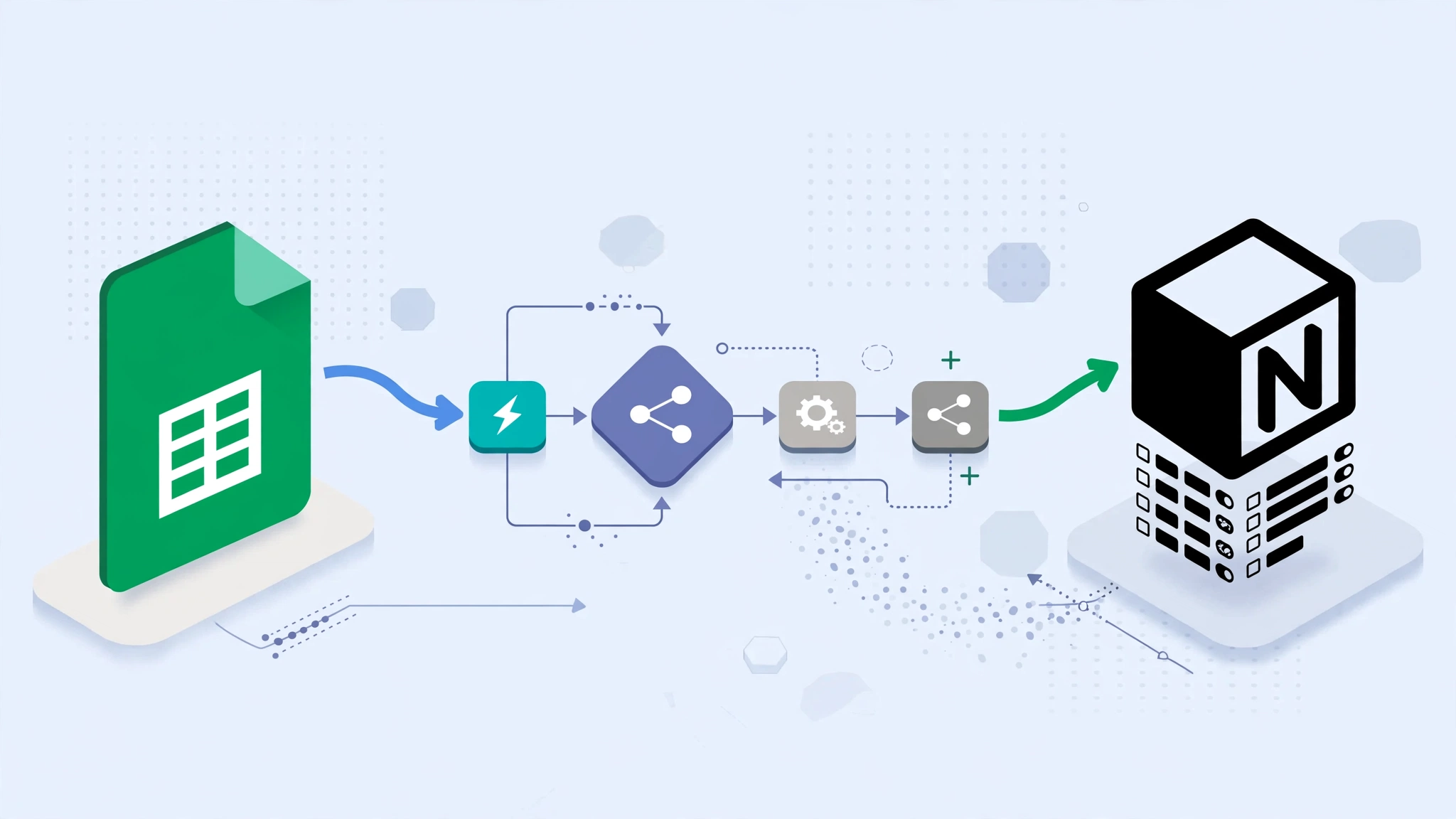
The basic workflow is:
Google Sheets
      ↓
n8n
      ↓
Validate and Transform
      ↓
Find Existing Notion Record
      ↓
Create or Update
      ↓
Log Result
Google Sheets remains the source of the incoming structured data, while Notion becomes the destination used for dashboards, project tracking, or team workflows.
Why Use n8n Between Google Sheets and Notion?
You could write your own script using the Google Sheets and Notion APIs.
n8n is useful because it provides a visual layer for:
authentication;
scheduled execution;
data transformation;
conditional branching;
API calls;
error handling;
execution history.
This makes the workflow easier to inspect than a collection of disconnected scripts.
It does not automatically make the workflow reliable, secure, or compliant. Those qualities still depend on how you design and operate it.
Example Use Case
For this tutorial, imagine a Google Sheet containing support tickets.
The columns are:
ID
Subject
Description
Status
Assignee
Created Date
Priority
We want each row to create or update a corresponding record in a Notion database.
The important field will be ID.
That ID acts as our stable identifier so the workflow can determine whether a row already exists in Notion.
Before You Start
You will need:
a Google account with access to the spreadsheet;
a Notion workspace;
a Notion database or data source for the synchronized records;
an n8n instance;
credentials for Google Sheets and Notion configured in n8n.
The exact authentication screens and node options can change between n8n and API releases, so use the current n8n documentation when connecting the accounts.
Step 1: Prepare the Google Sheet
Create a spreadsheet with predictable column names.
For example:
ID
Subject
Description
Status
Assignee
Created Date
Priority
TKT-001
Login problem
User cannot sign in
Open
alex@example.com
2026-09-01
High
Use a Stable ID
This is one of the most important parts of the workflow.
Do not use the row number as the permanent identity of the record.
Rows can move when someone sorts or inserts data.
Instead, create a unique ID such as:
TKT-001
TKT-002
TKT-003
That ID should not change during the lifetime of the record.
Step 2: Prepare the Notion Database
Create a Notion database with corresponding properties.
For example:
Subject — Title
ID — Text
Description — Text
Status — Select or Status
Assignee — Text or another appropriate property
Created Date — Date
Priority — Select
Last Synced — Date
The property types need to match the values the workflow sends.
For example, sending arbitrary text into a Notion date property will fail if it cannot be interpreted correctly.
Step 3: Connect Google Sheets to n8n
In n8n, create Google Sheets credentials using the authentication method supported by your environment.
Then add a Google Sheets node and select:
the Google account;
the spreadsheet;
the relevant sheet or tab;
the operation that reads rows.
Run the node once and inspect its output.
Do not continue building the workflow until the returned fields match what you expect.
Step 4: Connect Notion to n8n
Create a Notion integration and give it access only to the pages or databases required by this workflow.
Then create the Notion credential inside n8n.
A useful security rule is:
Do not give an automation access to more Notion content than it actually needs.
If the workflow only updates one support database, there is usually no reason to expose unrelated workspace content to the integration.
Step 5: Add a Trigger
For the simplest version, use a schedule.
For example:
Schedule Trigger
      ↓
Google Sheets
You might run it periodically depending on how fresh the data needs to be.
There is no universal requirement to run every minute or every five minutes.
Higher frequency creates more API traffic and more opportunities for overlapping executions.
Step 6: Read the Sheet Rows
Add the Google Sheets node after the trigger.
The output should produce one n8n item for each row you want to process.
This gives the transformation logic a predictable output.
Step 16: Handle Dates Carefully
Dates are another common source of errors.
Google Sheets can return dates differently depending on configuration and how the value is read.
Do not assume every Sheets date is automatically a Unix timestamp.
Inspect the actual value first.
Then convert it deliberately into an ISO 8601 date that Notion accepts.
Step 17: Add Error Handling
A production workflow should not simply stop without visibility when one item fails.
Common errors include:
Google authentication failure;
Notion authentication failure;
invalid property type;
missing required field;
API rate limiting;
temporary network failure;
deleted or inaccessible Notion destination.
Use n8n’s current error-handling features to route failures into a dedicated workflow or notification path.
Keep the failure information useful:
record ID;
workflow name;
failed step;
error message;
execution timestamp.
Step 18: Do Not Log Sensitive Payloads Unnecessarily
Execution logs can become a secondary copy of your business data.
If the Sheet contains:
customer information;
employee data;
private support conversations;
financial information;
review what n8n stores in execution history.
Logging everything indefinitely can create a privacy and security problem of its own.
Step 19: Respect Google Sheets API Limits
The Google Sheets API has usage quotas.
Current Google documentation recommends combining multiple reads or writes where practical because batch operations improve efficiency. :contentReference[oaicite:1]{index=1}
Do not design the workflow around outdated hard-coded quota numbers copied from old tutorials.
If Google returns a rate-limit response, apply retries with backoff rather than immediately repeating requests in a tight loop.
Step 20: Respect Notion API Rate Limits Too
Notion also applies rate limits.
Do not assume a fixed request-per-second number will remain unchanged forever.
Use the API’s returned status and retry guidance where available, and avoid making unnecessary requests.
Reduce Repeated Lookups
If every row requires:
one Notion search;
one update;
then 1,000 rows can generate a large number of API calls.
At larger scale, consider maintaining a mapping of:
Source ID → Notion Page ID
in a reliable store.
Do not cache IDs blindly forever, but there is also no reason to claim that Notion page IDs routinely change whenever pages move. The workflow should simply handle missing or inaccessible pages gracefully.
Step 21: Batch Carefully
Batching does not necessarily mean Notion provides a native “create 100 pages in one request” operation.
Instead, batching in n8n often means controlling how many items the workflow processes at a time.
For example:
1000 rows
   ↓
Process 20
   ↓
Wait / Continue
   ↓
Process Next 20
This helps control memory use and API pressure.
Step 22: Avoid Overcomplicating the First Version
The first production-worthy workflow does not need:
Redis;
multiple n8n workers;
a load balancer;
Prometheus;
Grafana;
custom CI/CD;
two-way synchronization.
Start with:
Schedule
  ↓
Read Rows
  ↓
Normalize
  ↓
Find by ID
  ↓
Create or Update
  ↓
Error Handling
Only add infrastructure when the workflow actually needs it.
Two-Way Sync Is Much Harder
It is tempting to say:
“If Sheets changes, update Notion. If Notion changes, update Sheets.”
But two-way synchronization creates several new problems.
Conflict Example
At 10:00:
Sheets Status = Open
At 10:01, someone changes Notion to:
Status = Resolved
At 10:02, someone changes Sheets to:
Status = Escalated
Which value should win?
Without explicit ownership or conflict-resolution rules, the systems can continuously overwrite each other.
A Safer Two-Way Sync Design
If two-way synchronization is genuinely necessary, define:
which system owns each property;
how changes are timestamped;
how the source of a change is recorded;
how loops are prevented;
what happens when both sides change;
how conflicts are surfaced to humans.
Example Ownership Model
Field
System of Record
ID
Google Sheets
Subject
Google Sheets
Priority
Google Sheets
Internal Notes
Notion
Review Status
Notion
This is usually easier to reason about than letting both systems edit everything.
When a Webhook Makes Sense
A schedule is often simpler.
Webhooks become useful when:
changes need to propagate quickly;
the source platform exposes a suitable event mechanism;
you can verify incoming requests;
the workflow can safely handle duplicate events.
Do not add webhook infrastructure only because “real-time” sounds better.
Security Considerations
A Sheets-to-Notion workflow may move business information between multiple systems.
Review:
who can access the Google Sheet;
which Notion pages the integration can access;
who can modify the n8n workflow;
where n8n credentials are stored;
how much execution data is retained;
whether the n8n instance is exposed to the public internet;
which fields contain personal or confidential information.
Self-Hosting Does Not Automatically Mean Secure
Self-hosting can provide more control over infrastructure and credential storage.
But it also makes you responsible for:
patching;
TLS configuration;
network security;
backups;
access controls;
monitoring;
incident response.
Do not treat self-hosting itself as proof of GDPR, HIPAA, SOC 2, or other compliance.
How to Make the Workflow Easier to Maintain
Use descriptive node names.
For example:
Read Support Tickets
Normalize Ticket Fields
Validate Ticket ID
Find Ticket in Notion
Create New Ticket
Update Existing Ticket
Record Sync Failure
This is easier to maintain than nodes named:
Google Sheets1
Code3
IF2
Notion4
Document Important Decisions
Add notes explaining:
which system owns each field;
why a field is transformed;
how duplicate detection works;
what happens when an API is unavailable;
who maintains the workflow.
A Practical Testing Checklist
Before activating the workflow, test:
a normal new row;
an existing row that needs updating;
a row without an ID;
an empty optional field;
an invalid status value;
an invalid date;
a temporarily unavailable Notion destination;
duplicate execution of the same source row.
The last test is especially important.
Running the same input twice should not create duplicate business records.
When Google Sheets Is the Wrong Source
Google Sheets works well for relatively simple collaborative datasets.
It becomes less attractive when:
the dataset is extremely large;
many systems write simultaneously;
strict transactional guarantees are required;
complex relational data is involved;
high-frequency synchronization is required.
At that point, a database may be a better system of record.
When Notion Is the Wrong Destination
Notion works well for team-visible records and knowledge workflows.
It may not be the best destination for:
high-volume telemetry;
raw event streams;
large analytical datasets;
systems requiring strict transactions;
machine-to-machine workloads with very high write rates.
Automation should fit the tools rather than forcing the tools into workloads they were not designed to handle.
How This Guide Was Prepared
This guide focuses on a practical synchronization pattern rather than a claim that there is one official architecture for connecting Google Sheets, Notion, and n8n.
The workflow uses observable concepts that remain useful even when individual node interfaces change:
a stable source identifier;
data normalization;
lookup before create;
controlled updates;
field ownership;
error handling;
human-readable execution history.
n8n nodes, Google APIs, Notion APIs, authentication methods, quotas, and property models can change over time. Verify current official documentation before deploying the workflow.
The examples here are architectural patterns. They are not claims that named companies or organizations use these exact workflows.
Frequently Asked Questions
Can n8n automatically sync Google Sheets with Notion?
Yes.
n8n can read data from Google Sheets and use it to create or update records in Notion.
The reliability of the sync depends on how you handle identifiers, duplicates, field mapping, errors, and conflicts.
Do I need to code?
Not for a basic workflow.
Many transformations can be built with n8n’s visual nodes and expressions.
JavaScript becomes useful when your mapping or validation logic becomes more complex.
Can I sync changes both ways?
Yes, but two-way sync is substantially more complicated than one-way synchronization.
You need rules for ownership, conflict resolution, update loops, and timestamps.
Start with one-way sync unless you genuinely need both directions.
How do I prevent duplicate Notion records?
Use a stable unique identifier from the source system.
Before creating a Notion record, search for that ID.
If it exists, update it. If it does not, create it.
Can I use the row number as the unique ID?
It is usually a poor choice.
Rows can change position when users sort, insert, or delete data.
A dedicated ID column is more reliable.
Should I use Google Sheets as the system of record?
It can work for smaller collaborative workflows.
For more complex, transactional, or high-volume systems, a database may be a better source of truth.
Does self-hosted n8n make the sync private?
Not automatically.
Google Sheets and Notion remain external services, so data sent to those platforms still leaves the n8n host.
Self-hosting mainly gives you more control over the orchestration layer.
Final Takeaway
A reliable Google Sheets-to-Notion workflow does not need to be complicated.
The most important pieces are:
use a stable record ID;
normalize the incoming data;
validate required fields;
search before creating;
update only the fields your source owns;
keep errors visible;
avoid unnecessary two-way synchronization.
Start with a simple one-way sync and test it against duplicate runs, bad data, and temporary API failures.
Only add webhooks, two-way updates, batching infrastructure, Redis, or distributed n8n workers when the workflow has a real need for them.
Map fields explicitly, test updates and deletions on copies, protect credentials, and add an idempotency key so retries do not create duplicate pages or rows.
Editorial review and limitations
Reviewed by Femica Maydinda Harend. This guidance favors documented, reversible checks. Product APIs, permissions, and policies can change; verify current details before acting.
Tutorial Workflow. A repeatable path from preparation and execution to validation and recovery.
A backup is only useful if you know whether it actually ran.
Windows can copy files to another drive, a NAS, or cloud storage, but it is also useful to keep a simple record of each backup: when it ran, which files were processed, whether verification succeeded, and whether anything failed.
Google Sheets can work well as that backup log.
It should not be treated as the place where you store your actual backup files. Instead, PowerShell can perform or inspect your backup process and then send status information to a Google Sheet through the Google Sheets API.
This guide shows how to build a simple Windows 11 backup monitoring workflow with PowerShell and Google Sheets.
First: Google Sheets Is Not the Backup Destination
This distinction is important.
A real backup should create an independent copy of your important files.
That copy might live on:
an external HDD or SSD;
a NAS;
another computer;
approved cloud storage;
a dedicated backup service.
Google Sheets can then record information about that process.
Example Architecture
Important Files
      ↓
Backup Script / Backup Tool
      ↓
External Drive / NAS / Cloud Storage
      ↓
Verification
      ↓
Google Sheets Backup Log
This gives you two different things:
backup storage: where the recoverable copy exists;
backup monitoring: where status and verification information is recorded.
What Should the Google Sheet Record?
A useful backup log can contain fields such as:
timestamp;
computer name;
source path;
destination path;
file size;
SHA-256 hash where useful;
backup status;
verification status;
error message;
duration.
This makes the Sheet a lightweight monitoring dashboard instead of pretending that spreadsheet rows are the backup itself.
What You Need
A basic setup requires:
Windows 11;
PowerShell;
a Google account;
a Google Cloud project;
the Google Sheets API enabled;
a spreadsheet for backup logs;
a real backup destination.
WSL2 is not required for this workflow.
PowerShell alone is enough for file inspection, hashing, scheduled tasks, and REST API requests.
Do You Need PowerShell 7?
PowerShell 7 is a good choice for new automation projects, but it is inaccurate to say that Windows PowerShell 5.1 cannot use Invoke-RestMethod or handle JSON.
Invoke-RestMethod has existed since earlier Windows PowerShell releases and supports REST requests and JSON responses. :contentReference[oaicite:2]{index=2}
For a new script, using a current supported PowerShell release is still sensible because it receives newer fixes and features.
Step 1: Create the Google Sheet
Create a spreadsheet specifically for backup monitoring.
You can add more columns later if your workflow becomes more sophisticated.
Step 2: Create a Google Cloud Project
Open Google Cloud Console and create or select a project.
Enable:
Google Sheets API
You do not need to enable unrelated APIs simply because the workflow uses OAuth.
Step 3: Create OAuth Credentials
For a script that acts on behalf of a user, create an OAuth client appropriate for a desktop application.
Google’s current OAuth documentation supports the loopback IP flow for Windows desktop applications. A desktop application can listen on a local address such as:
http://127.0.0.1:RANDOM_PORT
The application then receives the authorization response locally. Google recommends using the system browser for this flow. :contentReference[oaicite:3]{index=3}
Do not use the old manual copy-and-paste OAuth flow. Google documents that method as deprecated and unsupported. :contentReference[oaicite:4]{index=4}
Service Account or User OAuth?
The draft version of this guide said service accounts must never be used. That is too absolute.
Both approaches can be valid.
User OAuth
This is useful when:
the Sheet belongs to a specific user;
the script should operate using that user’s authorization;
interactive authorization is acceptable during initial setup.
Service Account
This may be appropriate for controlled server-side or organizational automation where the spreadsheet is explicitly shared with the service account.
The correct choice depends on ownership, deployment architecture, and access-control requirements.
Step 4: Use the Minimum OAuth Scope
If the script only needs to read and write spreadsheet content, the Google Sheets scope is typically sufficient:
https://www.googleapis.com/auth/spreadsheets
Avoid requesting broader Google Drive or account scopes unless your workflow actually needs them.
Step 5: Create a Real Backup Before Logging Anything
For demonstration purposes, imagine we want to copy:
C:\Users\YourName\Documents\Research
to:
E:\Backups\Research
You could use an existing backup tool or a Windows utility such as Robocopy.
Do not blindly copy this command into an important production workflow.
Read the current Robocopy documentation and test against disposable files first, especially before adding options that delete or mirror destination content.
Step 6: Collect Backup Metadata With PowerShell
After the backup runs, PowerShell can collect information that will later be sent to Google Sheets.
Do not assume a scheduled task works simply because registration succeeded.
Step 12: Keep a Local Log Too
Google Sheets should not be the only place where errors are recorded.
If internet access is unavailable, the API cannot receive the failure log.
Maintain a local log such as:
C:\ProgramData\BackupMonitor\backup.log
Record information such as:
start time;
end time;
backup exit code;
verification result;
Google API result;
errors.
Step 13: Queue Google Sheets Updates When Offline
A useful improvement is to separate the backup operation from remote logging.
For example:
Backup completes
      ↓
Write event to local JSON queue
      ↓
Internet available?
   ↙             ↘
 No              Yes
 ↓                ↓
Keep queue    Send to Sheets
                  ↓
             Remove queued item
This prevents a Google API outage from causing the actual backup process to fail.
Step 14: Watch for Google Sheets API Quotas
Do not send one API request for every individual file if thousands of files are involved.
Batch or summarize where practical.
As of the current Google documentation, Sheets API quotas include:
300 read requests per minute per project;
60 read requests per minute per user per project;
300 write requests per minute per project;
60 write requests per minute per user per project.
Google also states that requests within the per-minute quota currently have no daily request limit, although its pricing documentation notes that the model may evolve. :contentReference[oaicite:8]{index=8}
Handle HTTP 429 Correctly
If quota is exceeded, Google recommends exponential backoff rather than immediately retrying in a tight loop. :contentReference[oaicite:9]{index=9}
The retry logic should also stop after a reasonable number of attempts.
Step 15: Do Not Log Every Full File Path by Default
File paths themselves can reveal sensitive information.
could reveal confidential information even though the actual document was never uploaded.
Consider logging:
a relative path;
a project identifier;
a sanitized label;
only the parent category.
Choose the minimum metadata required for monitoring.
Step 16: Be Careful With Hashes
SHA-256 hashes are useful for file-integrity comparison.
But calling hashes inherently harmless or anonymous is too broad.
A hash can still reveal useful information when an attacker already possesses candidate files and compares their hashes.
Treat hashes as operational metadata and apply appropriate access control.
Step 17: Create a Simple Dashboard
Once the log contains enough entries, Google Sheets can display useful status information.
Examples:
last successful backup;
failed backup count;
unverified files;
last run by computer;
backup duration trends.
Conditional formatting can highlight failures without adding more automation infrastructure.
Step 18: Alert Only When Something Needs Attention
Instead of notifying users after every successful run, alert on meaningful conditions.
For example:
backup failed;
destination is unavailable;
hash verification failed;
backup has not succeeded for a defined period;
Google logging has been offline for several runs.
This reduces alert fatigue.
Step 19: Separate Backup Failure From Logging Failure
These are different problems.
For example:
Backup: SUCCESS
Google Sheets Log: FAILED
does not mean your files were not backed up.
Likewise:
Backup: FAILED
Google Sheets Log: SUCCESS
means the monitoring system worked—but the backup itself did not.
Store both statuses separately.
Step 20: Test Recovery
A monitoring dashboard can tell you that files were copied and hashes matched.
It still does not prove that you can recover your data during a real failure.
Periodically restore a non-critical file from the backup destination.
Confirm that:
the file exists;
you can access it;
it opens correctly;
you understand the recovery process.
Recovery testing is more valuable than a spreadsheet filled with green “Success” rows.
A Better Overall Architecture
Windows Files
     ↓
Backup Engine
     ↓
Independent Backup Destination
     ↓
Verification
     ↓
Local Audit Log
     ↓
Queue
     ↓
Google Sheets API
     ↓
Monitoring Dashboard / Alerts
This architecture avoids making Google Sheets a dependency for the actual backup.
What Google Sheets Is Good At Here
small-scale status tracking;
human-readable logs;
simple dashboards;
collaborative monitoring;
lightweight alerting workflows;
proof that scheduled jobs are running.
What Google Sheets Is Not Good At
storing actual backup files;
massive machine telemetry;
high-frequency logging;
long-term enterprise log retention;
replacing a SIEM;
replacing dedicated backup software.
If the project grows beyond a few machines or produces large amounts of telemetry, a proper logging database or monitoring platform may become a better fit.
Security Checklist
Use a dedicated spreadsheet.
Restrict sharing.
Request only required OAuth scopes.
Protect refresh credentials.
Never store passwords or API keys in the Sheet.
Minimize file-path information.
Keep local logs protected.
Do not make backup success depend on Google Sheets availability.
Review who can access the Sheet periodically.
How This Guide Was Prepared
This guide deliberately separates backup storage from backup monitoring.
Google Sheets is used as a lightweight status and metadata ledger, while the actual backup must be written to an independent storage destination.
The implementation is based on standard Windows scripting concepts and Google’s documented Sheets API and OAuth mechanisms.
API quotas, OAuth behavior, PowerShell versions, Windows features, and Google Cloud settings can change over time. Before deploying the workflow, verify current official documentation and test it using non-critical data.
This guide also avoids presenting the workflow as automatically compliant with GDPR, HIPAA, or any other regulatory framework. Compliance depends on the data, organization, access model, agreements, jurisdiction, and complete system architecture.
Frequently Asked Questions
Can Google Sheets back up my Windows files?
Not in the architecture described here.
The actual files should be copied to external storage, a NAS, cloud storage, or another appropriate backup destination.
Google Sheets records information about that backup.
Can I log an entire folder?
Yes, but logging every individual file may create unnecessary volume.
For large folders, it may be better to record one summary row containing:
number of files;
total size;
backup result;
verification result;
duration.
Do I need PowerShell 7?
Not necessarily.
Modern PowerShell is recommended for new projects, but Windows PowerShell 5.1 already supports REST requests and JSON processing. :contentReference[oaicite:10]{index=10}
Do I need WSL2?
No.
This workflow can be built entirely with Windows and PowerShell.
Can I use a service account?
Potentially.
A service account can be appropriate for controlled automation if the spreadsheet and permission model are designed for it.
User OAuth is often simpler for a script operating directly on behalf of one user.
Is Google Sheets suitable for hundreds of computers?
It may become awkward at larger scale.
For many endpoints or high-frequency telemetry, consider a proper database, centralized logging system, or monitoring platform instead.
Does a successful SHA-256 comparison prove my backup is safe?
No.
It shows that the compared files contained identical data at the time of hashing.
You should still maintain independent copies and periodically test recovery.
Is this automatically GDPR or HIPAA compliant?
No.
No individual script, API, spreadsheet configuration, or encryption feature automatically establishes compliance.
Regulated environments require broader legal, technical, organizational, and contractual controls.
Final Takeaway
The most important improvement to this project is conceptual:
Do not use Google Sheets as your backup. Use it to monitor your backup.
Let Windows or another backup system create the recoverable copy. Then let PowerShell collect useful metadata, verify results, write a local audit trail, and send a concise status record to Google Sheets.
That gives you a transparent workflow without confusing monitoring with data protection.
Start with one folder and one backup destination. Verify that you can restore a file. Add Google Sheets monitoring afterward. Once that works reliably, automate scheduling, alerts, retries, and multi-machine reporting.
Use least-privilege credentials, never place secrets in scripts or sheets, log failures clearly, and verify that a reported backup can actually be restored.
Editorial review and limitations
Reviewed by Femica Maydinda Harend. This guidance favors documented, reversible checks. Product APIs, permissions, and policies can change; verify current details before acting.
Tutorial Workflow. A repeatable path from preparation and execution to validation and recovery.
Ollama makes it possible to run large language models directly on a Windows PC without sending every prompt to a cloud AI service.
You can use it to experiment with models, build local AI applications, connect AI to development tools, or simply run a private chatbot on your own computer.
And on current versions of Ollama, Windows users do not need to install WSL2 just to get started. Ollama provides a native Windows installation path.
This guide explains how to install and run Ollama locally on Windows, choose an appropriate model, verify whether your GPU is being used, connect to the local API, and troubleshoot common problems.
What Is Ollama?
Ollama is a tool for downloading, running, and managing supported AI models locally.
Instead of sending each prompt to a remote API, the model runs on your computer using available CPU, memory, and supported GPU resources.
Ollama also exposes a local API, which makes it possible to connect local models to:
Python applications;
development tools;
automation workflows;
local chat interfaces;
RAG applications;
other software that can send HTTP requests.
Why Run AI Locally?
Local AI has several practical advantages.
More Control Over Data Flow
When inference runs locally, prompts can remain on the machine rather than being sent to a remote inference API.
However, local execution does not automatically make an entire workflow private.
If your application also connects to cloud storage, web search, remote APIs, telemetry services, or other external systems, those parts of the workflow may still transmit information.
No Per-Request API Charge for Local Inference
Once a model has been downloaded, local inference does not require paying a hosted model provider for each prompt.
You still pay indirectly through hardware, electricity, storage, and your own maintenance time.
Works Without Continuous Internet Access
After Ollama and the required model files are available locally, many basic inference tasks can run without an active internet connection.
Useful for Development
A local model is convenient when testing:
AI application prototypes;
prompt workflows;
local APIs;
RAG systems;
automation experiments.
What Does Your Windows PC Need?
There is no single hardware specification that guarantees a good Ollama experience.
Requirements depend heavily on:
the model;
model size;
quantization;
context length;
available RAM;
available GPU memory;
how fast you expect inference to run.
RAM Matters
Smaller models are generally easier to run on ordinary laptops.
Larger models require substantially more memory.
If you are new to local AI, start with a small model rather than downloading the largest option immediately.
Disk Space Matters Too
Model files can consume several gigabytes each.
For example, the current Ollama library lists the default Llama 3.2 model at about 2 GB, while the current Phi-4 package is about 9.1 GB. Exact sizes depend on the specific model variant.
GPU Acceleration Is Optional
Ollama can run models using CPU resources, but supported GPUs can make inference significantly more practical.
Whether a particular GPU is supported and how Ollama uses it can change as Ollama evolves, so check current official documentation rather than relying on an old CUDA version requirement.
Step 1: Install Ollama on Windows
The simplest current option is the official Windows installer.
The official page also provides a PowerShell installation command:
irm https://ollama.com/install.ps1 | iex
If you prefer not to execute an installation script directly from PowerShell, use the downloadable Windows installer from the official site instead.
Verify the Installation
Open PowerShell or Windows Terminal and run:
ollama --version
If Ollama is installed correctly, the command should return the installed version.
Step 2: Run Your First Model
The basic syntax is:
ollama run MODEL_NAME
Ollama downloads the model automatically if it is not already available locally.
Beginner-Friendly Example: Llama 3.2
Ollama’s current library provides Llama 3.2 in relatively small 1B and 3B variants, making it a practical starting point for users who do not have a high-end workstation.
Run:
ollama run llama3.2
The current default package is approximately 2 GB and uses the 3B model variant.
For an even smaller version:
ollama run llama3.2:1b
Another Option: Phi-4
Phi-4 is a substantially larger model.
Ollama currently lists Phi-4 as a 14B-class model with a package size of approximately 9.1 GB and a 16K context window.
Run:
ollama run phi4
Because Phi-4 is much larger than Llama 3.2 1B or 3B, expect it to require more memory and generally more capable hardware.
Mistral
Mistral models are also available in Ollama’s model library.
For example:
ollama run mistral
Before choosing a model, check its current Ollama library page for size and available variants.
Step 3: Chat With the Model
After running:
ollama run llama3.2
you will enter an interactive prompt.
You can type something like:
Explain the difference between RAM and storage in simple English.
The response is generated by the locally running model.
Exit the interactive session using the appropriate Ollama command or terminal shortcut shown by the current CLI.
Step 4: See Which Models Are Installed
Run:
ollama list
This displays models currently stored locally.
It is useful when your model library begins consuming significant disk space.
Step 5: Download a Model Without Starting a Chat
You can download a model separately using:
ollama pull llama3.2
This is useful when you want to prepare a machine before working offline.
Step 6: Remove a Model You No Longer Need
Local models can occupy a lot of storage.
Remove an unused model with:
ollama rm MODEL_NAME
For example:
ollama rm llama3.2
Run ollama list afterward to confirm which models remain installed.
Step 7: Check Whether Your GPU Is Being Used
GPU detection depends on your hardware and current Ollama support.
For an NVIDIA system, one useful Windows diagnostic tool is:
nvidia-smi
Run it while a model is generating output and observe whether Ollama-related processing appears and GPU memory usage changes.
If GPU acceleration does not appear to work:
update the GPU driver;
restart Ollama;
restart Windows if needed;
verify that the GPU is supported by the current Ollama release;
check current Ollama troubleshooting documentation.
Avoid installing random CUDA versions simply because an older tutorial recommends one. Current native Ollama releases may manage GPU support differently from older WSL-focused setups.
Step 8: Use Ollama’s Local API
One of Ollama’s most useful features is its local HTTP API.
The default local endpoint commonly uses:
http://localhost:11434
For example, the current Ollama model library demonstrates chat requests using the local API.
Command quoting differs between Windows shells, so adjust the syntax if you use PowerShell instead of Command Prompt.
Step 9: Use Ollama With Python
Ollama provides a Python package that can communicate with the local service.
Install it:
pip install ollama
Then create a simple example:
from ollama import chat

response = chat(
    model='llama3.2',
    messages=[
        {
            'role': 'user',
            'content': 'Explain local AI in three sentences.'
        }
    ]
)

print(response.message.content)
This gives you a simple foundation for building local AI applications without manually constructing HTTP requests.
Step 10: Use Ollama With Other Frameworks
Ollama can also be used as a local model backend for software that supports it.
Depending on the project, that may include:
LangChain;
LlamaIndex;
local chat interfaces;
development assistants;
automation platforms.
Integration packages and APIs change quickly, so use the current documentation for the framework you choose rather than copying an older package name.
Step 11: Create a Custom Model Configuration
Ollama supports a Modelfile for defining model behavior and parameters.
A simple example might look like:
FROM llama3.2

SYSTEM """
You are a concise technical assistant.
Explain concepts using simple examples.
"""

PARAMETER temperature 0.3
Then create the model:
ollama create my-assistant -f Modelfile
Run it:
ollama run my-assistant
This is useful when you want reusable instructions rather than repeatedly entering the same system prompt.
Step 12: Be Careful With Context Size
Long context windows allow models to work with more text at once, but larger contexts consume additional memory and can reduce performance.
Do not automatically set the context to the largest number supported by a model.
Increase it only when your task actually requires more context.
The maximum supported context also depends on the specific model, not just Ollama itself.
Do You Still Need WSL2?
Not for a normal Ollama installation on current Windows systems.
The native Windows installer is usually the simplest starting point.
WSL2 may still be useful if:
your development environment already runs primarily in Linux;
you need Linux-specific tooling around Ollama;
your application stack is deployed or tested inside WSL;
you specifically prefer Linux package and shell workflows.
But WSL2 should be treated as an optional development environment, not a mandatory Ollama prerequisite.
Choosing a Model for Your Hardware
The easiest approach is to start smaller and move upward.
Use Case
Suggested Starting Point
Why
Basic experimentation
Llama 3.2 1B
Small download and relatively lightweight
General local chat
Llama 3.2
Practical balance for many PCs
More demanding reasoning
Phi-4
Larger model, higher hardware requirements
Experimenting with alternatives
Mistral or another library model
Useful for comparing behavior
This is not a universal performance ranking.
Model quality and speed depend on the task, hardware, model version, quantization, and context settings.
Troubleshooting: “ollama” Is Not Recognized
If PowerShell returns an error similar to:
ollama : The term 'ollama' is not recognized...
try:
close the terminal;
open a new PowerShell or Windows Terminal session;
run ollama --version again;
verify that Ollama was installed successfully;
reinstall from the official Windows installer if necessary.
A newly installed application may not be visible to a terminal session that was already open before installation.
Troubleshooting: Model Is Very Slow
Slow inference can have several causes.
The Model May Be Too Large
Try a smaller model:
ollama run llama3.2:1b
The GPU May Not Be Used
Check GPU activity and update the relevant driver.
The Context May Be Too Large
Reduce the amount of text sent in each request or use a smaller context configuration.
Other Applications May Be Consuming Memory
Close memory-intensive software and try again.
Troubleshooting: Ollama Cannot Download a Model
Check:
internet connectivity;
available disk space;
firewall or proxy restrictions;
whether the model name is correct;
whether Ollama services are running normally.
Then retry:
ollama pull llama3.2
Privacy: Is Ollama Completely Offline?
The local model inference itself can run on your machine.
But saying an entire Ollama-based application is automatically “completely offline” would be too broad.
For example, your application may still:
download models;
connect to online search;
call other APIs;
send telemetry through another application;
retrieve cloud-hosted documents.
If privacy is important, audit the complete application and network flow—not only the language model runtime.
Security: Be Careful When Exposing the Ollama API
A local API is convenient, but do not expose it broadly to a network without understanding the security consequences.
If another device can reach your Ollama service, that device may potentially interact with the models or applications connected to it.
Before changing host bindings or exposing ports:
understand which interface Ollama is listening on;
use firewall controls;
avoid unnecessary public exposure;
place authentication or a controlled application layer in front of it where appropriate.
A Simple Beginner Setup
If you just want to experiment with local AI, you do not need a complex stack.
Install Ollama for Windows.
Open PowerShell.
Run ollama run llama3.2.
Ask a few questions.
Check ollama list.
Try the local API when you are ready to build an application.
Only introduce WSL, Docker, LangChain, RAG, or other infrastructure when your project actually requires them.
How This Guide Was Prepared
This guide focuses on the current native Windows installation path and Ollama commands that are documented through Ollama’s official website and model library.
Model availability, package sizes, GPU support, installation methods, context limits, CLI options, and integrations can change as Ollama and individual models are updated.
For that reason, hardware-specific claims and performance numbers in this guide are intentionally presented conservatively rather than as universal benchmarks.
Before troubleshooting a version-specific problem, check the current Ollama documentation, model library, and release information.
Frequently Asked Questions
Can Ollama run directly on Windows?
Yes.
Ollama currently provides a native Windows installer, so WSL2 is not required for a normal installation.
Does Ollama require a GPU?
No.
Models can run using CPU resources, although supported GPU acceleration can substantially improve the experience for many models.
Which model should a beginner try first?
A smaller model is usually the easiest starting point.
For example, Llama 3.2 is currently available in 1B and 3B variants through Ollama.
How much RAM does Ollama need?
There is no universal answer.
Memory requirements depend on the model, quantization, context length, and whether parts of the workload use GPU memory.
If a model is too large for your system, try a smaller variant.
Can Ollama work without internet?
Yes, for local inference after the required software and model files have already been downloaded.
Features that depend on external APIs or online resources still require connectivity.
Can I use Ollama for private company documents?
Running inference locally can reduce exposure to remote inference providers, but privacy depends on the entire system.
Before processing confidential information, check where documents are stored, what integrations are active, what logs are retained, and whether any other component sends information externally.
Running local AI on Windows with Ollama is now much simpler than many older tutorials suggest.
For most users, the process is:
install the native Windows version;
choose a model appropriate for your hardware;
run it with ollama run;
verify performance;
use the local API when you want to build applications.
You do not need to begin with WSL2, manual CUDA installation, custom quantization, or a complicated Python stack.
Start simple. Confirm that Ollama works. Learn how model size affects your computer. Then add more advanced integrations only when they solve a real problem.
Check disk space and memory first, download from the official source, test a small model, and avoid assuming local execution automatically removes every privacy or security risk.
Editorial review and limitations
Reviewed by Femica Maydinda Harend. This guidance favors documented, reversible checks. Product APIs, permissions, and policies can change; verify current details before acting.