This checklist is for someone who already uses a Windows 11 PC and wants to review core protections without applying risky registry tweaks or disabling networking features. Menus and available controls can differ by Windows edition, hardware, administrator policy, and update level. AILooma has not inspected your device; treat each step as a check, not a guarantee that a PC is secure.
Before changing settings
Save open work and confirm you can sign in to the account that manages the PC.
Back up important files and confirm you know how to reach recovery options.
If this is a work or school device, ask the administrator before changing managed settings.
Use Windows Update and restart when updates are ready. Do not interrupt firmware updates.
1. Review the Windows Security dashboard
Open Start → Windows Security and review the protection areas shown. Microsoft’s Windows Security overview describes the app’s sections, including Defender Antivirus, Firewall, and Smart App Control. Resolve visible warnings using the explanation on screen; do not turn off a protection merely to clear a warning.
2. Check antivirus and firewall status
In Windows Security, open Virus & threat protection and Firewall & network protection. Confirm the protection is active through Windows Security or your organization’s endpoint product. Avoid running two real-time antivirus products at once unless their vendors explicitly support that setup. Keep the firewall enabled; if an app is blocked, review the app and network context rather than turning the firewall off globally.
3. Review device security and encryption
Open Device security to see hardware-backed features available on this PC. Microsoft explains Secure Boot, core isolation, and related controls in its Device Security overview. Availability depends on hardware and firmware. Before enabling encryption or changing firmware settings, save any recovery key somewhere separate from the PC and verify that you can retrieve it.
4. Use a standard account for routine work
Use a non-administrator account for everyday browsing and documents when practical, and reserve administrator approval for trusted software and configuration changes. This reduces the impact of accidental actions, but it does not replace updates, backups, or malware protection. Never approve an elevation prompt you did not expect.
5. Reduce account and browser exposure
Use a unique password and multifactor authentication for the Microsoft account and important services where available. Review saved browser extensions and remove those you do not recognize or use. Avoid storing recovery codes only on the PC they protect. Be cautious with links or attachments that unexpectedly request credentials or macros.
6. Make a backup and test recovery
Keep a separate copy of essential files on a backup drive or service appropriate to your needs. Sync is not automatically a backup: deletions or unwanted changes can sync too. Microsoft’s Windows Backup guide explains its consumer-account scope and restoration process. Periodically open a sample backed-up file or perform a small restore to confirm the process works.
7. Write down what you changed
Record the date, setting, and reason for any change. If the change causes an issue, undo only that change and consult the device manufacturer or administrator. Avoid online “debloat” scripts that disable services, networking, updates, or security controls without explaining their effects.
Quick review
Windows Update is current and the device has restarted.
Windows Security shows no unresolved protection warning.
Firewall and the intended antivirus protection are enabled.
Recovery keys and backup access are available off-device.
Unused extensions and applications have been removed.
Work-device settings remain under the administrator’s policy.
What this checklist cannot guarantee
No checklist can guarantee protection from every attack or replace organization-specific controls. Microsoft publishes configuration guidance for managed fleets in its Windows security baselines; those baselines are intended for managed configurations and should not be copied blindly onto a personal computer.
Femica Maydinda Harend writes practical technology guides for AILooma, with an emphasis on clear steps, caveats, and reader-verifiable checks.
Editorial note
This guide is informational and is not a security audit of an individual device. Windows features and support guidance can change; use current Microsoft documentation and qualified IT support for managed or high-risk systems.
This guide is for Windows users who want to understand three related but different tasks: limit unnecessary data sharing, keep a recoverable copy of important files, and know what to do when a device or account becomes unavailable. It does not claim that one setting makes a computer private or secure.
Privacy: review choices rather than disabling everything
Open Settings → Privacy & security and review app permissions such as location, camera, microphone, and notifications. Turn off access that an app does not need for its purpose, while leaving features you rely on enabled. Names and options can vary by Windows release. For work devices, follow administrator policy.
Also review browser extensions, account sync, and cloud backups. Each can be useful, but each involves a separate account, permission, and retention choice. Avoid entering confidential data into a service unless your organization permits that service and configuration.
Backup: keep another copy, not just a sync
Choose files that would be difficult to recreate, then select a backup destination that is separate from the device—such as a removable drive stored safely or a cloud backup service appropriate to your needs. Sync keeps devices aligned; accidental deletion or unwanted changes can also sync. Microsoft describes the supported scope and restore flow of Windows Backup. Confirm the account, storage, and file types it covers before depending on it.
Recovery: verify access before an emergency
Confirm you can access the account used for device sign-in and its recovery methods.
If device encryption is enabled, locate the recovery key from a different device or safe location.
Open a sample backed-up file or restore a non-critical test file.
Write down how to reach the backup and recovery instructions without relying on the affected PC.
For a managed device, contact IT instead of resetting or changing firmware settings yourself.
Separate the scenarios
Problem
First check
What to avoid
App has more access than needed
Review its permission in Windows Settings
Disabling unrelated services or protections
File was deleted or changed
Check backup history and restore a copy
Assuming another synced device is an independent backup
Cannot sign in
Use the account recovery route from another device
Sharing recovery codes or keys in chat
PC will not start
Use official recovery guidance and known backups
Repeatedly changing boot or encryption settings without a recovery key
A monthly check that stays small
Choose a recurring reminder to review one item: a backup completed, a test restore opened, recovery details are reachable, or a newly installed app has only the permissions it needs. Keep a short date-and-result note. The purpose is to detect a broken process early, not to claim the PC is risk-free.
Femica Maydinda Harend writes practical technology guides for AILooma, focusing on steps readers can check and limitations they should understand.
Editorial note
Windows features, account recovery, backup scope, and organizational policies vary. Consult current Microsoft documentation or qualified support for a managed, encrypted, or business-critical device.
A new PC setup is a good time to confirm updates, account access, and a safe route to recover files later. This first-day sequence is intentionally different from a full security-hardening checklist: it focuses on decisions to make before moving important work onto a new device. Hardware, Windows edition, and employer policies affect which options appear.
Before migrating files
Confirm the device came from a trusted seller and note its model and support information.
Connect to a trusted network and install Windows updates offered through Settings. Restart when required.
Sign in with the account you intend to use, then verify its recovery email, phone, or other recovery method from a separate device.
If this is an employer- or school-managed PC, complete the organization’s enrollment steps before adding work data.
Check security features available on the device
Open Windows Security → Device security and review the features listed for your hardware. Microsoft explains Secure Boot, core isolation, and related items in its Device Security overview. Do not change firmware settings just because an online guide says every device should show the same options; capability and policy differ.
Protect access and recovery
Set up a sign-in method you can use and protect the associated account with multifactor authentication where available. If device encryption is enabled, ensure its recovery key is saved somewhere you can access if the PC fails—never keep the only copy on that PC. Test the account recovery path before you rely on it.
Make a backup plan before copying files
Choose a backup destination and understand what it covers. Microsoft’s Windows Backup instructions explain its consumer account focus and the restore process. If you use another service or an external drive, verify the selected folders, retention, and how to restore a file. A cloud sync folder alone may not provide independent versioned backup.
Install only the software you need
Start with Windows and vendor updates, then install necessary applications from their official sources or your organization’s catalog. Check publisher and requested access before installing browser extensions. Add files in stages so you can notice a sync or permissions problem early.
First-day checklist
Updates installed and restart completed.
Account sign-in and recovery method checked using another device.
Available Windows Security protections reviewed without disabling warnings blindly.
Encryption recovery key stored separately if encryption is enabled.
Backup destination and restore path understood.
Work enrollment completed before work data is copied.
Use an order that protects access before data migration
Confirm the account and owner. Check that you can sign in, use multifactor authentication where available, and reach the recovery method. If the PC belongs to work or school, follow the administrator’s setup process rather than changing managed policies.
Install updates and restart. Use Windows Update and wait for any restart to complete before installing optional utilities or moving a large archive.
Review recovery and encryption access. If device encryption or BitLocker is enabled, confirm that the recovery key is available somewhere other than the new PC. Do not turn off encryption as a shortcut.
Choose a backup path. Windows Backup may sync selected folders and settings to a Microsoft account/OneDrive and has account, edition, and storage limits. Read Microsoft’s current Windows Backup guidance; for important files, keep a separate copy appropriate to your needs and verify that you can restore a sample.
Migrate in a small batch. Copy a representative set of documents, photos, and project files. Open them in the intended apps and check folder structure before moving the rest. Keep the original copy until the new system is usable.
Install only what you need. Use official publisher or trusted store sources, note essential licenses and account requirements, and avoid restoring every old browser extension automatically.
Windows Backup is focused on consumer devices using a personal Microsoft account; work or school account behavior can differ. Microsoft also distinguishes file backup, restore, and broader recovery options in its Windows recovery overview. Confirm the option that matches your edition and ownership before relying on it.
This is a first-day sequence for a new PC, not the full protection audit for a device already in service. For ongoing settings and account checks, use the existing-PC security checklist; for a longer backup and recovery plan, see the backup guide.
Femica Maydinda Harend writes practical technology guides for AILooma, emphasizing understandable steps and device-specific caveats.
Editorial note
This is general setup information, not a device inspection or guarantee of security. Options and backup availability change; consult current Microsoft and device-manufacturer instructions before changing firmware or recovery settings.
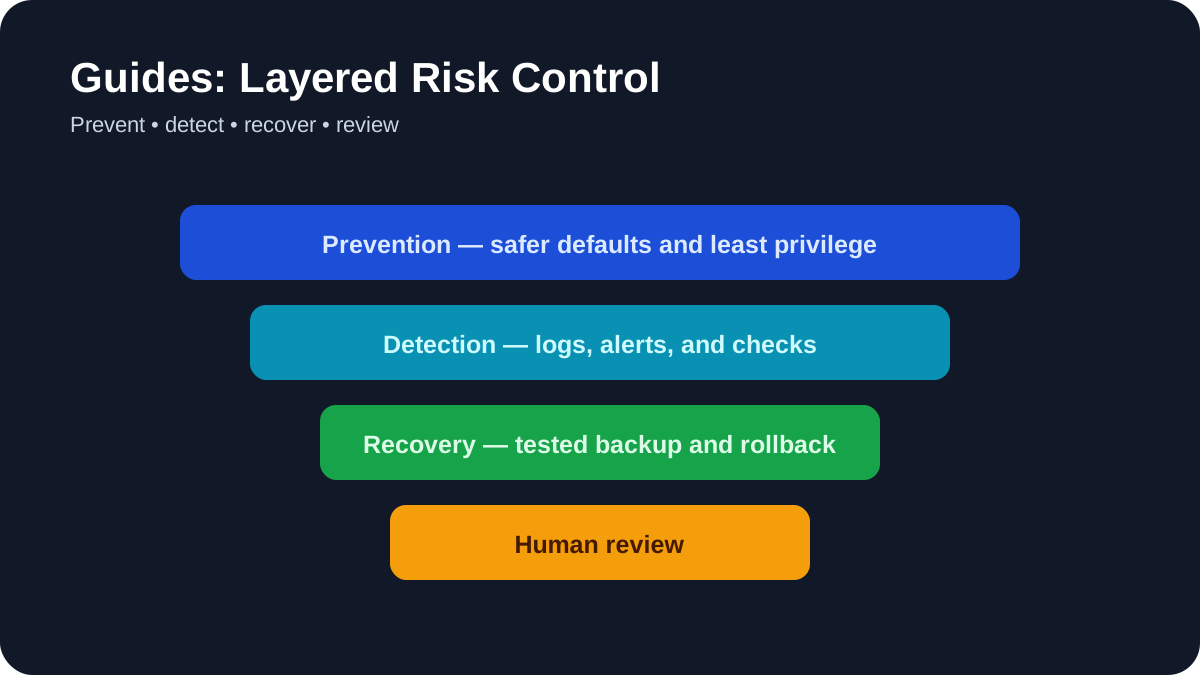
Layered Risk Control. Use prevention, detection, recovery, and human review together.
Moving an AI idea from a demonstration to a dependable system requires more than choosing a model. This implementation guide explains how to define the problem, create a baseline, build a limited prototype, evaluate failures, protect data, and introduce the system gradually.
Quick answer
Start with a documented user need and a non-AI baseline. Build the smallest reversible prototype, evaluate it with representative data, assign human accountability, and test security and failure handling before connecting production systems.
Best for: small teams planning an AI assistant, retrieval system, classifier, content workflow, or agent.
Phase 1: Define the decision and its consequences
Describe who will use the system, what information it receives, what it produces, and what happens if it is wrong. Separate low-impact assistance from decisions involving health, employment, finance, legal rights, safety, or access to essential services. High-consequence uses require qualified governance and domain expertise beyond a general tutorial.
Assign an owner before development begins. The owner is responsible for approving requirements, reviewing evidence, responding to incidents, and deciding when the system should be disabled.
Phase 2: Establish a baseline
Document how the work is completed today. Record quality criteria, turnaround time, common errors, operating cost, and user complaints where those measurements are legitimately available. An AI prototype should be compared with this baseline, not with an idealized promise.
Consider whether a search function, template, rule-based automation, or conventional software change can solve the problem more reliably. AI should be used because its capabilities match the task, not because it is fashionable.
Phase 3: Map data and permissions
List each data source, its owner, sensitivity, retention rule, and permitted use. Remove unnecessary personal information and secrets from development data. Use test accounts and synthetic examples where possible.
For integrations, grant access to the smallest required resource. Separate development and production credentials, store secrets outside source code, and define a revocation process. The NIST AI Risk Management Framework emphasizes mapping context and governing risk throughout the lifecycle rather than treating safety as a final checklist.
Phase 4: Build a narrow prototype
Limit the first version to one input path and one output. Keep model instructions, retrieval settings, prompts, schemas, and dependencies under version control. Record the model or service used and the date because hosted behavior can change.
If the system generates structured data, validate it against a schema. If it retrieves documents, show the source passages to the reviewer. If it can call tools, begin with read-only access and require approval before any consequential action.
Phase 5: Create an evaluation set
Build tests from realistic cases, including incomplete data, conflicting sources, unusual formatting, malicious instructions, and requests outside scope. Define success before running the system. Useful measures depend on the task and may include factual support, completeness, classification error, citation accuracy, refusal behavior, latency, cost, and human correction effort.
Do not rely only on an AI model to grade another AI model. Automated evaluation can help screen large sets, but important conclusions need human review and task-specific evidence.
Phase 6: Test retrieval and grounding
For retrieval-augmented generation, evaluate retrieval separately from generation. Confirm whether the system found the correct documents before judging the final answer. Test access control so users cannot retrieve material they are not authorized to view.
Require citations that point to accessible source material. A citation is not sufficient if the cited passage does not support the answer. Define what the system should do when no reliable source is available.
Phase 7: Threat-model the workflow
OWASP documents risks including prompt injection, sensitive information disclosure, supply-chain weaknesses, excessive agency, and improper output handling. Test whether untrusted documents or web pages can alter system instructions. Treat model output as untrusted input before passing it to code, databases, browsers, or external tools.
Set limits on actions, cost, runtime, and repeated calls. Log tool requests and human approvals. Never allow an agent to silently expand its own permissions.
Phase 8: Design human review
Human-in-the-loop must mean more than placing an approval button on the screen. Reviewers need the original input, relevant sources, uncertainty, changes made, and a practical way to correct or reject the result. Workload must be realistic; a reviewer cannot meaningfully inspect hundreds of high-risk outputs in seconds.
Document which decisions remain human responsibility. AILooma’s guide to using AI agents without losing control provides additional approval and audit-log patterns.
Phase 9: Prepare operations and rollback
Define monitoring, incident reporting, user feedback, model or dependency updates, backups, and rollback. Track changes to prompts, retrieval indexes, model versions, evaluation data, and permissions. Re-run important tests after each material change.
Create a kill switch that owners understand. Preserve a manual process for critical work until the new system has demonstrated reliable operation under normal conditions.
Phase 10: Release gradually
Begin with internal users, low-risk data, and limited scope. Review failures frequently, then expand only when evidence supports it. Tell users when they are interacting with AI and how to report a problem. Avoid presenting generated answers as authoritative when uncertainty remains.
Implementation readiness checklist
The user need and non-AI alternative are documented.
An accountable owner and escalation path exist.
Data sources, permissions, and retention are approved.
Evaluation includes normal, edge, and adversarial cases.
Sources and outputs can be inspected by reviewers.
External actions require appropriate approval.
Monitoring, versioning, rollback, and incident response are tested.
Users receive clear disclosure and a feedback path.
Final takeaway
A responsible AI implementation is a managed system, not a clever prompt. The strongest teams make scope, evidence, ownership, permissions, and rollback visible from the beginning. That discipline makes it easier to improve the system and safer to stop it when the evidence changes.
Practical example: moving an AI prototype toward production
Imagine an internal assistant that summarizes support tickets. Before launch, write a one-page release plan that names the users, allowed data, success measures, owner, escalation path, and rollback trigger.
Start with a small pilot group and synthetic or redacted examples.
Measure task success, citation quality, latency, cost, and the rate of human corrections.
Log prompts and outputs with access controls and a retention period.
Require a human approval step for external messages or consequential decisions.
Define how to pause the system, revert a prompt or model version, and notify users.
This turns “the demo works†into an accountable operating process. A production decision should be based on evidence from the intended workflow, not a single impressive sample.
Practical verification and limits
Define success and failure thresholds, assign an owner, test data quality and security, keep human approval for consequential actions, and document rollback conditions.
Editorial review and limitations
Reviewed by Femica Maydinda Harend. Recommendations are based on documented behavior and reproducible checks. Tools, models, and policies can change; verify current details before acting.
Layered Risk Control. Use prevention, detection, recovery, and human review together.
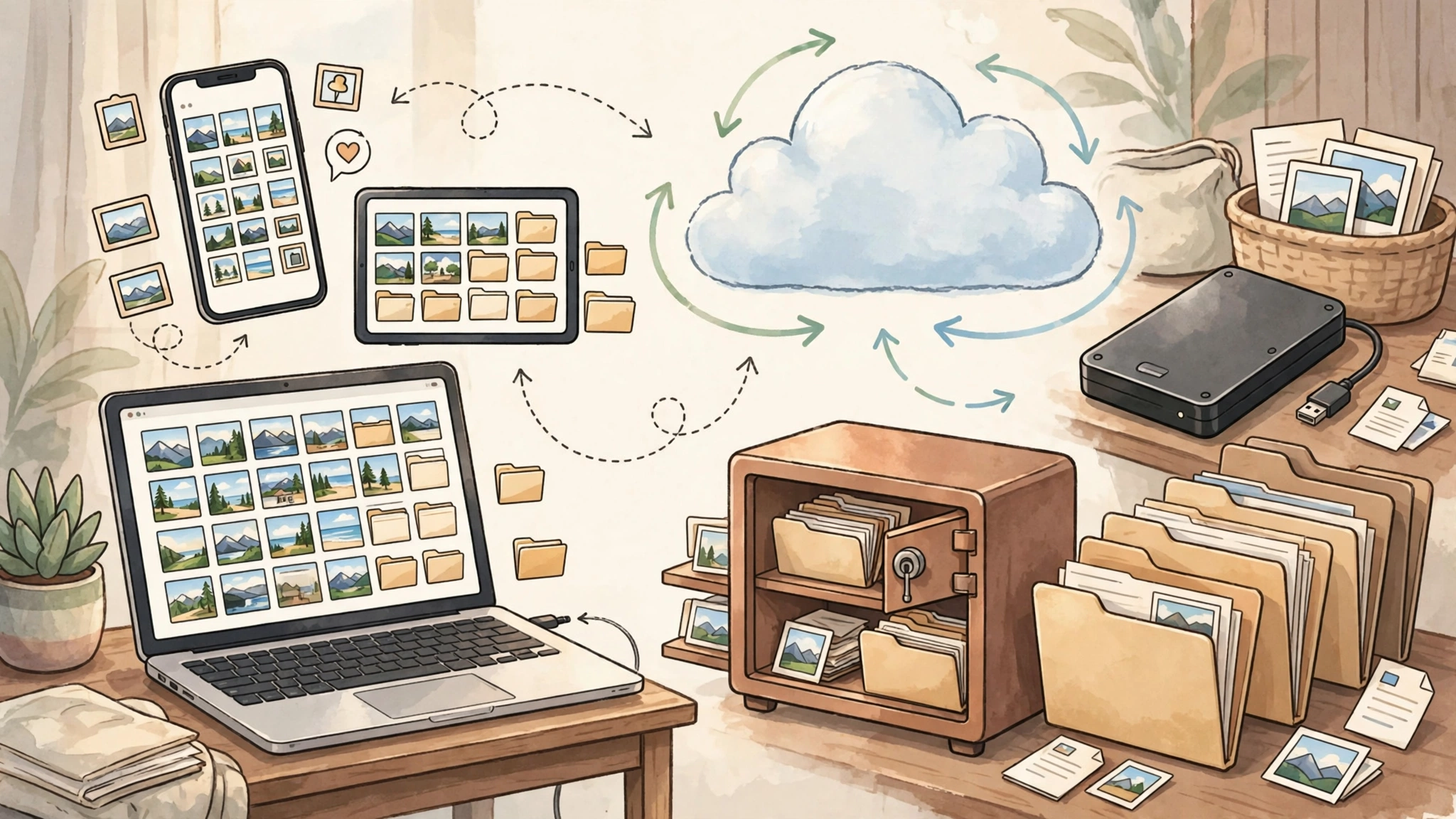
You probably already know that your photos, documents, messages, and important files should be backed up. The problem is that backup advice often becomes complicated very quickly.
Terms such as redundancy, retention, encryption, recovery keys, cloud sync, external drives, and the 3-2-1 rule can make a simple goal feel like an IT project.
This guide takes a simpler approach. The goal is to help you build a backup system that is easy enough to maintain, reliable enough to trust, and flexible enough to grow with your needs.
Why Simple Backups Are Easier to Maintain
A backup system is only useful if you continue using it.
A technically perfect setup that requires constant attention can be less practical than a simpler system that runs automatically and is tested occasionally.
The best approach is usually to reduce unnecessary decisions and focus on the data that would actually matter if it disappeared.
What Usually Makes Backups Feel Complicated?
Too many choices: several apps, drives, accounts, and settings.
Manual routines: needing to remember when to copy files.
Unclear recovery: not knowing whether the backup can actually be restored.
Mixed storage: personal files spread across devices, cloud services, external drives, and work accounts.
Overengineering: creating a system that is much more complex than your real needs.
A useful backup system should reduce uncertainty rather than create more of it.
Step 1: Identify What You Cannot Afford to Lose
Do not begin by trying to back up every file you own.
Start by identifying the data that would be difficult, expensive, or impossible to replace.
For Windows, Microsoft provides built-in backup and recovery options. Because Windows backup features have changed across versions, follow Microsoft’s current Windows support documentation for the version you use.
The main advantage of built-in tools is simplicity. They are integrated with the operating system and can often run automatically after initial configuration.
Layer 2: Cloud Storage or Cloud Backup
Cloud services are useful because they keep an additional copy away from your physical device.
Examples include:
Google Drive;
Google Photos;
iCloud;
OneDrive;
Dropbox;
dedicated cloud backup providers.
Before relying on a service, understand:
whether it provides sync, backup, or both;
how long deleted files are retained;
whether version history is available;
how account recovery works;
whether storage limits apply.
Layer 3: Offline Archive
An offline copy can protect against problems that affect both your device and online accounts.
For example, you can periodically copy your most important folders to an external HDD or SSD, then disconnect it.
This can help protect against:
ransomware;
accidental synchronization;
cloud account problems;
device failure;
internet outages.
The key word is offline. If the drive stays connected all the time, it may be affected by the same problems as the computer.
Step 5: Choose What Goes Into the Offline Archive
Your offline archive does not need to contain everything.
Good candidates include:
family photos and videos;
important personal documents;
tax records;
contracts;
original creative work;
research projects;
important exports from online services.
Use simple folder names that will still make sense years later.
Simple organization is usually easier to maintain than a complicated archive structure.
Step 6: Automate the Repetitive Parts
The more often a backup requires you to remember something, the more likely it is to be skipped.
Use automation where it reduces repetitive work.
Examples
enable automatic phone photo backup;
enable automatic device backups where supported;
schedule cloud backup software;
use a recurring calendar reminder for offline archives;
enable failure notifications for important backup jobs.
Automation should reduce maintenance, not hide the backup system completely.
You still need to know whether it is working.
Step 7: Use a Recurring Backup Reminder
If your offline backup is manual, create a recurring calendar event.
For example:
Quarterly Offline Backup
connect the external drive;
copy the important folders;
confirm the files are present;
safely eject the drive;
store it separately.
The exact frequency depends on how quickly your important data changes.
If you create important files every day, quarterly may be too infrequent. If your archive changes slowly, it may be sufficient.
Step 8: Test Recovery, Not Just Backup
A backup is only useful if you can restore from it.
Testing does not need to involve deleting your entire system or resetting your phone.
A simple test is enough.
Simple Recovery Test
Choose a non-critical file that exists in your backup.
Copy or move the original somewhere safe.
Restore the backed-up version.
Open it and verify that it works.
This checks whether the recovery path is understandable and functional.
Test Different Layers Occasionally
If you have several backup layers, test them separately.
For example:
restore one file from the operating-system backup;
download one file from cloud storage;
open one file from the offline archive.
You do not need to run a disaster simulation every month.
You simply need enough confidence that each recovery path still works.
Step 9: Document Your Recovery Process
During an actual data-loss event, stress can make even familiar steps harder to remember.
Create a short recovery note containing:
where your backups are located;
which cloud accounts are involved;
where recovery keys or backup codes are stored;
how to restore important files;
who to contact if professional help is needed.
Keep this document simple.
Do not store passwords or sensitive recovery secrets in an unsecured file.
Step 10: Secure the Accounts That Protect Your Backups
A cloud backup is only useful if you can safely access the account.
For important accounts:
use a unique password;
enable multi-factor authentication where available;
keep account recovery information current;
store backup codes safely;
review logged-in devices occasionally.
A password manager can make unique passwords easier to maintain.
Step 11: Encrypt Sensitive Data When Appropriate
Not every file requires the same level of protection.
Consider stronger protection for:
financial records;
identity documents;
confidential business files;
sensitive personal information;
client or regulated data.
Full-disk encryption such as FileVault on macOS or supported Windows device encryption can help protect data if a device is lost or stolen.
External backup drives may also support encryption.
Remember: encryption creates another recovery dependency. If you lose the password or recovery key, you may lose access to the backup.
Step 12: Store Recovery Keys Separately
Do not keep every recovery method inside the same device or account it is supposed to protect.
Possible approaches include:
a secure password manager;
a printed copy stored in a safe place;
a secure physical location separate from the primary device;
a trusted recovery contact where supported.
The goal is to avoid situations where losing one phone or account also removes your ability to recover everything else.
Step 13: Back Up Important App Data
Some applications store important information in their own cloud systems or proprietary formats.
Examples include:
note-taking apps;
password managers;
messaging apps;
journaling apps;
finance software;
project-management tools.
For important applications, ask:
Does this app back up automatically?
Can I export my data?
What format does the export use?
Can I open that export without the original service?
If an application contains irreplaceable information, periodically exporting that data may be worthwhile.
Step 14: Back Up Your Phone
Phones often contain some of the most personal data we own.
Depending on your device, backup options may include:
iCloud backup;
Google account backup;
photo and video cloud backup;
computer-based backups;
app-specific backup systems.
Do not assume every application is included in the system backup.
Messaging apps and authenticator apps may have their own recovery methods.
Check the official documentation for the apps that matter most to you.
Step 15: Back Up Social Media and Online Accounts
Many online platforms provide data export tools.
These exports can preserve things such as:
posts;
photos;
messages;
account history;
profile information.
If an account contains years of personal content, downloading an archive occasionally can provide an additional copy outside the platform.
Export options and file formats vary by service, so use the platform’s current official instructions.
Step 16: Do Not Reformat Your Only Archive
When maintaining offline backups, avoid destroying the only known-good copy simply to create a new one.
If possible, keep the previous backup until the new backup has been completed and checked.
This gives you a fallback if the new copy fails or is incomplete.
Step 17: Know When Your Setup Is Good Enough
A backup system does not need to preserve every temporary file forever.
Focus on the data that actually matters.
A reasonable personal setup might look like this:
automatic phone backup;
important documents synchronized to cloud storage;
local device backup;
periodic offline archive of irreplaceable files;
occasional recovery testing;
multi-factor authentication on important accounts.
If that system runs consistently and you understand how to recover your files, it may already be enough.
A Simple Backup Checklist
Use this checklist to review your setup:
Do I know which files are irreplaceable?
Do those files exist in more than one place?
Is at least one copy independent of my primary device?
Do I have an offline copy of my most important data?
Are my important cloud accounts protected with multi-factor authentication?
Do I know where my recovery keys are stored?
Have I successfully restored a test file?
Can I export important data from the apps I depend on?
If you can answer yes to most of these questions, your backup strategy is already stronger than simply trusting one device or one cloud account.
How This Guide Was Prepared
This guide focuses on practical personal backup principles rather than recommending one universal backup product.
Backup features, cloud retention periods, pricing, operating-system tools, and app export options can change over time.
Before configuring a specific product or service, check its current official documentation.
Frequently Asked Questions
How often should I back up my phone?
For most people, automatic backup is easier to maintain than manual backup.
The right frequency depends on how much important data you create and how much data you are willing to lose if the device fails.
If your phone contains important daily photos, documents, or messages, automatic daily or continuous cloud backup may be appropriate where supported.
Is Google Drive or iCloud enough?
They can be important parts of a backup strategy, but relying on a single service creates a single recovery dependency.
For irreplaceable files, an additional independent copy—such as an external drive—provides another recovery option.
What is the cheapest reliable backup setup?
There is no fixed price because storage requirements vary.
A simple setup can often use:
built-in operating-system backup tools;
cloud storage you already use;
one external HDD or SSD for offline copies.
Check current storage prices and choose capacity based on your actual data size rather than buying a specific product only because it is popular.
Can I back up without an internet connection?
Yes.
External HDDs, SSDs, local NAS devices, and other local storage options can create backups without an internet connection.
An offline copy is particularly useful because it is independent of your cloud account and internet connection.
Do I need the 3-2-1 backup rule?
The 3-2-1 principle is a useful framework: multiple copies, more than one type of storage, and at least one copy stored separately.
You do not need to follow it mechanically if that makes your system too complicated.
The important idea is avoiding a situation where one failure can destroy every copy of important data.
Final Takeaway
Backing up your digital life does not need to feel like managing enterprise infrastructure.
Start with the files that matter most.
Keep more than one copy.
Use automatic tools where they reduce repetitive work.
Keep an offline copy of irreplaceable data.
Protect the accounts that give you access to your backups.
And occasionally restore a file to make sure the system actually works.
A backup strategy succeeds when it is simple enough that you continue using it and reliable enough that a failed device does not become a disaster.
Practical example: checking whether a backup can actually be restored
A backup is only useful if the important files can be recovered. Pick a small, non-sensitive sample and perform a test restore to a separate folder or spare device. If you already have a Windows backup job and want to track whether it ran, see our guide to backup-job monitoring; the spreadsheet records status, not the backup itself.
List the files and settings the backup is meant to protect.
Confirm the backup date, location, encryption, and retention period.
Restore the sample without overwriting the original files.
Open the restored files and check permissions and versions.
Record the steps and the time required so someone else can repeat them.
Schedule a restore test whenever the backup method changes. Recovery evidence is more valuable than a green “backup complete†message by itself.
Practical verification and limits
Keep three copies on two storage types with one separated from the device, protect accounts and keys, and perform a restore test before trusting the backup plan.
Editorial review and limitations
Reviewed by Femica Maydinda Harend. This guidance favors reproducible, reversible steps. Features and policies can change, so verify current details before acting.
Layered Risk Control. Use prevention, detection, recovery, and human review together.
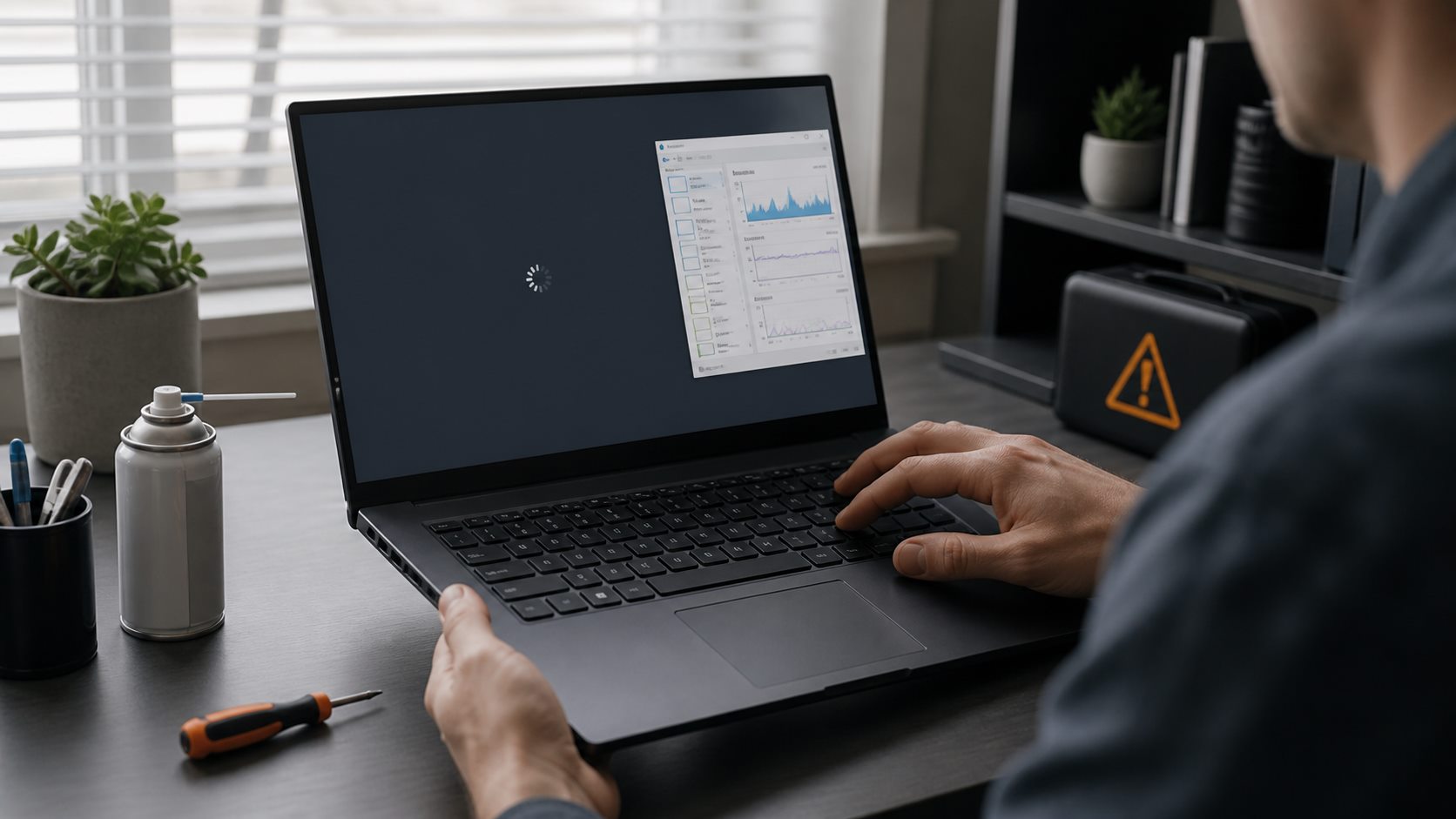
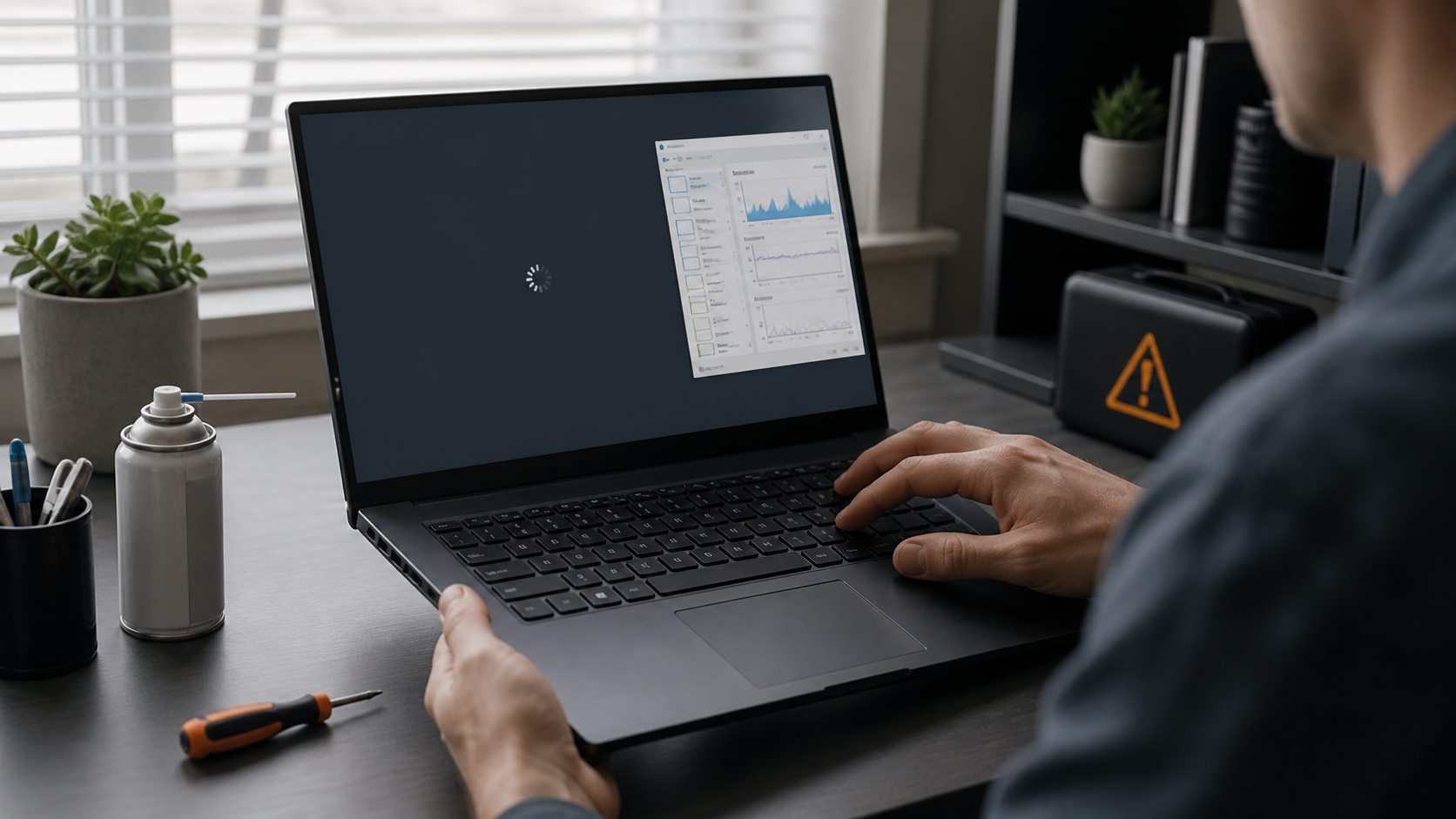
A frozen laptop can have many causes: one application may be stuck, Windows may be under memory or storage pressure, a driver may be unstable, or hardware may be failing. The safest way to find the cause is to protect your data, record the pattern, and change one thing at a time.
Quick answer
Back up important files first. Check whether the entire system or only one application freezes, then review heat, Task Manager, storage health, Windows and driver updates, malware, startup software, system files, power behavior, and hardware diagnostics. Use recovery options only after the less invasive checks.
Stop and seek repair: if the battery is swollen, the laptop smells electrical, liquid entered the device, the drive reports a serious health warning, or the system cannot remain stable long enough to copy important data.
1. Record what actually freezes
Before changing settings, write down what you see. Can the pointer move? Does Ctrl + Shift + Esc open Task Manager? Does audio continue? Does the problem occur on battery, while charging, after sleep, or only in one application?
Also note recent software, driver, peripheral, or Windows changes. A consistent trigger is more useful than a guess about the cause. If the laptop becomes responsive again, save open work and copy irreplaceable files before continuing.
2. Check heat and airflow
Place the laptop on a hard, flat surface and make sure the intake and exhaust vents are not blocked. A fan that grinds, stops under load, or runs at full speed while the case becomes unusually hot may indicate an airflow or cooling problem.
Shut the laptop down before cleaning exterior vents. Follow the manufacturer’s service instructions; opening the chassis, disconnecting a battery, or replacing thermal material may require tools and experience. Temperature limits differ by processor and laptop design, so use the device or component manufacturer’s specifications instead of a universal threshold.
3. Look for resource pressure in Task Manager
Open Task Manager and review the Processes and Performance pages. Watch CPU, Memory, and Disk while reproducing the problem. A process that remains unusually busy can be a useful lead, but a short spike does not prove that the process is defective.
If one application consumes increasing memory, update it, disable its extensions, or test a clean profile. If total memory remains close to full during normal work, close unused applications and reduce startup items before considering a hardware upgrade. Do not end unfamiliar Windows processes at random.
4. Check free space and storage health
Low free space can interfere with updates, temporary files, and virtual memory. Open Settings → System → Storage and review the categories before deleting anything. Storage Sense can remove selected temporary content, but confirm its settings first.
Back up immediately if the drive disappears, produces read errors, makes unusual mechanical noises, or a vendor diagnostic reports a serious warning. SMART values are vendor-specific; do not judge every SSD by a single universal number. Use the laptop or drive manufacturer’s diagnostic tool where available.
For file-system checks, begin with a read-only or online scan appropriate to the drive and follow Microsoft’s current documentation. Commands that schedule repairs or scan every sector can take a long time and should not be the first experiment on a failing drive.
5. Install Windows and manufacturer-approved updates
Check Settings → Windows Update, then restart. For firmware, chipset, graphics, audio, storage, and power-management drivers, use the support page for the exact laptop model. Do not use an unrelated driver package simply because the component name looks similar.
If freezing began immediately after a specific driver update, Device Manager may offer Roll Back Driver. Record the current version first. BIOS or UEFI updates need uninterrupted power and the exact package for the model; follow the manufacturer’s instructions rather than a generic flashing guide.
6. Scan for malware with Windows Security
Open Windows Security → Virus & threat protection, check that protection is active, and run an appropriate scan. An offline scan can help when persistent malware is suspected.
Do not identify malware only from a process name or high resource use. Legitimate Windows services can be busy during updates, indexing, or security scans. Review file location, publisher information, and Windows Security results before taking action.
7. Test for startup software conflicts
Disable non-essential startup applications through Task Manager, restart, and test. If that is not enough, Microsoft’s clean-boot procedure can start Windows with a reduced set of non-Microsoft services and startup programs.
Hide Microsoft services before disabling services in System Configuration. Re-enable items in small groups to isolate the conflict, and return the PC to normal startup afterward. On organization-managed devices, ask the administrator before changing security or management software.
8. Repair Windows system files
Microsoft’s current guidance runs Deployment Image Servicing and Management before System File Checker. Open Command Prompt as administrator and run:
Allow each command to finish and read the result instead of assuming a successful repair. DISM may use Windows Update as a repair source. These tools repair Windows components; they do not fix defective memory, storage, cooling, or power hardware.
9. Compare battery and plugged-in behavior
Test with the manufacturer-approved power adapter and disconnect unnecessary peripherals. If freezes occur only with one charger, dock, USB device, or power mode, remove that variable and test again.
Restore the default Windows power plan before applying advanced tweaks. Disabling processor power states or forcing maximum performance can increase heat and battery use without addressing the cause. For a swollen or damaged battery, stop using the device and arrange safe service.
10. Run memory and manufacturer diagnostics
Windows Memory Diagnostic can perform a basic memory check after a restart. Many laptop manufacturers also provide pre-boot diagnostics for memory, storage, battery, fan, and system-board errors. Record any error code exactly.
A memory error can come from a module, slot, or system-board problem and should be investigated before normal use continues. Avoid probing live power circuits or disassembling a laptop unless you have the correct service documentation and electrical safety experience.
11. Use Windows recovery options carefully
If the problem began after a known system change, System Restore or removal of the relevant update may be appropriate. Windows also offers Startup Repair, reset, and reinstall options for different failure scenarios.
Read what each option preserves before proceeding and make a separate backup. A Windows reinstall can resolve software corruption, but it cannot repair failing hardware. If freezing continues after clean software tests or diagnostics report an error, professional hardware service is the safer next step.
What not to do
Do not install bulk “driver updater” or registry-cleaner software as a first fix.
Do not disable Windows security, diagnostic, or update services based on an unverified optimization guide.
Do not flash firmware for another model.
Do not repeatedly stress-test a drive that is reporting errors before backing it up.
Do not change several drivers, services, and power settings at once; you will lose the ability to identify the cause.
Freezing versus a generally slow PC
A laptop that remains responsive but feels consistently slow needs a slightly different process. Use How to Fix a Slow Windows 11 PC for a focused performance checklist.
Practical verification checklist
Back up important data.
Record whether one app or the entire system freezes.
Check airflow and compare battery, charger, and peripheral conditions.
Observe CPU, memory, and disk behavior in Task Manager.
Review storage health, Windows updates, and exact-model drivers.
Scan with Windows Security and test a reduced startup environment.
Run DISM before SFC according to Microsoft guidance.
Use hardware diagnostics and preserve any error codes.
Editorial review and accountability
Written and reviewed by Femica Maydinda Harend. This guide provides general troubleshooting information. Back up important data and consult the device manufacturer or a qualified technician for electrical damage, battery swelling, firmware recovery, or hardware repair beyond your experience.
Write down whether one app or the whole system freezes, what workload was running, whether the laptop was plugged in, and any recent update or hardware change. Observe CPU, memory, disk, and temperature behavior before disabling services or installing cleaners. Change one variable at a time and keep a dated log so the result can be reproduced.
Hardware warning signs
Back up immediately and stop testing for a swollen battery, liquid damage, electrical smell, extreme heat, repeated drive errors, or a damaged charging port. These symptoms require qualified repair rather than more software tweaks.
Editorial review and limitations
Reviewed by Femica Maydinda Harend. This article distinguishes documented behavior from editorial judgment and uses checks readers can reproduce. Features, prices, interfaces, and compatibility may change; verify current details before making consequential changes.
Layered Risk Control. Use prevention, detection, recovery, and human review together.
A slow Windows 11 PC is usually caused by one or more of four things:
resource-heavy apps, too many startup processes, low free storage, or aging
hardware. Work through the checks below in order. They use built-in Windows
tools and avoid risky registry “optimizers” and blanket service-disabling
scripts.
1. Restart, then reproduce the problem
Restart the PC—not Shut down—and open only the apps needed to reproduce the
slowdown. A restart clears stalled processes and completes some updates. Note
whether the problem affects startup, one application, internet access, or the
entire system.
2. Find the bottleneck in Task Manager
Press Ctrl + Shift + Esc and open the Processes tab. Sort by
CPU, Memory, and Disk. A brief spike is normal; a process that remains near
the top while the PC is idle deserves attention.
Save work before ending an app. Do not end unfamiliar Windows processes. If
one application is consistently responsible, update, repair, reinstall, or
replace that application rather than changing unrelated system settings.
3. Reduce startup apps
In Task Manager, open Startup apps. Disable non-essential
applications that do not need to launch when you sign in, such as game
launchers or vendor utilities you rarely use. Leave security software and
required accessibility or hardware tools enabled.
4. Install Windows and optional driver updates
Go to Settings → Windows Update and check for updates. Then
review Advanced options → Optional updates for relevant
drivers. Restart after installation.
For a persistent graphics, chipset, or storage problem, use the PC or
component manufacturer’s official support page. Avoid third-party “driver
updater” utilities.
5. Free storage safely
Open Settings → System → Storage. Review Temporary files
before removing them, then enable Storage Sense if you want Windows to clean
temporary items automatically. Keep a comfortable amount of free space on the
system drive so updates and applications can work normally.
Do not manually defragment an SSD with old third-party tools. Windows’
Optimize Drives feature selects an appropriate optimization for the drive
type.
6. Scan for malware
Open Windows Security → Virus & threat protection and run
a Quick scan. If you see unexplained pop-ups, browser redirects, unknown
startup entries, or continuing high resource use, run a deeper scan. Do not
disable Microsoft Defender as a performance “fix.”
7. Close background load
Browser tabs, synchronization tools, video calls, launchers, and development
environments can consume substantial memory. Close what you are not using and
pause large sync or download jobs while doing demanding work. Uninstall
software you no longer need through Settings → Apps → Installed apps.
8. Adjust visual effects and power mode
Search for Adjust the appearance and performance of Windows.
On older hardware, reducing animation and transparency can improve
responsiveness. You can also review Settings → System → Power & battery → Power mode. A
performance-oriented mode may use more power and make a laptop run warmer, so
use it when appropriate.
9. Check system files
If Windows features crash or behave incorrectly, open Terminal as
administrator and run:
Allow each command to finish. These tools repair Windows components and
protected system files; they are not general speed boosters.
10. Check heat and hardware limits
A blocked vent or failing fan can cause thermal throttling. Turn off the PC
before clearing external vents, keep laptops on a hard surface, and seek
service if the fan grinds or the chassis becomes unusually hot.
Windows 11’s minimum 4 GB of RAM is enough to meet the requirement, not
necessarily enough for comfortable multitasking. If memory stays nearly full
or storage is constantly saturated after the software checks, a RAM or SSD
upgrade may provide the largest improvement—if the device supports it.
If the computer locks up completely rather than remaining responsive but slow,
use the separate diagnostic sequence in Why Your Laptop Keeps Freezing.
When repair or reinstall becomes reasonable
Back up important files first. Windows 11 includes a recovery option that can
reinstall the current version through Windows Update while preserving apps,
files, and settings on supported systems. Use Settings → System → Recovery and follow Microsoft’s current
instructions. A full clean installation should be a later option, not the
first response to a slow afternoon.
What to avoid
Registry cleaners and “one-click optimizer” apps.
Disabling security software, Windows Update, the page file, or a long list
of services.
Installing drivers from download aggregators.
Changing several advanced settings at once with no baseline or rollback
plan.
First note when the slowdown occurs and whether CPU, memory, disk activity, temperature, or one application is responsible. Use Task Manager and Windows Security to observe the system before disabling services or installing cleaners. Back up important files, change one variable at a time, and record whether the same workload improves.
When to stop troubleshooting
Stop and seek qualified repair if the drive reports errors, the battery is swollen, liquid damage is present, the machine becomes dangerously hot, or an electrical smell appears. Software steps cannot safely repair failing hardware, and repeated forced shutdowns can worsen data loss.
Editorial review and limitations
Reviewed by Femica Maydinda Harend. This article separates documented behavior from editorial judgment and uses practical checks that readers can reproduce. Features, prices, interfaces, and compatibility may change; verify current details with the provider before making a consequential decision.